
In the digital realm, efficiency and organization are paramount. Whether you’re a student downloading research papers, a professional sharing large project files, or simply managing your personal digital life, the ability to handle files effectively is crucial. One of the most ubiquitous and powerful tools for this purpose, often taken for granted, is the zipped folder. Far from being just a quirky icon on your desktop, zipped folders, also known as archives, are fundamental to how we store, transfer, and manage data. They represent a cornerstone of digital file management, offering solutions to common challenges like limited storage space and slow internet transfer times. Understanding what zipped folders are, how they work, and their various applications can significantly enhance your digital productivity and security.
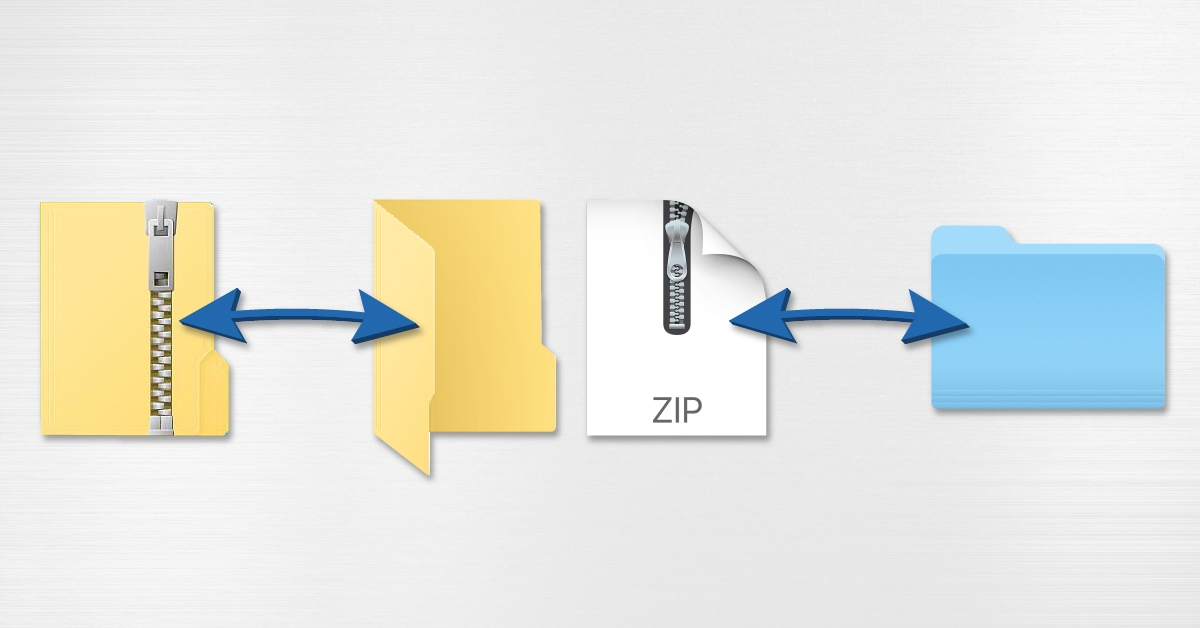
The Core Concept: Compression and Archiving
At its heart, a zipped folder is an archive file that uses a compression algorithm to reduce the size of one or more files and folders. Think of it like vacuum-sealing your physical belongings to save space in a suitcase. The process involves analyzing the data within the files and identifying patterns or redundant information that can be represented more concisely. This reduction in size has profound implications for how we interact with digital information.
How Compression Works: Algorithms and Efficiency
The magic behind zipped folders lies in the sophisticated compression algorithms employed. These algorithms are essentially sets of rules and instructions that the software follows to rewrite the data in a more compact form. There are two primary types of compression: lossless and lossy.
Lossless Compression: Preserving Every Bit
For zipped folders, the most common and essential type of compression is lossless compression. This means that when you “unzip” the folder, every single bit of the original data is perfectly reconstructed. No information is lost in the process. Common lossless compression algorithms used in zipped folders include DEFLATE, LZMA, and BZIP2. These algorithms work by finding repetitive sequences of data and replacing them with shorter codes. For example, if a document contains the phrase “the quick brown fox jumps over the lazy dog” many times, the algorithm might assign a short code to this entire phrase. When unzipping, the software knows to replace that code with the full phrase, ensuring perfect fidelity. The effectiveness of lossless compression varies depending on the type of data. Text files, for instance, tend to compress very well because they contain a lot of repetitive characters and patterns. Images and audio files, especially those already compressed using formats like JPEG or MP3, might see less significant size reduction.
Lossy Compression: Trade-offs for Size
While not typically the primary method for standard zipped folders intended for general data archival, it’s worth noting the existence of lossy compression. This type of compression achieves much higher compression ratios by discarding some of the original data that is deemed less important or imperceptible to human senses. This is commonly used for multimedia files like images (JPEG) and audio (MP3) where a slight degradation in quality is acceptable for a significant reduction in file size. However, for general file archiving where data integrity is paramount, lossless compression remains the standard for zipped folders.
The Archiving Process: Bundling Multiple Files
Beyond just compressing individual files, zipped folders also serve as excellent archives. This means they can bundle multiple files and even entire directory structures into a single file. This is incredibly useful for several reasons. Firstly, it simplifies the management of numerous files. Instead of juggling dozens or hundreds of individual files, you have one consolidated unit. This reduces clutter and makes it easier to keep related documents together. Secondly, when transferring files, sending a single zipped archive is far more efficient than sending each file separately. It streamlines the download and upload process, and it reduces the chances of missing individual files.
Creating and Extracting Zipped Folders: Practical Applications
The power of zipped folders lies in their accessibility and ease of use across various operating systems. Most modern computers come with built-in support for creating and extracting zipped files, making it a seamless part of daily digital workflows.
Creating Zipped Folders: Simplifying File Management
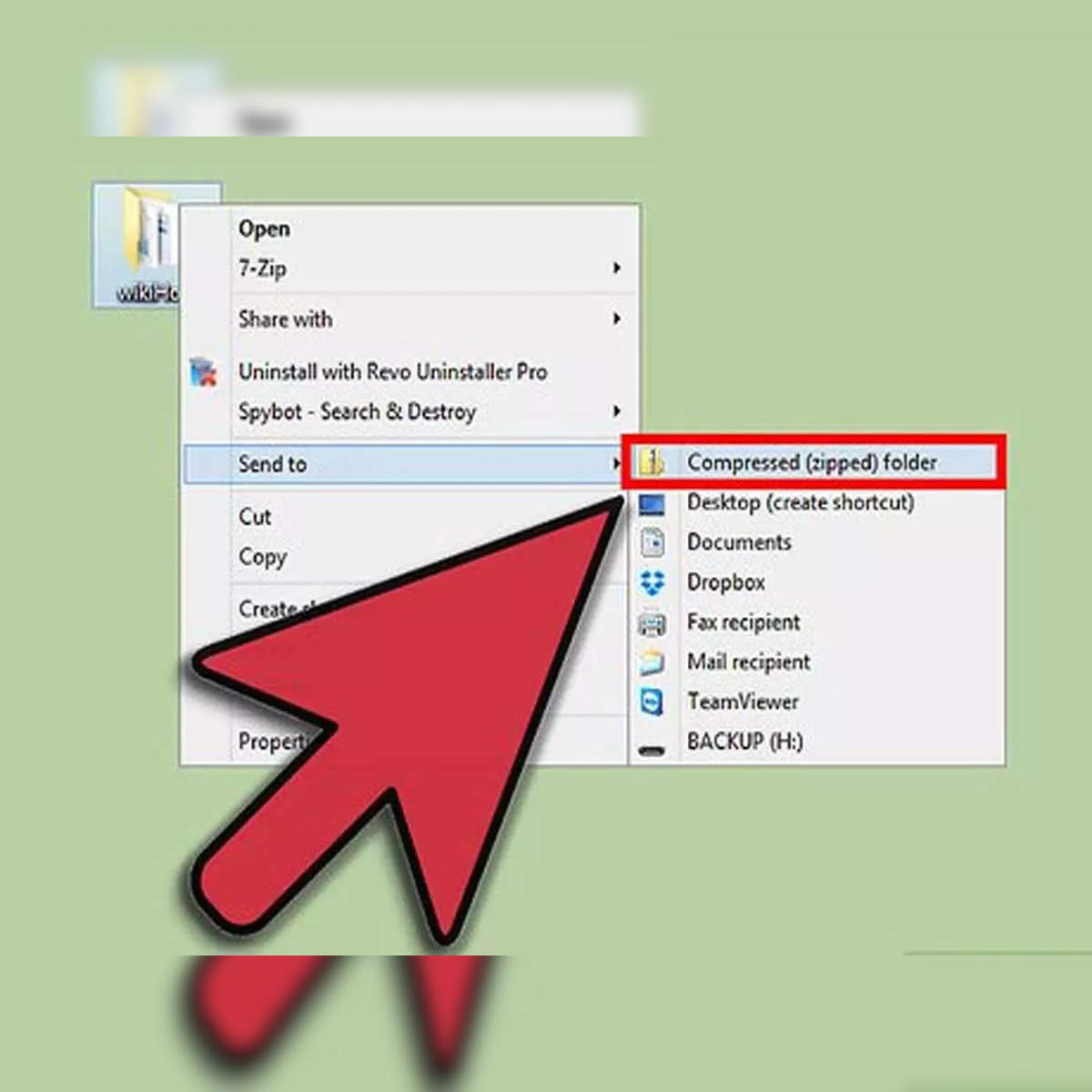
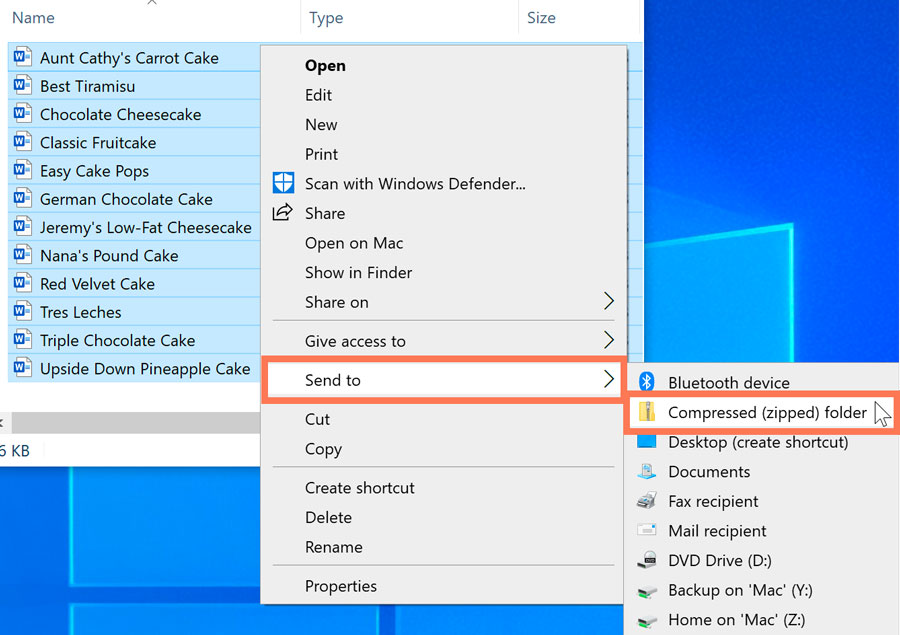
The process of creating a zipped folder is generally straightforward. On Windows, you can typically right-click on one or more files or folders, navigate to “Send to,” and select “Compressed (zipped) folder.” On macOS, you can select the desired files or folders, right-click, and choose “Compress [Number] Items.” Many third-party applications also offer more advanced features for creating zipped files, including password protection, different compression levels, and the ability to create self-extracting archives (SFX) that don’t require the recipient to have unzipping software.
Common Use Cases for Zipping Files:
- Email Attachments: Zipping large files or multiple files before emailing them reduces their size, making them easier to send and download, and often fitting within email attachment size limits.
- Software Downloads: Many software installers and application packages are distributed as zipped files to make them smaller and easier to download.
- Backup and Archival: Zipping older or infrequently accessed files can save significant storage space on your hard drive or cloud storage.
- Organizing Projects: Consolidating all the files for a specific project into a single zipped folder keeps everything tidy and makes it easy to share the entire project with colleagues or collaborators.
- Transferring Files: When moving files between computers or sharing them online, a zipped folder can be more convenient and faster to transfer than many individual files.
Extracting Zipped Folders: Accessing Your Data
To access the files contained within a zipped folder, you need to “unzip” or “extract” them. This process reverses the compression and archiving performed when the zip file was created. On Windows, you can usually double-click a zipped folder to open it like a regular folder. Then, you can drag and drop individual files out of the zipped folder into another location on your computer, or select all files and click the “Extract all” button. On macOS, you can simply double-click the zipped file, and it will automatically extract its contents into a new folder in the same location. Again, dedicated archiving software often provides more options, such as extracting specific files or extracting to a custom location with just a few clicks.
Understanding Extraction Options:
- Extract All: This is the most common option, which decompresses and unpacks all files and folders from the archive into a designated location.
- Extract Files: Allows you to choose specific files from within the archive to extract, rather than the entire contents.
- Extract to [Folder Name]: Often, the unzipping software will automatically suggest a folder name based on the zipped file’s name, making it easy to keep organized.
Beyond Basic Zipping: Advanced Features and Alternatives
While the core functionality of creating and extracting zipped folders is simple, the technology has evolved to offer more advanced features and has spawned alternative archiving formats, each with its own strengths and weaknesses.
Enhanced Security and Functionality: Password Protection and More
One of the most valuable advanced features of many archiving tools is password protection. When you create a zipped folder with a password, the contents are encrypted. This means that anyone who attempts to unzip the folder will be prompted for the password before they can access the files. This is an excellent way to protect sensitive information during transfer or storage. The strength of the encryption depends on the algorithm used and the complexity of the password.
Other advanced features can include:
- Splitting Archives: For extremely large files, some software allows you to split a single archive into multiple smaller files. This is useful for transferring files over media with limited capacity or for easier management.
- Creating Self-Extracting Archives (SFX): These are executable files that contain the compressed data and the unzipping program itself. When the SFX file is run, it automatically extracts the contents, meaning the recipient doesn’t need separate unzipping software.
- File Integrity Checks: Many archiving tools can perform checksums or verify the integrity of the extracted files to ensure that no data corruption occurred during the compression or transfer process.
Exploring Alternative Archiving Formats: RAR, 7z, and Tarballs
While ZIP is the most widely recognized format, it’s not the only player in the archiving world. Several other formats offer different features and compression efficiencies.
RAR (Roshal Archive):
Developed by Eugene Roshal, RAR is a proprietary archive file format known for its excellent compression ratios, often outperforming ZIP. It also supports features like recovery records, which can help repair corrupted archives. However, creating RAR files typically requires third-party software like WinRAR, and while extraction is widely supported, full native creation support isn’t as common as with ZIP.
7z (7-Zip):
The 7z format, associated with the open-source 7-Zip archiving utility, is another strong contender. It boasts superior compression ratios, especially when using its LZMA2 compression algorithm, often achieving smaller file sizes than both ZIP and RAR. 7-Zip is free and open-source, making it a popular choice for those seeking powerful compression without licensing fees.
Tarballs (e.g., .tar, .tar.gz, .tar.bz2):
Commonly found in Unix-like operating systems (Linux, macOS), tarballs are not strictly compressed archives in the same way as ZIP or RAR. A tar file (Tape Archive) is simply a way to bundle multiple files and directories into a single file, preserving file permissions and directory structures. However, tarballs are very often compressed using utilities like gzip (.tar.gz) or bzip2 (.tar.bz2). This combination provides both archiving and compression, with gzip offering faster compression and decompression and bzip2 generally achieving higher compression ratios.
The Enduring Relevance of Zipped Folders in the Digital Age
In an era of cloud storage, instant messaging, and ever-increasing internet speeds, one might wonder if the humble zipped folder still holds its ground. The answer is a resounding yes. Zipped folders remain an indispensable tool for several key reasons, proving their enduring relevance in our digital lives.
Storage Efficiency: Maximizing Digital Real Estate
The primary benefit of zipped folders is their ability to reduce file sizes. This translates directly into more efficient use of storage space, whether on your local hard drive, an external drive, or in the cloud. For individuals and businesses alike, optimizing storage is a constant concern. Zipping large collections of documents, photos, or videos can free up valuable gigabytes, delaying the need for expensive storage upgrades and making backups more manageable. For IT departments, it means potentially reducing the cost associated with storing vast amounts of data.
Transfer Speed and Bandwidth Optimization: A Faster Digital Highway
Larger files take longer to upload and download. By compressing files into a zipped folder, you significantly reduce the amount of data that needs to be transmitted over a network. This is particularly crucial in environments with limited bandwidth or slow internet connections. For professionals who frequently share large datasets or media files with remote colleagues or clients, zipped folders can mean the difference between a timely delivery and a frustratingly long wait. Even with high-speed internet, smaller files mean quicker transfers, allowing for more efficient workflows and less downtime.
Organization and Simplicity: Taming the Digital Chaos
In an increasingly data-heavy world, organization is key. Zipped folders provide a simple yet effective way to bundle related files together. Instead of navigating through multiple subfolders to find all the components of a project, you can simply compress them into one package. This is invaluable for project management, ensuring all necessary documents, images, and other assets are kept together. When sharing such projects, sending a single zipped file is far less prone to error than trying to manage a complex folder structure. It simplifies sharing, receiving, and archiving of information.
Data Integrity and Security: Protecting Your Information
As mentioned earlier, the lossless nature of most zip compression ensures that no data is lost during the process, preserving the integrity of your files. Furthermore, the optional password protection and encryption features offered by many zip utilities provide a crucial layer of security. In a world where data breaches and unauthorized access are constant threats, encrypting sensitive files before storing or transmitting them is a vital practice. This makes zipped folders a valuable tool for personal privacy and business confidentiality.
In conclusion, zipped folders are far more than just a technical detail; they are a fundamental building block of efficient and secure digital interaction. Their ability to compress, archive, and protect files makes them an essential tool for everyone, from the casual computer user to the most demanding IT professional. Understanding and leveraging the power of zipped folders can significantly streamline your digital life, save you time and resources, and help keep your valuable data safe.
aViewFromTheCave is a participant in the Amazon Services LLC Associates Program, an affiliate advertising program designed to provide a means for sites to earn advertising fees by advertising and linking to Amazon.com. Amazon, the Amazon logo, AmazonSupply, and the AmazonSupply logo are trademarks of Amazon.com, Inc. or its affiliates. As an Amazon Associate we earn affiliate commissions from qualifying purchases.