
In an era where our smartphones have become extensions of ourselves, housing countless applications, understanding how these apps operate – and specifically, how they “uninstall” – is paramount. The seemingly simple act of removing an app from your iPhone carries a surprising amount of nuance, impacting everything from your device’s storage and performance to your personal privacy and digital security. For the savvy tech user, the discerning brand builder, and the financially conscious individual, grasping the intricacies of app uninstallation on iOS is more than just a technical detail; it’s a foundational element of effective digital hygiene and data management.
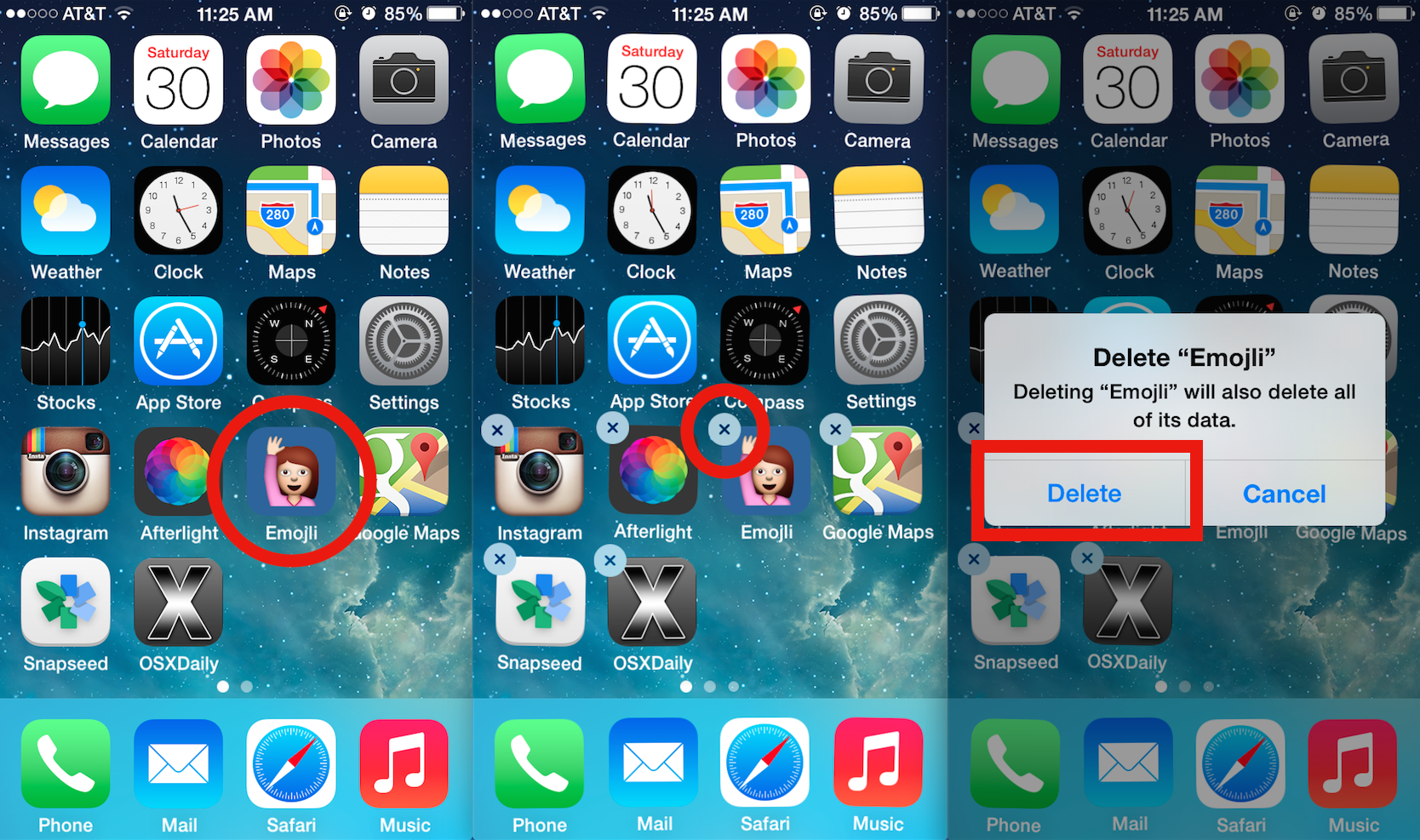
On an iPhone, the term “uninstalled app” isn’t as straightforward as it might appear. It often conjures images of an application completely vanishing from existence, along with any trace of its data. However, Apple’s iOS offers a more sophisticated, and sometimes perplexing, approach to app removal, primarily distinguishing between two key actions: “Deleting an App” and “Offloading an App.” This distinction is critical for anyone looking to truly manage their digital footprint, optimize their device, and safeguard their personal information.
This article delves into the core definitions, exploring the practical implications of each uninstallation method. We’ll uncover where “uninstalled” app data truly resides, examine the often-overlooked privacy and security risks associated with lingering digital traces, and provide actionable strategies for mastering your iPhone’s app ecosystem. Beyond the technicalities, we’ll also connect these practices to broader themes of personal finance, digital branding, and overall technological literacy, ensuring a holistic understanding of this fundamental smartphone operation.
The Nuance of “Uninstallation” on iOS
The first step to effective app management on your iPhone is to understand that not all app removals are created equal. Apple provides two distinct methods for ridding your home screen of an app icon, each with different consequences for your device’s storage and the data associated with that application.
Deleting vs. Offloading: A Crucial Distinction
When you long-press an app icon on your iPhone, you’re typically presented with a menu that includes “Remove App.” Tapping this option then offers a further choice: “Delete App” or, for apps that aren’t system-critical, “Remove from Home Screen” (which moves it to the App Library) and potentially “Offload App.” Understanding the difference between these two primary actions is fundamental.
Deleting an App
Choosing “Delete App” is the most comprehensive form of uninstallation on an iPhone. When you select this option, iOS attempts to remove:
- The application itself: The executable code and assets required for the app to run.
- All of its associated data: This includes user preferences, cached files, login tokens, locally stored documents, and any other data that the app has saved directly onto your device’s internal storage.
From a user’s perspective, this means the app icon vanishes from your Home Screen and App Library, and the storage space it occupied is largely freed up. If you later decide to reinstall a deleted app, you’ll download it fresh from the App Store, and typically, it will behave as if it’s being used for the first time, requiring you to log in again and set up preferences. This is the closest iOS gets to a complete “clean slate” removal directly from your device.
Offloading an App
“Offloading an App” is a unique iOS feature designed primarily for storage management. When you offload an app, iOS performs the following actions:
- Removes the application itself: Similar to deleting, the core app executable and its assets are removed from your device. This frees up the bulk of the storage space consumed by the app.
- Retains all of its associated data: Crucially, all user data, documents, settings, and other app-specific information are preserved on your device.
The primary benefit of offloading is that it allows you to temporarily reclaim significant storage space without losing your personalized app data. The app icon remains on your Home Screen and in the App Library, but it will have a small cloud icon next to its name, indicating it has been offloaded. If you tap an offloaded app’s icon, iOS will automatically re-download the application from the App Store, and once installed, the app will launch with all your previous data and settings intact, as if it was never removed. This is incredibly useful for apps you use infrequently but want to keep personalized data for, or for when you’re critically low on storage but anticipate needing the app again soon.
Where Do “Uninstalled” Apps Go?
Even when an app is “uninstalled” – especially if offloaded – it doesn’t simply vanish into the ether. Its presence, or at least its potential to return, remains recorded in various corners of your iPhone’s operating system and Apple’s services.
- The App Library: Introduced in iOS 14, the App Library serves as an organized collection of all apps installed on your device, even those not visible on your Home Screen. If you offload an app, its icon with the cloud symbol will still appear here, making it easy to locate and reinstall. If you only “Remove from Home Screen,” the app fully resides in the App Library.
- App Store: Whether deleted or offloaded, if you wish to reinstall an app, the App Store is your gateway. It keeps a record of all apps you’ve ever “purchased” (even free ones) under your Apple ID, allowing for easy re-downloading without searching.
- iPhone Storage Settings: Navigate to Settings > General > iPhone Storage, and you’ll find a detailed breakdown of how your storage is being used. Here, every app, whether installed, offloaded, or even deleted (with its remaining data still accounted for), will be listed. For offloaded apps, you’ll see the amount of space saved by offloading, and the “Documents & Data” size will reflect the remaining data. For fully deleted apps, any lingering data that iOS hasn’t purged might still be briefly visible before it’s truly gone.
- iCloud Backup: When your iPhone performs an iCloud backup, it often includes app data. If you offload an app, its preserved data will be part of the backup. Even if you delete an app, some of its data might have been backed up in a previous iCloud backup, meaning if you restore your phone from an older backup, that app’s data could potentially reappear. Managing your iCloud backup settings is crucial for truly controlling what data persists beyond your device.
Understanding these distinctions and locations is crucial for effective digital housekeeping. It empowers users to make informed decisions about how they manage their apps, impacting not just storage, but also privacy and security.
The Lingering Digital Footprint: Data After Deletion
The idea that deleting an app completely erases all traces of it is a common misconception. While “Delete App” removes the application’s core files and its associated data from your device, the digital footprint often extends far beyond your iPhone’s local storage. This lingering presence raises significant privacy and security considerations, making it vital to understand what data might remain and where.
What App Data Remains and Where?
Even after you’ve deleted an app from your iPhone, several types of data may persist, both on your device and, more commonly, on external servers.
-
Locally Stored Data (if not fully purged): While a full deletion aims to remove all app data, sometimes remnants can persist. This might include:
- User Preferences & Settings: In some rare cases, specific configuration files or preferences might not be entirely wiped if they were stored in a non-standard location or if the deletion process was interrupted.
- Cached Files & Temporary Data: Bits of data intended for quick access might not be immediately cleared, though iOS is generally very effective at cleaning these up over time.
- Login Tokens: For services that utilize single sign-on or keychain integration, the login credentials might persist in your device’s keychain, allowing you to quickly log back in if you reinstall the app.
- Documents & Files in Files App: If an app allowed you to save documents or media directly into the iOS Files app or other shared directories, those files will remain even if the originating app is deleted.
-
iCloud Data: Many apps integrate with iCloud to store data, synchronize across devices, or provide cloud backups.
- iCloud Drive: If an app saves documents to iCloud Drive (e.g., Pages, Numbers, specific third-party productivity apps), those documents will remain in iCloud Drive even after the app is deleted from your device. You’ll need to manually delete them from iCloud Drive if you no longer want them.
- iCloud Backups: As mentioned, previous iCloud backups might contain the app’s data. If you later restore your phone from an older backup, that data could be reintroduced.
- iCloud Keychain: Login credentials for many apps are securely stored in iCloud Keychain, meaning even if the app is deleted, your username and password for that service are still readily available for re-use or for accessing the service via a web browser.

- Developer Servers: This is arguably the most significant area of data persistence. When you use an app, especially one that requires an account (e.g., social media, banking, e-commerce, cloud storage), most of your personal data is stored on the app developer’s servers, not just on your iPhone.
- Account Information: Your username, password, profile details, contacts, messages, photos, transaction history, and any other data you’ve uploaded or generated through the app will remain on the developer’s servers even after you delete the app from your device.
- Usage Data & Analytics: Developers often collect anonymous or even identifiable usage data for analytics, improving their service, or targeted advertising. This data also persists on their servers.
Understanding Privacy and Security Risks
The persistence of app data, particularly on developer servers, introduces several privacy and security risks that users must be aware of.
- Data Breaches on Developer Side: Even if you’ve deleted an app from your phone, your personal data stored on the app developer’s servers remains vulnerable to data breaches. If their servers are compromised, your information could be exposed, irrespective of whether the app is on your device. This highlights the importance of choosing reputable apps and understanding their data retention policies.
- Re-installation Revealing Old Data: If you offload an app or delete it but your account data remains on developer servers, reinstalling the app often means instantly regaining access to all your past activity and information. While convenient, it can also be a privacy concern if the device falls into the wrong hands or if you intended a complete break from the service.
- Targeted Advertising: Even after deleting an app, the data held on developer servers can still be used for targeted advertising, either directly by the developer or through third-party ad networks they share data with (in compliance with privacy policies). Your “uninstalled” status on your device doesn’t necessarily remove you from their advertising segments.
- Compliance and Regulations: Different jurisdictions have different data retention laws (e.g., GDPR, CCPA). While these aim to protect user data, they also dictate how long companies can legally retain certain information, which may be longer than a user expects.
- Digital Identity & Impersonation: Lingering accounts with weak passwords on developer servers can be targets for hackers, potentially leading to identity theft or impersonation, even for apps you no longer actively use on your phone.
To truly address privacy and security concerns, “uninstallation” often needs to extend beyond merely deleting the app from your iPhone. It frequently requires actively managing or deleting your account directly with the service provider, especially for apps handling sensitive personal information.
Mastering Your iPhone’s Digital Hygiene and Storage
Effective app management is a cornerstone of good digital hygiene, impacting your iPhone’s performance, battery life, and overall user experience. By adopting best practices and leveraging iOS features, you can take control of your digital environment.
Best Practices for App Management
Proactive app management is key to maintaining a healthy iPhone and a secure digital footprint.
- Regularly Review Apps: Make it a habit to periodically review your app collection. Go to your App Library or Settings > General > iPhone Storage. Ask yourself: When was the last time I used this app? Do I still need it? Is it still relevant to my current needs or interests? This review is crucial for identifying apps that can be offloaded or deleted.
- Understand When to Offload vs. Delete:
- Offload apps that you use occasionally but want to keep your data for (e.g., seasonal apps, travel apps you use once a year, large games you might revisit). This saves space without losing progress or settings.
- Delete apps that you no longer use at all, are redundant, or those that you are truly done with and don’t need their data. This provides the most significant storage reclaim and is the first step towards a complete data purge.
- “Delete Account” Before “Delete App” for Sensitive Services: For apps that store highly personal or financial data (banking apps, social media, health trackers, dating apps, e-commerce), it’s best practice to first navigate within the app’s settings and find an option to “delete account” or “close account.” This process usually initiates the deletion of your data from the developer’s servers. After confirming the account deletion, then proceed to delete the app from your iPhone. This two-step process provides a much more thorough removal of your digital footprint.
- Manual Cleanup of Related Files: Sometimes, apps save media or documents in the Files app (e.g., downloads from browsers, saved images from messaging apps). Even after deleting the app, these files might remain. Periodically check the “On My iPhone” section of the Files app and other cloud storage services (like iCloud Drive or Dropbox) to manually delete any orphaned files.
- Monitor App Permissions: Before deleting an app, consider reviewing its granted permissions (Settings > Privacy & Security). Revoking permissions for unused apps, even if you keep them, can enhance privacy. When you do delete an app, be mindful of what access it had.
Leveraging iOS Features for Optimization
Apple has integrated several tools within iOS to help users manage their apps and storage efficiently.
- Automatic Offload: You can enable “Offload Unused Apps” in Settings > App Store. When activated, iOS will automatically offload apps you haven’t used for a long time when your device is low on storage. This is a hands-off approach to reclaim space while preserving your data.
- Reviewing “Documents & Data” in iPhone Storage Settings: In Settings > General > iPhone Storage, each app listed shows “App Size” and “Documents & Data.” Pay close attention to the “Documents & Data” size. For some apps (e.g., photo editors, video apps, messaging apps), this can grow enormous. If you want to delete an app, seeing a large “Documents & Data” size indicates you’ll free up a lot of space. For offloaded apps, this size represents what remains on your device.
- iCloud Backup Management: Go to Settings > your name > iCloud > Manage Account Storage > Backups, and select your iPhone. Here, you can see which apps are included in your iCloud backups and even choose to deselect specific apps whose data you don’t want backed up. This is particularly useful for preventing large app data files from consuming your iCloud storage or for ensuring certain sensitive data is not preserved in the cloud.
- Search for Lingering Data: Use the search bar in the Files app or even in Spotlight Search to look for specific filenames or app names. Sometimes, stray documents or downloads associated with a deleted app might still be indexed and locatable, allowing you to manually remove them.
By actively engaging with these best practices and iOS features, you transform from a passive recipient of app installations to an active manager of your device’s digital ecosystem, leading to a more streamlined, secure, and private iPhone experience.
The Financial and Brand Implications of App Management
Beyond storage and privacy, the way we manage “uninstalled apps” on our iPhones can also have subtle yet significant financial and branding implications. In a world increasingly defined by digital presence, understanding these connections is crucial for a well-rounded approach to technology.
Saving Money and Storage
Efficient app management, particularly understanding the nuances of uninstallation, directly translates into tangible financial benefits and optimized resource utilization.
- Reducing Reliance on Paid Cloud Storage: Cluttered iPhones filled with unused apps and their lingering data often lead users to purchase additional iCloud storage plans or other cloud services. By regularly offloading or deleting apps and their data, you can free up significant device space, potentially eliminating the need for costly upgrades to your cloud storage subscription. This is a direct saving in personal finance.
- Avoiding Unnecessary Subscription Costs: It’s common for users to download apps, subscribe to a premium service within them, and then forget about the subscription after deleting the app from their Home Screen. Deleting an app from your device does not automatically cancel its subscription. Many people continue to pay for services they no longer use simply because they’ve forgotten about them. Regularly reviewing your active subscriptions (Settings > your name > Subscriptions) is an essential financial practice, and thorough app uninstallation encourages this review.
- The “Cost” of Data: While not a direct monetary cost in every instance, the data consumed by apps has value. If you’re on a limited data plan, re-downloading large offloaded apps frequently can consume cellular data, potentially leading to overage charges. More abstractly, the value of your personal data, which persists on developer servers, is an asset that is often monetized by companies. Proactive data deletion minimizes your exposure and gives you more control over this valuable asset.
- Opportunity Cost of Wasted Storage: A device cluttered with unnecessary apps and data runs slower and less efficiently. This can lead to frustration and a premature desire to upgrade to a new, larger-capacity iPhone. By effectively managing your current device’s storage, you can extend its useful life, delaying an expensive hardware purchase and saving money in the long run.

Protecting Your Digital Brand and Reputation
In today’s interconnected world, your digital footprint contributes significantly to your personal and professional brand. The way you manage your apps, even after “uninstallation,” plays a role in shaping this perception and safeguarding your reputation.
- Impact of Lingering Data on Personal Branding: Consider apps that store sensitive information or reflect past activities. If these apps are “deleted” from your phone but your account data persists on developer servers, that information remains part of your extended digital profile. Should these servers be breached, or your account compromised, this could negatively impact your personal brand, career, or social standing. For professionals, maintaining a clean digital slate, even with services no longer actively used, is a facet of corporate identity and digital presence.
- Importance of Secure Deletion for Professional Apps: For apps used in professional contexts (e.g., project management tools, communication platforms, industry-specific software), ensuring data is securely deleted from developer servers upon departure from a project or company is critical. This protects proprietary information and maintains compliance with data handling policies, reflecting positively on one’s professional brand and integrity.
- How Apple’s Brand Commitment Influences User Trust: Apple’s strong emphasis on user privacy and data security is a core component of its brand strategy. Features like “Offload App” and granular privacy controls are designed to empower users. By understanding and utilizing these features, users align themselves with a proactive, security-conscious approach to technology, reinforcing a personal brand of digital literacy and responsibility.
- Mitigating Reputation Damage from Data Leaks: A lax approach to app management, where accounts and data are simply left to languish on numerous third-party servers, increases the attack surface for potential data leaks. Such leaks, particularly if they expose sensitive personal information, can cause significant reputational damage. Proactive account deletion and data management reduce this risk, acting as a form of digital insurance for your personal and professional reputation.
In conclusion, understanding what “uninstalled apps” truly means on an iPhone goes far beyond simply reclaiming a few megabytes of storage. It’s a comprehensive approach to managing your digital life that touches upon crucial aspects of technology, personal finance, and even your digital brand. By distinguishing between offloading and deleting, diligently managing lingering data, and leveraging iOS’s powerful features, users can achieve a more optimized device, enhance their privacy and security, and safeguard their financial well-being and online reputation. Taking control of your app ecosystem is not just a technical chore; it’s a vital component of modern digital citizenship.
aViewFromTheCave is a participant in the Amazon Services LLC Associates Program, an affiliate advertising program designed to provide a means for sites to earn advertising fees by advertising and linking to Amazon.com. Amazon, the Amazon logo, AmazonSupply, and the AmazonSupply logo are trademarks of Amazon.com, Inc. or its affiliates. As an Amazon Associate we earn affiliate commissions from qualifying purchases.