
Maintaining an up-to-date graphics driver is a fundamental aspect of optimizing your computing experience, whether you’re a casual user, a dedicated gamer, or a creative professional. Often overlooked, these software components are the crucial bridge between your operating system, applications, and the graphics processing unit (GPU) itself. Neglecting driver updates can lead to a myriad of issues, from performance bottlenecks and system instability to compatibility problems with new software and games. Understanding the “how” and “why” of graphics driver updates empowers users to unlock their hardware’s full potential and ensure a smooth, secure, and cutting-edge digital environment.

The Indispensable Role of Graphics Driver Updates
Graphics drivers are more than just a simple piece of software; they are sophisticated programs that dictate how your GPU renders images, videos, and 3D graphics. Every new game, professional design suite, or even operating system update often comes with new demands or optimizations that your existing driver might not be equipped to handle.
Unlocking Peak Performance and Stability
One of the primary reasons to keep your graphics drivers current is performance enhancement. GPU manufacturers like NVIDIA, AMD, and Intel constantly release updated drivers that include optimizations for popular games and professional applications. These updates can deliver significant frame rate improvements, reduce latency, and ensure smoother gameplay or faster rendering times in creative software. Beyond raw speed, updated drivers often contain critical bug fixes that address stability issues, preventing crashes, freezes, and graphical glitches that can disrupt your workflow or gaming session. A stable system is an efficient system, and driver updates are key to achieving this.
Ensuring Compatibility and Accessing New Features
As technology evolves, so do the features and capabilities of graphics cards. New drivers frequently introduce support for the latest APIs (Application Programming Interfaces) such as DirectX, Vulkan, and OpenGL, which are essential for running modern games and advanced rendering techniques. Without these updates, you might find certain applications failing to launch, displaying graphical anomalies, or simply not performing as intended. Furthermore, manufacturers often bundle new features, management tools, and user interface enhancements with their driver packages, providing users with more control over their graphics hardware and an improved overall experience.
Bolstering Security and Reliability
While less commonly discussed than performance, security is another vital aspect of driver updates. Graphics drivers, like any complex software, can sometimes have vulnerabilities that malicious actors might exploit. Manufacturers are diligent in identifying and patching these security flaws, and applying updates ensures that your system remains protected against potential threats. Moreover, consistent updates contribute to the long-term reliability of your system, reducing unexpected errors and extending the functional lifespan of your hardware by preventing stress from unoptimized code paths.
Identifying Your Graphics Hardware and Current Driver Status
Before embarking on the update process, it’s crucial to know what graphics card you have and what driver version is currently installed. This information will guide you to the correct downloads and help you verify successful updates.
Using Windows Device Manager
The quickest way to check your GPU is through Windows Device Manager:
- Right-click the Start button and select “Device Manager.”
- Expand the “Display adapters” section.
- You will see your graphics card(s) listed (e.g., NVIDIA GeForce RTX 3080, AMD Radeon RX 6800, Intel UHD Graphics).
- Right-click on your graphics card and select “Properties,” then navigate to the “Driver” tab. Here, you’ll find the “Driver Version” and “Driver Date.”
Utilizing Manufacturer Software
If you already have manufacturer-specific software installed (e.g., NVIDIA GeForce Experience, AMD Radeon Software, Intel Graphics Command Center), these applications often display your GPU model and current driver version prominently on their main dashboards. This is often the most user-friendly way to get detailed information.
Primary Methods for Updating Graphics Drivers
There are several pathways to updating your graphics driver, each with its own advantages. The most reliable and recommended methods involve downloading directly from the GPU manufacturer’s official website or using their dedicated software.
Method 1: Downloading Directly from the Manufacturer’s Website (Manual Update)
This is the most thorough method, ensuring you get the exact driver for your specific hardware and operating system. It’s particularly recommended for users seeking the latest, most stable drivers or when troubleshooting issues.
For NVIDIA Graphics Cards:
- Open your web browser and navigate to the official NVIDIA Driver Downloads page (usually
www.nvidia.com/drivers). - Use the “Manual Driver Search” section:
- Select your “Product Type” (e.g., GeForce, Quadro).
- Select your “Product Series” (e.g., GeForce RTX 40 Series, GeForce GTX 16 Series).
- Select your “Product” (your specific GPU model, e.g., RTX 4080, GTX 1660 Ti).
- Select your “Operating System” (e.g., Windows 10 64-bit, Windows 11 64-bit).
- Choose your “Download Type” (Game Ready Driver is common for gamers, Studio Driver for creative professionals).
- Click “Search,” then “Download” for the latest driver package.
- Once downloaded, run the installer. Follow the on-screen prompts, selecting “Custom (Advanced)” installation. This allows you to check the box for “Perform a clean installation,” which is highly recommended as it removes all previous driver files and settings, preventing potential conflicts.
- Restart your computer when prompted.
For AMD Graphics Cards:
- Visit the official AMD Drivers & Support page (
www.amd.com/en/support). - There are two main options:
- Auto-Detect and Install: AMD provides a utility that scans your system and recommends the correct driver. Download and run the “Auto-Detect and Install Radeon™ Graphics Drivers for Windows®” tool.
- Manually Select Your Driver: Scroll down and use the “Select Your Product From The List” section.
- Choose your “Graphics” type.
- Select your “AMD Radeon RX Series” or other series.
- Locate your specific GPU model.
- Click “Submit,” then download the latest recommended driver package for your operating system.
- Run the downloaded installer. AMD’s installer also offers a “Factory Reset” option during the installation process, which performs a clean installation by removing previous drivers. It is highly advisable to use this.
- Restart your system after installation.
For Intel Integrated Graphics:
- Go to the official Intel Download Center (
www.intel.com/content/www/us/en/download-center.html). - Intel also offers an “Intel® Driver & Support Assistant” (IDSA) utility that can automatically identify and download drivers. This is often the easiest route for Intel.
- Alternatively, use the “Search by product name” bar or browse by category. Select “Graphics” and then locate your specific Intel HD/UHD/Iris Graphics model.
- Download the latest driver for your operating system.
- Run the installer and follow the instructions. A clean installation option might be presented or implied by the process.
- Reboot your computer.
Method 2: Utilizing Manufacturer’s Dedicated Software (Automatic Update)
GPU manufacturers provide dedicated software that not only manages graphics settings but also streamlines the driver update process.
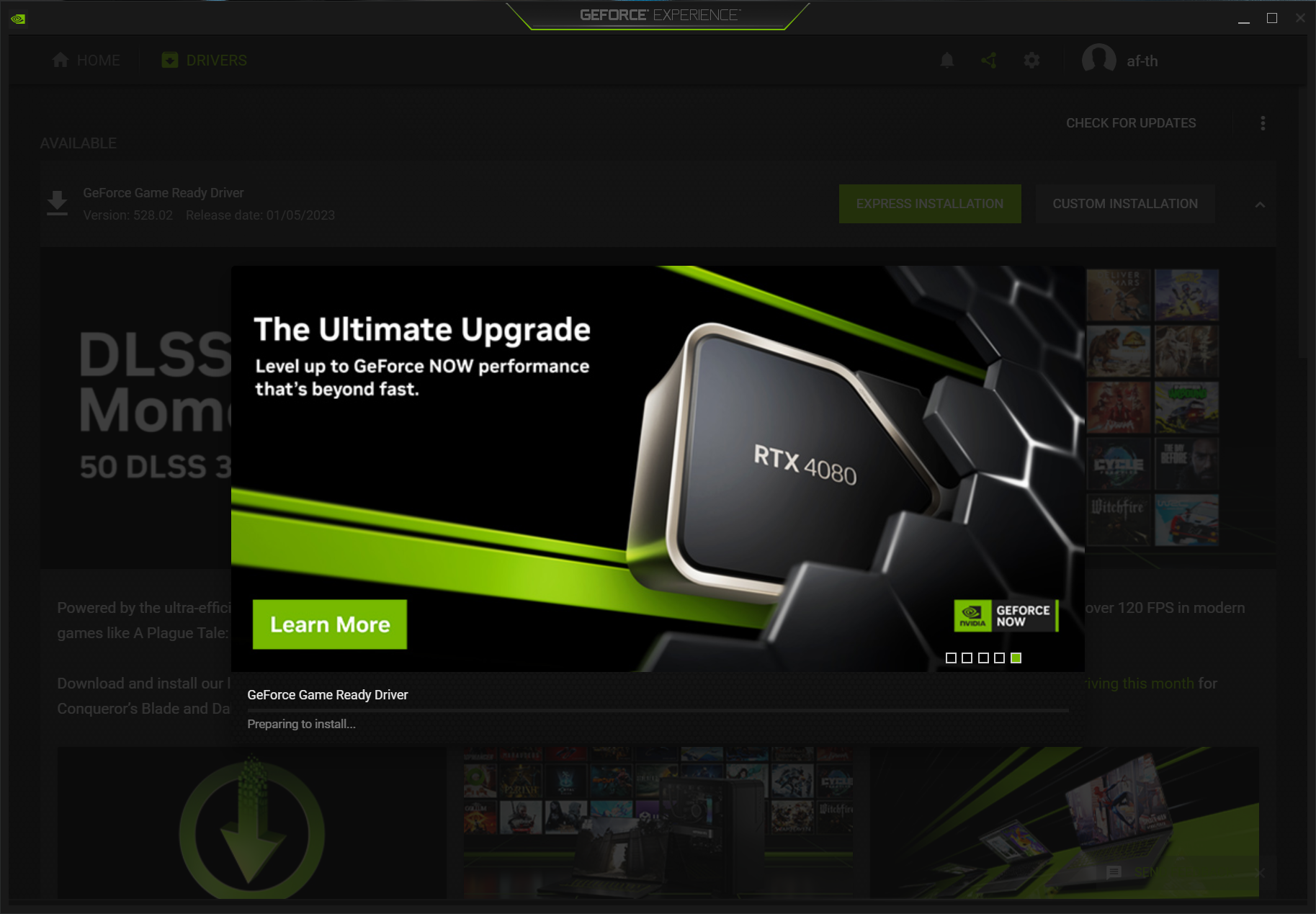
NVIDIA GeForce Experience:
- Launch “NVIDIA GeForce Experience.”
- Navigate to the “Drivers” tab.
- GeForce Experience will automatically check for new drivers. If an update is available, click “Download.”
- Once downloaded, you can choose “Express Installation” (quicker, but doesn’t perform a clean install) or “Custom Installation” (recommended for the “Perform a clean installation” option).
- Follow the prompts and restart if required.
AMD Radeon Software (formerly Radeon Adrenalin Edition):
- Open “AMD Radeon Software.”
- Click on the “Gear” icon (Settings) in the top-right corner.
- Go to the “System” tab.
- Under “Graphics,” you’ll see your current driver version and a “Check for Updates” button.
- If an update is found, click “Download.” During installation, ensure you select the “Factory Reset” option for a clean update.
- Restart your PC.
Intel Driver & Support Assistant (IDSA):
- Install and run the “Intel Driver & Support Assistant” from Intel’s website.
- The utility will scan your system for available updates for Intel hardware, including graphics.
- Follow the on-screen instructions to download and install any recommended graphics drivers.
- Reboot your computer as prompted.
Method 3: Updating via Windows Device Manager (Least Recommended for Performance)
While Windows Device Manager offers an update option, it’s generally not recommended for obtaining the latest, performance-optimized drivers, especially for gaming or professional applications. It often provides generic, older drivers.
- Open “Device Manager.”
- Expand “Display adapters,” right-click your GPU, and select “Update driver.”
- Choose “Search automatically for drivers.” Windows will search its local repository and Windows Update.
Method 4: Windows Update (Often Lags Behind)
Windows Update can sometimes deliver graphics driver updates, but these are often generic versions that lag behind the official manufacturer releases.
- Go to “Settings” > “Windows Update.”
- Click “Check for updates.”
- If optional updates are available, including driver updates, you can choose to install them.
While convenient, relying solely on Windows Update is not advisable for users prioritizing performance or specific features.
Best Practices and Troubleshooting Tips
A successful driver update involves more than just clicking ‘install’. Adhering to best practices can prevent headaches, and knowing how to troubleshoot is essential.
The Importance of a Clean Installation
A “clean installation” is paramount. Over time, residual files from old drivers can accumulate and conflict with new installations, leading to instability or performance issues. Both NVIDIA and AMD installers offer an explicit “clean installation” or “factory reset” option, which should always be utilized when updating drivers. For a truly thorough clean, a third-party tool like Display Driver Uninstaller (DDU) can be used in Windows Safe Mode to completely strip away all previous driver remnants before installing a new one. This is particularly useful when switching GPU manufacturers or encountering persistent driver-related problems.
Back Up Your System
Before undertaking any major system change, including driver updates, it’s prudent to create a system restore point or a full system backup. This provides a safety net, allowing you to roll back your system to a stable state if an update goes awry and causes unexpected issues like display problems or system crashes.
Troubleshooting Common Issues
- Black Screen/No Display After Update: If your screen goes black or you have no display after an update, try booting into Windows Safe Mode. From Safe Mode, you can use DDU to uninstall the problematic driver or roll back to a previous driver version via Device Manager.
- Performance Degradation: If performance worsens post-update, consider rolling back to your previous driver version. Sometimes, a new driver might introduce bugs or not be optimized for your specific hardware/software configuration.
- Driver Not Installing: Ensure you have downloaded the correct driver for your exact GPU model and operating system. Temporarily disable any antivirus software that might interfere with the installation process.
- Driver Signature Verification: Windows ensures that drivers are digitally signed by a trusted publisher. If you encounter errors related to driver signatures, ensure you are downloading from official sources, as unsigned drivers can pose security risks.
Frequency of Updates and When to Prioritize
There’s no single perfect schedule for updating graphics drivers, as it largely depends on your usage.
- For Gamers: Update frequently, especially when new AAA titles are released or when you experience performance issues in existing games. Manufacturers often release “Game Ready” drivers tailored for specific new releases.
- For Creative Professionals: Update when new versions of your primary design or rendering software are released, or if you encounter stability issues with current projects. “Studio Drivers” from NVIDIA or specific professional drivers from AMD are designed for stability and compatibility with these applications.
- For General Users: Less frequent updates are generally fine. Updating every few months, or when a significant security patch is announced, is usually sufficient.
In essence, an informed approach to graphics driver management is a cornerstone of maintaining a high-performing, stable, and secure computing environment. By understanding why and how to update, users gain greater control over their hardware and software ecosystem.
aViewFromTheCave is a participant in the Amazon Services LLC Associates Program, an affiliate advertising program designed to provide a means for sites to earn advertising fees by advertising and linking to Amazon.com. Amazon, the Amazon logo, AmazonSupply, and the AmazonSupply logo are trademarks of Amazon.com, Inc. or its affiliates. As an Amazon Associate we earn affiliate commissions from qualifying purchases.