
Fractions are fundamental to mathematics, representing parts of a whole and forming the bedrock of algebra, calculus, and countless real-world applications. While mental arithmetic or pen-and-paper methods suffice for simple calculations, modern calculators have become indispensable tools for handling complex fractional expressions with speed and precision. However, the seemingly straightforward task of “writing” or inputting a fraction on a calculator can vary significantly depending on the device’s design, its intended use, and its level of sophistication. This article delves into the nuances of fraction input across different calculator types, offering a comprehensive tutorial designed to demystify the process and empower users to leverage their digital tools more effectively. By understanding the underlying logic and available functionalities, you can transition from struggling with fractional entries to confidently manipulating them for any mathematical challenge.
Understanding Calculator Types and Their Fraction Capabilities
The first step in mastering fraction input is recognizing that not all calculators are created equal. Their ability to display, process, and simplify fractions varies wildly, largely determined by their design and computational power.
Basic Scientific Calculators
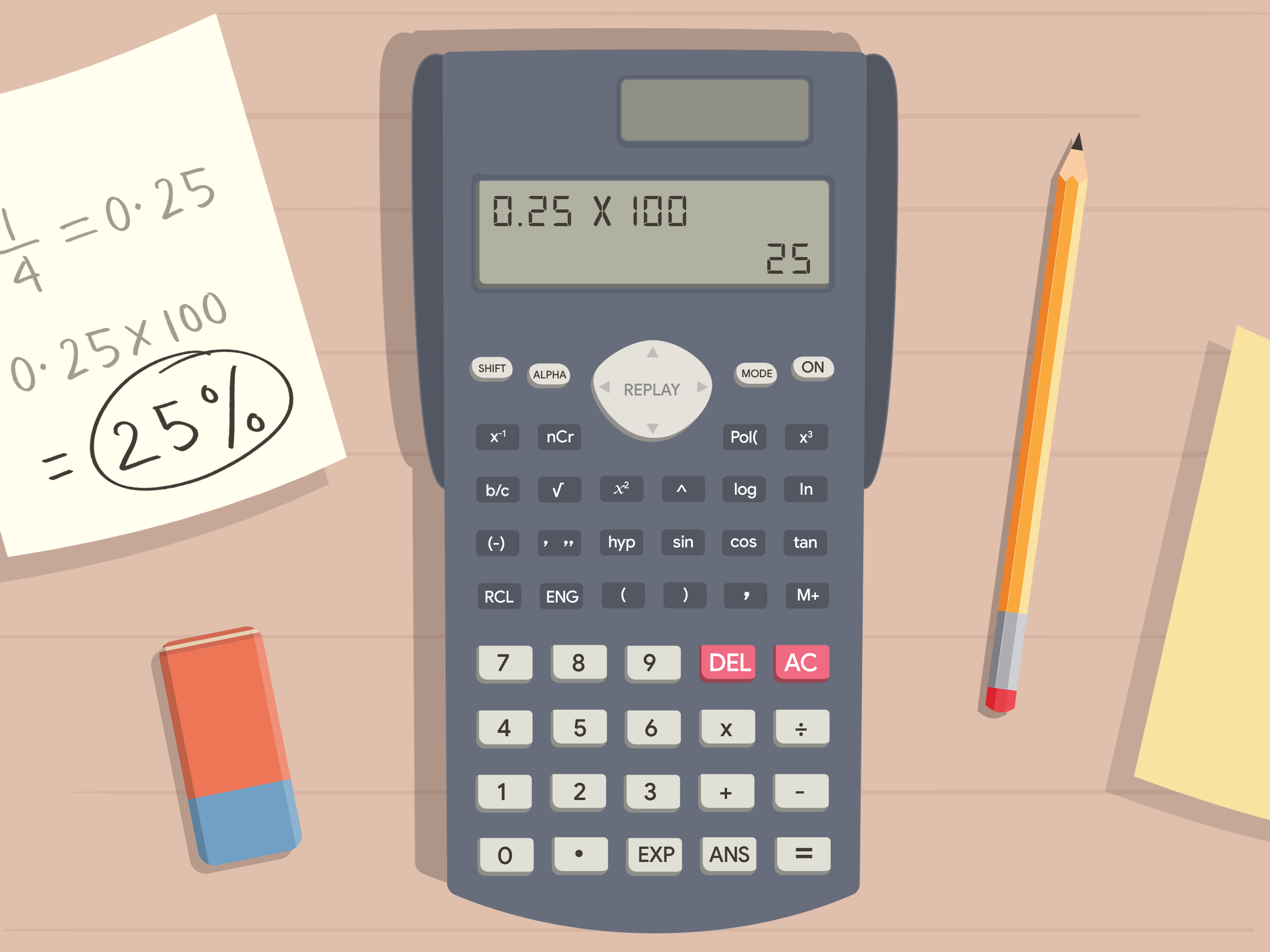
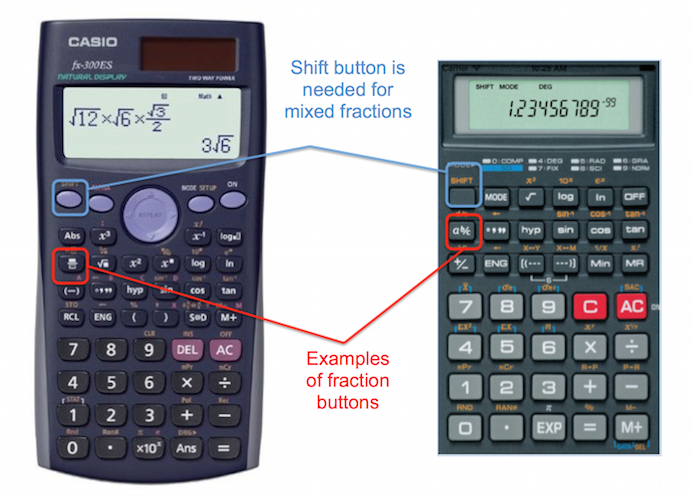
These are the most common calculators encountered in high school and college mathematics. Many modern scientific calculators feature a dedicated “fraction button,” often labeled as a b/c, d/c, or a similar symbol. This button is specifically designed to facilitate the entry of proper, improper, and mixed fractions. When a scientific calculator can display fractions, it typically does so in a clear, stacked format, mimicking how fractions appear on paper. They excel at basic operations and simplification, making them ideal for standard coursework. However, their display might be limited to a certain number of characters or levels of nesting for complex expressions.
Advanced Graphing Calculators
Graphing calculators, such as those from Texas Instruments (TI) or Casio (fx series), represent a significant leap in functionality. Beyond basic fraction input, these devices often feature a more intuitive interface that closely resembles natural mathematical notation. Users can typically input fractions using a template-based system, where a numerator appears above a denominator, directly on the screen. This “natural display” or “MathPrint” feature makes complex fraction expressions much easier to read and verify. Graphing calculators also possess advanced capabilities for solving equations, graphing functions, and performing symbolic manipulation, which frequently involve fractions. Their robust memory and processing power allow for handling intricate fractional expressions within a broader mathematical context.
Online and App-Based Calculators
The digital age has brought forth a plethora of online calculators and smartphone applications that offer advanced fraction capabilities, often surpassing even physical graphing calculators in user-friendliness. Websites like Desmos, Wolfram Alpha, or dedicated calculator apps frequently feature virtual keypads with explicit fraction buttons or even allow for “natural language” input, where you can type “1/2 + 3/4” and the software interprets it correctly. Many of these tools also provide step-by-step solutions, helping users understand the mechanics of fraction operations. Their primary advantage lies in their accessibility and often superior visual display, taking full advantage of high-resolution screens and touch interfaces.
When Standard Calculators Struggle
It’s crucial to acknowledge the limitations of simpler calculators. Very basic four-function calculators typically do not have a fraction button and cannot display results as fractions. For these devices, a fraction like “1/2” must always be entered as a division problem (1 ÷ 2), and the result will invariably be a decimal (0.5). Attempting to perform operations with multiple fractions on such a calculator requires meticulous use of parentheses and careful conversion between fractions and decimals, increasing the likelihood of errors. Understanding these limitations helps users choose the right tool for the job.
Inputting Fractions: Step-by-Step Guides
Mastering the input process is key to efficiently using fractions on your calculator. While the specific buttons may vary, the underlying logic is generally consistent.
Entering Simple Proper and Improper Fractions
For calculators with a dedicated fraction button (e.g., a b/c):
- Enter the numerator.
- Press the fraction button (
a b/cor similar). - Enter the denominator.
- Press
=orEnterto see the result or use it in further calculations.- Example: To enter 3/4, you would typically press
3 [a b/c] 4 =.
- Example: To enter 3/4, you would typically press
For calculators without a fraction button, or when using a division-based input:
- Enter the numerator.
- Press the division button (
÷). - Enter the denominator.
- Example: To enter 3/4, you would press
3 ÷ 4 =. The result will be 0.75.
Handling Mixed Numbers
Mixed numbers (e.g., 2 ½) consist of a whole number and a proper fraction. Calculators with a a b/c button often have a specific sequence for this:
- Enter the whole number.
- Press the fraction button (
a b/c). This button often functions as a separator for both improper and mixed fractions. - Enter the numerator of the fractional part.
- Press the fraction button (
a b/c) again. - Enter the denominator of the fractional part.
- Press
=orEnter.- Example: To enter 2 ½, you might press
2 [a b/c] 1 [a b/c] 2 =. The calculator will usually display this as2⌋1⌋2or2_1/2. It will often automatically convert it to an improper fraction (5/2) for internal calculations or offer an option to convert it.
- Example: To enter 2 ½, you might press
On graphing calculators with natural display, you would typically use a template feature, which would show a blank whole number field, and then a stacked fraction template, making the input visually identical to how it’s written.
Fractions within Complex Expressions
When fractions are part of a larger equation (e.g., 1/2 + 3/4 * 5/6), the use of parentheses becomes critical, especially on simpler scientific calculators or when using division-based input.
- Always enclose fractions in parentheses if they are part of a larger operation, especially if you’re using the division operator.
- Example (division method):
(1 ÷ 2) + (3 ÷ 4) * (5 ÷ 6)
- Example (division method):
- Calculators with a fraction button or natural display often handle order of operations more intuitively, but parentheses are still good practice for clarity and to override default order if needed.
Using the Fraction Button (a b/c or similar)
As mentioned, this button is a game-changer for fraction input. It allows you to:
- Input proper and improper fractions:
Numerator [a b/c] Denominator - Input mixed numbers:
Whole_Number [a b/c] Numerator [a b/c] Denominator - Toggle between mixed number and improper fraction: After calculating a result, pressing
[Shift]or[2nd]followed by thea b/cbutton often converts the displayed mixed number to an improper fraction or vice-versa. - Toggle between fraction and decimal: Another press of the
a b/cbutton (sometimes with[Shift]or a dedicatedF↔Dbutton) can convert a fractional result to its decimal equivalent and back.
Entering Fractions as Division
This method is universally applicable, even on the most basic calculators. For any fraction a/b, you simply input a ÷ b. The key drawback is that the calculator will almost always return a decimal result. If a fractional answer is required, you would then need to manually convert the decimal back to a fraction, which can be challenging for non-terminating decimals or large numbers. This highlights the value of calculators with dedicated fraction features for maintaining precision and displaying results in the desired format.
Performing Operations with Fractions on a Calculator
Once you’ve mastered input, performing operations becomes intuitive, especially with calculators designed to handle fractions natively.
Addition and Subtraction of Fractions
On calculators with a fraction button or natural display:
- Input the first fraction.
- Press the
+or-operator. - Input the second fraction.
- Press
=orEnter.- Example: To calculate 1/2 + 3/4, you would enter
1 [a b/c] 2 + 3 [a b/c] 4 =. The calculator will automatically find a common denominator and display the simplified fractional result (e.g.,1⌋1⌋4or5/4).
- Example: To calculate 1/2 + 3/4, you would enter
Using the division method on basic calculators requires careful use of parentheses to ensure correct order of operations:
- Example:
(1 ÷ 2) + (3 ÷ 4) =(result will be 1.25, which you would then convert to 5/4).
Multiplication and Division of Fractions
The process is similar to addition and subtraction:
- Input the first fraction.
- Press the
×or÷operator. - Input the second fraction.
- Press
=orEnter.- Example: To calculate 2/3 * 4/5, you would enter
2 [a b/c] 3 × 4 [a b/c] 5 =. The calculator displays the simplified product (e.g.,8/15). - For division, remember that
a/b ÷ c/dis equivalent toa/b × d/c. Most calculators will handle the division directly.
- Example: To calculate 2/3 * 4/5, you would enter
Simplifying and Converting Fractions
Many scientific and graphing calculators automatically simplify fractions to their lowest terms. If you input 2 [a b/c] 4, the calculator will often immediately display 1/2 upon pressing enter.
To manually convert between mixed numbers and improper fractions, or between fractions and decimals, look for dedicated buttons or functions. As mentioned, [Shift] + a b/c or a specific F↔D (Fraction-to-Decimal) button are common toggles. Understanding these conversion features is crucial for presenting answers in the required format.
Common Pitfalls and How to Avoid Them
- Order of Operations: The most frequent error. Always use parentheses
()to group terms, especially when mixing fractions with other operations or when using the division method. - Misinterpreting Display: A display like
1_2/3might mean 1 and 2/3 (mixed number) or 12/3 (improper fraction) depending on the calculator’s mode or symbols used. Familiarize yourself with your calculator’s specific notation. - Decimal vs. Fraction Mode: Ensure your calculator is in the correct display mode if you need fractional answers. Some calculators default to decimal.
- Rounding Errors: When relying on the division method, intermediate decimal results can introduce rounding errors if not handled carefully, especially with non-terminating decimals. Using true fraction input avoids this problem.
Beyond Basic Input: Leveraging Advanced Fraction Features
Modern calculators offer more than just input and basic operations; they can significantly enhance your ability to work with fractions.
Converting Decimals to Fractions
Many scientific and graphing calculators have a function to convert a decimal back into its fractional form. This is incredibly useful when you encounter a decimal result from a calculation and need to express it as a fraction. Typically, you’d input the decimal number and then press a [2nd] or [Shift] key followed by the F↔D or a b/c button. The calculator will attempt to find the simplest fractional representation of that decimal. Be aware that repeating decimals might only be approximated depending on the calculator’s precision.
Solving Equations with Fractional Components
Graphing calculators, in particular, excel at solving equations that involve fractions. Using their equation solver features, you can input complex equations with fractional coefficients or constants, and the calculator will often provide exact fractional solutions. This is far more efficient and accurate than converting everything to decimals and risking rounding errors. These tools often allow users to define variables and manipulate expressions symbolically, keeping fractions in their exact form throughout the process.
Displaying Fractions in Different Formats
The ability to switch between mixed numbers, improper fractions, and decimal equivalents is a powerful feature. This flexibility allows users to present answers in the format required by a specific problem or context. For example, an architectural blueprint might require measurements as mixed numbers, while an engineering calculation might prefer improper fractions for consistency in equations. Understanding how to toggle these display formats is a key aspect of calculator mastery.
Troubleshooting Fraction Display Issues
Sometimes, a calculator might not display a fraction as expected. Common reasons include:
- “Math Error” or “Overflow”: This can occur if the numerator or denominator is too large for the calculator to handle, or if you attempt division by zero.
- Decimal Display Only: Check your calculator’s mode settings. It might be set to always display decimals, even if it can process fractions internally. Look for “Math Mode,” “Exact,” or “Fraction Display” settings.
- Non-reducible Fractions: If a fraction doesn’t simplify (e.g., 7/11), the calculator will display it as is. Don’t assume an error if it doesn’t change.
- Complex Number Display: In higher math, fractional results might appear with imaginary components if the calculator is in a complex number mode. Ensure it’s in “Real” mode for standard fraction display.
The Evolution of Fraction Input and Future Trends
The way we interact with mathematical tools is constantly evolving, and fraction input is no exception.
Historical Context of Calculator Design
Early mechanical and electronic calculators had no concept of fractions; all numbers were processed as decimals. The introduction of scientific calculators in the 1970s and 80s brought dedicated function keys, but early fraction input often involved a clunky series of keystrokes. The a b/c button was a significant leap forward, simplifying the entry of mixed numbers and improper fractions. The shift from segment displays to dot-matrix displays allowed for more visually intuitive “stacked” fraction representations, paving the way for today’s natural display calculators.
Modern User Interfaces and Touch-Based Input
Today’s graphing calculators and smartphone apps leverage high-resolution screens and touch interfaces to provide a highly intuitive fraction input experience. Users can often “draw” fractions using their finger or stylus, or select templates that mimic handwritten math. This natural interaction reduces the cognitive load associated with translating mathematical notation into calculator-specific keystrokes, making these tools more accessible and efficient for learning and problem-solving.
AI and Natural Language Processing for Math Input
Emerging technologies, particularly in artificial intelligence and natural language processing, are pushing the boundaries of mathematical input. Tools like Wolfram Alpha already allow users to type complex mathematical expressions, including fractions, in plain English. Future calculators and math software might integrate AI to understand even more abstract or unconventional inputs, interpreting user intent and performing calculations with unprecedented flexibility. Imagine simply saying “What’s three-fourths plus one-fifth?” and seeing the fractional result instantaneously.

Educational Technology and Fraction Comprehension
The advancements in fraction input are not just about convenience; they significantly impact mathematical education. By making fractions easier to input and visualize, technology helps students focus on the underlying concepts rather than struggling with tool mechanics. Interactive fraction manipulatives, dynamic graphing of fractional functions, and real-time feedback from educational apps are all facilitated by sophisticated input methods, fostering deeper comprehension and reducing common anxieties associated with fractional arithmetic.
In conclusion, understanding how to effectively write and manipulate fractions on a calculator is an essential skill in an increasingly technology-driven world. Whether you’re using a basic scientific calculator or an advanced app, familiarizing yourself with its specific fraction capabilities, input methods, and display options will unlock its full potential, allowing you to tackle mathematical problems with greater accuracy, speed, and confidence. The evolution of these tools continues to simplify complex tasks, making advanced mathematical concepts more accessible to everyone.
aViewFromTheCave is a participant in the Amazon Services LLC Associates Program, an affiliate advertising program designed to provide a means for sites to earn advertising fees by advertising and linking to Amazon.com. Amazon, the Amazon logo, AmazonSupply, and the AmazonSupply logo are trademarks of Amazon.com, Inc. or its affiliates. As an Amazon Associate we earn affiliate commissions from qualifying purchases.