
In an era defined by digital transformation and personalized experiences, the way we consume television has undergone a revolutionary shift. Gone are the days when traditional cable subscriptions held an undisputed monopoly over our living room screens. Today, streaming services offer unparalleled flexibility, vast content libraries, and often, more economical alternatives. Among the frontrunners in this evolving landscape is YouTube TV – a live TV streaming service that marries the familiarity of conventional broadcasting with the convenience and innovation of the internet.
YouTube TV represents more than just another streaming option; it’s a strategic move towards a more agile, user-centric entertainment ecosystem. For many, it’s the definitive answer to the age-old question of “how to watch live TV without cable.” This guide will demystify the process, from initial setup to mastering its advanced features, ensuring you harness the full potential of this cutting-edge platform. Whether you’re a tech-savvy early adopter or someone contemplating their first foray into live TV streaming, understanding YouTube TV is a crucial step towards reclaiming control over your viewing habits.
Embracing the Future of Television with YouTube TV
YouTube TV is a subscription-based streaming service that offers live television from major broadcast and popular cable networks, along with a robust cloud DVR and on-demand content. Launched by Google, it’s designed to replicate the traditional cable experience but with the inherent advantages of internet-based delivery. For many, it’s the ultimate solution to “cord-cutting,” offering a flexible, contract-free alternative to outdated cable packages.
What Exactly is YouTube TV?
At its core, YouTube TV is a virtual multichannel video programming distributor (vMVPD). Unlike conventional YouTube, which is primarily a platform for user-generated and on-demand video, YouTube TV focuses on delivering live streams of over 100 channels, including major networks like ABC, CBS, FOX, NBC, ESPN, AMC, CNN, and many more, depending on your geographic location. It operates entirely over the internet, meaning you need a stable broadband connection, not a coaxial cable. This internet-centric model unlocks a host of features that traditional cable simply cannot match, from seamless multi-device access to an unparalleled cloud DVR system. It’s an integrated entertainment hub, bundling news, sports, entertainment, and family programming into one cohesive service.
Key Advantages Over Traditional Cable
The appeal of YouTube TV largely stems from its stark contrast to the legacy cable model. One of its most compelling advantages is the absence of contracts. Subscribers can cancel or pause their service at any time without penalty, offering unprecedented flexibility that cable companies rarely provide. This freedom eliminates long-term commitments and allows users to adapt their subscriptions to their lifestyle or financial needs.
Another significant differentiator is the Cloud DVR. YouTube TV offers unlimited cloud DVR storage for up-to nine months. This means you can record as many shows, movies, and live events as you want, store them in the cloud, and watch them back at your convenience, on any compatible device. This feature liberates viewers from scheduling conflicts and the physical limitations of hardware-based DVRs. Furthermore, YouTube TV often presents a more transparent and frequently lower cost compared to bundled cable packages, which are notorious for hidden fees and escalating prices.
Device Ecosystem: Where Can You Watch?
The versatility of YouTube TV extends to its wide-ranging device compatibility, a hallmark of modern streaming technology. You’re not confined to a single television set; your subscription travels with you. YouTube TV is accessible on virtually every popular streaming device and platform.
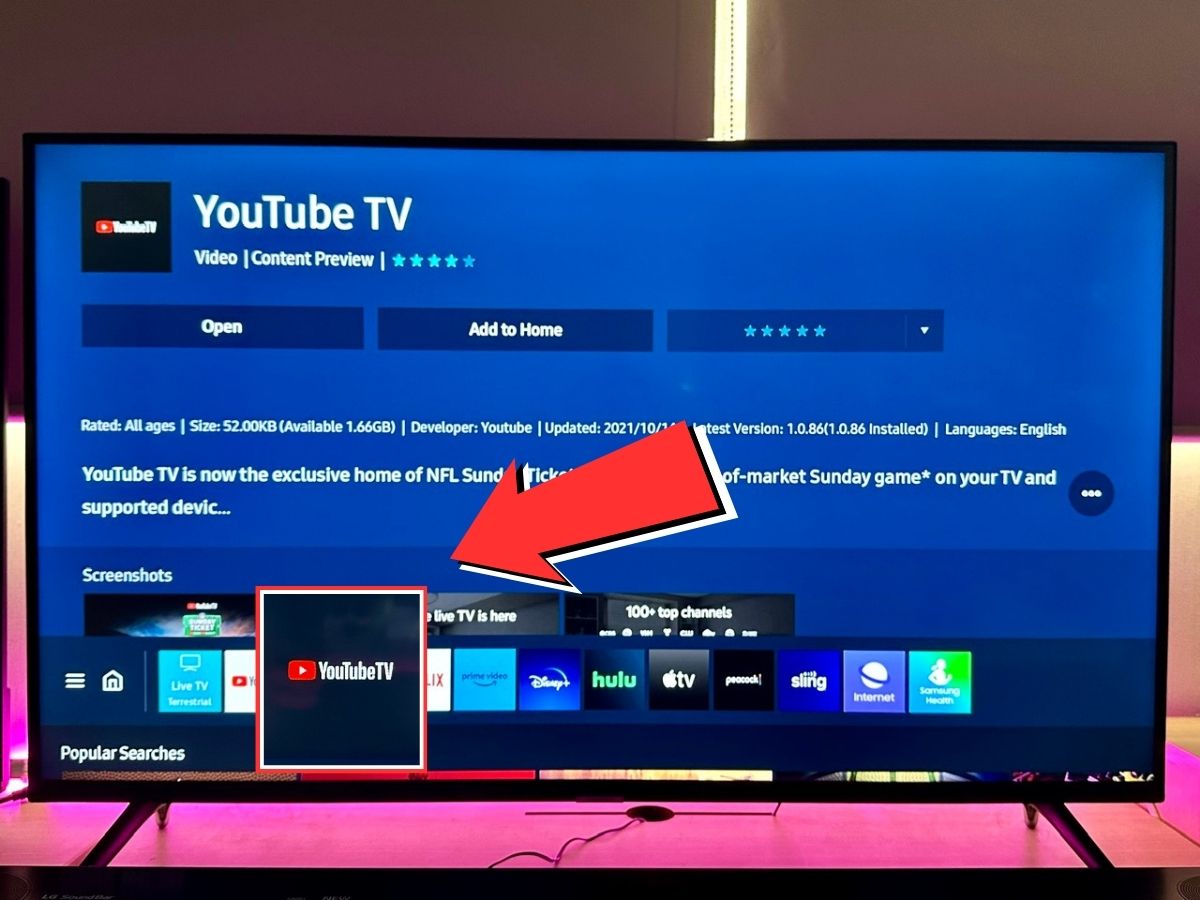
- Smart TVs: Most modern smart TVs from brands like Samsung, LG, Sony, Vizio, and Hisense have the YouTube TV app pre-installed or available for download.
- Streaming Media Players: Devices such as Google Chromecast (naturally, given Google’s ownership), Roku devices, Apple TV, Amazon Fire TV sticks and cubes, and Nvidia Shield TV are fully supported.
- Mobile Devices: Android smartphones and tablets, iPhones, and iPads can all run the YouTube TV app, allowing for on-the-go viewing.
- Web Browsers: You can watch directly through a web browser on your computer or laptop, providing ultimate flexibility for desktop users.
- Gaming Consoles: PlayStation and Xbox consoles also host the YouTube TV app, making your gaming setup a complete entertainment hub.
This broad compatibility ensures that whether you’re at home or on the move, your access to live and recorded content is seamless and readily available.
The Onboarding Journey: Setting Up Your YouTube TV Experience
Embarking on your YouTube TV journey is a straightforward process, designed for user-friendliness from the outset. It typically involves a few key steps: signing up, choosing your plan, and optionally, customizing your viewing experience with add-ons and family profiles.
Signing Up and Understanding Subscription Tiers
The first step is to visit the YouTube TV website or download the app on your preferred device. You’ll need a Google account to sign up, which most internet users already possess. The service often offers a free trial period, usually for 5 to 14 days, providing an excellent opportunity to explore the channel lineup and features before committing to a paid subscription.
During the sign-up process, you’ll be prompted to enter your zip code. This is crucial as the available local channels and regional sports networks are determined by your geographic location. The primary subscription tier, often referred to as the “Base Plan,” includes the vast majority of the channel lineup and the unlimited cloud DVR. While pricing can vary over time due to content acquisition costs, YouTube TV aims to offer a competitive rate for the extensive array of channels it provides. Be mindful of potential promotions or introductory offers that might be available when you sign up.
Personalizing Your Package: Add-ons and Premium Channels
While the Base Plan is comprehensive, YouTube TV offers a variety of “add-ons” for those who desire more specialized content. These are optional, monthly subscriptions that expand your channel offerings. They typically fall into several categories:
- Sports Packages: For hardcore sports fans, add-ons like NFL Sunday Ticket (when available), NBA League Pass, or specific regional sports networks can be subscribed to directly through YouTube TV.
- Premium Entertainment: Services such as HBO Max, Showtime, Starz, and Cinemax can be integrated, allowing you to manage all your entertainment subscriptions in one place and often watch their live channels within the YouTube TV interface.
- Niche Channels: There are often smaller, genre-specific bundles or individual channels available for those with very particular interests, ranging from international programming to educational content.
These add-ons provide flexibility, allowing you to tailor your YouTube TV experience precisely to your viewing preferences, without paying for channels you’ll never watch. It’s a key advantage over traditional cable bundles that force consumers to pay for hundreds of unwanted channels to access a few desired ones.
Account Management: Profiles and Family Sharing
YouTube TV excels in its family-friendly approach, offering robust features for managing multiple users. A single YouTube TV subscription allows for up to six individual accounts (known as “family members” within the Google ecosystem). Each family member gets their own personalized viewing experience, including:
- Separate Cloud DVR Library: Each profile maintains its own unlimited cloud DVR, ensuring that your recordings don’t clutter someone else’s, and vice-versa.
- Personalized Recommendations: The Home tab (which we’ll discuss next) will offer recommendations based on each individual’s viewing history.
- Custom Watch History: Each user’s watch history is kept separate.
Crucially, while you can have up to six accounts, YouTube TV generally allows for three simultaneous streams at any given time. This means three different people, using three different devices, can watch YouTube TV concurrently. If you need more simultaneous streams, there’s often an optional 4K Plus add-on that expands this capability, along with providing 4K resolution where available. Setting up family members is easy through the settings menu, requiring only their Google account details. This feature makes YouTube TV an ideal solution for households with diverse viewing tastes.
Navigating the Interface: Mastering Your Viewing Experience
Once your account is set up, understanding the YouTube TV interface is key to unlocking its full potential. The platform is designed for intuitive navigation, primarily divided into three main tabs: Home, Live, and Library. Each serves a distinct purpose, guiding you effortlessly to your desired content.
The Intuitive Home Tab: Your Personalized Content Hub
The “Home” tab is your personalized gateway to entertainment. It’s the first screen you’ll typically see when opening the app and acts as a dynamic dashboard tailored to your viewing habits. Here’s what you can expect:
- Continue Watching: Pick up exactly where you left off on any show or movie, regardless of the device you were using.
- Personalized Recommendations: Based on your viewing history and preferences, YouTube TV suggests new shows, movies, and channels you might enjoy. The more you watch, the smarter these recommendations become.
- Top Picks for You: Highlights popular live and on-demand content that aligns with your interests.
- Sports Highlights: Quick access to live games, scores, and popular sports analysis shows.
- Trending News: Stay informed with clips and live streams from major news outlets.
The Home tab is designed to minimize browsing time and maximize viewing, putting relevant content front and center. It adapts to each user profile, ensuring every family member gets a unique and tailored experience.
The Live Tab: Real-Time Broadcasts and the Program Guide
For those who cherish the traditional channel-surfing experience, the “Live” tab is where you’ll spend a significant amount of time. It provides a comprehensive, scrollable program guide that mirrors the look and feel of a cable TV guide, but with added digital enhancements:

- Channel Lineup: Displays all the live channels included in your subscription, organized by channel number or custom preference.
- Program Grid: Shows what’s currently airing, what’s coming up next, and allows you to scroll forward in time to see future programming.
- Categorization: Channels are often grouped by genre (e.g., News, Sports, Entertainment, Kids) for easier navigation.
- Quick Actions: From the guide, you can easily select a program to watch, record it to your library, or learn more about it.
The Live tab ensures you never miss a moment of your favorite live events, from breaking news to sporting contests. Its responsiveness and clarity make channel hopping a pleasure, offering a familiar yet enhanced experience for those accustomed to cable TV.
The Library Tab: Your Unlimited Cloud DVR at Your Fingertips
The “Library” tab is arguably one of YouTube TV’s most powerful features. This is where your unlimited cloud DVR content resides, giving you complete control over your recorded shows and movies.
- Recordings: Every show, movie, or sporting event you’ve marked for recording is saved here. Thanks to the unlimited cloud storage, you never have to worry about running out of space. Recordings are typically available for up to nine months.
- Series Management: When you record a series, YouTube TV automatically records new episodes as they air, making it easy to keep up with your favorite shows.
- Bookmarks and Watched Status: The platform keeps track of which episodes you’ve watched and allows you to bookmark content for later, ensuring a seamless viewing experience.
- Purchases: If you’ve purchased movies or shows through Google Play Movies & TV that are linked to your Google account, they might also appear here for convenient access.
The Library tab transforms your viewing habits, allowing you to watch what you want, when you want, free from the constraints of live broadcast schedules. It’s a game-changer for anyone who values flexibility and comprehensive content capture.
Exploring On-Demand and Purchased Content
Beyond live channels and DVR recordings, YouTube TV also integrates on-demand content. Many networks offer a selection of their shows for on-demand viewing, which can be found by browsing the channel pages or through the search function. This means if you miss a live airing or forget to record something, you might still be able to catch up.
Additionally, for users who frequently buy or rent movies and TV shows through Google Play, YouTube TV often provides a streamlined experience. While not a core feature for new purchases within YouTube TV itself, your existing Google Play library can sometimes be accessed or integrated, providing a unified digital media hub across Google’s services. This synergy enhances the overall value for users already embedded in the Google ecosystem.
Optimizing Your Watch: Advanced Features and Best Practices
To truly maximize your YouTube TV experience, understanding and utilizing its advanced features and best practices is essential. From managing your picture quality to leveraging innovative viewing modes, these tips will enhance your enjoyment and streamline your interaction with the platform.
Picture Quality and Bandwidth Considerations
YouTube TV automatically adjusts video quality based on your internet connection to ensure a smooth streaming experience. However, you can manually override this setting.
- Standard Definition (SD) vs. High Definition (HD): Most content is available in HD (720p or 1080p). To save bandwidth, particularly on mobile data or slower connections, you can choose to stream in SD.
- 4K Plus Add-on: For the ultimate visual fidelity, YouTube TV offers a 4K Plus add-on. This enables 4K streaming for available live and on-demand content (e.g., select sports events, documentaries) and allows for unlimited simultaneous streams at home.
- Data Usage: Streaming live TV can consume significant bandwidth. A standard HD stream typically uses between 3-7 GB per hour. If you have a data cap from your internet provider, monitor your usage, especially when streaming for extended periods or in 4K. Using Wi-Fi whenever possible and adjusting quality settings can help manage data consumption.
Customizing Your Channels and Alerts
YouTube TV allows for a degree of personalization beyond just what you watch.
- Reordering Channels: In the “Live” tab settings, you can customize the order of your channels, moving your favorites to the top for quick access. You can also hide channels you never watch, decluttering your guide.
- Notification Alerts: For major sporting events or new episodes of a highly anticipated series, you can set up notifications. YouTube TV can alert you when a particular program is about to start, ensuring you don’t miss key broadcasts. This is particularly useful for sports, where game times can sometimes be fluid.
Leveraging Multiview and Other Innovative Features
YouTube TV continuously introduces innovative features to enhance the viewing experience.
- Multiview: A popular feature, especially for sports fans, Multiview allows you to watch up to four live streams simultaneously on a single screen. This is perfect for keeping an eye on multiple games or news channels at once. While its availability can vary, it represents a significant leap in interactive live TV.
- Voice Control: Integrating with Google Assistant (and often Amazon Alexa), YouTube TV allows for hands-free control. You can use voice commands to switch channels, search for content, play recordings, or control playback, adding another layer of convenience.
- Stats View: For sports, YouTube TV can often overlay real-time stats and scores directly onto your screen, enriching the viewing experience without needing a second screen.
Troubleshooting Common Technical Hurdles
Even with the most robust technology, occasional glitches can occur. Knowing how to troubleshoot common issues can save you time and frustration.
- Buffering Issues: Often caused by a slow or inconsistent internet connection. Try restarting your router, ensuring other devices aren’t hogging bandwidth, or lowering the video quality settings in YouTube TV. If on Wi-Fi, consider moving closer to your router or using an Ethernet cable.
- App Glitches: If the app is acting up (freezing, not loading), a simple restart of the app or device often resolves the issue. Clearing the app’s cache (in device settings) can also help.
- Login Problems: Double-check your Google account credentials. If you’ve recently changed your Google password, you might need to re-authenticate on all devices.
- Sound/Picture Sync: This can sometimes be resolved by pausing and resuming the video, or restarting the stream. Check your device’s audio settings as well.
- Location Services: YouTube TV relies on your device’s location to provide local channels. Ensure location services are enabled for the app on your mobile device or browser. For streaming devices, ensure your home location is correctly set up in YouTube TV settings (which you’ll periodically need to verify).
Is YouTube TV the Right Choice for Your Entertainment Needs?
Deciding to switch to YouTube TV, or any live TV streaming service, is a significant entertainment decision. It’s about weighing convenience, content, and cost against your personal viewing habits and budget.
Comparing YouTube TV to Other Live TV Streaming Services
The live TV streaming market is competitive, with services like Hulu + Live TV, Sling TV, DirecTV Stream, and FuboTV offering alternative packages. Each has its strengths and weaknesses:
- Channel Lineup: While there’s significant overlap, each service has exclusive channels or different tiers. YouTube TV generally boasts a very comprehensive lineup, especially for major networks and sports.
- DVR Capabilities: YouTube TV’s unlimited cloud DVR is a strong selling point, often surpassing competitors who impose storage limits or expiration dates.
- Price: Pricing varies, and add-ons can quickly increase the monthly cost. YouTube TV’s base price is competitive for its offering, but it’s essential to compare total costs with any desired add-ons across platforms.
- Interface and Features: While subjective, YouTube TV’s interface is often praised for its simplicity and intuitiveness. Features like Multiview are also unique differentiators.
- Simultaneous Streams: Most services offer 2-3 simultaneous streams in their base package, with options for more, similar to YouTube TV.
A thorough comparison based on your must-have channels, DVR needs, and budget is crucial.
Weighing the Costs and Benefits
The initial cost of YouTube TV might seem higher than some on-demand streaming services like Netflix or Disney+. However, when compared to a comprehensive cable package, it often provides significant savings. The benefits extend beyond just price:
- No Contracts: Unparalleled flexibility to start, pause, or cancel anytime.
- Ubiquitous Access: Watch on almost any device, anywhere with an internet connection.
- Unlimited Cloud DVR: Never miss a show, and keep recordings for months.
- User-Friendly Interface: Easy navigation for all ages.
- Family Sharing: Six profiles, three simultaneous streams (more with add-on).
- Comprehensive Channel Lineup: A strong mix of local, national, and cable networks.
The primary drawback for some might be the reliance on a stable internet connection and the potential for price increases over time as content costs rise.
The Verdict: Embracing a Flexible TV Future
YouTube TV stands out as a robust, feature-rich, and user-friendly solution for live TV streaming. It successfully bridges the gap between traditional broadcast television and the modern digital landscape, offering a compelling alternative for those ready to cut the cord. Its combination of extensive channel offerings, unlimited cloud DVR, broad device compatibility, and innovative features positions it as a leader in the vMVPD space.
By understanding how to watch YouTube TV, from setting up your account to mastering its interface and leveraging advanced options, you’re not just subscribing to a service; you’re adopting a more flexible, personalized, and future-proof way to enjoy your favorite television content. It’s an investment in convenience and control, ushering in an era where you dictate your entertainment, not a cable company.
aViewFromTheCave is a participant in the Amazon Services LLC Associates Program, an affiliate advertising program designed to provide a means for sites to earn advertising fees by advertising and linking to Amazon.com. Amazon, the Amazon logo, AmazonSupply, and the AmazonSupply logo are trademarks of Amazon.com, Inc. or its affiliates. As an Amazon Associate we earn affiliate commissions from qualifying purchases.