
The digital transformation of the living room has reached a pivotal point where traditional linear cable is rapidly being replaced by Over-the-Top (OTT) streaming services. Among these, YouTube TV stands as a premier solution for cord-cutters, offering a cloud-based DVR and a robust lineup of live networks. However, migrating from a standard cable box to a smart TV interface requires an understanding of software ecosystems, hardware compatibility, and network optimization. This guide provides an in-depth technical walkthrough on how to seamlessly integrate YouTube TV into your smart home environment.
Understanding Hardware Compatibility and Software Requirements
Before initiating the installation process, it is essential to verify that your hardware meets the necessary technical specifications. Unlike standard YouTube, which is pre-installed on nearly every internet-connected screen, YouTube TV is a specialized application that requires specific hardware acceleration and DRM (Digital Rights Management) support.
Native Smart TV Support
Most major television manufacturers produced after 2016 support the YouTube TV application natively. This includes:
-
Samsung Smart TVs: Models from 2016 and later running the Tizen OS.
-
LG Smart TVs: Models from 2016 and later running webOS 3.0 or higher.
-
Vizio SmartCast TVs: Most models from 2016 onwards, though older models may rely on the “Cast” functionality rather than a dedicated onboard app.
-
Android TV / Google TV: Devices from Sony, Hisense, and TCL that utilize the Google ecosystem have the most streamlined integration, as YouTube TV is a first-party Google product.
External Streaming Media Players
If your smart TV’s internal processor is aging or if the manufacturer has ceased software updates, utilizing an external streaming device is often the superior technical choice. Devices like the Chromecast with Google TV, Roku Premiere/Ultra, Amazon Fire TV Stick 4K, and Apple TV 4K provide dedicated GPUs and more frequent software patches, ensuring a smoother frame rate and faster UI navigation compared to many built-in TV chipsets.
Step-by-Step Installation and Activation Across Platforms
The installation process varies slightly depending on the operating system of your television. However, the logic remains consistent: download the binary from the official app store, authenticate the device, and sync your Google profile.
Installing on Tizen OS and webOS (Samsung & LG)
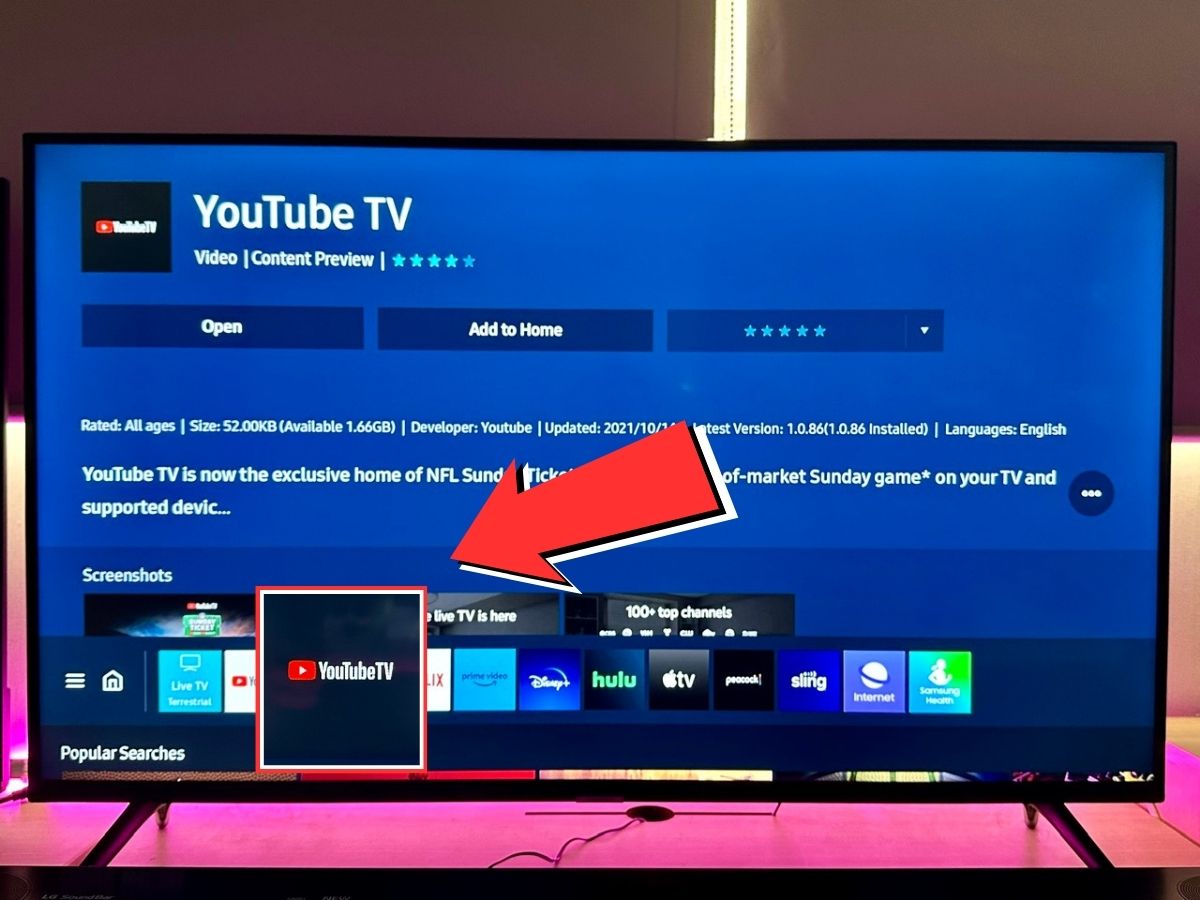
For Samsung and LG users, the process begins in the proprietary app store. Navigate to the “Apps” or “LG Content Store” icon on your home screen. Use the search function—represented by a magnifying glass icon—and type “YouTube TV.” It is critical to distinguish between the standard “YouTube” app and the “YouTube TV” app, as they are separate software packages. Once found, select “Install” or “Download.”
After the installation is complete, launch the app. You will be presented with a unique activation code. To complete the handshake between your television and your account, you must use a secondary device (a smartphone or computer). Navigate to tv.youtube.com/start and enter the alphanumeric code displayed on your screen. This bypasses the need to type complex passwords using a remote control, utilizing an encrypted token-based authentication system.
The Android TV and Google TV Integration
Because YouTube TV is built on the same architecture as the Android TV OS, the integration is exceptionally deep. On many Google TV-powered sets (like recent Sony Bravia models), YouTube TV is integrated directly into the “Live” tab of the home screen. If the app is not pre-installed, navigate to the Google Play Store on your TV, search for the app, and click “Install.” Since these devices are typically already signed into your Google account at the system level, the app may automatically log you in, streamlining the onboarding process significantly.
Optimizing Network Performance for High-Definition Streaming

YouTube TV utilizes adaptive bitrate streaming, meaning the video quality fluctuates based on your real-time internet speed. To maintain a consistent 1080p or 4K signal (if you have the 4K Plus add-on), your local network infrastructure must be optimized.
Bandwidth and Latency Requirements
For a single 1080p stream, a stable download speed of at least 13 Mbps is recommended. However, for 4K content or multiple simultaneous streams across the household, a 100 Mbps or higher plan is advisable. Beyond raw speed, latency (ping) is crucial for live sports. High latency can result in “spoilers” where mobile notifications arrive before the play occurs on the screen due to a delayed buffer.
Wired vs. Wireless Connections
While modern Wi-Fi 6 (802.11ax) and Wi-Fi 5 (802.11ac) are capable of handling high-bitrate video, the 2.4GHz and 5GHz bands are prone to interference from other household electronics and physical obstructions. For the most reliable experience, connect your smart TV or streaming device via an Ethernet cable (RJ45). A hardwired connection eliminates packet loss and provides a dedicated data path, which is especially important when utilizing the “Multiview” feature, which allows you to stream up to four live games simultaneously.
Advanced Features and Ecosystem Integration
Once the technical setup is complete, you can leverage the advanced software features that distinguish YouTube TV from traditional cable hardware.
Cloud DVR and Metadata Indexing
YouTube TV’s primary technical advantage is its unlimited Cloud DVR. Unlike physical DVRs that rely on local hard drive space, this service stores recordings on Google’s distributed servers. When you “add to library,” the system creates a pointer to that specific broadcast in the cloud. This allows you to access your recordings from any device linked to your account. From a technical standpoint, this means your smart TV is merely acting as a terminal, fetching a high-quality VOD (Video on Demand) stream from Google’s data centers.
Smart Home and Voice Control Integration
If your smart TV is part of a broader Google Home or Amazon Alexa ecosystem, you can control the software via voice commands. By linking your YouTube TV account within the Google Home app, you can use commands like “Hey Google, play ESPN on the Living Room TV.” This utilizes the HDMI-CEC (Consumer Electronics Control) protocol, allowing the streaming device to turn on the TV, switch to the correct input, and launch the application without manual intervention.
Troubleshooting and Software Maintenance
Even with a robust setup, software conflicts can occur. Understanding how to perform basic technical maintenance can prevent long-term performance degradation.
Clearing Cache and Managing Updates
Like any software, the YouTube TV app accumulates cached data that can sometimes become corrupted, leading to “stuttering” or app crashes. On Android-based TVs, you can navigate to Settings > Apps > YouTube TV > Clear Cache. On other platforms, the most effective way to clear the cache is to perform a “cold boot” of the TV. Unplug the power cord for 60 seconds or hold the power button on the remote for 10 seconds until the manufacturer logo reappears.
Resolving Connection Errors
If you encounter “Playback Error” or “Connection Lost” messages, the issue often lies with the HDCP (High-bandwidth Digital Content Protection) handshake. This is a security protocol designed to prevent piracy. If you are using an external streaming stick, ensure it is plugged directly into an HDCP 2.2 compliant HDMI port (usually labeled on the back of the TV). If the error persists, toggling the “Location” settings on your mobile device may be necessary, as YouTube TV uses your IP address and GPS data to verify your “Home Area” and provide the correct local network affiliates.
Firmware and App Parity
Always ensure your smart TV’s firmware is up to date. Manufacturers frequently release patches that improve the hardware’s ability to decode modern video codecs like VP9 or AV1, which YouTube uses to deliver high-quality video at lower bitrates. To check for updates, navigate to the “System” or “About” section of your TV’s settings menu and select “Software Update.” Keeping the app and the OS in sync ensures maximum stability and access to the latest UI features.
By following these technical guidelines, you transform your smart TV from a simple display into a sophisticated media hub. The combination of high-speed networking, proper hardware selection, and cloud-based software allows for a viewing experience that far surpasses the limitations of traditional broadcast technology.
aViewFromTheCave is a participant in the Amazon Services LLC Associates Program, an affiliate advertising program designed to provide a means for sites to earn advertising fees by advertising and linking to Amazon.com. Amazon, the Amazon logo, AmazonSupply, and the AmazonSupply logo are trademarks of Amazon.com, Inc. or its affiliates. As an Amazon Associate we earn affiliate commissions from qualifying purchases.