
Amazon Prime Video stands as a colossal player in the digital streaming landscape, offering an expansive library of movies, TV shows, and exclusive Amazon Originals. For many, it’s an integrated benefit of an Amazon Prime subscription, providing a seamless entertainment experience across a multitude of devices. Understanding the intricacies of accessing and navigating this platform is key to unlocking its full potential, transforming your device into a powerful entertainment hub. This guide delves into the technical setup, interface navigation, and feature utilization necessary to master your Prime Video experience.
Getting Started with Amazon Prime Video: Your Gateway to Entertainment
Before diving into the vast ocean of content, it’s crucial to understand the foundational aspects of Amazon Prime Video, from its subscription models to the broad spectrum of compatible devices. This initial setup ensures a smooth and uninterrupted journey into your chosen entertainment.
Understanding the Prime Video Subscription
Amazon Prime Video isn’t a standalone service in the same vein as some other streaming platforms. It is primarily offered as a core component of an Amazon Prime membership. This comprehensive membership bundles various benefits, including expedited shipping, Prime Music, Prime Reading, and, crucially, access to the Prime Video library. For users who primarily want video content without the other Prime benefits, Amazon also offers a standalone Prime Video subscription, which can be a more focused and cost-effective option for specific needs.
To begin watching, you’ll need an active Amazon account and a linked Prime membership or a standalone Prime Video subscription. The process is straightforward:
-
Visit the Amazon website: Navigate to
amazon.com(or your regional Amazon domain). -
Sign in or create an account: Use your existing Amazon credentials or follow the prompts to create a new account.
-
Subscribe to Prime: If you don’t already have it, sign up for an Amazon Prime membership or a Prime Video-only subscription. Often, a free trial is available, allowing you to explore the service before committing.
Once subscribed, your Amazon account automatically gains access to Prime Video, linking your digital identity to your entertainment portal.
Devices Compatible with Amazon Prime Video
One of Prime Video’s strengths lies in its extensive device compatibility, ensuring that users can watch their favorite content almost anywhere, anytime. This broad reach is a testament to its robust software development and integration capabilities across various operating systems and hardware platforms.
-
Smart TVs: Most modern smart TVs from brands like Samsung, LG, Sony, Vizio, and Panasonic come with the Amazon Prime Video app pre-installed or available for download from their respective app stores.
-
Streaming Media Players: Devices such as Amazon Fire TV Stick, Roku, Apple TV, Chromecast, and NVIDIA Shield TV offer dedicated Prime Video apps, providing an optimized viewing experience with remote control integration.
-
Game Consoles: PlayStation (PS4, PS5) and Xbox (One, Series X|S) consoles provide a gaming-centric gateway to Prime Video, leveraging their powerful processors for smooth playback.
-
Mobile Devices: The Prime Video app is available for download on both iOS (iPhones, iPads) and Android smartphones and tablets via the Apple App Store and Google Play Store, respectively. This allows for on-the-go viewing and offline downloads.
-
Computers: Watch directly through a web browser (Chrome, Firefox, Edge, Safari) on
primevideo.comor download the dedicated Prime Video desktop app for Windows 10/11 or macOS, offering a more integrated experience. -
Set-top Boxes: Various cable and satellite TV boxes often include the Prime Video app, expanding its reach within traditional television ecosystems.
Downloading and installing the app is generally intuitive. Search for “Amazon Prime Video” in your device’s app store, download, and then sign in using your Amazon account credentials. The software is designed for consistent user experience across platforms, though minor interface variations may exist to optimize for specific device inputs (e.g., touch vs. remote control).
Navigating the Prime Video Interface: Find What You Love
Once you’ve set up your subscription and installed the app on your preferred device, the next step is to master the interface. Prime Video’s design, while intuitive, offers a wealth of categories, filters, and personalizations that can significantly enhance your content discovery and management.
Exploring the Homepage and Content Categories
Upon launching the Prime Video app or website, you’re greeted by a dynamic homepage designed to highlight new releases, trending titles, and personalized recommendations. The layout typically features large banners for prominent new content, followed by rows of curated content.
Key sections and categories often include:
-
Home/Featured: The main landing page showcasing a mix of popular titles, Prime Originals, and recently added content.
-
Movies: A dedicated section for films, often further categorized by genre (action, comedy, drama, sci-fi), new releases, and critically acclaimed titles.
-
TV Shows: Similar to movies, this section organizes series by genre, popular shows, and complete seasons.
-
Kids & Family: A curated safe space for younger viewers with age-appropriate content.
-
Channels: This section allows you to discover and subscribe to additional premium channels (e.g., HBO, Showtime, Starz) directly through Prime Video, consolidating your subscriptions in one place. These are separate, paid add-ons.
-
Live TV: Increasingly, Prime Video integrates live sports, news, and other real-time broadcasts, either as part of your Prime subscription or through channel add-ons.
-
Store: Where you can rent or buy movies and TV shows not included with your Prime membership. These purchases are permanent additions to your digital library.
The interface prioritizes visual browsing, allowing you to quickly scroll through cover art and titles. Each piece of content usually has a detail page providing a synopsis, cast information, user ratings, and related titles, helping you make informed viewing choices.
Utilizing Search and Filters for Discovery
While browsing is excellent for casual discovery, precise searching and filtering are essential for finding specific titles or exploring niche interests.
-
Search Function: A prominent search bar or icon (often a magnifying glass) is available across all platforms. Typing in a title, actor’s name, director, or even a genre will yield relevant results. The search algorithm is robust, often suggesting titles as you type.
-
Filters and Sorting: Within the “Movies” or “TV Shows” sections, you’ll find options to filter content. Common filters include:
-
Genre: Narrow down results by specific genres like horror, romance, documentary, etc.
-
Included with Prime: An essential filter to distinguish content available for free with your Prime membership from titles available for rent or purchase.
-
Resolution: Filter by 4K UHD, HD, or SD quality.
-
Year of Release: To find newer or older content.
-
Audience Rating: Based on various rating systems (e.g., IMDb).
-
Language: To find content in specific languages or with dubbed/subtitled options.
-
Sorting options might include “Popularity,” “Recently Added,” or “Alphabetical.” Mastering these tools allows for highly targeted content discovery, saving time and enhancing your ability to find exactly what you’re looking for.
Managing Your Watchlist and Library
Prime Video provides practical tools for organizing your viewing intentions and purchases.
-
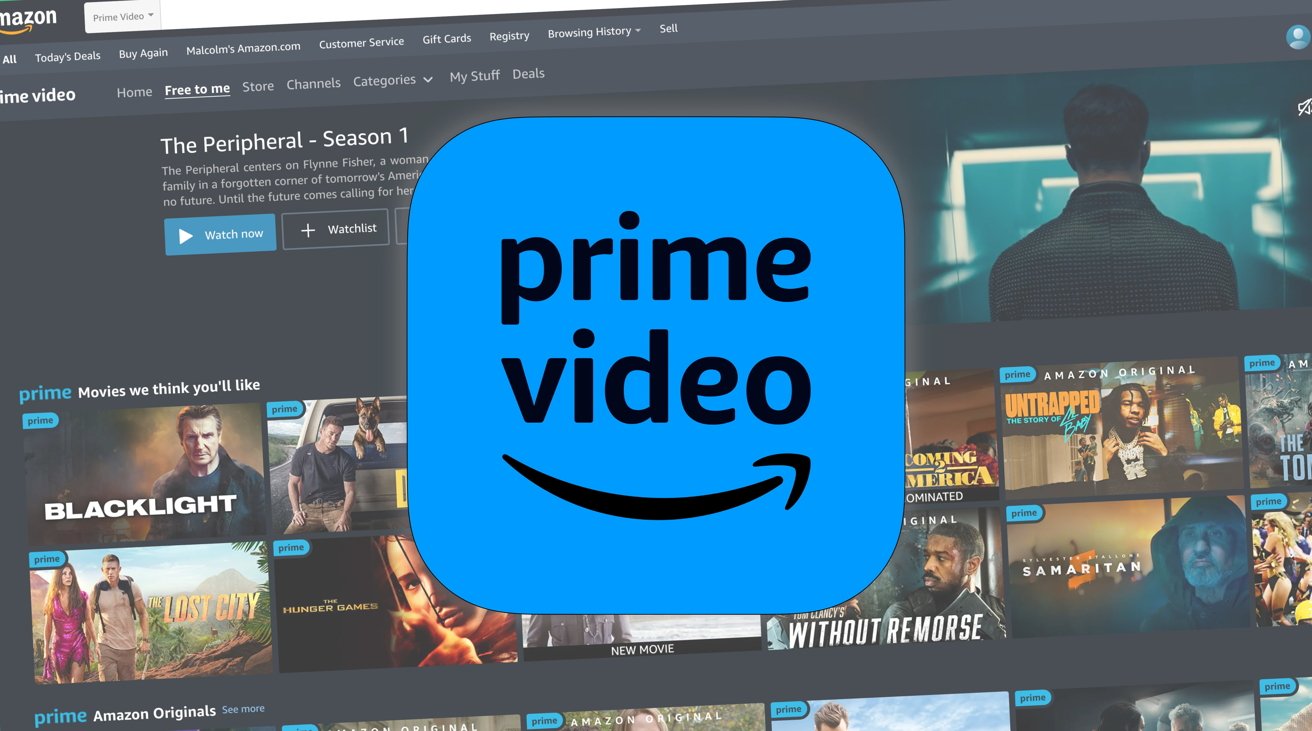
Watchlist: Think of your Watchlist as a digital bookmark. When you encounter a movie or show you want to watch later, simply click the “Add to Watchlist” button on its detail page. This centralizes all your desired content, making it easy to pick up where you left off or plan your next viewing session. You can access your Watchlist from the main menu, and it syncs across all your devices.
-
My Stuff/Library: This section is your personal hub for all content you own or have rented. Any movies or TV show seasons you’ve purchased or rented from the Prime Video Store will appear here. It also typically houses your Watchlist and any downloaded content. This “digital locker” ensures that your bought content is always accessible, regardless of its availability within the Prime subscription.
Optimizing Your Viewing Experience: Features and Customization
Beyond simply playing a video, Prime Video offers a suite of features designed to enhance usability, personalization, and control over your viewing environment. These tools range from managing who watches what to ensuring you can enjoy content even without an internet connection.
Creating and Managing User Profiles
For households with multiple viewers, user profiles are indispensable. Each profile can maintain its own Watchlist, viewing history, and personalized recommendations, ensuring that one person’s sci-fi binge doesn’t skew another’s rom-com suggestions.
-
How to Create Profiles: On most devices, navigate to the profile icon (often in the top right corner) and select “Add Profile” or “Manage Profiles.” You can name each profile and assign it an avatar.
-
Kids’ Profiles: A crucial feature is the ability to create “Kids’ Profiles.” When enabled, these profiles automatically filter out age-inappropriate content, restricting access to titles suitable for children up to a specified age limit. This leverages content rating metadata to provide a safe viewing environment, crucial for parental peace of mind.
Switching between profiles is quick and easy, typically done via the profile icon, allowing family members to seamlessly transition to their personalized Prime Video experience.
Downloading Content for Offline Viewing
One of the most valuable technological features for mobile users is the ability to download select Prime Video titles for offline viewing. This is perfect for long flights, commutes, or areas with unreliable internet access.
-
How to Download: On the Prime Video app for iOS, Android, or Windows 10/11, simply navigate to the detail page of a movie or TV episode. If the title is available for download (most Prime titles are), you’ll see a “Download” button or icon. Tap it, and the content will begin downloading to your device’s local storage.
-
Managing Downloads: Your downloaded content is accessible within the “My Stuff” or “Downloads” section of the app. From here, you can play offline or delete content to free up storage space.
-
Technical Considerations: Downloads consume storage, so ensure your device has sufficient space. Download quality can often be selected (e.g., “Good,” “Better,” “Best”) to balance file size with visual fidelity. Downloaded content typically has an expiration window, after which it will need to be re-downloaded or viewed online.
Adjusting Playback Settings and Quality
Prime Video provides options to tailor the playback experience to your preferences and network conditions.
-
Video Quality: While streaming, Prime Video generally attempts to deliver the highest quality possible based on your internet speed and device capabilities. However, you can often manually adjust stream quality settings in the app’s settings menu (e.g., “Good,” “Better,” “Best,” or data saver options) to conserve data or prevent buffering on slower connections. For purchased/rented content, the quality chosen during purchase (e.g., SD, HD, 4K UHD) is definitive.
-
Audio Options: Most content offers various audio tracks (e.g., original language, dubbed versions) and subtitle options. During playback, look for an audio/subtitle icon (often a speech bubble or gear) to change these settings. You can also customize subtitle appearance (font size, color, background) in the app’s general settings.
-
Autoplay: For TV series, an “Autoplay” feature typically moves you directly to the next episode after the current one finishes. This can be toggled on or off in the settings, allowing for continuous binge-watching or more controlled viewing.
Understanding X-Ray and Parental Controls
Two distinct yet powerful features enhance the Prime Video experience:
-
X-Ray: Powered by IMDb, X-Ray is a groundbreaking feature that provides real-time, context-sensitive information about the actors on screen, the music playing, trivia, and even behind-the-scenes facts. Simply pause the video or tap the screen (on mobile) to bring up the X-Ray overlay. This adds a layer of interactivity and knowledge, making watching more engaging.
-
Parental Controls: Crucial for family viewing, Prime Video’s parental controls allow you to set viewing restrictions for specific profiles and devices. You can:
-
Set Viewing Restrictions: Block content above a certain age rating (e.g., PG, 13+, 16+, 18+).
-
Require a PIN: Set a 5-digit PIN for purchases/rentals or to override viewing restrictions. This prevents unauthorized access to mature content or accidental purchases.
These controls are managed within the Prime Video settings, usually under “Parental Controls” or “Restrictions,” and are essential for maintaining a safe and appropriate viewing environment for all household members.
-
Troubleshooting Common Issues and Enhancing Security
Even with advanced software platforms like Prime Video, occasional technical glitches can arise. Knowing how to troubleshoot common problems and secure your account ensures a seamless and protected entertainment experience.
Resolving Playback and Buffering Problems
Encountering buffering, low-quality playback, or error messages can be frustrating. Most issues are typically related to internet connectivity or device performance.
-
Check Internet Connection: The most common culprit. Ensure your Wi-Fi or wired connection is stable and fast enough for streaming. Test your internet speed using an online tool. For HD streaming, a minimum of 5 Mbps is recommended; for 4K UHD, aim for 25 Mbps or higher.
-
Restart Device and App: A classic tech solution. Close the Prime Video app completely, and then relaunch it. If the problem persists, restart your streaming device, smart TV, or computer. This clears temporary glitches and refreshes network connections.
-
Clear App Cache/Data: Over time, app caches can become corrupted. On mobile devices or smart TVs, navigate to the app settings and look for options to “Clear Cache” or “Clear Data.” Be aware that clearing data might log you out and require you to sign back in.
-
Update App and Device Software: Ensure your Prime Video app is the latest version available from your device’s app store. Also, check for any pending system software updates for your smart TV, streaming stick, or mobile device. Software updates often include bug fixes and performance enhancements.
-
Reduce Other Network Activity: If multiple devices are using your home network for bandwidth-intensive tasks (e.g., gaming, large downloads), it can impact Prime Video’s performance. Temporarily pause or reduce these activities.
-
Check Prime Video Server Status: Occasionally, issues can stem from Prime Video’s servers. While rare, check official Prime Video social media channels or third-party “is it down” websites for widespread service outages.

Managing Devices and Account Security
Maintaining control over your linked devices and ensuring your account’s security is vital in the digital age.
-
Managing Registered Devices: Prime Video allows you to register a certain number of devices to your account, though concurrent streams are typically limited (usually to three at once). If you’ve logged in on many devices over time, it’s good practice to periodically review and manage them.
- Access Device Management: On the Amazon website, go to “Account & Lists” > “Your Account” > “Manage Your Content and Devices” > “Devices.” Here, you can see all registered devices and “Deregister” any you no longer own or use, preventing unauthorized access.
-
Account Security Best Practices:
-
Strong Passwords: Use a unique, complex password for your Amazon account.
-
Two-Factor Authentication (2FA): Enable 2FA on your Amazon account. This adds an extra layer of security by requiring a code from your phone (or another method) in addition to your password when signing in from a new device. This is arguably the most critical step to prevent unauthorized access.
-
Be Wary of Phishing: Always be cautious of suspicious emails or messages asking for your Amazon login credentials. Amazon will never ask for your password via email.
By actively managing your devices and implementing robust security measures, you safeguard your Prime Video account and personal information, ensuring your entertainment remains private and secure.
-