
In the ever-expanding universe of digital entertainment, Amazon Video stands as a colossal galaxy, offering a vast constellation of movies, TV shows, and original content at your fingertips. What began as a mere add-on to the Amazon Prime subscription has evolved into a sophisticated streaming platform, deeply integrated into countless technological ecosystems. For many, navigating this extensive service can seem daunting, but with the right knowledge, unlocking its full potential becomes an intuitive and rewarding experience. This guide will demystify the process, providing a comprehensive, step-by-step tutorial on how to effectively watch movies and more on Amazon Video, ensuring you leverage every technological advantage it offers for an unparalleled viewing journey.
Understanding the Amazon Video Ecosystem
Before diving into the specifics of watching content, it’s crucial to grasp the fundamental architecture of Amazon’s video offerings. This understanding forms the technical bedrock for making informed decisions about content access and optimizing your streaming experience.
Amazon Prime Video vs. Amazon Digital Store
Many users conflate Amazon Prime Video with the broader Amazon Digital Store, but they represent distinct, though interconnected, facets of Amazon’s media strategy.
- Amazon Prime Video: This is the subscription-based streaming service included with an Amazon Prime membership. It offers a curated library of thousands of movies, TV shows, and Amazon Originals that can be streamed at no additional cost beyond the Prime subscription fee. The content available here rotates periodically, with titles being added and removed based on licensing agreements. From a technological standpoint, Prime Video leverages Amazon’s extensive server infrastructure to deliver content seamlessly across a multitude of devices, often in high definition and 4K UHD where available. It’s an “all-you-can-watch” model for the included content.
- Amazon Digital Store: This is Amazon’s transactional video-on-demand (TVOD) service, where users can rent or purchase movies and TV shows individually, regardless of whether they have a Prime membership. This includes new releases, premium content, and titles not available on Prime Video. Purchases provide permanent digital ownership, allowing unlimited streaming, while rentals typically offer a 30-day window to start watching and a 48-hour window to finish once started. Technologically, this provides access to the same high-quality streams and features but on a pay-per-title basis, expanding the library far beyond Prime’s included offerings. Understanding this distinction is key to managing your digital media consumption and expenditure.
Device Compatibility: From Smart TVs to Mobile
One of Amazon Video’s greatest strengths lies in its pervasive device compatibility, ensuring that your content is accessible almost anywhere. The platform is engineered to adapt its user interface and streaming quality to a vast array of hardware.
- Smart TVs and Streaming Devices: The Amazon Prime Video app is pre-installed or readily available for download on virtually all modern smart TVs (Samsung, LG, Sony, Vizio, etc.) and dedicated streaming devices like Amazon Fire TV Stick, Roku, Apple TV, Chromecast, and NVIDIA Shield. These devices often offer the most robust streaming experience, supporting 4K UHD, HDR (High Dynamic Range), and immersive audio formats like Dolby Atmos.
- Mobile Devices and Tablets: For on-the-go viewing, the Amazon Prime Video app is indispensable for iOS (iPhone, iPad) and Android smartphones and tablets. These apps are optimized for smaller screens, touch controls, and offer crucial features like offline downloads.
- Gaming Consoles: PlayStation (PS3, PS4, PS5) and Xbox (Xbox 360, Xbox One, Xbox Series X/S) consoles all host the Prime Video app, transforming your gaming rig into a powerful entertainment hub.
- Web Browsers: For desktop and laptop users, content can be streamed directly via any major web browser (Chrome, Firefox, Edge, Safari) by visiting the Amazon Prime Video website. The web interface offers a full-featured experience, though some advanced features might be device-specific.
- Set-top Boxes: Many cable and satellite TV providers integrate the Prime Video app into their proprietary set-top boxes, offering another convenient access point.
This broad compatibility is a testament to Amazon’s commitment to ubiquitous access, employing adaptive streaming technologies to ensure optimal performance across varying network conditions and hardware specifications.
Regional Availability and Content Libraries
Amazon Video’s content library is not monolithic; it varies significantly based on your geographical location due to licensing agreements and intellectual property rights. The platform uses geo-blocking technologies to restrict access to certain content outside specific territories.
- Geo-restriction Technology: When you access Amazon Video, the service identifies your IP address to determine your country. This dictates which version of the content library you see and have access to. For example, a movie available on Prime Video in the U.S. might only be available for purchase in the UK or not at all in Australia.
- Content Differences: This means that the selection of movies, TV shows, and even Amazon Originals can differ dramatically from one country to another. Prime Video subscribers traveling internationally might find their usual home library inaccessible or replaced with the local library of their current location.
- Subscribing to Regional Content: In some regions, Amazon offers specific “channels” (like HBO, Starz, or local sports packages) as add-ons within the Prime Video app, further diversifying the content pool. These are also often region-specific.
Understanding these technical limitations and variations is important for managing expectations and, for some, might lead to exploring virtual private networks (VPNs), though the use of VPNs to bypass geo-restrictions often violates service terms and can lead to inconsistent performance or account issues.
Getting Started: Accessing Amazon Video
With a foundational understanding of the Amazon Video ecosystem, the next step is to get the service up and running on your preferred devices. This involves account setup, app installation, and familiarization with the user interface.
Signing Up and Account Management
Accessing Amazon Video begins with an Amazon account. If you already shop on Amazon, you’re halfway there.
- Create an Amazon Account: If you don’t have one, visit the Amazon website for your region (e.g., amazon.com, amazon.co.uk) and follow the instructions to create a new account. This is a free account that serves as your gateway to all Amazon services.
- Subscribe to Amazon Prime: To unlock the full Prime Video library, you’ll need an Amazon Prime membership. You can sign up for a free trial (usually 30 days) or a paid monthly/annual subscription. This can be done directly through the Amazon website.
- Link Your Account: Once subscribed, your Prime membership is automatically linked to your Amazon account. On any device you use to access Prime Video, you’ll simply sign in with your Amazon account credentials.
- Manage Your Subscription: Through your Amazon account settings on the website, you can manage your Prime membership, update payment methods, check billing cycles, and review your digital purchases and rentals. This centralizes control over your access to content.
Downloading the App on Various Devices
The Prime Video app is the primary conduit for streaming on most devices. The installation process is straightforward, designed for user accessibility.
- Smart TVs & Streaming Devices: Navigate to your device’s app store (e.g., LG Content Store, Samsung Smart Hub, Roku Channel Store, Apple App Store) and search for “Amazon Prime Video.” Select the app and choose “Download” or “Install.” Once installed, open the app and sign in with your Amazon account. Many Fire TV devices come with Prime Video pre-installed and automatically logged in.
- Mobile Devices & Tablets: For iOS, open the App Store; for Android, open the Google Play Store. Search for “Amazon Prime Video,” tap “Install,” and then open the app to sign in.
- Gaming Consoles: Go to the console’s store (e.g., PlayStation Store, Xbox Games Store), search for “Amazon Prime Video,” download, and install.
- Web Browser: No app download is necessary. Simply open your preferred browser and go to
primevideo.com. You’ll be prompted to sign in if you aren’t already.
The apps are continually updated, so ensuring your device’s operating system and the Prime Video app itself are kept current will guarantee access to the latest features, security patches, and performance optimizations.
Navigating the User Interface
Amazon Prime Video’s interface is designed for intuitive discovery and playback, though it varies slightly across devices.
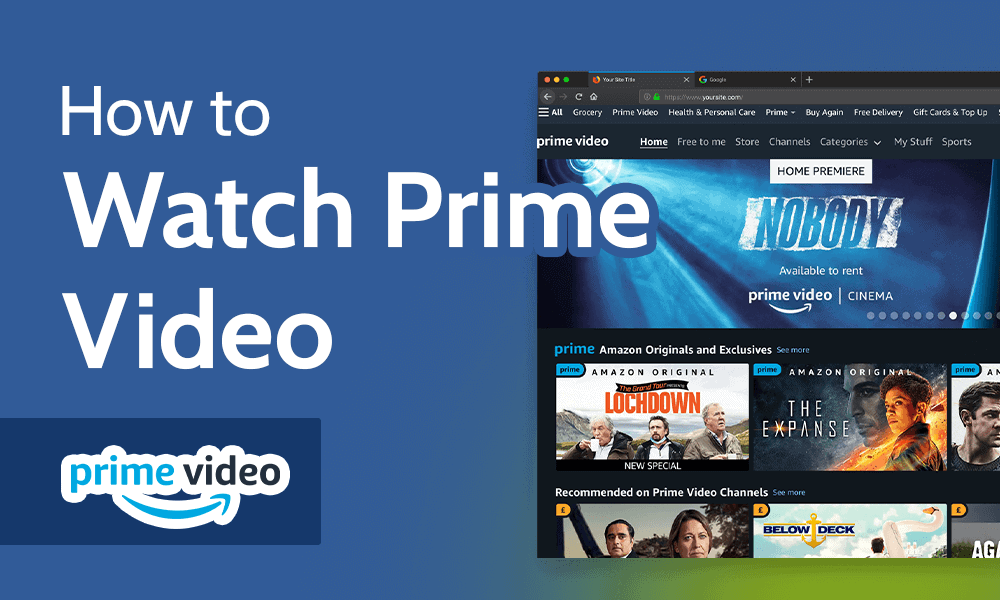
- Homepage/Browse Screen: Upon opening the app or website, you’ll typically land on a homepage showcasing featured content, new releases, and personalized recommendations.
- Navigation Menu: Look for a menu (often a hamburger icon on mobile or a sidebar on TVs/web) that allows you to filter content by “Movies,” “TV Shows,” “Amazon Originals,” “Kids,” “Categories/Genres,” and “Channels.”
- Search Function: A magnifying glass icon or a search bar is universally available, allowing you to quickly find specific titles, actors, or directors.
- Watchlist: This feature allows you to save titles you’re interested in watching later. It acts as a personal queue.
- Settings/Profile: Here you can manage profiles (especially useful for households), adjust parental controls, and modify playback preferences.
- Row-Based Layout: Content is typically organized into horizontal rows based on genre, recommendations, or collections (e.g., “Trending Movies,” “Because You Watched X,” “Included with Prime”). This visual categorization aids in discovery.
Spend some time exploring the interface on your primary viewing device. The more familiar you become, the more efficiently you can find and enjoy content.
Discovering and Watching Content
With your account set up and the app installed, the real fun begins: finding and watching movies. Amazon Video offers several tools to help you navigate its extensive library.
Searching for Movies and TV Shows
The most direct way to find specific content is through the search function.
- Keyword Search: Enter the title of a movie or TV show, an actor’s name, a director, or even a genre keyword. The search algorithm is robust, often providing relevant suggestions as you type.
- Filtering Search Results: After an initial search, you can often filter results by “Included with Prime,” “Rent or Buy,” “Genre,” “Year,” and more, to narrow down your options.
- Voice Search: Many devices, especially Amazon Fire TV devices and some smart TVs, offer integrated voice search. Simply press the microphone button on your remote and speak the title or query. This leverages natural language processing for an incredibly convenient search experience.
Utilizing Watchlists and Recommendations
Beyond direct search, Amazon employs sophisticated algorithms and user-driven tools to help you discover new content.
- Watchlist: When you find a movie or show you’re interested in but don’t have time to watch immediately, add it to your Watchlist. This keeps your potential viewing queue organized and easily accessible from any device.
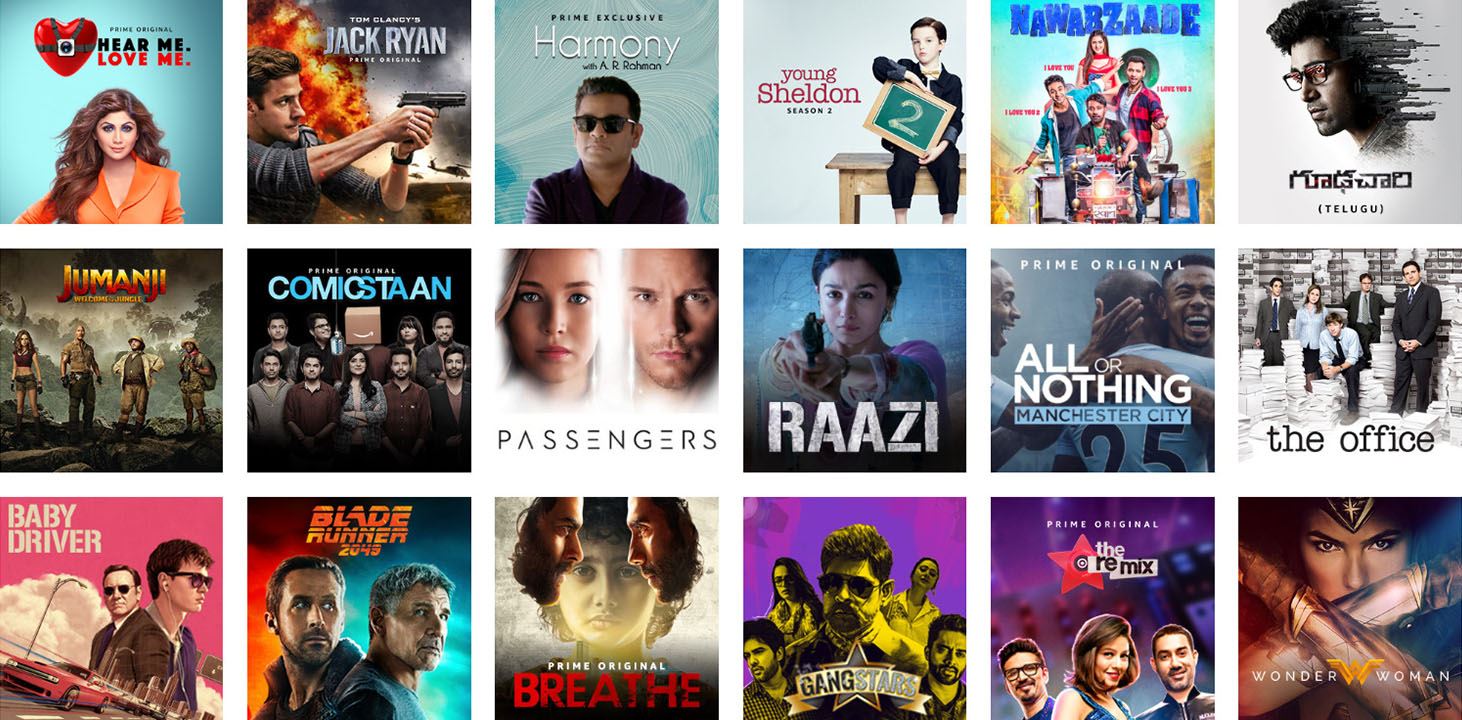
- Personalized Recommendations: Based on your viewing history, ratings, and content you’ve added to your Watchlist, Amazon’s recommendation engine suggests titles it believes you’ll enjoy. These appear on the homepage and within categories, often in rows like “Recommended for You” or “Customers Who Watched This Also Watched.” The more you watch and rate, the more accurate these recommendations become, utilizing machine learning to tailor your viewing experience.
- Browsing by Genre/Category: Explore the “Movies” or “TV Shows” sections and drill down into specific genres like “Action & Adventure,” “Comedy,” “Drama,” “Sci-Fi,” etc. This is ideal for discovering content when you have a general idea of what you want but no specific title in mind.
Playback Controls and Quality Settings
Once you select a title, the actual playback experience is designed to be user-friendly and feature-rich.
- Standard Playback Controls: You’ll find familiar controls for Play/Pause, Fast Forward, Rewind, and Volume. On touch devices, tapping the screen usually brings up these controls.
- Quality Settings: Amazon Prime Video automatically adjusts stream quality based on your internet connection speed to minimize buffering. However, on some devices, you can manually select a lower quality to save data (useful on mobile plans) or ensure smooth playback on slower connections. On the web, you might find a gear icon for quality settings. The platform supports streaming up to 4K Ultra HD and HDR, provided your device and internet speed can handle it.
- Audio Options: Many titles offer multiple audio tracks (e.g., original language, dubbed versions) and sometimes different audio mixes (e.g., 5.1 Surround Sound, Stereo).
- Subtitles and Closed Captions: These are almost universally available. Look for an icon (often a speech bubble or “CC”) to enable, disable, or customize their appearance (font size, color, background).
Offline Viewing and Downloads
A standout feature for mobile users is the ability to download titles for offline viewing, perfect for commutes, flights, or areas with unreliable internet.
- Downloading Content: On the Prime Video app for iOS and Android, look for a “Download” button on the movie or TV show detail page. Not all titles are available for download due to licensing restrictions, but a significant portion of the Prime Video library is.
- Managing Downloads: Downloads are stored within the app and can be managed from a dedicated “Downloads” section. You can view remaining storage, delete watched titles, and sometimes choose download quality (e.g., Good, Better, Best) to balance file size and video quality.
- Expiry Dates: Downloaded content typically has an expiry period. For Prime-included titles, it’s usually 30 days once downloaded, or 48 hours once you start watching it. Rented content also has its own download and viewing windows.
Enhancing Your Viewing Experience
Amazon Video isn’t just about basic streaming; it integrates several advanced features and functionalities to enrich your interaction with content.
Parental Controls and Family Sharing
For households, especially those with children, managing who watches what is paramount.
- Profiles: Amazon Prime Video allows the creation of multiple user profiles within a single account. Each profile can have its own viewing history, recommendations, and Watchlist. Crucially, a “Kids Profile” can be set up, which automatically filters content to only show age-appropriate titles (usually PG and below), providing a safe browsing environment.
- Parental Controls: In the account settings, you can set viewing restrictions based on content ratings (G, PG, PG-13, R, NC-17 for movies; TV-Y, TV-G, TV-PG, TV-14, TV-MA for TV shows). You can also set a PIN that must be entered to bypass these restrictions or to make purchases, preventing accidental or unauthorized access to mature content or charges. These controls are device-specific but can often be applied globally across all registered devices.
Accessibility Features (Subtitles, Audio Descriptions)
Amazon is committed to making its content accessible to a wider audience, integrating features for those with hearing or visual impairments.
- Subtitles and Closed Captions: As mentioned, these are available for most content. Closed captions include non-speech elements like “[doorbell rings]” to provide a fuller context for the hearing impaired. You can customize the size, font, and color of these captions for optimal readability.
- Audio Descriptions (AD): For viewers who are blind or visually impaired, audio descriptions provide narrated information about key visual elements on screen, such as actions, settings, and character expressions, during natural pauses in dialogue. Look for the “AD” icon on the playback screen or in audio settings. This feature significantly enhances the narrative experience by bridging visual information gaps.
- Language Options: Many movies offer multiple language audio tracks, catering to multilingual audiences.
Troubleshooting Common Issues
Despite the robust engineering behind Amazon Video, occasional technical glitches can occur. Knowing how to troubleshoot them can quickly restore your viewing pleasure.
- Buffering or Poor Quality:
- Check Internet Connection: Ensure your Wi-Fi or wired connection is stable and fast enough (Amazon recommends at least 1 Mbps for SD, 3.5 Mbps for HD, and 15 Mbps for 4K UHD).
- Reduce Network Congestion: If other devices are heavily using your internet, pause or limit their activity.
- Restart Router: A simple router restart can often resolve connectivity issues.
- Change Stream Quality: If available, manually select a lower resolution within the app’s settings.
- App Crashes or Freezing:
- Restart the App: Close the Prime Video app completely and reopen it.
- Restart Device: Power cycle your streaming device, TV, or mobile device.
- Clear Cache: On mobile devices, go to app settings and clear the app’s cache.
- Update App: Ensure the Prime Video app is updated to its latest version.
- Login Issues:
- Verify Credentials: Double-check your Amazon account email and password.
- Reset Password: Use the “Forgot Password” option on the Amazon website if needed.
- Check Account Status: Ensure your Prime membership is active and your payment method is current.
For persistent issues, Amazon’s customer support is available through their website, offering specific guidance and technical assistance.
Conclusion
Amazon Video has transcended its origins to become a comprehensive, technologically advanced entertainment platform, seamlessly integrating with countless devices and offering an unparalleled breadth of content. From the distinction between Prime Video and the Digital Store, through the nuanced features of device compatibility and regional libraries, to the practical steps of signing up, navigating the interface, and leveraging advanced playback options, understanding these aspects transforms a casual viewer into a savvy streaming enthusiast. By embracing the power of its search functions, personalized recommendations, and accessibility features, you’re not just watching movies; you’re harnessing a sophisticated digital ecosystem designed for maximum entertainment and convenience. So, sign in, explore, and let Amazon Video bring the cinematic universe directly to your screen, wherever you are.
aViewFromTheCave is a participant in the Amazon Services LLC Associates Program, an affiliate advertising program designed to provide a means for sites to earn advertising fees by advertising and linking to Amazon.com. Amazon, the Amazon logo, AmazonSupply, and the AmazonSupply logo are trademarks of Amazon.com, Inc. or its affiliates. As an Amazon Associate we earn affiliate commissions from qualifying purchases.