
In the rapidly evolving landscape of digital entertainment, streaming services have become indispensable for countless households worldwide. Among the titans of this industry stands Amazon, whose video streaming platform, once widely known as Amazon Instant Video, has matured into the robust and expansive service now recognized as Amazon Prime Video. For many, it’s the gateway to an unparalleled library of movies, TV shows, and original content, seamlessly integrated with the broader Amazon ecosystem. This comprehensive guide will navigate you through every aspect of accessing and enjoying films on Amazon Prime Video, transforming a mere question of “how to watch” into a mastery of your personal cinematic universe.
Whether you’re a seasoned Amazon Prime member looking to fully leverage your benefits, a curious newcomer contemplating a standalone subscription, or simply someone seeking to understand the technical nuances of streaming, this article is designed to be your definitive resource. We’ll delve into the platform’s evolution, detail the step-by-step process of getting started, explore the myriad of devices compatible with the service, and uncover advanced features that enhance your viewing pleasure. Prepare to unlock the full potential of Amazon Prime Video and immerse yourself in a world of high-quality entertainment, all at your fingertips.
Understanding Amazon Prime Video: Beyond “Instant Video”
To truly master the art of watching movies on Amazon’s platform, it’s crucial to understand its journey and current identity. What started as Amazon Instant Video has grown into a cornerstone of the company’s digital offerings, synonymous with its premium Prime membership.
The Evolution of Amazon’s Streaming Service
Amazon’s foray into digital video began with “Amazon Unbox” in 2006, primarily offering digital rentals and purchases. This later evolved into “Amazon Instant Video,” which introduced a subscription-based streaming model alongside its transactional offerings. The critical turning point arrived with the deeper integration of Instant Video into the Amazon Prime membership. For a single annual or monthly fee, Prime members gained not just free two-day shipping but also unlimited access to a growing library of movies and TV shows – the “Prime Video” catalog.
Today, “Amazon Prime Video” is the prevailing brand name, signifying its central role within the Amazon Prime ecosystem. While the original “Instant Video” implied immediate access to purchased or rented content, “Prime Video” encompasses both the subscription-based library and the pay-per-view options, creating a unified and powerful streaming service. This evolution reflects Amazon’s strategy to bundle diverse services, offering immense value to its Prime subscribers and consolidating its position as a major player in the streaming wars. Understanding this lineage helps clarify why some content is “free with Prime” while others require additional payment.
Key Features and Content Library
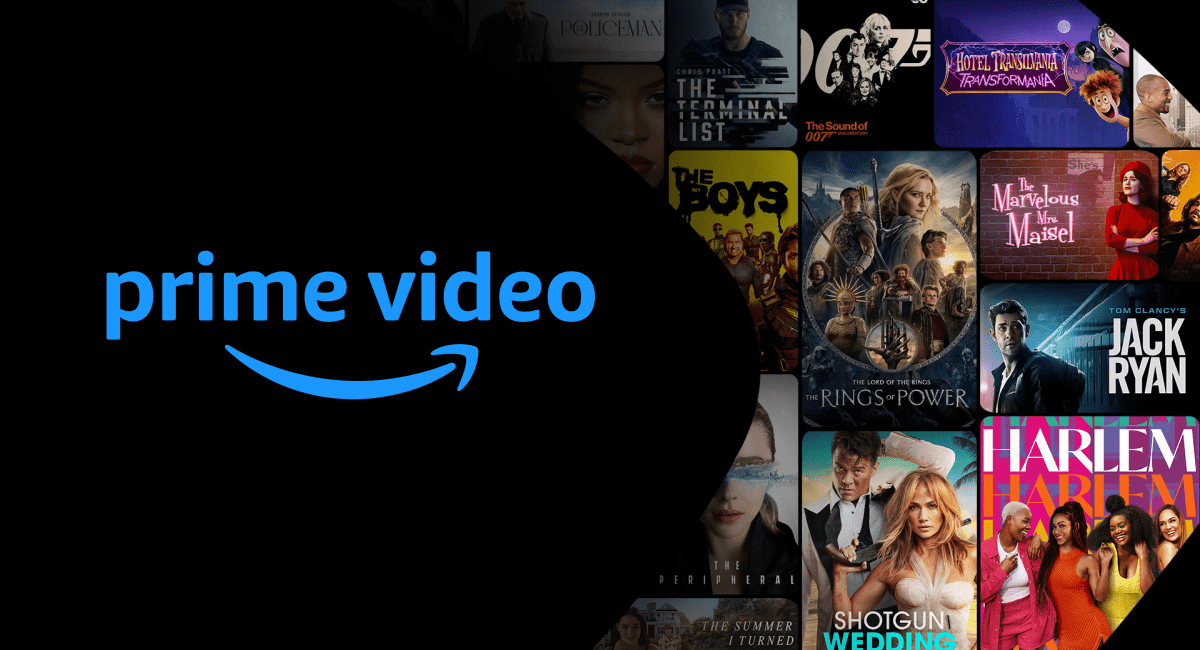
Amazon Prime Video stands out not only for its extensive library but also for a suite of features designed to enhance the user experience. The content library is vast, spanning thousands of movies and TV series across virtually every genre imaginable, from Hollywood blockbusters and independent films to critically acclaimed international cinema. A significant draw is the ever-expanding roster of “Amazon Originals” – high-budget, exclusive productions like The Lord of the Rings: The Rings of Power, The Boys, Reacher, and The Marvelous Mrs. Maisel. These originals are often lauded for their cinematic quality and have garnered numerous awards, making Prime Video a destination for premium storytelling.
Beyond the sheer volume, Prime Video offers technical excellence. Much of its content is available in high-definition (HD), and a substantial portion is accessible in stunning 4K Ultra HD with HDR (High Dynamic Range), providing incredibly vibrant colors and contrast on compatible devices. The service also supports immersive audio formats like Dolby Atmos on select titles, elevating the auditory experience. Unique features like X-Ray, powered by IMDb, allow viewers to instantly access information about actors, music, and trivia related to the scene they’re watching, without leaving the playback screen. Furthermore, users have the flexibility to rent or purchase new release movies and TV shows that are not included with a Prime subscription, often before they are available on other platforms, effectively combining a subscription service with a digital video store.
Differentiating Prime Membership vs. Standalone Subscriptions
The primary way to access the full scope of Amazon Prime Video’s subscription library is through an Amazon Prime membership. This comprehensive membership typically includes free expedited shipping, access to Prime Music, Prime Reading, and crucially, Prime Video. The cost of Prime membership covers unlimited streaming of all content marked “Included with Prime.”
However, Amazon also offers a standalone Prime Video subscription for those who may not require the other Prime benefits. This option provides access solely to the Prime Video library for a lower monthly fee than a full Prime membership. This distinction is vital because while both options grant access to the “free with Prime” content, neither covers the additional cost of renting or purchasing movies and TV shows that fall outside the Prime library. These transactional video-on-demand (TVOD) titles are available to all Amazon customers, regardless of whether they have a Prime or standalone Prime Video subscription, and require separate payment. Understanding this differentiation helps users manage their expectations regarding content access and associated costs, ensuring they’re getting the most out of their chosen Amazon video service.
Getting Started: Accessing Amazon Prime Video
Embarking on your Amazon Prime Video journey is a straightforward process, designed for user convenience. Whether you’re a long-time Amazon customer or new to the ecosystem, setting up your viewing environment is quick and intuitive.
Creating or Logging into Your Amazon Account
The foundational step to accessing Amazon Prime Video is having an Amazon account. If you’ve ever shopped on Amazon, you already possess this crucial key. Simply navigate to the Amazon website (amazon.com or your local domain) or open any Amazon app, and click on “Sign In.” Enter your registered email address or mobile number and password.
For newcomers, creating an account is equally simple. On the sign-in page, select “Create your Amazon account.” You’ll be prompted to enter your name, email address, and choose a secure password. After verification (usually via email or phone), your Amazon account is established. Once logged in, ensure your payment method and billing address are up to date, as these will be necessary if you decide to rent or purchase content, or if you’re subscribing to Prime for the first time. If you’re not already a Prime member, you’ll be prompted to start a free trial or subscribe directly to Amazon Prime, which will automatically activate your Prime Video access.
Navigating the Prime Video Interface
Upon logging into your Amazon account and accessing Prime Video (either via the website, a smart TV app, or a mobile app), you’ll be greeted by an intuitive and feature-rich interface. The home screen is typically organized into various carousels and categories, showcasing popular titles, Amazon Originals, new releases, and personalized recommendations based on your viewing history.
Key navigation elements include:
-
Home: Returns you to the main browsing screen.
-
Search: A magnifying glass icon or search bar allows you to look up specific titles, actors, directors, or genres.
-
Store/Shop: This section is where you can find movies and TV shows available for rent or purchase that are not included with your Prime subscription.
-
My Stuff/My Videos: Here you’ll find your watchlist (titles you’ve marked to watch later), your purchased or rented content, and any downloaded videos for offline viewing.
-
Live TV (in some regions): Access to linear TV channels or live sports, often requiring additional subscriptions.
-
Categories/Genres: Browse content by genre (Action, Comedy, Drama, Sci-Fi, etc.), specific collections, or channels.
The interface is designed for ease of discovery, with clear indicators for content included with Prime, available for rent, or available for purchase. Scrolling through the various sections, you’ll find trailers, synopses, cast information, and IMDb ratings to help you decide what to watch next.
Setting Up Your Profile(s) for Personalized Viewing
Amazon Prime Video supports multiple user profiles, a crucial feature for households with diverse viewing tastes. This allows each family member to maintain their own personalized experience, complete with individual watchlists, viewing history, and tailored recommendations.
To set up profiles:
-
Navigate to the profile icon (often a person silhouette) usually located in the top-right corner of the screen (on web or TV app) or within the settings menu (mobile app).
-
Select “Add Profile” or “Manage Profiles.”
-
You can create a new profile for an adult or a specific “Kids Profile.”
-
Kids Profiles are particularly useful as they filter content to show only age-appropriate movies and TV shows, ensuring a safe viewing environment for younger audiences. You can set age range restrictions for these profiles.
-
Each profile can have its own name, and once created, users can easily switch between profiles before or during a viewing session, ensuring that recommendations and viewing history remain distinct. This level of personalization significantly enhances the user experience, making Prime Video truly a service for the entire household.
Your Devices, Your Way: Watching Across Platforms
One of the greatest strengths of Amazon Prime Video lies in its ubiquitous availability. You’re rarely limited to a single device; instead, you can pick up where you left off, whether you’re at home or on the go.
Smart TVs and Streaming Sticks/Boxes
For the ultimate home theatre experience, watching Prime Video on a Smart TV or through a dedicated streaming device is the way to go.
-
Smart TVs: Most modern Smart TVs (Samsung, LG, Sony, Vizio, Panasonic, etc.) come with the Amazon Prime Video app pre-installed or available for download from their respective app stores. Simply open the app, sign in with your Amazon account credentials, and you’re ready to stream in the highest available quality your TV supports.
-
Amazon Fire TV Devices: Unsurprisingly, Amazon’s own Fire TV Sticks and Fire TV Cubes offer the most integrated Prime Video experience. These devices are designed to seamlessly blend Prime Video content into their home screen, often featuring quick access buttons on their remotes. Setup is incredibly user-friendly, and they support 4K, HDR, and voice control via Alexa.
-
Other Streaming Devices: Popular alternatives like Roku streaming players, Apple TV, Google Chromecast with Google TV, and Nvidia Shield TV all offer robust Amazon Prime Video apps. Install the app from their respective app stores, log in, and enjoy. These devices are excellent for upgrading older non-smart TVs or for those who prefer a consistent interface across multiple streaming services.
Mobile Devices (Smartphones & Tablets)
The Prime Video app for iOS (iPhone, iPad) and Android smartphones and tablets is a powerhouse for on-the-go entertainment.
-
Download the App: Search for “Amazon Prime Video” in the Apple App Store or Google Play Store and download it.
-
Sign In: Open the app and log in with your Amazon account.
-
Browse and Stream: The mobile interface is optimized for touchscreens, allowing for easy browsing, searching, and playback.
-
Offline Viewing: A standout feature for mobile users is the ability to download select movies and TV shows for offline viewing. This is perfect for long commutes, flights, or areas with unreliable internet. To download, simply tap the download icon (down arrow) next to the title or episode you wish to save. Downloads are stored within the app and can be accessed from the “My Stuff” or “Downloads” section.
Web Browsers and Computers
For those working or relaxing at a desk, watching Prime Video directly through a web browser on a computer is a convenient option.
-
Go to the Website: Open your preferred web browser (Chrome, Firefox, Edge, Safari, etc.) and navigate to primevideo.com or amazon.com/primevideo.
-
Sign In: Log in with your Amazon account.
-
Start Streaming: The web interface is identical to many Smart TV app experiences, offering full functionality for browsing, searching, and playback. Ensure your browser is up-to-date for optimal performance and security. While you can’t officially download content for offline viewing directly through the browser, the convenience of instant access makes it a popular choice.
Gaming Consoles
Many modern gaming consoles double as comprehensive entertainment hubs, and Prime Video is a standard inclusion.
-
PlayStation (PS4, PS5): The Amazon Prime Video app is available for download from the PlayStation Store.
-
Xbox (Xbox One, Xbox Series X/S): Similarly, the app can be found in the Microsoft Store on Xbox.
-
Nintendo Switch: As of my last update, a native Prime Video app is not available on Nintendo Switch.
For PlayStation and Xbox users, simply download the app, sign in, and transform your gaming console into a powerful streaming device, often supporting 4K playback on compatible consoles.
Enhancing Your Viewing Experience
Beyond simply playing a movie, Amazon Prime Video offers a suite of advanced features and settings designed to elevate your viewing experience and provide greater control.
Optimizing Playback Settings (Quality, Subtitles, Audio)
Tailoring the technical aspects of your stream can significantly improve enjoyment:
-
Video Quality: While Prime Video often auto-detects the best quality based on your internet speed, you can sometimes manually adjust it. On mobile devices, you can set streaming quality for Wi-Fi and mobile data separately (e.g., “Good,” “Better,” “Best”). On TVs and web browsers, the player typically prioritizes the highest quality available (HD, 4K HDR) if your device and internet connection support it. Check your device’s display settings to ensure it’s configured for 4K/HDR if available.
-
Subtitles/Closed Captions: During playback, look for the subtitle icon (often a speech bubble or “CC”). Clicking or selecting this allows you to choose from available subtitle languages, adjust their size, color, and background for readability. This is invaluable for hard-of-hearing viewers, international content, or simply to catch every line of dialogue.
-
Audio Tracks: For titles with multiple audio options (e.g., original language, dubbed versions, or descriptive audio for the visually impaired), you can select your preferred track from the same menu as subtitles. Some titles also offer immersive sound formats like Dolby Digital 5.1 or Dolby Atmos, which will automatically engage if your sound system supports them.
Downloading Content for Offline Viewing
As mentioned, the ability to download content for offline viewing is a massive convenience, particularly for mobile users.
-
Open the Prime Video App: Ensure you’re on a compatible mobile device (iOS or Android).
-
Find Your Content: Browse or search for the movie or TV show you want to download.
-
Select Download: On the title’s detail page or next to individual episodes, you’ll see a download icon (a downward arrow). Tap it.
-
Choose Quality (Optional): The app may prompt you to select the download quality (e.g., Good, Better, Best), which impacts file size and storage usage.
-
Access Downloads: Once downloaded, you can find your content in the “Downloads” section under “My Stuff” within the app.
Remember that downloaded content has an expiration period and requires periodic internet connection to verify your Prime membership status.
Parental Controls and Restrictions
For families, managing access to content is paramount. Prime Video offers robust parental controls:
-
Access Settings: Go to “Account & Settings” on the Prime Video website or through the app’s settings menu.
-
Parental Controls Section: Here, you can set up a “Prime Video PIN” (a 5-digit code) that must be entered to bypass restrictions.
-
Viewing Restrictions: You can set age restrictions for content (e.g., G, PG, PG-13, R, NC-17, or custom ratings), preventing playback of titles above a certain rating without the PIN. These restrictions can be applied to specific devices.
-
Purchase Restrictions: This crucial feature prevents unauthorized purchases or rentals without the PIN, safeguarding against accidental charges, especially from children.
Implementing these controls provides peace of mind, ensuring a safe and appropriate viewing environment for all family members.
Utilizing X-Ray (Powered by IMDb)
X-Ray is a unique and highly praised feature that integrates IMDb data directly into your viewing experience.
-
How it Works: While watching a movie or TV show, simply tap or click on the screen (on mobile/tablet) or press the “up” arrow on your remote (on Fire TV/Smart TV). A sidebar or overlay will appear.
-
What it Shows: X-Ray provides instant information about:
-
Actors currently on screen: See their names, faces, and other notable works.
-
Music playing: Identify the song and artist.
-
Trivia: Fun facts and behind-the-scenes insights related to the scene.
-
Jump to Scenes: Navigate directly to scenes featuring specific actors or songs.
-
This immersive feature adds a rich layer of context and discovery to your viewing, perfect for film buffs and casual viewers alike who want to know “who was that actor?” or “what’s that song?”.
Troubleshooting Common Issues
Even the most robust streaming services can encounter occasional glitches. Knowing how to troubleshoot common problems can quickly get you back to your movie.
Internet Connectivity Problems
The vast majority of streaming issues stem from an unstable or slow internet connection.
-
Check Your Connection: Ensure your Wi-Fi is connected and your internet is working on other devices.
-
Restart Your Router/Modem: Unplug your internet router and modem for 30 seconds, then plug them back in. This often resolves minor network hiccups.
-
Bandwidth Requirements: SD streaming requires about 3-5 Mbps, HD needs 5-8 Mbps, and 4K Ultra HD demands 15-25 Mbps. If multiple devices are using the internet simultaneously, it might throttle your speed. Consider pausing downloads or other high-bandwidth activities.
-
Move Closer to Router: If using Wi-Fi, being closer to your router can improve signal strength.
App Crashes or Freezing
If the Prime Video app is misbehaving on your device:
-
Force Close and Restart: On mobile, force close the app (swipe it away from recent apps). On Smart TVs/streaming devices, try quitting the app and reopening it.
-
Clear Cache/Data: In your device’s app settings, you can usually find an option to “Clear Cache” or “Clear Data” for the Prime Video app. This can resolve corrupted data issues without deleting your downloaded content.
-
Update the App: Ensure your Prime Video app is updated to the latest version. Outdated apps can lead to performance issues.
-
Restart Your Device: A full reboot of your smartphone, tablet, smart TV, or streaming stick can often resolve temporary software conflicts.
-
Reinstall the App: As a last resort, uninstalling and then reinstalling the Prime Video app can fix persistent problems.
Playback Errors and Licensing Issues
Encountering specific error codes or messages like “Title not available” or “License expired” can be frustrating.
-
Check Content Availability: Some content may be region-locked or have a limited streaming window due to licensing agreements. Double-check the title’s detail page to confirm its availability in your region and with your subscription.
-
DRM Issues: Digital Rights Management (DRM) ensures content protection. If you’re using an unauthorized cable, adapter, or a modified device, DRM might prevent playback. Ensure you’re using certified HDMI cables and official hardware.
-
Browser Compatibility: If streaming on a web browser, try a different browser or ensure your current browser is fully updated. Some older browsers or operating systems might not fully support the latest DRM technologies.
-
Server Issues: Rarely, Amazon’s servers might experience temporary outages. Check Amazon’s official social media channels or downdetector.com to see if others are reporting similar issues.
Account and Billing Queries
While this guide focuses on the technical aspects of watching, account and billing issues can indirectly affect access.
-
Check Subscription Status: Verify your Amazon Prime or Prime Video standalone subscription is active and hasn’t expired. You can do this in your Amazon account settings under “Memberships & Subscriptions.”
-
Payment Method: Ensure your default payment method on Amazon is up to date and valid. Expired cards can lead to subscription failures.
-
Contact Amazon Support: For complex account, billing, or technical issues that persist, the most effective solution is to contact Amazon Customer Service directly. They can provide personalized assistance and resolve account-specific problems.

Conclusion
Amazon Prime Video has evolved significantly from its “Instant Video” origins, becoming a formidable and highly versatile streaming service. From its vast library of movies and acclaimed Amazon Originals to its seamless integration across an impressive array of devices, it offers a compelling entertainment package. By understanding its foundational structure, mastering the intuitive interface, leveraging multi-device compatibility, and utilizing powerful features like X-Ray and parental controls, you can unlock a truly personalized and enriched viewing experience.
Navigating the occasional technical hiccup is also part of the digital age, and with the troubleshooting tips provided, you’re well-equipped to resolve most common issues independently. Whether you’re settling in for a cinematic masterpiece on your 4K TV or catching up on a series during your commute, Amazon Prime Video ensures that a world of entertainment is always within reach. Dive in, explore its depths, and transform your “how to watch” into a sophisticated enjoyment of digital cinema.
aViewFromTheCave is a participant in the Amazon Services LLC Associates Program, an affiliate advertising program designed to provide a means for sites to earn advertising fees by advertising and linking to Amazon.com. Amazon, the Amazon logo, AmazonSupply, and the AmazonSupply logo are trademarks of Amazon.com, Inc. or its affiliates. As an Amazon Associate we earn affiliate commissions from qualifying purchases.