
In the ever-evolving landscape of digital entertainment, Amazon Prime Video stands as a colossal contender, offering an expansive library of films, TV shows, and original programming. For many, it’s an integral part of their Amazon Prime membership, unlocking a world of cinematic experiences right from the comfort of their homes or on the go. However, navigating a vast streaming platform, especially for newcomers, can sometimes feel like an intricate puzzle. This comprehensive guide will demystify the process, transforming you into a proficient Prime Video user, ready to immerse yourself in countless hours of high-quality entertainment. From initial access to advanced features and troubleshooting tips, we’ll cover everything you need to know to maximize your viewing pleasure on Amazon Prime Video.
Unlocking the World of Prime Video: A Comprehensive Introduction
Amazon Prime Video isn’t just another streaming service; it’s a gateway to a rich ecosystem of digital content designed to cater to diverse tastes. Understanding its foundational elements is the first step towards a seamless viewing experience.
What is Amazon Prime Video?
At its core, Amazon Prime Video is an on-demand video streaming service operated by Amazon. It offers a combination of content included with an Amazon Prime membership, content available for rent or purchase, and a growing selection of channels through Prime Video Channels. While it’s often perceived as a perk of Prime, it can also be subscribed to as a standalone service in some regions. The service has become renowned for its critically acclaimed Amazon Originals, alongside a continually refreshed catalog of licensed movies and series from various studios. This blend ensures a constant influx of fresh and compelling content for its global audience.
How to Access Prime Video
Gaining entry to Prime Video is straightforward, whether you’re a seasoned Amazon Prime member or looking to subscribe specifically for the video content.
If you’re already an Amazon Prime member, you automatically have access to Prime Video. Simply sign in to the Prime Video app or website using your Amazon account credentials. If you’re not a Prime member, you can opt for a free trial of Amazon Prime, which includes Prime Video, or subscribe to Prime Video directly. The sign-up process typically involves creating an Amazon account (if you don’t have one), providing payment details, and confirming your subscription. Once activated, your account becomes your key to the entire Prime Video library.
Compatible Devices for Seamless Streaming
One of Prime Video’s strengths lies in its broad device compatibility, ensuring you can enjoy your content almost anywhere. The service is accessible on a multitude of platforms, offering flexibility and convenience.
-
Smart TVs: Most modern smart TVs (Samsung, LG, Sony, Vizio, etc.) have a pre-installed Prime Video app or allow you to download it from their app store.
-
Streaming Media Players: Devices like Amazon Fire TV Stick, Roku, Apple TV, and Google Chromecast are excellent options, often providing a dedicated Prime Video interface.
-
Mobile Devices: The Prime Video app is available for both iOS (iPhones, iPads) and Android smartphones and tablets, enabling on-the-go viewing.
-
Gaming Consoles: PlayStation (PS3, PS4, PS5) and Xbox (Xbox One, Xbox Series X/S) consoles all support the Prime Video app, turning your gaming rig into an entertainment hub.
-
Web Browsers: For desktop and laptop users, Prime Video is readily available through any standard web browser (Chrome, Firefox, Edge, Safari) by visiting
primevideo.com. -
Blu-ray Players and Set-top Boxes: Some older Blu-ray players and cable company set-top boxes also feature Prime Video integration.
Ensuring your device’s operating system and the Prime Video app are up-to-date is crucial for optimal performance and access to the latest features.
Mastering the Interface: Navigating Prime Video Like a Pro
Once you’ve gained access, the next step is to efficiently navigate the Prime Video interface. Its design prioritizes ease of discovery, but a few pointers can significantly enhance your browsing experience.
Exploring the Home Screen and Categories
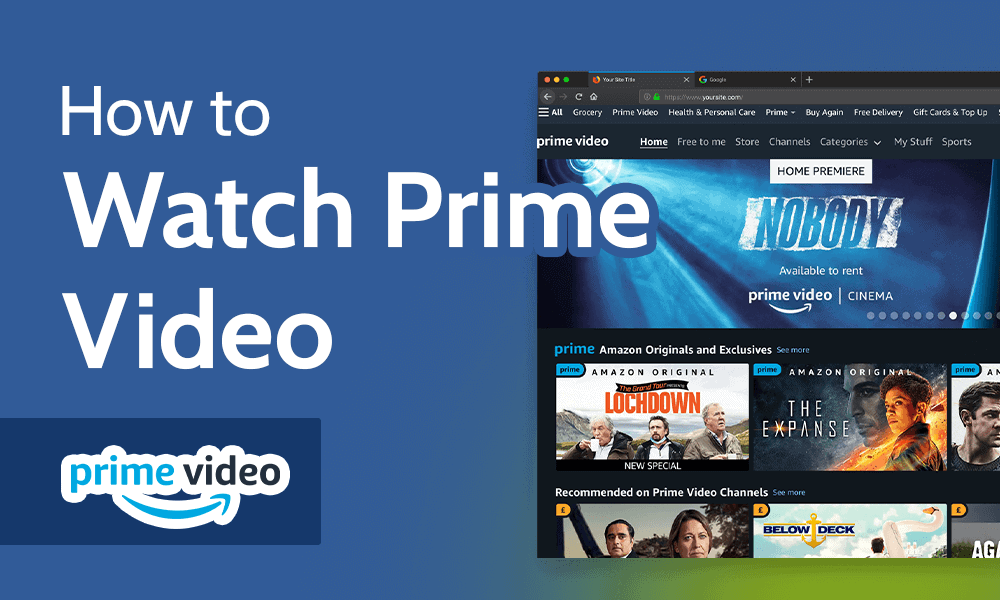
Upon launching Prime Video, you’re greeted by a dynamic home screen that serves as your central hub. This screen typically features a rotating carousel of popular and new titles, personalized recommendations based on your viewing history, and curated lists. Below this, you’ll find various rows categorized by genre (Action, Comedy, Drama), theme (Critically Acclaimed, Trending Now), or content type (Movies, TV Shows, Amazon Originals). Take time to scroll through these sections; they are designed to expose you to content you might not have explicitly searched for, broadening your cinematic horizons. The main navigation bar, usually at the top or side of the screen, allows you to jump directly to “Home,” “Movies,” “TV Shows,” “Live TV,” “Freevee” (Amazon’s free, ad-supported service), or “Store.”
Efficiently Searching for Content
While browsing is enjoyable, sometimes you know exactly what you want to watch. Prime Video’s robust search functionality makes finding specific titles, actors, or directors incredibly simple. Look for the magnifying glass icon, which will bring up the search bar. You can type in movie titles, actor names, directors, genres, or even keywords related to a plot. The search results will display relevant content, clearly indicating whether it’s included with Prime, available for rent/purchase, or part of a Prime Video Channel subscription. This direct approach saves time and ensures you quickly land on your desired content.
Building Your Watchlist and Managing Your Library
To keep track of films or shows you intend to watch later, the “Watchlist” feature is indispensable. When you find a title that piques your interest but aren’t ready to watch immediately, simply click the “+ Watchlist” button (often a ‘plus’ icon or explicit text). This adds the title to your personal Watchlist, accessible from the main navigation. This virtual queue helps organize your viewing intentions.
Your “Library” (sometimes called “My Stuff” or “My Videos”) is where you’ll find all the content you’ve rented or purchased, along with any digital copies of movies or shows linked to your Amazon account through services like Movies Anywhere. This ensures that any content you own is easily accessible in one centralized location, separate from the Prime-included content.
Understanding Content Labels
As you browse Prime Video, you’ll notice various labels accompanying titles, indicating their availability.
-
“Included with Prime” / “Watch with Prime”: These titles are part of your Amazon Prime membership and can be streamed without additional cost.
-
“Rent” / “Buy”: These options appear for content not included with Prime, allowing you to rent for a limited viewing period (usually 30 days to start watching, 48 hours once started) or purchase for unlimited streaming access.
-
“Subscribe with Prime Video Channels”: Some content is only available through premium channels (like HBO, Showtime, Starz, Paramount+) that you can subscribe to directly within Prime Video, often with a free trial period. These subscriptions are separate from your core Prime membership.
Understanding these labels is key to managing expectations and avoiding unexpected charges.
Optimizing Your Viewing: Settings, Features, and Enhancements
Beyond merely finding content, Prime Video offers a suite of settings and features designed to customize and enhance your viewing experience, catering to personal preferences and technical requirements.
Customizing Playback Quality
Prime Video automatically attempts to stream content at the highest quality your internet connection and device can support, ranging from Standard Definition (SD) to High Definition (HD) and even Ultra HD (4K) with HDR. However, you can manually adjust this. In the app’s settings or during playback, you can often select your preferred streaming quality. This is particularly useful if you have a limited data plan, a slower internet connection, or simply want to conserve bandwidth. Reducing quality to SD can prevent buffering, while ensuring 4K is selected (if available) guarantees the sharpest image on compatible displays.
Utilizing Subtitles and Audio Tracks
Accessibility and international content are well-supported. During playback, you can typically access options for subtitles and audio tracks. Look for a speech bubble icon or a settings gear. From there, you can select from various subtitle languages, customize their appearance (size, color, font), and choose alternative audio tracks, which is invaluable for watching foreign films in their original language or for those with hearing impairments. The flexibility in these settings ensures content is accessible to a wider audience.
Managing User Profiles and Parental Controls
For households with multiple viewers, user profiles are a game-changer. You can create separate profiles for each family member, ensuring personalized recommendations, individual watchlists, and tracking of viewing progress. This keeps everyone’s experience tailored to their tastes.
Crucially, Prime Video offers robust parental controls. Within the settings, you can set viewing restrictions based on content ratings (e.g., G, PG, R) and require a PIN for purchases or access to restricted content. This feature is vital for safeguarding younger viewers from inappropriate material and preventing accidental purchases. Creating a dedicated “Kids Profile” simplifies this further, presenting only age-appropriate content.
Downloading Content for Offline Viewing
One of the most appreciated features for mobile users is the ability to download selected movies and TV shows for offline viewing. This is perfect for long flights, commutes, or areas with unreliable internet access. Simply find the download icon (usually a downward-pointing arrow) next to a title within the mobile app. Once downloaded, the content will be stored on your device and can be watched without an internet connection. Note that not all content is available for download, and downloads typically have an expiry period, after which they need to be re-downloaded.
X-Ray: Dive Deeper into Your Favorite Scenes
A unique and insightful feature exclusive to Amazon Prime Video is X-Ray. Powered by IMDb (which Amazon owns), X-Ray provides contextual information about what you’re watching in real-time. Simply tap on your screen (on mobile) or hover your mouse (on web) or press the ‘up’ arrow on a remote control (on TV devices) during playback. X-Ray will instantly display details about the actors currently on screen, the music playing in the background, trivia related to the scene, and even jump links to other scenes featuring specific actors or songs. It’s a fantastic tool for cinephiles and curious viewers alike, enriching the viewing experience with behind-the-scenes insights.
Troubleshooting and Maximizing Your Prime Video Experience
Even with the most advanced technology, occasional hiccups can occur. Knowing how to address common issues and implementing best practices can significantly improve your Prime Video journey.
Addressing Common Streaming Issues
-
Buffering or Lag: Most streaming problems stem from your internet connection. Try restarting your Wi-Fi router and modem. If multiple devices are using the network, temporarily disconnect some to free up bandwidth. You can also try lowering the video quality setting in Prime Video.
-
Error Codes: Prime Video displays specific error codes (e.g., 1060, 5005, 5060) that often point to connection issues, device incompatibility, or account problems. A quick online search for the specific code will usually provide tailored solutions. Often, simply restarting the app or device resolves these.
-
App Crashes or Freezing: Ensure your Prime Video app is updated to the latest version. If it continues to crash, try clearing the app’s cache (in your device’s settings) or uninstalling and reinstalling the app.
-
Audio/Video Sync Issues: This can sometimes be resolved by pausing the video for a few seconds and then resuming playback. If persistent, check your device’s audio settings or try another playback device.
Device-Specific Considerations and Updates
Regularly updating your Prime Video app and your device’s operating system is paramount. Updates often include bug fixes, performance enhancements, and new features that can prevent issues. For Smart TVs and streaming sticks, check the device’s settings for system updates. For mobile devices, visit your app store (Google Play Store or Apple App Store) to ensure the Prime Video app is current. A well-maintained system is less prone to technical difficulties.
Contacting Amazon Support
If you encounter persistent issues that you can’t resolve through basic troubleshooting, don’t hesitate to contact Amazon Customer Service. They have dedicated support for Prime Video and can provide personalized assistance for account-specific problems, technical glitches, or billing inquiries. You can usually find contact options (chat, phone, email) through the Amazon help pages or directly within the Prime Video app’s settings under “Help & Feedback.” Providing clear details about your device, the issue, and any error codes will help them assist you more efficiently.

Tips for an Uninterrupted Cinematic Journey
To truly maximize your Prime Video experience, consider these practical tips:
-
Optimize Your Wi-Fi: Position your router centrally, away from obstructions, and consider a wired Ethernet connection for streaming devices like Smart TVs or gaming consoles for maximum stability.
-
Monitor Data Usage: If you have a capped internet plan, be mindful of streaming high-quality video, as it consumes significant data. Utilize quality settings to manage consumption.
-
Multiple Devices: Prime Video allows simultaneous streaming on a limited number of devices (usually three), but only two devices can stream the same title at the same time. Keep this in mind during peak usage in your household.
-
Explore Freevee: Remember that your Prime Video app also integrates Freevee, Amazon’s ad-supported streaming service, offering even more content without additional cost (though with commercials).
By understanding the intricacies of Amazon Prime Video – from navigating its vast library and utilizing its robust features to troubleshooting common issues – you can transform your viewing habits into a truly cinematic and hassle-free experience. Dive in, explore, and let the world of Prime Video entertain you.
aViewFromTheCave is a participant in the Amazon Services LLC Associates Program, an affiliate advertising program designed to provide a means for sites to earn advertising fees by advertising and linking to Amazon.com. Amazon, the Amazon logo, AmazonSupply, and the AmazonSupply logo are trademarks of Amazon.com, Inc. or its affiliates. As an Amazon Associate we earn affiliate commissions from qualifying purchases.