
In an era saturated with digital entertainment, Amazon Prime Video stands out as a colossal platform, offering an extensive library of movies, TV shows, and original content. For millions worldwide, it’s an indispensable part of their digital lives, seamlessly integrated into the broader Amazon Prime ecosystem. However, for newcomers or those looking to deepen their understanding of its features, navigating the service effectively can sometimes present a slight learning curve. This comprehensive guide aims to demystify the process, providing a step-by-step tutorial on how to effortlessly watch a movie on Amazon Prime Video, irrespective of your chosen device. We’ll delve into the necessary technical prerequisites, walk through the various interfaces, and reveal advanced tips to enhance your viewing experience, all while strictly adhering to a technology-centric perspective.
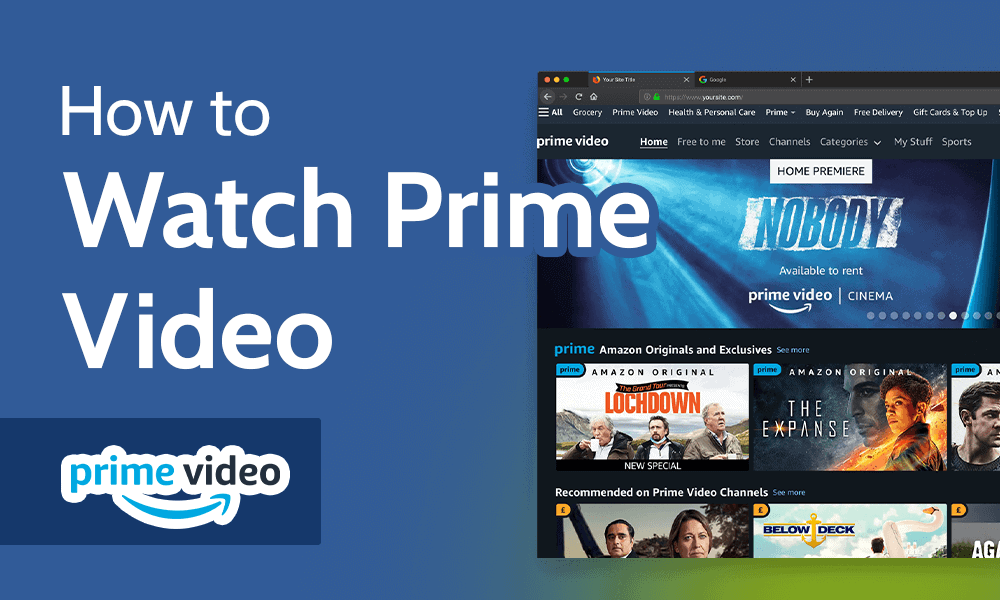
Understanding Amazon Prime Video: Your Gateway to Entertainment
Before diving into the specifics of watching a movie, it’s crucial to grasp what Amazon Prime Video is and the technological framework it operates within. This understanding forms the foundation for a smooth and enjoyable streaming experience.
What is Amazon Prime Video?
Amazon Prime Video is a video-on-demand streaming service operated by Amazon. It offers a vast collection of licensed content, including Hollywood blockbusters, critically acclaimed independent films, popular TV series, and a rapidly growing slate of Amazon Originals – exclusive shows and movies produced by Amazon Studios. Unlike some standalone streaming services, Prime Video is primarily bundled as a benefit of an Amazon Prime membership, though it can also be subscribed to as a standalone service in some regions. The underlying technology allows for on-demand streaming, meaning content is delivered over the internet directly to your device, ready to be watched at your convenience. This digital delivery model relies heavily on robust server infrastructure, efficient data compression algorithms, and a global content delivery network (CDN) to ensure high-quality playback and minimal latency for users across diverse geographical locations.
The Value Proposition of a Prime Membership
For many, Amazon Prime Video is simply one of many compelling benefits included with an Amazon Prime subscription. Beyond expedited shipping on Amazon purchases, Prime membership unlocks a suite of digital advantages, including Prime Music, Prime Reading, and, crucially, access to a significant portion of the Prime Video library at no additional cost. This bundled approach positions Prime Video not just as a content provider but as an integral part of a wider digital ecosystem designed to maximize user value and retention within Amazon’s services. From a technical standpoint, this integration often means shared login credentials and a unified account management system, simplifying user interaction across different Amazon platforms. It also implies a robust backend infrastructure capable of linking user subscription status across various services instantaneously.
Essential Prerequisites for Streaming
To embark on your movie-watching journey, a few technical prerequisites must be met. These are fundamental to ensuring a seamless and high-quality streaming experience.
-
Amazon Prime Membership or Prime Video Subscription: This is the primary gateway. You need an active subscription to access the content. The service verifies your subscription status upon login.
-
Compatible Device: Prime Video is accessible on a multitude of devices. This includes web browsers on desktop and laptop computers, smartphones and tablets (iOS and Android) via the dedicated app, smart TVs, streaming media players (like Amazon Fire TV, Roku, Apple TV), game consoles (PlayStation, Xbox), and Blu-ray players. Each device utilizes a specific client application or web interface designed to interpret and display the streamed video data.
-
Stable Internet Connection: High-definition (HD) and Ultra HD (4K) streaming require significant bandwidth. Amazon recommends a minimum of 3.5 Mbps for HD content and 15 Mbps for 4K Ultra HD. A stable connection prevents buffering and ensures consistent video quality. The adaptive bitrate streaming technology employed by Prime Video dynamically adjusts video quality based on your current internet speed to minimize interruptions.
-
Amazon Account: While seemingly obvious, an active Amazon account linked to your Prime or Prime Video subscription is necessary for authentication and personalization. This account serves as your digital identity within the Amazon ecosystem.
Navigating the Prime Video Interface: A Step-by-Step Guide
Once you have the necessary prerequisites in place, the next step is to access Prime Video on your preferred device. While the core functionality remains consistent, the user interface and interaction methods vary slightly depending on the platform.
Accessing Prime Video on Your Web Browser
Watching on a computer offers flexibility and a familiar interface.
-
Open Your Web Browser: Launch Google Chrome, Mozilla Firefox, Microsoft Edge, Safari, or any other modern web browser.
-
Navigate to the Prime Video Website: Type
primevideo.cominto your browser’s address bar and press Enter. Alternatively, you can go toamazon.comand click on “Prime Video” from the department menu. -
Sign In: If you’re not already signed in, you’ll be prompted to enter your Amazon account email/phone number and password. This authenticates your Prime membership status.
-
Browse or Search: Once logged in, you’ll be presented with the Prime Video homepage, featuring recommended content, categories, and a prominent search bar. You can browse through carousels of movies, explore specific genres, or use the search bar to find a particular title.
-
Select a Movie: Click on the movie you wish to watch. This will take you to its dedicated product page, displaying details such as synopsis, cast, ratings, and trailers.
-
Start Watching: If the movie is included with your Prime membership, you’ll see a “Watch now with Prime” button. Click it, and the movie will begin streaming. If it’s a rental or purchase, you’ll see options to “Rent Movie” or “Buy Movie” with associated costs. After completing the transaction, the “Watch now” button will become available. The playback window will then initialize, buffering the initial segments of the video stream before playback begins.
Streaming Through the Prime Video Mobile App (iOS/Android)
The Prime Video app offers a convenient and optimized experience for smartphones and tablets.
-
Download and Install the App: If you haven’t already, download the “Amazon Prime Video” app from the Apple App Store (for iOS) or Google Play Store (for Android).
-
Launch the App: Tap the Prime Video icon on your device’s home screen.
-
Sign In: The app will prompt you to sign in with your Amazon account credentials. This process is typically streamlined, often leveraging existing Amazon app logins on your device.
-
Explore Content: The app’s interface is designed for touch navigation, with categories, carousels, and a search icon (magnifying glass) at the top or bottom of the screen.
-
Select and Watch: Tap on a movie to view its details. Tap the “Watch now with Prime” button to start streaming. The app is optimized for mobile network conditions, often automatically adjusting stream quality to conserve data or prevent buffering.
Watching on Smart TVs, Streaming Devices, and Game Consoles
These platforms offer a cinematic experience, often with a remote control interface.
-
Install/Locate the Prime Video App: Most modern smart TVs and streaming devices (e.g., Fire TV Stick, Roku, Apple TV, Chromecast with Google TV) come with the Prime Video app pre-installed or readily available in their app stores. Game consoles like PlayStation and Xbox also offer the app.
-
Launch the App: Navigate to your device’s home screen or app launcher and select the Prime Video app.
-
Sign In: The sign-in process on these devices often involves a unique activation code. You’ll typically see an on-screen prompt asking you to visit a specific URL (e.g.,
amazon.com/mytv) on a computer or mobile device, enter the code, and sign in with your Amazon account there. This securely links your device to your Prime Video account without requiring you to type your password using a remote control. -
Browse and Stream: Use your remote control’s navigation buttons to browse through content. The interface is optimized for larger screens and remote interaction. Select a movie and choose “Watch now with Prime” to begin playback. These devices are usually equipped with powerful processors and network adapters to handle high-resolution streaming (HD, 4K HDR) efficiently.
Mastering Your Viewing Experience: Features and Tips
Beyond basic playback, Prime Video offers a suite of features designed to enhance your viewing pleasure and control. Leveraging these tools can significantly improve your overall experience.
Discovering Content: Search, Categories, and Watchlists
Finding your next movie should be an effortless process.
-
Robust Search Functionality: The search bar (or magnifying glass icon) is your best friend. You can search by title, actor, director, genre, or even specific keywords. The search algorithm is designed to provide relevant results quickly.
-
Categorization and Curation: Prime Video meticulously categorizes its content. Explore genres like action, comedy, drama, sci-fi, horror, documentaries, and more. Look out for curated collections and carousels like “Recently Added,” “Trending Now,” or “Recommended for You” based on your viewing history and preferences, driven by sophisticated recommendation engines.
-
Watchlist: If you come across a movie you’d like to watch later, add it to your Watchlist. This feature acts as a personalized queue, ensuring you never forget a title. You can manage your Watchlist from any device, and it syncs across all of them.
Offline Viewing: Downloading Movies for Later
One of Prime Video’s most convenient technological features is the ability to download select movies and TV shows for offline viewing. This is particularly useful for travel or areas with unreliable internet access.

-
Availability: Downloads are typically available only through the Prime Video mobile apps (iOS and Android) and on select Fire tablets.
-
How to Download: On a movie’s detail page within the app, look for a “Download” button (often an arrow pointing downwards). Tap it, and you’ll usually be prompted to select the download quality (e.g., “Good,” “Better,” “Best”), which impacts file size and visual fidelity.
-
Managing Downloads: Access your downloaded content from the “Downloads” section within the app. Movies will expire after a certain period (typically 30 days from download or 48 hours once started), so be mindful of the content’s digital rights management (DRM) restrictions.
Customizing Playback and Accessibility Settings
Prime Video provides several options to tailor the viewing experience to your preferences and needs.
-
Audio and Subtitles/Captions: During playback, you can usually access a menu (often a speech bubble or gear icon) to change audio tracks (if multiple languages are available) and enable or customize subtitles or closed captions. This enhances accessibility for hearing-impaired viewers and aids in understanding foreign-language content.
-
Video Quality: While the service often auto-adjusts, some apps or devices might allow you to manually select streaming quality (e.g., SD, HD, 4K) if you want to conserve data or prioritize resolution.
-
Parental Controls: Amazon offers robust parental control options within your account settings, allowing you to set viewing restrictions based on content ratings and require a PIN for purchases or restricted content. This uses a sophisticated content classification system to ensure age-appropriate viewing.
Understanding Rental and Purchase Options
Not all content on Prime Video is included with your Prime membership. Many newer releases or titles not part of the Prime library are available for digital rental or purchase.
-
Rental: When you rent a movie, you typically have a limited time (e.g., 30 days) to start watching it, and once started, you have a shorter window (e.g., 48 hours) to finish watching it as many times as you like. The movie then expires.
-
Purchase: Buying a movie grants you permanent digital ownership, allowing you to watch it as many times as you wish, whenever you want, across all your compatible devices. These purchases are linked to your Amazon account. The underlying technology for these transactions involves secure payment gateways and digital rights management (DRM) to enforce usage terms.
Troubleshooting Common Issues and Optimizing Performance
Even with robust technology, occasional hiccups can occur. Knowing how to troubleshoot common problems can quickly get you back to your movie.
Resolving Playback and Buffering Problems
The most common issues relate to stream quality and interruptions.
-
Check Your Internet Connection: The vast majority of streaming problems stem from an unstable or slow internet connection. Run a speed test (e.g.,
speedtest.net) to verify your bandwidth. -
Restart Your Device and Router: A classic IT solution, restarting your streaming device (TV, phone, computer) and your Wi-Fi router can often resolve temporary network glitches.
-
Close Other Applications: On computers or mobile devices, ensure no other bandwidth-intensive applications or downloads are running in the background.
-
Clear App Cache/Browser Data: Corrupted app cache or browser data can sometimes interfere with playback. In your device’s app settings or browser settings, look for options to clear cache or browsing data for the Prime Video app or website.
-
Update App/Firmware: Ensure your Prime Video app is updated to the latest version. Similarly, check for firmware updates for your smart TV or streaming device, as these often include performance enhancements and bug fixes.
-
Reduce Stream Quality (If Available): If your connection is consistently slow, manually reducing the streaming quality from 4K to HD or SD can help prevent buffering.
Managing Device Registrations
Amazon limits the number of devices that can simultaneously stream content from a single account, and there’s also a limit on the total number of devices registered to an account.
- De-registering Devices: If you encounter an error message about too many devices, you might need to de-register older or unused devices. You can do this by logging into your Amazon account on a web browser, navigating to “Account & Lists” > “Content & Devices” > “Devices,” and then selecting the devices you wish to de-register. This helps maintain account security and free up slots for new devices.
Ensuring Optimal Video Quality
To enjoy movies in their intended glory, especially in HD or 4K, ensure your setup is optimized.
-
High-Speed Internet: As mentioned, sufficient bandwidth is paramount.
-
4K/HDR Compatible Hardware: For 4K Ultra HD and High Dynamic Range (HDR) content, you need a compatible 4K HDR TV and a streaming device that supports 4K HDR playback (e.g., Fire TV Stick 4K, Roku Ultra, Apple TV 4K, compatible Smart TV).
-
HDCP 2.2 for 4K: Ensure all components in your signal chain (TV, receiver, streaming device, HDMI cables) support HDCP 2.2 (High-bandwidth Digital Content Protection) for 4K content, as this is a copy protection standard required for high-resolution digital video.
-
High-Quality HDMI Cables: While often overlooked, using certified high-speed HDMI cables is crucial for reliable 4K and HDR transmission.
Beyond the Basics: Maximizing Your Prime Video Enjoyment
Prime Video is continually evolving, adding new features and content. Exploring these advanced options can further enrich your entertainment experience.
Exploring Channels and Add-ons
Prime Video isn’t just a single library; it’s also a hub for other streaming services through Prime Video Channels.
- Subscription Management: You can subscribe to various third-party channels (e.g., HBO, Showtime, Starz, BritBox, Paramount+) directly through Prime Video. This consolidates your billing and viewing experience within the Prime Video app, allowing you to access content from multiple providers without switching apps. Technically, this acts as a centralized content aggregator, simplifying user access and subscription management.
Utilizing Profiles for Personalized Viewing
For households with multiple viewers, profiles are a game-changer.
-
Customized Recommendations: Create individual profiles for each family member. This ensures that recommendations, watchlists, and viewing history are personalized, preventing one person’s viewing habits from skewing suggestions for another.
-
Kids Profiles: Dedicated “Kids” profiles filter content to show only age-appropriate movies and shows, providing peace of mind for parents. The content filtering algorithms are specifically designed to adhere to child safety guidelines.
Staying Secure: Account Management Tips
Protecting your Prime Video account is paramount to safeguarding your personal data and preventing unauthorized access.
-
Strong, Unique Passwords: Always use a strong, unique password for your Amazon account.
-
Two-Factor Authentication (2FA): Enable 2FA for your Amazon account. This adds an extra layer of security, requiring a code from your phone in addition to your password, making it significantly harder for unauthorized users to access your account.
-
Monitor Account Activity: Regularly check your “Content & Devices” section in your Amazon account to review registered devices and recent activity. Report any suspicious activity immediately.
Watching a movie on Amazon Prime Video is a straightforward process once you understand the underlying technology and navigation. By leveraging its vast content library, mastering its interface across various devices, and utilizing its advanced features, you can unlock a truly personalized and high-quality entertainment experience. From understanding the technical prerequisites to troubleshooting common issues, this guide empowers you to seamlessly integrate Prime Video into your digital lifestyle, ensuring your next movie night is nothing short of spectacular.
aViewFromTheCave is a participant in the Amazon Services LLC Associates Program, an affiliate advertising program designed to provide a means for sites to earn advertising fees by advertising and linking to Amazon.com. Amazon, the Amazon logo, AmazonSupply, and the AmazonSupply logo are trademarks of Amazon.com, Inc. or its affiliates. As an Amazon Associate we earn affiliate commissions from qualifying purchases.