
In an increasingly digital world, where our lives are inextricably linked to our devices, cloud storage has become the invisible backbone of our digital existence. For the millions of Apple users worldwide, iCloud serves this crucial purpose, seamlessly integrating with iPhones, iPads, Macs, and even Windows PCs to store, sync, and back up vital data. Yet, despite its omnipresence, many users are only vaguely aware of what truly resides within their iCloud storage, let alone how to effectively view and manage it.
Understanding what’s in your iCloud is not merely a matter of curiosity; it’s a fundamental aspect of digital literacy, impacting everything from your device’s performance and data security to your financial outlays on storage plans. Whether you’re a tech enthusiast optimizing your workflow, a professional safeguarding brand assets, or an individual managing personal finances, mastering iCloud management is a skill that pays dividends.
This comprehensive guide will demystify iCloud storage, offering step-by-step instructions on how to view its contents across all your devices. We’ll delve into understanding the different data categories, explore strategies for optimization, and highlight how effective iCloud management intertwines with productivity, digital security, and even your personal financial health.
Understanding the iCloud Ecosystem: Your Digital Foundation
Before diving into the “how-to,” it’s essential to grasp what iCloud truly is and why proactively managing its contents is so critical. iCloud is Apple’s suite of cloud services, designed to keep your information secure, updated, and available across all your Apple devices – and beyond. It’s more than just a digital locker; it’s an intricate ecosystem enabling seamless syncing of photos, documents, contacts, calendars, notes, and much more.
The primary benefits of iCloud include:
- Data Backup: Automatically backing up your device settings, app data, and critical information, ensuring you can restore your device if it’s lost, damaged, or upgraded.
- Seamless Syncing: Keeping your data consistent across all your Apple devices. Take a photo on your iPhone, and it’s instantly available on your iPad and Mac. Edit a document on your Mac, and the changes are reflected everywhere.
- Cloud Storage: Providing a central repository for files, allowing you to access documents, photos, and videos without occupying precious local storage on every device.
- Device Locating: Features like Find My help you locate lost or stolen devices.
Why is it crucial to understand and manage your iCloud contents?
- Enhanced Productivity: A clear understanding of your stored files allows for quicker retrieval, better organization, and a more streamlined workflow. Cluttered cloud storage can be as unproductive as a messy desk.
- Robust Digital Security: Knowing precisely what sensitive data resides in the cloud empowers you to apply appropriate security measures and ensure compliance with personal or professional privacy standards. Unmanaged cloud data can be a significant security vulnerability.
- Optimized Performance: Efficiently managed iCloud storage contributes to smoother device operation and faster syncing, preventing bottlenecks that can arise from overloaded cloud services.
- Cost Management: While Apple provides 5GB of free iCloud storage, many users quickly exceed this. Regularly reviewing and optimizing your storage can prevent unnecessary upgrades to paid tiers, directly impacting your personal finances.
- Protecting Your Digital Brand: For professionals, your digital assets (portfolio images, client documents, marketing materials) often reside in iCloud. Proper management safeguards these assets, reflecting positively on your personal or corporate brand.
Your Digital Lens: Step-by-Step Guides to Accessing iCloud Content
The first step to effective management is simply knowing how to see what you have. iCloud’s contents can be viewed from virtually any device, each offering a slightly different interface and level of detail.
On Your iPhone or iPad
Your iOS or iPadOS device is arguably the most common gateway to your iCloud data.
- Open Settings: Tap the “Settings” app icon.
- Access Apple ID: Tap on your name/profile at the very top of the Settings menu.
- Navigate to iCloud: Tap “iCloud.” Here, you’ll see a visual representation of your storage usage, often a colored bar illustrating categories like Photos, Backups, and Documents.
- Manage Account Storage: Tap “Manage Account Storage” (or “Manage Storage” on older iOS versions). This will give you a detailed breakdown of how your storage is being used by different apps and data types.
- Explore Categories: From this screen, you can tap on individual categories (e.g., Photos, Backups, Messages, specific apps) to see more granular detail and, crucially, to delete items you no longer need. For instance, tapping “Backups” allows you to view and delete old device backups.
- Access iCloud Drive Files: For files stored directly in iCloud Drive, open the “Files” app (the blue folder icon). Tap “Browse” at the bottom, then “iCloud Drive” to view your folders and documents.
On Your Mac
Viewing iCloud contents on a Mac offers a comprehensive experience, integrating directly with the macOS file system.
- Open System Settings/Preferences: Click the Apple menu () in the top-left corner, then select “System Settings” (macOS Ventura or later) or “System Preferences” (older macOS versions).
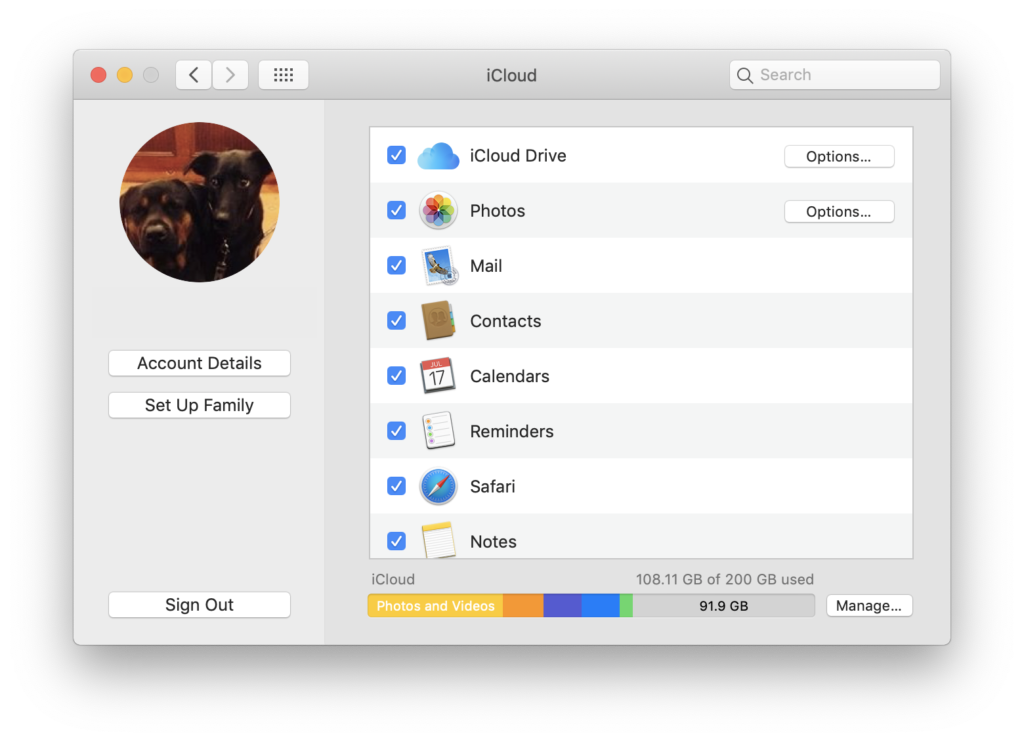
- Access Apple ID/iCloud: In System Settings, click your name/profile in the sidebar, then select “iCloud.” In System Preferences, click “Apple ID,” then select “iCloud” from the sidebar.
- Manage Storage: Similar to iOS, you’ll see a storage bar. Click the “Manage” button next to it. This opens a window showing a detailed breakdown of your iCloud usage by category.
- Explore and Act: You can select categories from the sidebar (e.g., Photos, Mail, Documents, Backups) to view their contents and initiate deletion or optimization processes.
- Access iCloud Drive Directly: Open “Finder” from your Dock. In the Finder sidebar, click “iCloud Drive.” This allows you to browse, open, move, and delete files stored in your iCloud Drive just like any other folder on your Mac.
- Photos App Integration: If you use iCloud Photos, your entire library is accessible and manageable through the “Photos” app on your Mac.
On a Windows PC
While primarily designed for Apple’s ecosystem, iCloud can extend its functionality to Windows PCs, allowing users to sync and access their data.
- Install iCloud for Windows: If you haven’t already, download and install “iCloud for Windows” from the Microsoft Store or Apple’s website.
- Sign In: Launch the iCloud for Windows application and sign in with your Apple ID and password.
- Select Features: Choose which iCloud features you want to sync to your PC (e.g., iCloud Drive, Photos, Mail, Contacts, Calendars, Bookmarks).
- Access iCloud Drive: Once synced, a “iCloud Drive” folder will appear in File Explorer (This PC). You can browse, open, and manage files here as if they were local.
- Access Photos: If you enabled Photos, a separate “iCloud Photos” folder will appear, syncing your photo library.
- Check Storage Usage: To view your overall iCloud storage usage, open the “iCloud for Windows” application again, and you’ll usually find a “Storage” or “Manage Storage” option within its interface.
Via the Web Browser (iCloud.com)
iCloud.com offers a universal access point, allowing you to view and manage much of your iCloud data from any web browser, on any device, anywhere in the world. This is especially useful if you’re using a non-Apple device or want quick access without syncing.
- Go to iCloud.com: Open your preferred web browser and navigate to www.icloud.com.
- Sign In: Enter your Apple ID and password. You may need to complete a two-factor authentication step.
- Explore the Dashboard: Once logged in, you’ll see a dashboard with icons for various iCloud services: Photos, iCloud Drive, Mail, Notes, Calendar, Contacts, Find My, and more.
- View Specific Data: Click on any icon to access that specific data. For example, click “Photos” to browse your iCloud Photo Library, or “iCloud Drive” to view your files and folders.
- Check Storage Usage: To see your overall storage breakdown, click the “Account Settings” (or your avatar/name) link, usually located at the top-right or bottom-left of the page, then look for a “Storage” section. This will display your usage and allow you to upgrade your plan.
Deciphering Your Data: What Each Category Means for Your Digital Life
Once you’ve accessed the storage management interface on your preferred device, you’ll see a breakdown of categories. Understanding what each represents is key to effective management.
Photos and Videos

Often the largest consumer of iCloud space, your Photos and Videos include your entire iCloud Photo Library. This encompasses all pictures and videos taken with your devices, saved from messages, or imported into your Photos app. For many, this category holds immense personal value, preserving memories, but for professionals, it can also contain critical visual assets for branding and marketing. Understanding “Optimize iPhone Storage” vs. “Download Originals” settings is crucial here – the former saves space on your device by storing full-resolution versions in iCloud and smaller, device-optimized versions locally.
Device Backups
These are comprehensive snapshots of your iPhone or iPad, containing settings, app data, Home screen organization, and more. Backups are essential for restoring your device or setting up a new one. However, old backups from devices you no longer own, or multiple backups of the same device, can quickly accumulate. From a “Money” perspective, deleting outdated backups is often the quickest way to free up significant space and potentially avoid a paid storage upgrade.
iCloud Drive and Documents
This category includes files you’ve manually saved to iCloud Drive, as well as documents created by Apple’s iWork suite (Pages, Numbers, Keynote) and other third-party apps that leverage iCloud Drive for document storage and syncing. For productivity, iCloud Drive is a central hub for active projects and collaborative efforts. From a “Digital Security” standpoint, it’s vital to be aware of any sensitive documents stored here and ensure they are appropriately protected or encrypted if highly confidential.
Mail and Other App Data
Your iCloud Mail account consumes storage based on the number of emails and attachments. Additionally, many third-party apps, from messaging services like WhatsApp to various productivity and gaming apps, store their data in iCloud for backup and syncing purposes. These can sometimes be hidden space hogs. Regularly reviewing this section allows you to identify apps you no longer use or those with excessive data and manage their iCloud presence.
Beyond Viewing: Optimizing Your iCloud for Peak Performance, Security, and Savings
Simply viewing your iCloud contents is the starting point. The real value comes from actively managing and optimizing it. This proactive approach not only enhances your digital experience but also directly aligns with the core themes of technology, financial prudence, and digital brand integrity.
Strategic Photo Management: Balancing Memories and Storage
Given photos and videos typically dominate iCloud storage, strategic management is paramount.
- Review and Delete: Regularly go through your photo library. Delete duplicates, blurry shots, screenshots no longer needed, and unwanted videos. Consider dedicated apps to help identify duplicates.
- Utilize “Optimize iPhone Storage”: If you want to keep your entire library accessible but save device space, enable “Optimize iPhone Storage” in Settings > Photos > iCloud Photos.
- Offload to External Storage/Other Clouds: For older photos and videos you don’t need instant access to, consider moving them to an external hard drive or another cloud service (like Google Photos, Amazon Photos, or Dropbox) that offers different storage models or is part of your tech ecosystem. This diversifies your storage and can reduce iCloud reliance.
- High-Quality Visuals for Your Brand: For professionals, curating a high-quality photo and video library in iCloud (or linked to it) means immediate access to assets for your personal brand, marketing, and client work.
Pruning Old Backups and Unused App Data
This is one of the quickest ways to reclaim significant space.
- Delete Old Device Backups: In iCloud storage settings, review your “Backups.” If you have backups for devices you no longer own, or multiple backups for the same device, delete the outdated ones. You typically only need one recent backup per active device. This is a direct “Money” saver, potentially preventing an unnecessary storage upgrade.
- Manage App Data: Go through the list of apps in your iCloud storage breakdown. For apps you no longer use or those storing large amounts of data unnecessarily (e.g., old game saves, messaging app backups you don’t need), delete their data from iCloud.
Organizing iCloud Drive: A Hub for Productivity and Digital Security
An organized iCloud Drive is a hallmark of digital efficiency and robust security.
- Create a Logical Folder Structure: Just like your physical filing cabinet, use clear, descriptive folder names and a logical hierarchy. Group files by project, client, or type.
- Regular Review and Archiving: Periodically review your iCloud Drive. Delete obsolete files, archive old projects to an external drive, or move them to a dedicated archive folder.
- Utilize Tags: macOS and iOS allow you to add tags to files, making them searchable across different folders. This significantly boosts productivity.
- Digital Security for Documents: Be mindful of storing highly sensitive, unencrypted documents (like tax returns, passports, or financial records) in the cloud. Consider using password-protected files or encrypting documents before uploading them, especially if they are critical to your “Brand” or personal “Money” management.
Understanding Your iCloud Subscription and Financial Implications
Your iCloud storage isn’t just a technical detail; it’s a financial consideration.
- Know Your Tiers: Apple offers 5GB free, with paid upgrades (50GB, 200GB, 2TB, 6TB, 12TB) at various price points. Understand what each tier offers and if it fits your needs.
- Cost-Benefit Analysis: Before upgrading, assess if you truly need more space or if optimization could suffice. The money saved from not paying for an unnecessary tier can add up over time, freeing up funds for “Investing” or other “Personal Finance” goals.
- Family Sharing: If you’re part of a family, consider a larger iCloud plan that can be shared among family members, often a more cost-effective solution than individual plans. This is a smart “Financial Tool” for households.
Digital Security Best Practices for Your Cloud Assets
Protecting your iCloud storage is paramount for digital security and maintaining trust in your “Brand.”
- Two-Factor Authentication (2FA): This is non-negotiable. Ensure 2FA is enabled for your Apple ID. It adds an extra layer of security, requiring a code from a trusted device in addition to your password.
- Strong, Unique Passwords: Use a complex, unique password for your Apple ID, ideally managed by a password manager.
- Mind What You Sync: Be aware of what you’re syncing to iCloud. While convenient, some highly confidential data might be better stored locally with encryption, or not in the cloud at all.
- Regularly Review Access: Periodically check which devices and apps have access to your iCloud data (in your Apple ID settings). Remove access for old devices or apps you no longer use.
- Stay Informed: Keep your Apple devices and iCloud for Windows updated. Software updates often include critical security patches.

Conclusion
Understanding “how to view what’s in iCloud storage” is more than just a technical query; it’s a gateway to mastering your digital landscape. By taking the time to navigate your iCloud contents across your devices, deciphering its categories, and implementing strategic optimization techniques, you gain control over your digital life.
This proactive approach fosters greater productivity by keeping your essential files organized and accessible, bolsters your digital security by safeguarding sensitive information, and contributes to sound personal finance by preventing unnecessary storage expenses. For professionals, it reinforces a strong digital brand, demonstrating meticulous data management and a commitment to protecting valuable assets.
iCloud is a powerful tool, but like any tool, its effectiveness depends on how well you wield it. Make it a habit to regularly review and manage your iCloud storage. It’s an ongoing process, but one that yields significant returns in peace of mind, efficiency, and financial wisdom in our increasingly cloud-dependent world. Start exploring your iCloud today, and take the first step towards a more organized, secure, and cost-effective digital future.
aViewFromTheCave is a participant in the Amazon Services LLC Associates Program, an affiliate advertising program designed to provide a means for sites to earn advertising fees by advertising and linking to Amazon.com. Amazon, the Amazon logo, AmazonSupply, and the AmazonSupply logo are trademarks of Amazon.com, Inc. or its affiliates. As an Amazon Associate we earn affiliate commissions from qualifying purchases.