
In an age defined by digital convenience and on-demand entertainment, Amazon Prime Video has cemented its place as a cornerstone of home media consumption. With a vast library encompassing award-winning original series, blockbuster movies, live sports, and a plethora of additional content, Prime Video offers an unparalleled entertainment experience. However, the true magic of this service is fully unlocked when viewed on the biggest screen in your home: your television. Moving beyond the confines of a smartphone or computer monitor, streaming Prime Video on your TV transforms passive viewing into an immersive cinematic event.
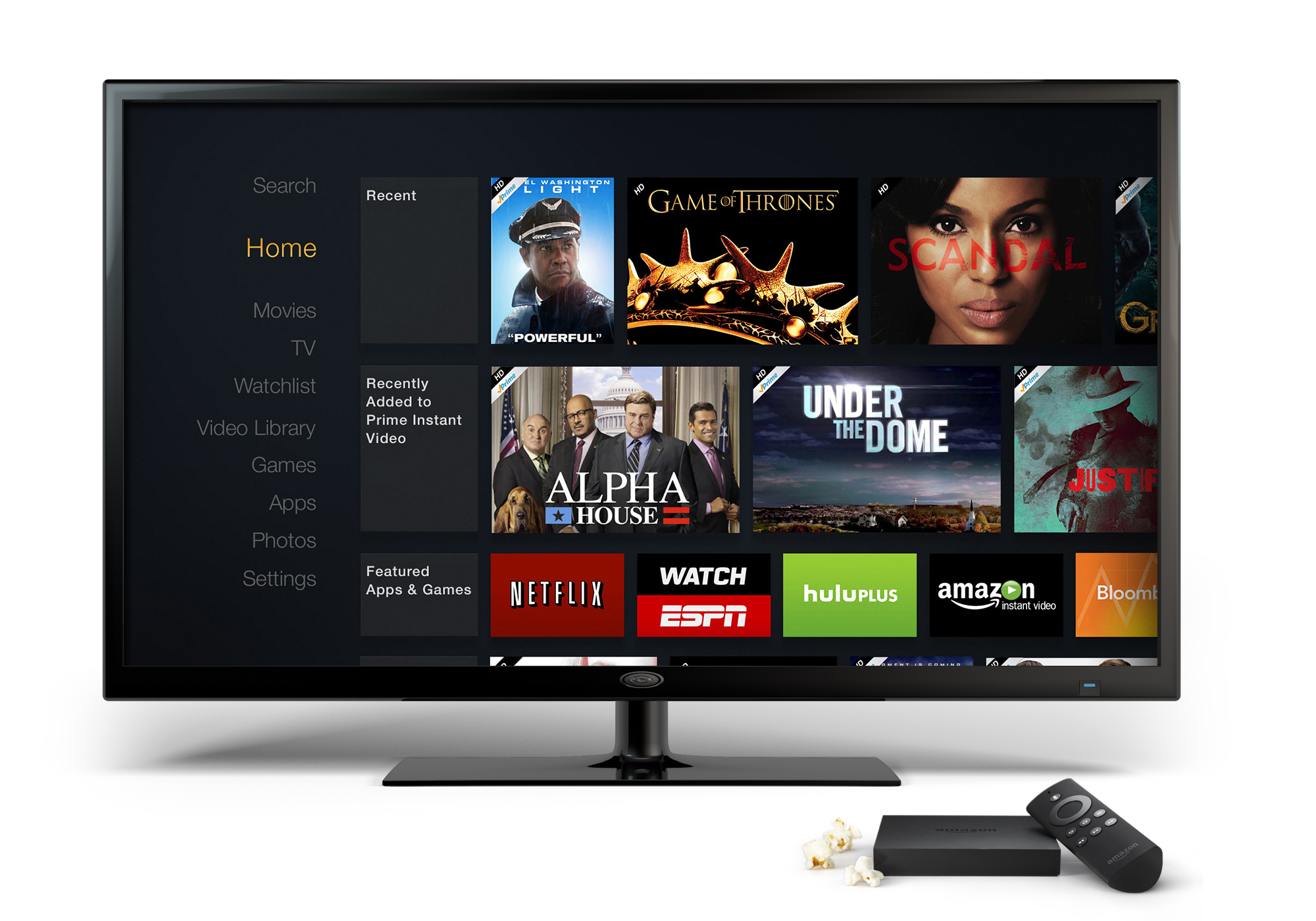
This guide delves into the various methods, devices, and considerations involved in bringing Amazon Prime Video to your television screen. We’ll explore everything from the straightforward integration with modern smart TVs to the versatility of dedicated streaming devices and even more advanced connectivity solutions. Whether you’re a tech novice or a seasoned enthusiast, understanding these options will empower you to optimize your viewing experience, ensuring you can seamlessly enjoy your favorite Prime Video content with the best possible quality and convenience.
Understanding Amazon Prime Video on Your Television
The journey to watching Amazon Prime Video on your TV begins with a fundamental understanding of what the service offers and the basic requirements for connectivity. Prime Video is not merely a collection of films and series; it’s an ecosystem that integrates with various hardware and software solutions, all designed to deliver content directly to you.
The Ubiquity of Streaming
The landscape of home entertainment has dramatically shifted over the past decade. Traditional broadcast television and physical media have largely given way to streaming services, offering unprecedented choice and flexibility. Amazon Prime Video is a prime example of this evolution, allowing subscribers to access content on their terms, anytime and anywhere, provided they have an internet connection and a compatible device. The television, once a passive receiver of scheduled programming, has become a dynamic hub for this on-demand content, transforming living rooms into personal cinemas. This shift has necessitated the development of user-friendly interfaces and robust hardware to bridge the gap between digital content and the big screen.
What You Need Before You Start
Before embarking on the process of connecting Amazon Prime Video to your TV, a few prerequisites are essential to ensure a smooth setup and an enjoyable viewing experience.
- Active Amazon Prime Membership: This is the foundational requirement. Access to Prime Video content is a core benefit of an Amazon Prime subscription. Ensure your membership is current and active.
- High-Speed Internet Connection: Streaming high-definition (HD) or ultra-high-definition (UHD/4K) content demands significant bandwidth. A stable, high-speed internet connection is crucial to prevent buffering, ensure crisp visuals, and deliver clear audio. For 4K streaming, a minimum sustained speed of 15-25 Mbps is generally recommended.
- Compatible TV or Display: While older TVs can still be used with external devices, modern smart TVs offer integrated solutions. Ensure your TV has an available HDMI port if you plan to use an external streaming device, or that it’s a smart TV with app capabilities.
- Amazon Account Credentials: You will need your Amazon email address and password to log into the Prime Video app on any device. Keep these handy.
- Power Outlets and Cables: Ensure you have access to power outlets for your TV and any external streaming devices, along with the necessary HDMI cables.
Direct Methods for Accessing Prime Video on Your Smart TV
The simplest and often most integrated way to watch Amazon Prime Video is directly through a modern smart TV. These televisions come equipped with internet connectivity and an operating system that supports various applications, including the Prime Video app.
Using Built-in Smart TV Apps
Most smart TVs manufactured in the last five to seven years will feature an app store or a pre-installed suite of streaming applications. Navigating to the Prime Video app is typically straightforward:
- Connect to the Internet: First, ensure your smart TV is connected to your home Wi-Fi network or via an Ethernet cable. This is usually done through the TV’s settings menu.
- Locate the Prime Video App: Look for the Prime Video app icon on your TV’s home screen, in the app launcher, or within the TV’s app store. If it’s not pre-installed, you can download it from the app store, much like you would on a smartphone.
- Log In: Once you open the app, you will be prompted to log in using your Amazon account credentials. Some TVs may offer a simplified activation process, asking you to visit a specific URL on a computer or phone and enter a code displayed on your TV screen.
- Start Watching: After successfully logging in, you’ll gain full access to the Prime Video library and can begin streaming immediately.
Amazon Fire TV Edition Smart TVs
A particularly seamless experience is offered by “Amazon Fire TV Edition” smart TVs. These televisions come with Amazon’s Fire TV operating system built directly into the hardware, eliminating the need for an external streaming stick or box.
- Integrated Experience: The Prime Video app is deeply integrated into the Fire TV interface, making it incredibly easy to find and watch content.
- Voice Control: These TVs often come with Alexa voice remote, allowing you to search for titles, open the Prime Video app, and control playback using voice commands.
- Unified Interface: Your entire TV experience, from live TV channels to streaming apps, is managed through the Fire TV interface, offering a cohesive and user-friendly platform. Setup is often as simple as connecting to the internet and logging into your Amazon account during the initial TV setup.
Connecting External Streaming Devices
If your TV isn’t a smart TV, or if its built-in apps are slow or outdated, external streaming devices offer an excellent alternative. These compact gadgets plug into your TV’s HDMI port and provide access to a wide array of streaming services, including Prime Video.
Amazon Fire TV Devices (Sticks & Cubes)
Naturally, Amazon’s own Fire TV devices offer the most optimized Prime Video experience among external streamers.
- Fire TV Stick (Lite, 4K, 4K Max): These popular HDMI dongles plug directly into your TV’s HDMI port, drawing power from a USB port on your TV or a wall adapter. They offer a fluid user interface, robust app support, and an Alexa voice remote for intuitive control. Setup involves plugging in the stick, connecting to Wi-Fi, and logging into your Amazon account.
- Fire TV Cube: A more powerful option, the Fire TV Cube combines the functionality of a Fire TV streaming device with an Echo smart speaker. It offers hands-free Alexa control, faster processing, and often additional connectivity options like an Ethernet port.

Roku Streaming Players
Roku devices are renowned for their user-friendly interface and extensive app selection.
- Device Variety: From entry-level Roku Express sticks to advanced Roku Ultra boxes, there’s a Roku device for every budget and requirement.
- Setup: Connect the Roku device to your TV’s HDMI port, power it on, connect to Wi-Fi, and then add the “Amazon Prime Video” channel (app) from the Roku Channel Store. Log in with your Amazon credentials to start streaming.
Apple TV
For those within the Apple ecosystem, the Apple TV streaming box provides a premium experience with seamless integration with other Apple services.
- High Performance: Apple TV models (HD and 4K) are known for their powerful processors and smooth performance.
- App Store: Download the Prime Video app from the Apple TV App Store. Log in using your Amazon account to access content. The Siri Remote allows for voice search and navigation.
Google Chromecast
Chromecast offers a different approach to streaming, primarily relying on your smartphone or tablet as a remote control.
- Casting Technology: Instead of an on-screen interface, Chromecast allows you to “cast” content from the Prime Video app on your mobile device directly to your TV.
- Chromecast with Google TV: This newer version of Chromecast comes with a remote and its own on-screen interface, offering a more traditional streaming device experience while still supporting casting.
- Setup: Plug the Chromecast into your TV’s HDMI port and power, connect it to Wi-Fi using the Google Home app on your mobile device, then open the Prime Video app on your phone/tablet, select the “Cast” icon, and choose your Chromecast device.
Gaming Consoles (PlayStation, Xbox)
Modern gaming consoles are not just for gaming; they are powerful media centers capable of streaming.
- Console Compatibility: PlayStation (PS4, PS5) and Xbox (One, Series X/S) consoles all support the Amazon Prime Video app.
- Installation: Navigate to the console’s store (PlayStation Store or Microsoft Store), search for the “Amazon Prime Video” app, download and install it. Log in with your Amazon account credentials to start watching. These consoles often offer excellent performance for streaming high-quality content.
Advanced Connectivity and Troubleshooting
While direct and streaming device methods cover the vast majority of users, there are other ways to connect and important considerations for maintaining a high-quality streaming experience.
HDMI Connection from Laptops/PCs
For maximum flexibility or if you lack a dedicated streaming device, connecting a laptop or desktop computer to your TV via an HDMI cable is a reliable method.
- Simple Mirroring: Connect one end of an HDMI cable to your computer’s HDMI output and the other to an available HDMI input on your TV.
- Input Selection: Use your TV remote to select the correct HDMI input. Your TV will then mirror or extend your computer’s display.
- Browser Access: Open your web browser on the computer, navigate to PrimeVideo.com, log in, and play your desired content. Ensure your computer’s audio output is set to the HDMI device for sound to play through your TV speakers. This method offers great control over browser settings and can be a fallback for unsupported devices.
Ensuring Optimal Streaming Quality
To enjoy Prime Video in its full glory, especially in 4K UHD with HDR (High Dynamic Range), several factors must align:
- Internet Speed: As mentioned, sufficient bandwidth is critical. For 4K, ensure your internet plan delivers at least 15-25 Mbps consistently to your streaming device.
- Device Compatibility: Your streaming device (smart TV, Fire TV 4K, Roku Ultra, Apple TV 4K, etc.) must be 4K/HDR capable.
- TV Compatibility: Your television must support 4K resolution and, ideally, HDR formats like HDR10+ or Dolby Vision for the best visual experience.
- HDMI Cables: For 4K HDR, use “High-Speed HDMI” or “Ultra High-Speed HDMI” cables. Older or lower-quality cables may not support the necessary bandwidth.
- TV Settings: Check your TV’s picture settings. Some TVs require you to enable “enhanced HDMI” or similar settings for the specific HDMI port you’re using to allow full 4K HDR passthrough.
Common Troubleshooting Tips
Even with the best setup, issues can occasionally arise. Here are some quick fixes:
- Restart Everything: The classic tech solution. Power cycle your Wi-Fi router, streaming device, and TV. Unplug them from power for 30 seconds, then plug them back in.
- Check Internet Connection: Ensure your device is still connected to Wi-Fi and that your internet service is operational. Run a speed test on your streaming device or a nearby phone/computer.
- Update Apps and Software: Outdated app versions or device firmware can cause problems. Check for and install any available updates for the Prime Video app and your streaming device’s operating system.
- Clear Cache: On some smart TVs and streaming devices, clearing the cache for the Prime Video app can resolve performance issues.
- Check HDMI Cables: Ensure all HDMI cables are securely connected and try a different cable if possible, especially if you suspect a cable issue.
- Log Out and Back In: Sometimes simply logging out of the Prime Video app and logging back in can resolve authentication or playback issues.
Enhancing Your Prime Video Experience
Beyond merely getting Prime Video to display on your TV, there are several ways to enrich your viewing experience and take full advantage of the platform’s features.
Leveraging Alexa Voice Control
For users with Amazon Fire TV devices, Fire TV Edition smart TVs, or an Alexa-enabled smart speaker paired with a compatible device, voice control significantly streamlines the experience.
- Hands-Free Navigation: Simply say “Alexa, open Prime Video” or “Alexa, play [Movie Title] on Prime Video” to launch content without lifting a finger.
- Search and Discovery: Ask Alexa to search for genres, actors, or even specific scenes.
- Playback Control: Pause, rewind, fast-forward, and adjust volume using voice commands, adding a layer of convenience to your viewing.
Exploring Prime Video Features
Amazon Prime Video is more than just a streaming library; it offers a suite of features designed to enhance engagement:
- X-Ray: This IMDb-powered feature provides contextual information about actors, music, trivia, and more, appearing on-screen while you watch. It’s an insightful tool for movie buffs.
- Profiles: Create individual profiles for different family members to ensure personalized recommendations and watch histories.
- Watchlist: Add titles you want to watch later to your personal watchlist for easy access.
- Rentals/Purchases: Beyond the included Prime content, you can rent or buy newer titles, expanding your entertainment options directly within the app.
- Live TV Channels (via Prime Video Channels): Integrate subscriptions to other streaming services like HBO, Showtime, or Starz directly into the Prime Video interface via Prime Video Channels, simplifying your subscription management.
Future-Proofing Your Setup
As technology evolves, so too do streaming capabilities. Consider these points to ensure your setup remains relevant:
- 4K and HDR: Invest in 4K HDR compatible devices and TVs to future-proof your entertainment system, as more content is produced in these formats.
- Wi-Fi 6/6E: Upgrade your router to Wi-Fi 6 or 6E for better performance, especially in congested network environments, which can be beneficial for high-bandwidth 4K streaming.
- Regular Updates: Keep your streaming devices and smart TV software updated to ensure compatibility with the latest Prime Video features and security enhancements.
- Consider a Soundbar/Home Theater: While Prime Video offers excellent picture quality, a dedicated sound system significantly elevates the cinematic experience with immersive audio.
Ultimately, enjoying Amazon Prime Video on your television is a gateway to a world of entertainment. By understanding the various connection methods, optimizing your setup for quality, and leveraging the platform’s rich features, you can transform your living room into a personalized entertainment hub, ready to deliver endless hours of captivating content.
aViewFromTheCave is a participant in the Amazon Services LLC Associates Program, an affiliate advertising program designed to provide a means for sites to earn advertising fees by advertising and linking to Amazon.com. Amazon, the Amazon logo, AmazonSupply, and the AmazonSupply logo are trademarks of Amazon.com, Inc. or its affiliates. As an Amazon Associate we earn affiliate commissions from qualifying purchases.