
In an increasingly digitized world, the way we consume television has undergone a radical transformation. The traditional cable box, once a staple of every living room, is progressively being replaced by a more flexible, internet-driven approach. At the forefront of this evolution is YouTube TV, a live TV streaming service that combines the familiarity of conventional broadcasting with the convenience and versatility of modern technology. For many, the transition from traditional cable to an online streaming service can seem daunting, particularly when it comes to getting it set up and running on the very device designed for viewing: the television itself. This guide aims to demystify the process, providing a comprehensive, step-by-step tutorial on how to seamlessly integrate YouTube TV into your home entertainment system, ensuring you harness its full potential on the big screen.
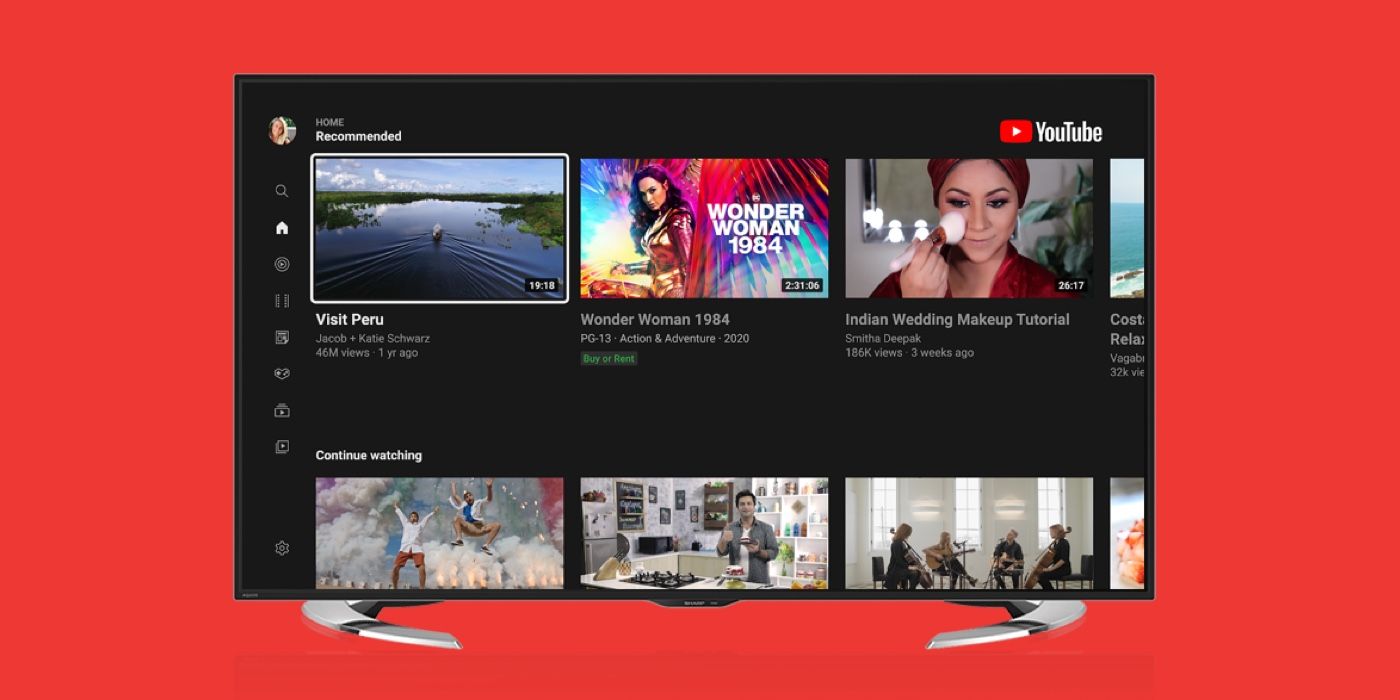
YouTube TV represents a significant shift in media consumption, offering a robust alternative to conventional cable and satellite providers. It delivers a wide array of live channels, on-demand content, and an unlimited cloud DVR, all accessible through an internet connection. The beauty of YouTube TV lies in its multi-platform compatibility, allowing users to watch their favorite shows, sports, and news across various devices—from smartphones and tablets to computers. However, for the ultimate viewing experience, nothing quite compares to the immersive nature of watching on a large television screen. Understanding the different technical avenues available to bring YouTube TV to your TV is crucial for new and existing subscribers alike, enabling a smooth, high-quality, and enjoyable viewing experience that truly liberates you from the constraints of traditional television.
Understanding YouTube TV: Your Gateway to Live Entertainment
Before delving into the technical setup, it’s beneficial to grasp the fundamental nature and advantages of YouTube TV within the contemporary technological landscape. It’s more than just a collection of channels; it’s a software service designed to replicate and enhance the traditional television experience using internet infrastructure.
What is YouTube TV?
YouTube TV is an over-the-top (OTT) streaming service operated by Google that offers live television from more than 100 broadcast, cable, and regional sports networks. Unlike traditional cable, which relies on physical infrastructure like coaxial cables, YouTube TV delivers its content entirely via the internet. This digital distribution model allows for greater flexibility, lower overheads, and features that are impossible with older technologies. Key offerings include local sports and news, major broadcast networks (ABC, CBS, FOX, NBC, etc.), and popular cable channels (ESPN, CNN, FX, TNT, etc.). Its primary appeal lies in its live TV offering, differentiating it from on-demand services like Netflix or Hulu’s basic tier, though it also includes a substantial library of on-demand programming.
The Cord-Cutting Revolution and YouTube TV’s Role
The rise of streaming services like YouTube TV is inextricably linked to the “cord-cutting” phenomenon—the growing trend of consumers canceling expensive traditional cable or satellite subscriptions in favor of more affordable and flexible internet-based alternatives. From a technological standpoint, cord-cutting is driven by advancements in internet bandwidth, compression technologies, and streaming protocols that allow for high-quality video delivery over standard broadband connections. YouTube TV plays a pivotal role in this revolution by addressing one of the biggest deterrents to cord-cutting: the desire for live television and local channels. It effectively bridges the gap between the familiar linear programming of traditional TV and the dynamic, on-demand world of internet streaming, making the transition seamless for tech-savvy users and casual viewers alike. Its cloud-based DVR, offering unlimited storage for up to nine months, further enhances this appeal by allowing users to record and watch shows at their convenience, a significant technological leap over local DVR units with limited storage.
Essential Steps to Setting Up YouTube TV on Your Television
Getting YouTube TV onto your television typically involves one of a few common methods, each leveraging different aspects of modern home entertainment technology. The choice largely depends on the type of TV you own and any existing streaming hardware you might have.
Smart TVs with Built-in YouTube TV Apps
The simplest method for many users is utilizing a modern smart TV. Most smart televisions manufactured in the last few years come equipped with operating systems (like Android TV, Roku TV, webOS, Tizen) that support a wide array of streaming applications, including YouTube TV.
- Check Compatibility: First, ensure your smart TV’s operating system is supported. Major brands like Samsung, LG, Sony, Vizio, and Hisense typically offer compatible models.
- Connect to the Internet: Ensure your smart TV is connected to your home Wi-Fi network or via an Ethernet cable for optimal performance. A strong, stable internet connection is paramount for high-quality streaming.
- Access the App Store: Navigate to your TV’s app store or app library. This might be called “LG Content Store,” “Samsung Smart Hub,” “Google Play Store” (for Android TV), or simply “Apps.”
- Search and Download: Use the search function to find “YouTube TV.” Once located, select it and initiate the download and installation process.
- Launch and Log In: After installation, launch the YouTube TV app. You will be prompted to sign in with your Google account associated with your YouTube TV subscription. This usually involves either entering your credentials directly or visiting a specific URL on a separate device (like a phone or computer) and entering a code displayed on your TV screen for activation.
Utilizing Dedicated Streaming Devices
If your television isn’t “smart” or you prefer the interface and features of a dedicated streaming platform, there’s a plethora of devices designed for this purpose. These gadgets plug into your TV’s HDMI port and provide access to various streaming apps. Popular options include Roku, Amazon Fire TV, Apple TV, Google Chromecast (with Google TV), and even modern gaming consoles like PlayStation and Xbox.
- Connect the Device: Plug your chosen streaming device into an available HDMI port on your television. Ensure it’s also connected to a power source.
- Initial Setup: Follow the on-screen instructions for the streaming device’s initial setup, which typically includes connecting it to your home Wi-Fi network.
- Access the App Store: Navigate to the device’s app store (e.g., Roku Channel Store, Amazon Appstore, Apple App Store, Google Play Store).
- Search and Download: Search for “YouTube TV” and download the application.
- Launch and Log In: Open the YouTube TV app and sign in with your Google account. Similar to smart TVs, you might use an on-screen keyboard or a code-based activation method.
Casting from Mobile Devices or Computers
For situations where a native app isn’t available or preferred, casting offers a flexible alternative, leveraging technologies like Google Cast (Chromecast built-in) or Apple AirPlay.
- Chromecast or Smart TV with Built-in Cast: If you have a Google Chromecast device plugged into your TV, or a smart TV with Chromecast built-in, you can “cast” content directly from the YouTube TV app on your smartphone, tablet, or Chrome browser on your computer.
- Ensure Devices are on the Same Network: Both your casting device (phone/tablet/computer) and the receiving device (Chromecast/smart TV) must be connected to the same Wi-Fi network.
- Open YouTube TV App: Launch the YouTube TV app on your mobile device or navigate to tv.youtube.com in your Chrome browser.
- Select Content: Start playing the content you wish to watch.
- Tap/Click Cast Icon: Look for the cast icon (a rectangle with a Wi-Fi symbol in the bottom-left corner). Tap/click it and select your television or Chromecast device from the list. The content will then begin playing on your TV, controlled from your mobile device or computer.
- Apple AirPlay (for Apple TV or AirPlay-compatible Smart TVs): If you have an Apple TV or an AirPlay 2-compatible smart TV, you can use AirPlay from your Apple devices (iPhone, iPad, Mac).
- Ensure Devices are on the Same Network: Similar to casting, both devices need to be on the same Wi-Fi network.
- Open YouTube TV App: Launch YouTube TV on your iOS device or Mac.
- Tap/Click AirPlay Icon: During playback, tap the AirPlay icon (a rectangle with an upward-pointing arrow) and select your Apple TV or AirPlay-compatible smart TV.
Activating Your YouTube TV Account
Regardless of the method chosen, the final step involves activating your YouTube TV subscription on the device. This usually entails:
- Launching the App: Open the YouTube TV application on your smart TV or streaming device.
- On-Screen Prompt: The app will typically display a sign-in or activation screen, often showing a unique code (e.g., “youtube.com/activate” followed by a 6-digit code).
- Activate on Separate Device: On a computer or mobile phone, open a web browser and go to the specified URL (e.g., tv.youtube.com/start or youtube.com/activate).
- Enter Code and Log In: Enter the code displayed on your TV into the webpage and then sign in with the Google account that has the active YouTube TV subscription.
- Confirmation: Once successfully linked, your TV screen will refresh, and you’ll gain access to the YouTube TV interface, ready to start watching.
Navigating the YouTube TV Interface: Features and Functionality
Once YouTube TV is up and running on your television, understanding its interface and core functionalities is key to maximizing your viewing pleasure. The design prioritizes ease of use, mimicking traditional TV guides while adding modern streaming capabilities.
The Intuitive Live Guide
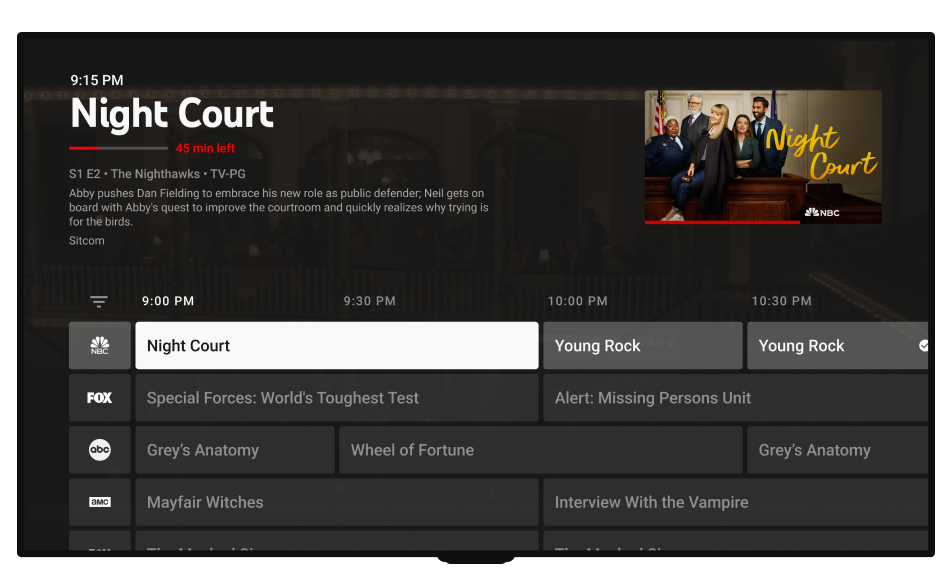
At the heart of YouTube TV is its “Live Guide,” a familiar grid-based interface that displays current and upcoming programming across all your subscribed channels. This feature is crucial for real-time viewing and offers a comfortable transition for those moving away from cable.
- Accessing the Guide: Typically found under a “Live” or “Guide” tab, or by navigating left from the home screen.
- Browsing Channels: Scroll vertically to browse through the available channels and horizontally to see what’s on later.
- Playback and Information: Select a program to start watching live, or to view more information about it, including options to record (add to library) if it’s an upcoming show.
- Customization: YouTube TV allows you to reorder channels in your Live Guide, placing your most-watched channels at the top for quicker access. This personalization enhances the user experience significantly.
Your Personalized Library (Cloud DVR)
YouTube TV’s unlimited cloud DVR is one of its standout technical features. Unlike physical DVRs that are limited by storage space, the cloud DVR allows you to record as many shows as you want simultaneously, storing them for up to nine months.
- Adding to Library: From the Live Guide or an individual program’s information page, select the option to “Add to Library” or “Record.” All episodes of that show, including future airings, will be automatically recorded.
- Accessing Recordings: Your recorded content is housed under the “Library” tab. Here, shows are neatly organized by series, making it easy to find what you want to watch.
- Fast Forward/Rewind: When watching recorded content, you have full control over playback, including the ability to fast-forward through commercials, a highly coveted feature for many users.
On-Demand Content and Recommendations
Beyond live TV and DVR recordings, YouTube TV also offers a wealth of on-demand content provided directly by the networks. This includes full seasons of shows, movies, and specials, allowing for flexible viewing schedules.
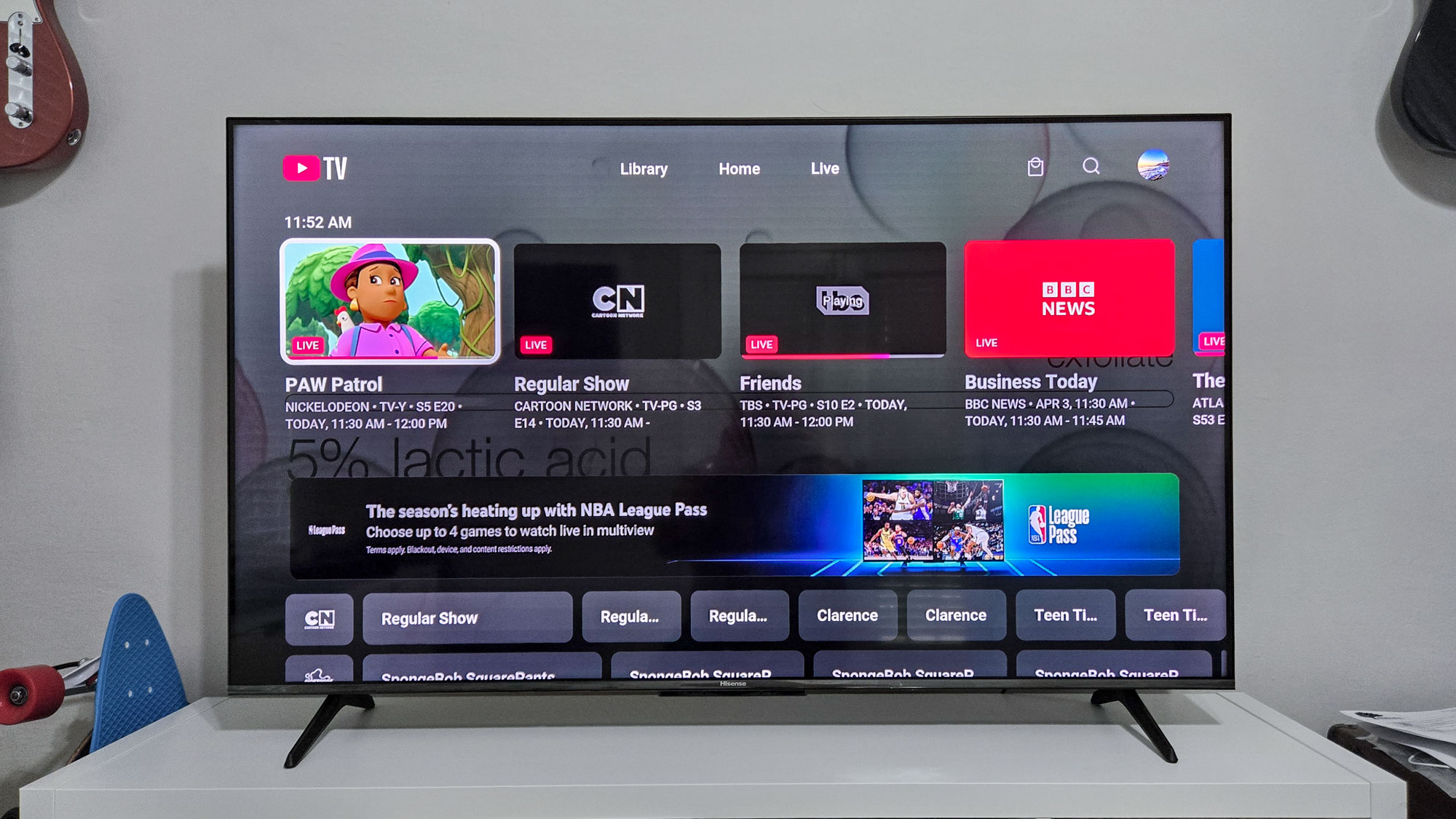
- Home Tab: The “Home” tab serves as a personalized hub, offering recommendations based on your viewing history and popular content. It also highlights trending live shows, new on-demand additions, and suggestions for sports events.
- Browse Tab: A “Browse” or “Shows/Movies” tab allows you to explore content by genre, network, or popularity, providing an organized way to discover new programming.
Managing User Profiles and Family Sharing
YouTube TV supports up to six individual accounts (family members) per subscription, each with its own personalized viewing library, recommendations, and settings. This is a critical technical advantage for households with diverse viewing preferences.
- Switching Profiles: On the TV app, you can easily switch between profiles via an icon usually located in the top-right corner.
- Privacy and Customization: Each profile maintains its own watch history, ensuring that recommendations and DVR recordings are tailored to the individual, without interfering with other family members’ preferences.
Optimizing Your Viewing Experience and Troubleshooting Tips
A smooth YouTube TV experience on your television relies heavily on technical optimization, primarily concerning internet connectivity and device settings. Even with the best setup, occasional issues can arise, making basic troubleshooting knowledge invaluable.
Ensuring Optimal Internet Connectivity
The cornerstone of any streaming service is a robust and stable internet connection. YouTube TV recommends specific speeds for different resolutions:
- 3 Mbps or more for standard definition.
- 7 Mbps or more for a single stream of high definition (HD).
- 13 Mbps or more for reliable HD streaming and to minimize buffering, especially if other devices are using the network.
- 20 Mbps or more if you have multiple devices streaming simultaneously or wish to stream in 4K (where available and supported).
- Wired Connection: Whenever possible, connect your smart TV or streaming device directly to your router via an Ethernet cable. A wired connection offers superior stability and speed compared to Wi-Fi.
- Wi-Fi Optimization: If using Wi-Fi, ensure your router is centrally located and away from obstructions. Consider upgrading to a dual-band router (2.4 GHz and 5 GHz) and using the less congested 5 GHz band for your streaming device.
- Reduce Network Congestion: Limit other bandwidth-intensive activities (large downloads, online gaming) while streaming YouTube TV to prevent buffering or drops in video quality.
Customizing Your Channel Lineup
To enhance usability and personalize your viewing, YouTube TV allows you to tailor your channel list.
- Within the App: Navigate to settings within the YouTube TV app on your TV.
- Manage Live Guide: Look for an option to “Manage Live Guide” or “Customize Channels.” Here, you can uncheck channels you never watch or reorder them to prioritize your favorites. This streamlines navigation, particularly important when browsing on a TV screen with a remote.
Leveraging Advanced Playback Options
YouTube TV offers several playback controls and features that enhance the viewing experience.
- Mini Player: While browsing the guide or home screen, a mini-player might appear, allowing you to continue watching your current program in a smaller window.
- Fast Forward/Rewind Granularity: Utilize the remote’s directional pad or scrub bar to precisely fast-forward or rewind, particularly useful for navigating recorded content.
- Closed Captions and Audio Tracks: Access these options via the player controls during playback. YouTube TV supports multiple audio tracks and customizable closed captioning, making it accessible and adaptable to viewer preferences.
Common Troubleshooting Scenarios
Even with an optimized setup, technical glitches can occur. Here are quick fixes for common issues:
- Buffering/Poor Quality:
- Check your internet speed (many smart TVs and streaming devices have built-in network tests).
- Restart your router and modem.
- Close other apps or devices consuming bandwidth.
- Try lowering the video quality setting within the YouTube TV app (if available).
- App Crashing/Freezing:
- Restart the YouTube TV app.
- Restart your smart TV or streaming device (a full power cycle, unplugging for 30 seconds).
- Check for app updates in your TV’s or device’s app store.
- Clear the app’s cache (if your device supports this).
- Sign-in Issues:
- Double-check your Google account credentials.
- Ensure you’re using the correct activation URL (e.g., tv.youtube.com/start).
- Try signing in on a different device (phone/computer) to verify account status.
The Future of TV: Embracing Digital Streaming
The shift towards digital streaming services like YouTube TV is not merely a trend but a fundamental re-architecture of how television content is delivered and consumed. From a technological perspective, this evolution promises greater flexibility, personalization, and efficiency, moving away from the rigid, resource-intensive models of the past.
Beyond Traditional Cable: A New Era of Entertainment
YouTube TV embodies the future of television by leveraging the internet as its primary distribution channel. This eliminates the need for expensive, region-locked physical infrastructure and proprietary hardware, empowering consumers with more choice and control. The internet’s inherent scalability and global reach mean that innovations in broadcasting, such as higher resolutions (4K HDR), interactive features, and more dynamic content delivery, can be deployed rapidly and efficiently. For the user, this translates to a more fluid, personalized, and cost-effective entertainment experience that is accessible across a multitude of devices, truly untethering television from the living room wall.
Continuous Evolution and User-Centric Features
As technology progresses, so too will YouTube TV. Expect continuous enhancements in user interface design, further integration with smart home ecosystems, and advanced features driven by artificial intelligence for even more precise content recommendations. The underlying streaming technology will continue to improve, leading to even lower latency, higher fidelity audio and video, and more robust handling of peak demand. User feedback and data analytics will play a crucial role in shaping future developments, ensuring that YouTube TV remains at the forefront of the live TV streaming industry, continuously adapting to user needs and emerging technological possibilities. For anyone looking to embrace the modern way of watching TV, mastering “how to use YouTube TV on TV” is a vital first step into this exciting digital future.
aViewFromTheCave is a participant in the Amazon Services LLC Associates Program, an affiliate advertising program designed to provide a means for sites to earn advertising fees by advertising and linking to Amazon.com. Amazon, the Amazon logo, AmazonSupply, and the AmazonSupply logo are trademarks of Amazon.com, Inc. or its affiliates. As an Amazon Associate we earn affiliate commissions from qualifying purchases.