
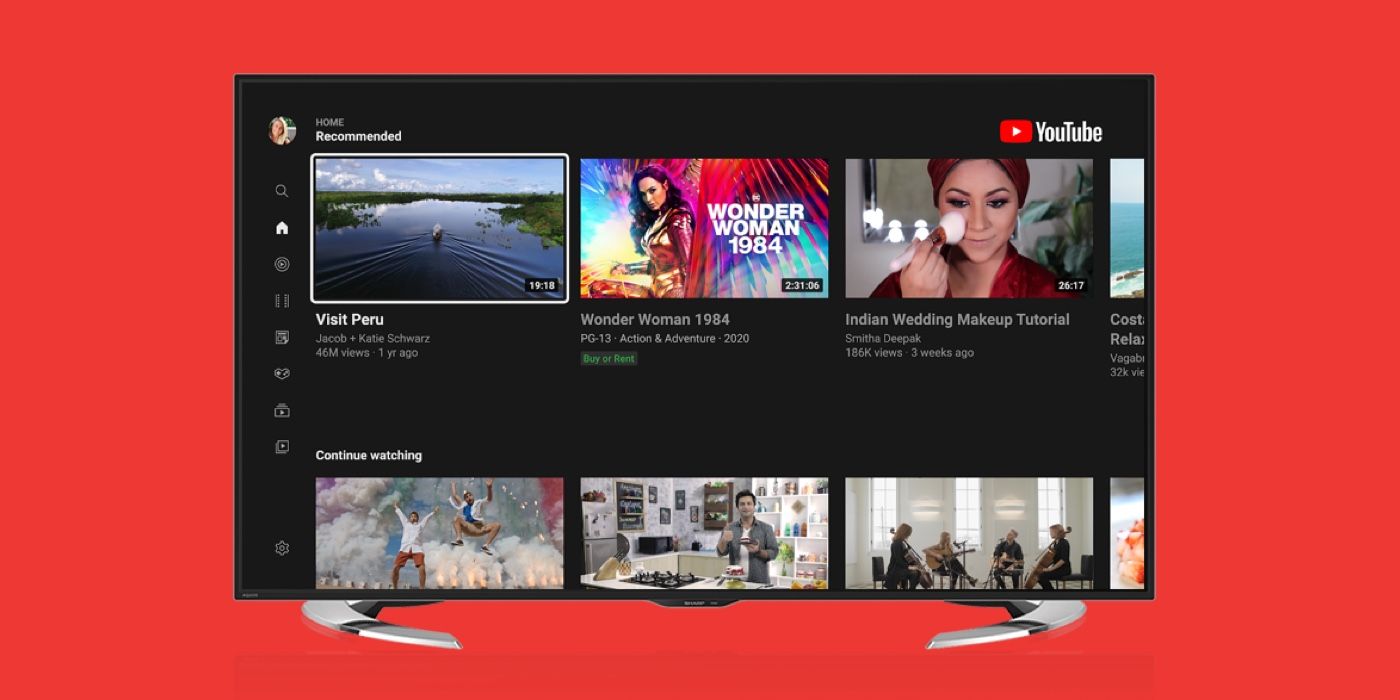
In an era defined by digital content and on-demand entertainment, the television has evolved far beyond its traditional role as a mere broadcaster. It has transformed into a dynamic hub for streaming services, gaming, and personalized media consumption. Among the myriad of platforms vying for our attention, YouTube stands out as a global behemoth, offering an unparalleled diversity of content, from educational tutorials and breaking news to music videos and elaborate documentaries. While YouTube was initially a desktop and mobile phenomenon, the desire to experience its rich content on a larger, more immersive screen has driven significant innovation in how we connect it to our televisions.

This guide delves into the various technological pathways available to bring YouTube to your TV, ensuring a professional, insightful, and engaging exploration of the options. Whether you own the latest smart TV or a more traditional model, there’s a method tailored for you, promising to elevate your viewing experience from a small screen to the grandeur of your living room display. We’ll cover everything from native smart TV apps to versatile streaming devices and even the reliable old-school cable connection, empowering you to choose the best setup for your home and preferences.
Method 1: Smart TV Integration – The Easiest Path to YouTube
Modern smart televisions have become the quintessential gateway to online content, offering a seamless and integrated experience for accessing a multitude of streaming services directly from your living room. For many, this is the most straightforward and intuitive way to enjoy YouTube on a big screen.
Accessing the YouTube App
Most smart TVs manufactured in the last decade come with the YouTube application pre-installed or readily available for download from their respective app stores. The process is remarkably user-friendly:
- Power On Your Smart TV: Ensure your TV is connected to a stable internet connection, either via Wi-Fi or an Ethernet cable. A strong connection is crucial for uninterrupted streaming, especially for high-definition or 4K content.
- Navigate to the Smart Hub or Home Screen: Depending on your TV brand (Samsung, LG, Sony, Vizio, TCL, etc.), this interface might be called the Smart Hub, Home Screen, Launcher, or similar. You can typically access it via a dedicated button on your remote control (often labeled “Home,” “Smart,” or a logo representing the TV brand).
- Locate and Launch the YouTube App: Once in the smart hub, look for the YouTube icon. It’s usually prominently displayed among other popular apps like Netflix, Hulu, or Amazon Prime Video. If it’s not immediately visible, you might need to navigate to an “Apps” section or use a search function within the TV’s interface. Select the app to launch it.
- Sign In (Optional but Recommended): While you can browse and watch many videos without signing in, logging in with your Google account unlocks a personalized experience. This includes access to your subscriptions, watch history, custom playlists, and tailored recommendations. To sign in, the app will typically display an activation code or a QR code. You’ll then visit
youtube.com/activateon a computer or mobile device, enter the code, and complete the sign-in process. Some TVs may allow direct email/password input.
Understanding Smart TV Features
Beyond simple app access, smart TVs offer a range of features designed to enhance your YouTube viewing:
- Intuitive Remote Control Navigation: Smart TV remotes are optimized for browsing. They often include directional pads, select buttons, and sometimes even dedicated app buttons. Many modern remotes also feature motion sensors (like LG’s Magic Remote) or touchpads for more fluid navigation.
- Voice Search Capabilities: A significant number of smart TVs now integrate voice assistants (e.g., Google Assistant, Alexa, Samsung Bixby) directly into their remotes. This allows you to simply speak your search queries, making it incredibly fast and convenient to find specific videos or channels on YouTube without typing.
- Picture Quality Settings: Smart TVs leverage their advanced display technologies, offering settings like 4K Ultra HD resolution, High Dynamic Range (HDR), and various picture modes (Cinema, Sport, Vivid). Ensure your TV’s picture settings are optimized for streaming to get the most out of high-quality YouTube content. You can often adjust these settings directly through your TV’s picture menu while a video is playing.
The elegance of smart TV integration lies in its simplicity. It’s a self-contained system that minimizes clutter and offers a direct, powerful connection to the vast world of YouTube.
Method 2: Streaming Devices – Expanding Your Options for YouTube
For TVs that aren’t “smart” or whose built-in smart features have become sluggish or outdated, dedicated streaming devices offer a robust and often superior alternative for accessing YouTube. These compact gadgets plug into your TV and provide a powerful, user-friendly interface dedicated to streaming services.
Popular Streaming Sticks and Boxes
The market is rich with excellent streaming devices, each with its own ecosystem and unique advantages:
- Google Chromecast: Chromecast devices are unique in that they primarily function as receivers. Instead of navigating an on-screen menu with a remote, you “cast” content from your smartphone, tablet, or computer directly to your TV. The YouTube app on your mobile device or browser effectively becomes your remote, allowing you to browse, queue videos, and control playback. This provides a very fluid mobile-to-TV experience.
- Roku Devices (Roku Stick, Roku Express, Roku Ultra): Roku offers a straightforward and highly customizable interface with access to a massive “Channel Store.” The YouTube app on Roku is robust and fully featured, navigated with a traditional remote. Roku devices are known for their simplicity and broad app support.
- Amazon Fire TV Stick (and Fire TV Cube): Amazon’s streaming devices are powered by Fire OS and heavily integrated with Amazon’s services (Prime Video, Alexa). The YouTube app is readily available and functions similarly to a smart TV app, complete with remote control navigation and powerful voice search via Alexa.
- Apple TV (HD/4K): For users within the Apple ecosystem, Apple TV offers a premium experience. It provides tight integration with iOS devices (AirPlay), a sophisticated user interface, and a high-quality YouTube app. While more expensive, it often boasts superior performance and a curated app selection.
- Other Android TV Devices: Many other devices, including some smart TVs, run on the Android TV platform (e.g., NVIDIA Shield TV, certain Sony or Philips TVs). These devices offer a comprehensive YouTube app, Google Assistant integration, and access to the Google Play Store for a wide array of apps.
Setup and Configuration
Setting up a streaming device is generally a quick and straightforward process:
- Connect to TV: Plug the streaming stick (or box) into an available HDMI port on your television. Most sticks draw power via a USB cable, which you can often plug into a USB port on your TV or directly into a wall adapter (usually included).
- Power On and Select Input: Turn on your TV and use your TV remote to select the correct HDMI input (e.g., HDMI 1, HDMI 2) that your streaming device is connected to.
- Initial Setup Wizard: The device will typically guide you through an on-screen setup wizard. This usually involves:
- Connecting to Wi-Fi: Select your home Wi-Fi network and enter the password. A strong, stable internet connection is paramount for optimal streaming performance.
- Logging In/Creating an Account: You’ll usually need to log in to an account associated with the device (e.g., Google account for Chromecast/Android TV, Roku account, Amazon account for Fire TV, Apple ID for Apple TV).
- Downloading the YouTube App: If not pre-installed, navigate to the device’s app store (e.g., Roku Channel Store, Amazon Appstore, Google Play Store) and search for and download the YouTube app.
- Launch and Enjoy: Once installed, launch the YouTube app. You’ll likely be prompted to sign in with your Google account for personalized access, similar to the smart TV method.
Streaming devices offer excellent flexibility, often providing faster performance, more frequent updates, and a wider range of app support compared to older or budget smart TV platforms.
Method 3: Connecting Your Computer or Mobile Device – Old School Yet Reliable
Before the advent of widespread smart TVs and dedicated streaming devices, connecting a computer or mobile device directly to a television was the primary method for bringing online content to the big screen. While less common today, these methods remain highly reliable, especially for older TVs or specific use cases.
HDMI Cable Connection
The most straightforward and universally compatible method involves a direct physical connection using an HDMI cable:
-
Laptop/Desktop to TV:
- Requirements: You’ll need a laptop or desktop computer with an HDMI output port and an available HDMI input port on your television.
- Connection: Simply connect one end of the HDMI cable to your computer’s HDMI port and the other end to an HDMI input on your TV.
- Select Input: Use your TV remote to select the corresponding HDMI input (e.g., HDMI 1, HDMI 2). Your TV should then display your computer’s screen.
- Display Settings Adjustments: On your computer, you may need to adjust the display settings. In Windows, right-click on the desktop, go to “Display Settings,” and choose how you want to use the TV: “Duplicate these displays” (shows the same thing on both screens) or “Extend these displays” (uses the TV as a second monitor). On macOS, go to “System Settings” > “Displays.”
- Audio Considerations: HDMI carries both video and audio. Ensure your computer’s audio output is set to the TV. You might need to select the TV as the default audio device in your computer’s sound settings.
- YouTube Playback: Once connected, open a web browser on your computer, navigate to YouTube, and play any video. It will mirror or extend to your TV.
-
Mobile Device to TV (with adapter):
- Requirements: This typically requires a specific adapter for your phone or tablet (e.g., USB-C to HDMI adapter for newer Android phones, Lightning Digital AV Adapter for iPhones).
- Connection: Connect the adapter to your phone/tablet, then connect an HDMI cable from the adapter to your TV.
- Functionality: This usually mirrors your device’s screen directly to the TV, allowing you to play YouTube videos from the app or browser.
Screen Mirroring and Casting (Advanced)
Beyond dedicated Chromecast or AirPlay devices, some TVs and operating systems offer built-in screen mirroring capabilities:
- Miracast: A wireless display standard commonly found on Windows PCs and many Android devices. If your TV supports Miracast (often labeled “Screen Mirroring,” “Smart View,” or “Wireless Display”), you can wirelessly project your device’s screen to the TV without a cable. On Windows, press
Win + Pand select “Connect to a wireless display.” On Android, look for “Cast,” “Screen Mirroring,” or “Smart View” in your quick settings or display settings. - AirPlay (Apple Devices): While often associated with Apple TV, many newer smart TVs (especially those from Samsung, LG, Sony, Vizio) now support AirPlay 2 directly. This allows iPhone, iPad, or Mac users to wirelessly stream YouTube videos (or their entire screen) to the compatible TV without needing an Apple TV device. Look for the AirPlay icon within the YouTube app or your device’s control center.
- Built-in TV Casting Features: Some smart TVs, particularly those running Android TV or similar platforms, may have built-in casting functionality that allows certain apps on your phone to “cast” directly to the TV without an intermediary device. This is often based on the Google Cast protocol.
While these methods provide flexibility, they can sometimes be more susceptible to latency, lower resolution, or connectivity issues compared to native apps or dedicated streaming devices, especially with wireless mirroring. However, for a quick solution or when other options aren’t available, they remain invaluable.
Enhancing Your YouTube TV Experience
Simply getting YouTube on your TV is just the first step. To truly elevate your viewing, optimizing your setup and personalizing your interaction with the platform are key.
Optimizing Your Network Connection
The quality of your internet connection is paramount for a smooth, high-definition YouTube experience on your TV.
- Importance of Stable Wi-Fi or Ethernet: For 4K streaming, a consistent bandwidth of at least 20-25 Mbps is recommended. For HD (1080p), 5-8 Mbps is usually sufficient. Wi-Fi can be convenient, but an Ethernet connection (if your TV or streaming device has a port) offers superior stability and speed, reducing buffering and dropped connections.
- Bandwidth Requirements for HD/4K Streaming: If multiple devices are using your network simultaneously, or if your Wi-Fi signal is weak, you may experience buffering or reduced video quality. Consider upgrading your internet plan if you frequently stream high-resolution content.
- Troubleshooting Network Issues: If you face persistent buffering, try restarting your router and modem. Ensure your TV or streaming device is relatively close to your Wi-Fi router, or invest in a mesh Wi-Fi system or Wi-Fi extender to improve coverage.
Personalizing Your Viewing
Unlocking the full potential of YouTube on your TV involves leveraging its personalization features.
- Signing In for Subscriptions, Watch History, Recommendations: As mentioned, signing in with your Google account is crucial. It synchronizes your subscriptions, watch history, liked videos, and playlists across all your devices. More importantly, YouTube’s powerful recommendation engine can then provide tailored suggestions directly on your TV’s home screen, helping you discover new content effortlessly.
- Creating Profiles for Family Members: While the main YouTube app doesn’t have distinct user profiles like Netflix, YouTube Kids offers a controlled environment for younger viewers. For general YouTube, ensure family members sign into their respective Google accounts on the TV (if the TV/device supports multiple Google account sign-ins) or use the “Guest” mode if available, to keep recommendations separate.
- Using YouTube Premium for Ad-Free Viewing: For an uninterrupted experience, consider subscribing to YouTube Premium. This service eliminates ads across all YouTube platforms, including your TV, allows for background playback on mobile, and enables offline downloads. It significantly enhances the seamlessness of your viewing sessions.
Advanced Control and Interactivity
Modern technology offers sophisticated ways to control your YouTube TV experience.
- Using Your Phone as a Remote: The “Cast” feature within the YouTube app on your smartphone or tablet is incredibly powerful. When you see the cast icon (a TV screen with a Wi-Fi symbol), tapping it allows you to select your smart TV or streaming device. Your mobile device then transforms into a full-featured remote, letting you browse, search (using your phone’s keyboard or voice input), queue videos, and control playback on your TV. This is often far more efficient than using a TV remote for typing.
- Keyboard Input for Easier Searching: Some smart TVs and streaming devices allow you to pair a Bluetooth keyboard, which can dramatically speed up text input for searches and logins. Alternatively, some TV remotes (like certain Fire TV or Android TV remotes) have a microphone for voice search, which is usually the fastest method.
- Picture-in-Picture or Split-Screen Features: Certain high-end smart TVs offer multi-view or picture-in-picture modes, allowing you to watch YouTube alongside another input (like live TV) or even display two YouTube videos side-by-side. Check your TV’s advanced settings for these capabilities.
These enhancements transform your YouTube TV experience from passive consumption to an interactive, personalized, and truly immersive engagement.
Troubleshooting Common Issues
Even with the best setup, you might occasionally encounter technical hiccups. Knowing how to troubleshoot common problems can save you frustration and get you back to your content quickly.
App Not Loading or Crashing
If your YouTube app is unresponsive, freezes, or crashes frequently:
- Restarting the App/Device: The simplest solution is often the most effective. First, try closing the YouTube app completely and reopening it. If that doesn’t work, power cycle your TV or streaming device (unplug it from the power outlet for 30 seconds, then plug it back in). This clears temporary glitches.
- Clearing Cache: Over time, apps can accumulate corrupted or excessive cache data, leading to performance issues. On most smart TVs and streaming devices, you can go into the device’s settings, find the YouTube app under “Applications” or “Apps,” and select “Clear Cache.” (Note: “Clear Data” will usually sign you out and reset app settings, which might be a more drastic but sometimes necessary step).
- Reinstalling the App: If clearing the cache doesn’t help, try uninstalling the YouTube app and then reinstalling it from your TV’s app store. This ensures you have the latest, clean version of the application.
Poor Video Quality or Buffering
Issues like pixelated video, frequent pauses, or slow loading times are almost always related to your internet connection:
- Checking Internet Speed: Use a speed test app on your TV (if available) or on a device connected to the same network (e.g., your smartphone) to verify your internet speed. Look for at least 5-8 Mbps for HD and 20+ Mbps for 4K streaming.
- Reducing Video Quality Settings: Within the YouTube app, during video playback, you can usually access settings (often a gear icon). Try manually setting the video quality to a lower resolution (e.g., 720p or 480p) to see if buffering improves.
- Improving Network Connection:
- Move Router Closer: If your TV/device is far from your Wi-Fi router, try relocating the router closer or use a Wi-Fi extender.
- Use Ethernet: For the most reliable connection, connect your TV or streaming device directly to your router with an Ethernet cable if ports are available.
- Minimize Network Congestion: If other devices are heavily using the network (e.g., large downloads, online gaming), try pausing those activities.
Remote Control Problems
A non-responsive remote can be a major hindrance:
- Checking Batteries: This is the most common culprit. Replace the batteries with fresh ones.
- Re-pairing Remote: For Bluetooth or RF remotes, they might lose their pairing with the device. Consult your TV or streaming device’s manual for instructions on how to re-pair the remote (often involves holding down specific buttons).
- Using Alternative Control Methods: If your remote is truly dead or lost, remember you can often use your smartphone as a remote via the YouTube app’s “Cast” feature or a dedicated remote app provided by your TV manufacturer or streaming device (e.g., Roku app, Fire TV app).
By systematically addressing these common issues, you can minimize downtime and ensure your YouTube viewing experience remains smooth and enjoyable.
Conclusion
The journey of YouTube from a desktop novelty to a cornerstone of television entertainment reflects the relentless pace of technological advancement and our evolving consumption habits. Whether through the integrated elegance of a smart TV, the versatile power of a dedicated streaming device, or the reliable simplicity of a direct cable connection, bringing YouTube to your big screen is now more accessible than ever.
Each method offers its unique blend of convenience, performance, and features, catering to different setups and preferences. By understanding these options, optimizing your network, and leveraging YouTube’s personalization tools, you transform your living room into a dynamic and personalized content hub. From discovering niche tutorials to enjoying cinematic documentaries in 4K, the vast universe of YouTube is ready to be explored on your television, offering endless hours of entertainment, education, and engagement. So, sit back, grab your remote (or your phone), and immerse yourself in the world of YouTube, amplified on the big screen.
aViewFromTheCave is a participant in the Amazon Services LLC Associates Program, an affiliate advertising program designed to provide a means for sites to earn advertising fees by advertising and linking to Amazon.com. Amazon, the Amazon logo, AmazonSupply, and the AmazonSupply logo are trademarks of Amazon.com, Inc. or its affiliates. As an Amazon Associate we earn affiliate commissions from qualifying purchases.