
In the dynamic world of small business, managing finances effectively is not just an advantage—it’s a necessity. From tracking income and expenses to managing payroll and generating crucial financial reports, these tasks can quickly become overwhelming without the right tools. Enter QuickBooks, the undisputed leader in small business accounting software. Designed to simplify complex financial processes, QuickBooks empowers entrepreneurs to take control of their books, gain insights into their financial health, and make informed decisions. This comprehensive guide will walk you through the essential steps of leveraging QuickBooks for your small business, focusing on its technological capabilities and operational best practices.
Setting Up Your QuickBooks Environment: The Foundation
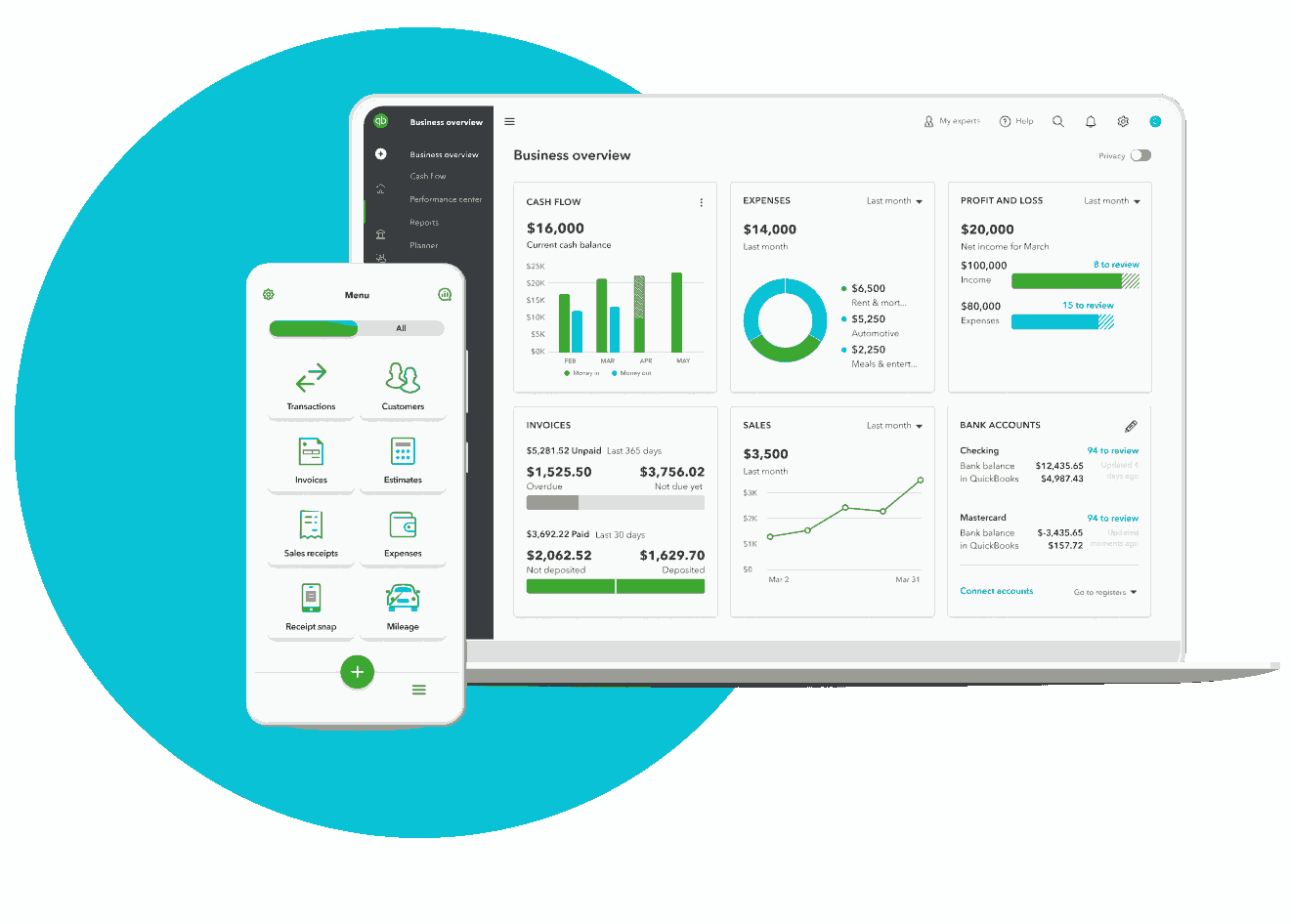
Before you can unlock the full potential of QuickBooks, a proper setup is paramount. This initial phase involves choosing the right version, configuring your company file, and importing crucial data. Think of it as laying the digital groundwork for your financial ecosystem.
Choosing the Right QuickBooks Version
QuickBooks offers several versions, each tailored to different business needs.
- QuickBooks Online (QBO): A cloud-based solution, QBO offers unparalleled flexibility, allowing access from any device with an internet connection. It’s ideal for businesses with remote teams, those needing frequent access on the go, or those seeking seamless integration with other cloud apps. It comes in various subscription tiers (Simple Start, Essentials, Plus, Advanced), each offering progressively more features like multi-user access, inventory management, and budgeting.
- QuickBooks Desktop (Pro, Premier, Enterprise): For businesses preferring a traditional desktop installation, QuickBooks Desktop provides robust features, often with industry-specific functionalities (e.g., contractor, non-profit, retail editions). While it offers advanced reporting and sometimes more granular control, it lacks the cloud accessibility of QBO without additional hosting solutions.
- QuickBooks Self-Employed: Specifically designed for freelancers, independent contractors, and sole proprietors, this version simplifies income and expense tracking, mileage tracking, and tax preparation for Schedule C filers.
Your choice should align with your business model, desired accessibility, and the complexity of your financial operations. For most modern small businesses, QuickBooks Online is the most popular and versatile choice due to its accessibility and continuous updates.
Initial Company Setup and Chart of Accounts
Once you’ve selected your version, the next step is to set up your company file. This involves entering basic business information such as your company name, industry, start date, and tax ID. The most critical aspect of this stage is establishing your Chart of Accounts. The Chart of Accounts is the backbone of your accounting system, a categorized list of all your financial accounts (assets, liabilities, equity, income, and expenses). QuickBooks provides a default chart based on your industry, but it’s crucial to customize it to accurately reflect your business’s unique revenue streams and expenditure types. A well-organized Chart of Accounts ensures accurate financial reporting and simplifies tax preparation. Spend time here to ensure precision.
Importing Existing Data and User Configuration
If you’re migrating from another accounting system or spreadsheets, QuickBooks facilitates importing existing customer, vendor, product/service, and even historical transaction data. Utilize CSV files for a smooth transition, but always double-check the imported data for accuracy. For businesses with multiple employees involved in financial tasks, setting up user roles and permissions is essential for maintaining data integrity and security. QuickBooks allows you to grant specific access levels, ensuring that each user only sees and interacts with the information relevant to their role, preventing unauthorized access or accidental data manipulation.
Navigating Daily Operations: Core Accounting Functions
With your QuickBooks environment established, you’re ready to dive into the daily tasks that keep your business financially organized. QuickBooks streamlines these essential operations, transforming what could be tedious manual processes into efficient digital workflows.
Managing Income: Invoicing, Sales Receipts, and Payments
Generating income is the lifeblood of any small business, and QuickBooks makes it straightforward to manage.
- Invoicing: Create professional, customizable invoices directly within QuickBooks. You can add your logo, payment terms, and detailed service/product descriptions. QuickBooks tracks outstanding invoices, sending automated reminders to clients and showing you exactly who owes you money and when it’s due.
- Sales Receipts: For immediate sales where payment is received at the time of service or product delivery, sales receipts are used. These record the transaction and update your income accounts instantly.
- Receiving Payments: When customers pay, QuickBooks allows you to record these payments, apply them against open invoices, and link them to your bank deposits. This ensures your Accounts Receivable balance is always accurate, giving you a clear picture of your cash flow.
Tracking Expenses and Purchases: Bills and Vendor Management
Equally important is meticulously tracking your expenditures. QuickBooks simplifies this process, helping you monitor where your money goes and ensuring you capture all deductible expenses for tax purposes.
- Entering Bills: When you receive a bill from a vendor that you’ll pay later, you enter it into QuickBooks as a bill. This creates an Accounts Payable entry, reminding you of the payment due date and helping you avoid late fees.
- Paying Bills: QuickBooks allows you to schedule and pay bills directly from the platform, often integrating with online banking. It tracks these payments and updates your vendor balances.
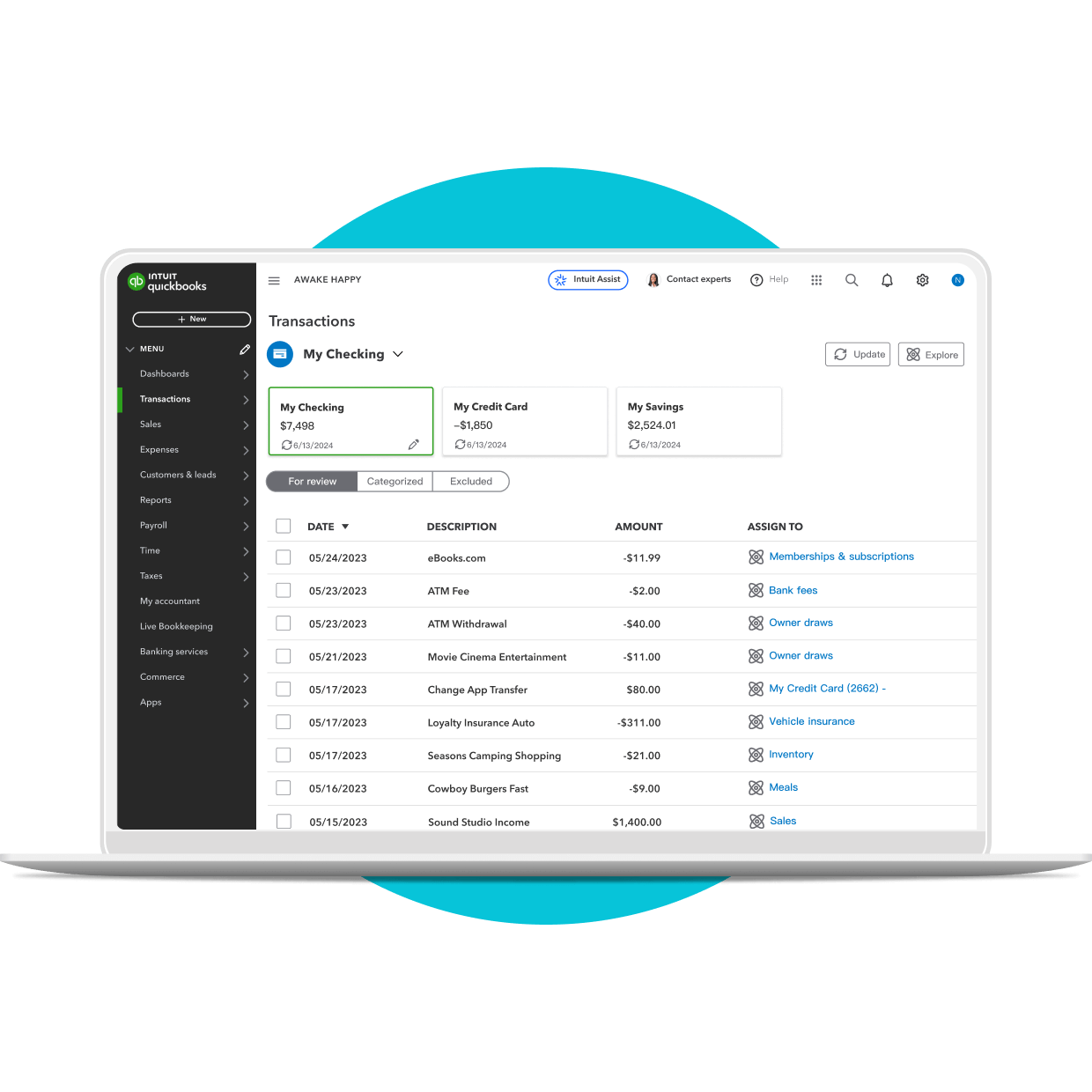
- Expense Categorization: One of QuickBooks’s most powerful features is its ability to categorize expenses. By linking your bank and credit card accounts, QuickBooks can often auto-categorize transactions. You can also manually assign each expense to the appropriate account in your Chart of Accounts, which is crucial for accurate financial reporting and tax preparation.
Reconciling Bank and Credit Card Accounts
Bank reconciliation is a critical monthly process that ensures the transactions recorded in QuickBooks match those on your bank and credit card statements. This practice helps identify errors, detect fraud, and confirm the accuracy of your cash balances. QuickBooks provides a dedicated reconciliation tool that compares your entered transactions with the imported bank data, highlighting discrepancies and making the process efficient. Regular reconciliation is a best practice that maintains the integrity of your financial records.
Streamlining Processes with Advanced QuickBooks Features
Beyond the core functions, QuickBooks offers a suite of advanced features designed to further automate and optimize your financial management, saving you time and reducing manual errors.
Payroll Management
Managing payroll can be a complex and time-consuming task, involving calculations for wages, deductions, and tax withholdings. QuickBooks Payroll, an integrated add-on, automates this entire process. It allows you to:
- Set up employee profiles: Including tax information, pay rates, and direct deposit details.
- Run payroll: Calculate gross pay, deductions, and net pay automatically.
- File payroll taxes: Generate and file federal and state payroll tax forms directly from QuickBooks.
- Provide pay stubs: Employees can often access their pay stubs electronically.
This integration ensures that payroll expenses are accurately recorded in your Chart of Accounts, simplifying financial reporting.
Inventory Management
For product-based businesses, accurate inventory tracking is vital for managing costs, fulfilling orders, and optimizing purchasing. QuickBooks offers robust inventory management features (available in specific versions like QuickBooks Online Plus or Desktop Premier/Enterprise):
- Track quantities on hand: Automatically update inventory levels with each sale and purchase.
- Monitor cost of goods sold (COGS): Understand the direct costs associated with generating revenue.
- Set reorder points: Receive alerts when stock levels are low, prompting timely reorders.
- Manage multiple locations: Keep track of inventory across different warehouses or stores.
Effective inventory management in QuickBooks helps prevent stockouts, reduces carrying costs, and improves profitability.
Project and Job Costing
Many small businesses operate on a project basis. QuickBooks provides tools for project costing, allowing you to track income and expenses specifically related to individual projects or jobs. This means you can:
- Allocate time and expenses: Assign employee time, materials, and other costs directly to a particular project.
- Track profitability per project: See which projects are most profitable and which might be incurring losses.
- Invoice based on project progress: Generate invoices for specific project milestones or completed work.
This feature offers invaluable insights for service-based businesses, helping them bid more accurately and manage resources more effectively.
Harnessing Data: Generating Reports and Gaining Insights
The true power of any accounting software lies in its ability to transform raw financial data into meaningful insights. QuickBooks excels at generating a wide array of reports that provide a clear picture of your business’s financial health and performance. Understanding how to access and interpret these reports is crucial for strategic decision-making.
Key Financial Reports for Small Businesses
QuickBooks offers a comprehensive reporting suite, but a few core reports are indispensable for every small business owner:
- Profit & Loss (Income Statement): This report summarizes your revenues, costs, and expenses over a specific period (e.g., month, quarter, year), showing your net profit or loss. It’s fundamental for understanding your business’s profitability.
- Balance Sheet: A snapshot of your company’s financial position at a specific point in time, detailing your assets, liabilities, and equity. It adheres to the basic accounting equation: Assets = Liabilities + Equity.
- Cash Flow Statement: While the P&L shows profitability, the Cash Flow Statement reveals how cash is generated and used by your business from operating, investing, and financing activities. It’s critical for assessing liquidity.
- Accounts Receivable Aging: This report lists all outstanding invoices, categorized by how long they’ve been overdue, helping you manage collections and monitor customer payment behavior.
- Accounts Payable Aging: Shows all bills you owe to vendors, categorized by due date, helping you manage your outgoing payments and maintain good vendor relationships.
Customizing and Interpreting Reports
QuickBooks allows for extensive customization of its reports. You can filter by date range, customer, vendor, class, or project, and even modify the columns displayed. This flexibility enables you to drill down into specific areas of your business performance. Understanding how to read these reports involves more than just looking at the bottom line. It requires analyzing trends, comparing periods, and identifying anomalies. For instance, a declining gross profit margin on your P&L might indicate rising costs of goods or pricing issues, prompting further investigation. Regularly reviewing these reports is essential for strategic planning, budgeting, and identifying areas for improvement or growth.
Extending QuickBooks: Integrations and Best Practices
QuickBooks is not just a standalone accounting tool; it’s often the central hub of a broader technological ecosystem for small businesses. Leveraging its integration capabilities and adhering to best practices can significantly enhance its utility and your operational efficiency.
Integrating with Third-Party Applications
One of QuickBooks’s greatest strengths, especially QuickBooks Online, is its extensive marketplace of integrated apps. These integrations extend QuickBooks’s functionality to areas like:
- CRM (Customer Relationship Management): Sync customer data between QuickBooks and tools like Salesforce or HubSpot.
- E-commerce Platforms: Automatically import sales data from Shopify, Etsy, or Square into QuickBooks, simplifying reconciliation.
- Time Tracking: Connect with tools like TSheets (now QuickBooks Time) to seamlessly import employee hours for payroll and project costing.
- Payment Processors: Integrate with services like PayPal, Stripe, or QuickBooks Payments for streamlined payment acceptance and reconciliation.
These integrations eliminate manual data entry, reduce errors, and create a more cohesive and automated operational workflow.
Data Security and Backups
As your financial data resides within QuickBooks, ensuring its security is paramount.
- QuickBooks Online: Benefits from enterprise-level security protocols, including encryption, multi-factor authentication, and continuous backups managed by Intuit. However, using strong, unique passwords and enabling MFA on your user account is still your responsibility.
- QuickBooks Desktop: Requires you to manage backups manually. Regularly backing up your company file to an external drive or cloud storage service is critical to prevent data loss from hardware failure or other unforeseen events.
- User Permissions: As mentioned earlier, carefully managing user access levels is a key security measure, limiting who can view or modify sensitive financial information.
Regular Review and Maintenance
Like any technological tool, QuickBooks benefits from regular review and maintenance.
- Monthly Review: Beyond reconciliation, take time monthly to review your Chart of Accounts for miscategorized transactions, reconcile discrepancies, and ensure all data entries are accurate.
- Annual Clean-up: Before tax season, conduct a thorough review of your accounts. Close out old inactive accounts, write off uncollectible receivables, and ensure all income and expenses are correctly attributed to the fiscal year.
- Stay Updated: For QuickBooks Desktop users, regularly install software updates to ensure you have the latest features and security patches. QuickBooks Online updates automatically.
By embracing QuickBooks as a central technological tool and diligently applying these practices, small business owners can transform their financial management from a daunting chore into an insightful and empowering process. It’s not just about crunching numbers; it’s about leveraging technology to gain clarity, drive efficiency, and foster sustainable growth for your business.
aViewFromTheCave is a participant in the Amazon Services LLC Associates Program, an affiliate advertising program designed to provide a means for sites to earn advertising fees by advertising and linking to Amazon.com. Amazon, the Amazon logo, AmazonSupply, and the AmazonSupply logo are trademarks of Amazon.com, Inc. or its affiliates. As an Amazon Associate we earn affiliate commissions from qualifying purchases.