
The world of technology is a dynamic landscape, constantly evolving with new tools, frameworks, and innovations. At its core, much of this progress is fueled by software development, and in the realm of Python, a crucial element that empowers developers and tech enthusiasts alike is pip, the package installer for Python. Understanding how to effectively use pip install is not merely a technical proficiency; it’s a fundamental skill that unlocks access to a vast universe of libraries and applications, significantly enhancing your ability to build, automate, and innovate across technology, branding, and even your financial pursuits.
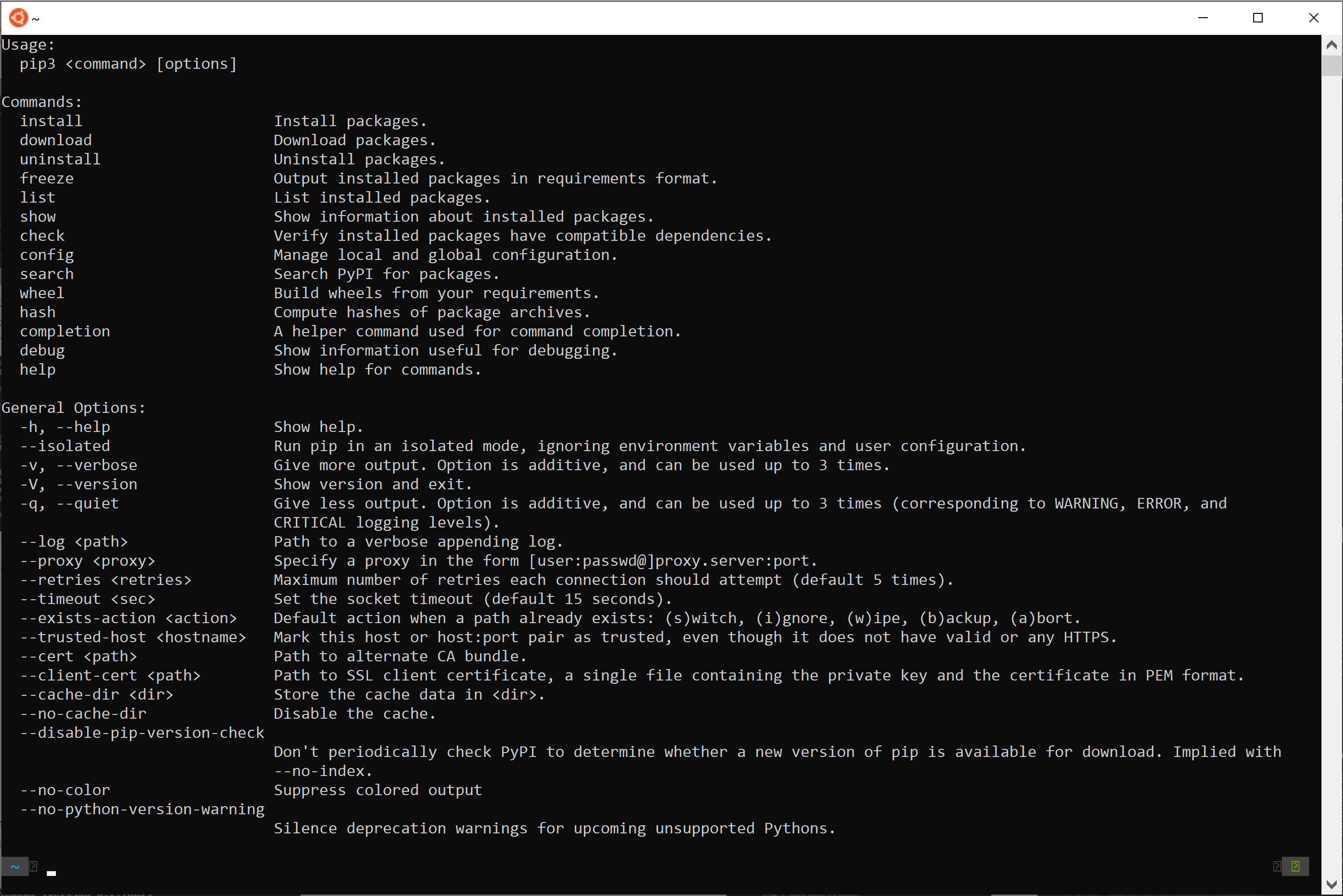
Whether you’re diving into the latest AI tools, optimizing your digital security, streamlining your productivity, or even exploring how technology can impact your personal finance and online income, Python and its package manager, pip, are indispensable allies. This comprehensive guide will demystify pip install, taking you from basic commands to advanced strategies, ensuring you can confidently harness its power.
The Power of Packages: Why pip install Matters
Python’s immense popularity stems from its readability, versatility, and, crucially, its incredibly rich ecosystem of third-party libraries and frameworks. These pre-written modules of code provide ready-made solutions for almost any task imaginable. Want to analyze complex datasets? There’s pandas. Building a web application? Django or Flask have you covered. Exploring machine learning? scikit-learn and TensorFlow are your go-to tools. Even in areas like digital security or personal productivity, specialized Python packages can automate repetitive tasks, provide sophisticated analysis, or offer powerful new functionalities.
Before pip, installing these external libraries was a manual, often cumbersome process, involving downloading source code, compiling it, and manually managing dependencies. This bottleneck significantly hindered the rapid development and adoption of Python. Enter pip.
pip (which stands for “Pip Installs Packages”) is the standard package manager for Python. It automates the process of finding, downloading, installing, and managing these external libraries and their dependencies from the Python Package Index (PyPI) – a massive online repository of Python software. Essentially, pip install is your key to unlocking this treasure trove, allowing you to seamlessly integrate powerful functionalities into your Python projects without reinventing the wheel.
Installing Python and Pip: The Foundation
Before you can leverage the power of pip install, you need to have Python installed on your system. For most users, this is a straightforward process.
Ensuring Python is Installed
-
Check Existing Installation: Open your terminal or command prompt and type:
python --version
# or
python3 --version
If you see a version number (e.g., “Python 3.9.7”), you have Python installed. If not, you’ll need to download it.
-
Download Python: Visit the official Python website (python.org) and download the latest stable release for your operating system (Windows, macOS, or Linux). During installation, it’s highly recommended to check the box that says “Add Python to PATH”. This makes it easier to run Python and
pipfrom any directory in your terminal.
Verifying Pip Installation
Modern Python installations typically include pip by default. You can verify its presence with:
pip --version
# or
pip3 --version
If you see a version number for pip, you’re good to go. If pip is not found, or if you need to upgrade it to the latest version, you can often do so using Python itself:
python -m pip install --upgrade pip
# or
python3 -m pip install --upgrade pip
This command tells Python to run the pip module and use it to upgrade itself. This is a robust way to ensure you have the most up-to-date and functional version of pip.
The Core of pip install: Downloading and Installing Packages
The primary function of pip is to install packages. The command is elegantly simple, yet remarkably powerful.
Basic pip install Usage
The most fundamental command to install a package is:
pip install package_name
Let’s break this down:
pip: The command to invoke the Python package installer.install: The subcommand that tellspipyou want to install something.package_name: The name of the package you wish to install, as it’s listed on PyPI.
Example: To install the requests library, which is excellent for making HTTP requests (useful for web scraping, interacting with APIs, and many tech-related tasks), you would type:
pip install requests
pip will then:
- Connect to PyPI.
- Search for the
requestspackage. - Download the package and any other packages it depends on (its dependencies).
- Install them all in your Python environment.
You’ll see output in your terminal indicating the progress, including successful installation messages or any errors encountered.
Installing Specific Versions
Sometimes, you might need a specific version of a package. This is crucial for ensuring compatibility, especially in team projects or when working with legacy code. You can specify a version using ==:
pip install package_name==version_number
Example: To install version 2.25.1 of the requests library:
pip install requests==2.25.1
You can also use comparison operators:
pip install package_name>=version_number(install at least this version)pip install package_name<=version_number(install at most this version)pip install package_name!=version_number(install any version except this one)pip install package_name~=version_number(compatible with this version, e.g., 2.25.0 means >=2.25.0 and <2.26.0)
Installing Multiple Packages
You can install several packages at once by listing them separated by spaces:
pip install package1 package2 package3
Example:
pip install pandas numpy matplotlib
This is much more efficient than running pip install for each package individually.
Managing Your Python Environment: Best Practices with pip
As you venture into more complex projects or collaborate with others, managing your Python environments and installed packages becomes paramount. This is where virtual environments and requirements files shine.

The Importance of Virtual Environments
When you install packages globally (without a virtual environment), they are installed in your main Python installation. This can lead to conflicts:
- Dependency Hell: Project A might require
library_xversion 1.0, while Project B requireslibrary_xversion 2.0. Installing both globally can break one or both projects. - Pollution: Your global Python environment can become cluttered with packages you only need for specific projects.
Virtual environments are isolated Python installations that allow you to manage dependencies for individual projects separately. Each virtual environment has its own Python interpreter and its own set of installed packages.
Creating and Activating Virtual Environments
The most common tool for creating virtual environments is venv (built into Python 3.3+).
-
Create a Virtual Environment: Navigate to your project’s root directory in the terminal and run:
python -m venv venv_name
# or
python3 -m venv venv_name
Replace
venv_namewith a descriptive name, often simplyvenvor.venv. This creates a new directory (e.g.,venv) containing a copy of the Python interpreter and a place to install packages. -
Activate the Virtual Environment: The activation process differs slightly by operating system:
- Windows:
bash

venv_nameScriptsactivate
- macOS/Linux:
bash

source venv_name/bin/activate
Once activated, your terminal prompt will usually change to indicate the active environment (e.g.,
(venv) C:UsersYourUserYourProject>). Now, anypip installcommands you run will install packages only within this activated environment. - Windows:
-
Deactivate the Virtual Environment: When you’re done working on the project, simply type:
bash

deactivate
Using Requirements Files for Reproducibility
When you’re working on a project, especially with others, you need a way to easily recreate the exact environment on another machine or after a fresh installation. This is where requirements.txt files come in.
-
Generating a
requirements.txtFile: With your virtual environment activated, you can generate a file that lists all the packages and their exact versions currently installed in that environment:pip freeze > requirements.txtThis command outputs the list of installed packages to a file named
requirements.txtin your current directory. -
Installing from a
requirements.txtFile: On a new machine, or after cloning a project, you can recreate the entire environment by:- Creating and activating a new virtual environment for the project.
- Running the following command:
bash

pip install -r requirements.txt
pipwill read therequirements.txtfile and install all the specified packages and their exact versions.
This practice is fundamental for any serious software development, ensuring consistency and simplifying collaboration, whether you’re building a complex AI model, managing a corporate brand’s online presence, or automating personal finance tasks.
Beyond the Basics: Advanced pip Commands and Concepts
pip offers a wealth of commands and options that can further refine your package management experience.
Uninstalling Packages
To remove a package that you no longer need:
pip uninstall package_name
pip will ask for confirmation before proceeding.
Listing Installed Packages
To see all the packages currently installed in your active environment:
pip list
This command is useful for auditing your environment or troubleshooting.
Showing Package Information
To get detailed information about a specific installed package, including its version, location, and dependencies:
pip show package_name
Upgrading Packages
While pip install package_name will install the latest version if the package isn’t present, you can also use it to upgrade an already installed package to its latest available version:
pip install --upgrade package_name
# or the shorthand
pip install -U package_name
This is essential for staying current with security patches and new features.
Searching for Packages
Although you’ll typically find package names directly on PyPI, pip has a built-in search functionality (though it’s often less effective than searching directly on the pypi.org website):
pip search search_term
pip install in Action: Across Tech, Brand, and Money
The versatility of pip install extends far beyond simple script-writing. It empowers professionals across various domains:
-
Technology: Developers leverage
pip installdaily to access libraries for web development (e.g.,Django,FastAPI), data science and AI (e.g.,NumPy,Pandas,Scikit-learn,TensorFlow,PyTorch), automation (e.g.,Selenium), and cybersecurity (e.g.,Scapy,Requestsfor API interaction). Installing these packages is the first step in building powerful applications, analyzing trends, or creating intelligent tools. -
Brand & Marketing: While not always directly used by marketers, Python’s capabilities, unlocked by
pip, can significantly aid brand strategy and execution. Packages likeBeautifulSoupandScrapycan be used for competitor analysis and market research by scraping data.MatplotlibandSeaborncan help visualize marketing campaign performance. Automation scripts built with libraries likeOpenPyXLcan streamline reporting and data management. Understanding these tools, even at a high level, helps brand professionals recognize the technological underpinnings of their strategies. -
Money & Finance: The financial world is increasingly data-driven.
pip installis crucial for accessing libraries likePandasfor financial data analysis,MatplotlibandSeabornfor visualizing market trends, and specialized libraries for algorithmic trading or financial modeling. Individuals looking to automate personal finance tracking, build custom investment dashboards, or develop side hustles involving data analysis will findpip installessential for setting up their analytical toolkits. Packages for web scraping can even be used to monitor price fluctuations or gather information for online arbitrage.

Conclusion
pip install is far more than just a command; it’s the key that unlocks Python’s vast and vibrant ecosystem. By mastering its basic commands and adopting best practices like virtual environments and requirements files, you equip yourself with a powerful tool that accelerates development, ensures reproducibility, and fosters collaboration. Whether you’re a budding AI researcher, a brand strategist looking for data-driven insights, or an individual aiming to manage your finances more effectively through technology, understanding and utilizing pip install will be a significant advantage in navigating and contributing to the ever-evolving digital landscape. Start experimenting, explore PyPI, and discover the endless possibilities that await you with a well-managed Python environment.