
In an increasingly data-driven world, understanding and applying percentages is a fundamental skill. From calculating discounts and taxes to understanding interest rates and growth figures, percentages are ubiquitous. While the concept itself might seem straightforward, many users find themselves fumbling with their calculators when it comes to the enigmatic ‘%’ button. This comprehensive guide will demystify the percentage function across various calculator types, empowering you to perform percent calculations with confidence and precision.
Calculators, whether basic handheld devices, sophisticated scientific models, or integrated smartphone apps, are designed to simplify complex arithmetic. Yet, the percent key often acts as a gatekeeper to efficient financial and statistical analysis for many. We’ll delve into the mechanics behind this function, providing step-by-step instructions for common scenarios and insights into maximizing your calculator’s potential.
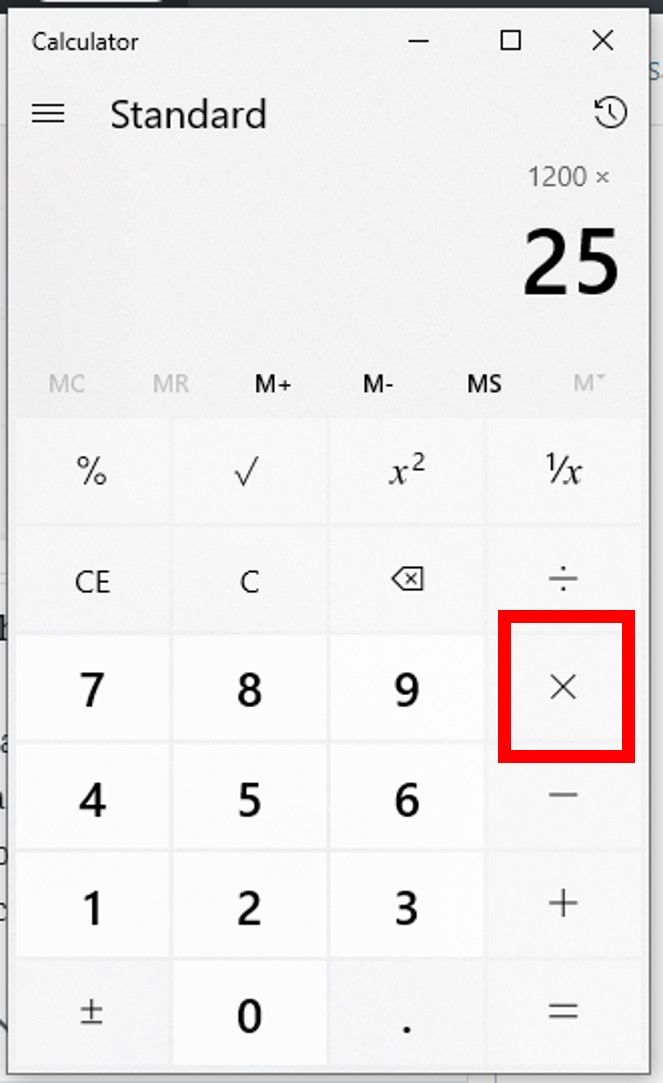
Understanding the Percent Function: A Digital Translator
The percentage symbol (%) is fundamentally a shorthand for “per hundred.” So, 50% means 50 out of 100, or 0.50 as a decimal. Your calculator’s percent button isn’t just a display feature; it’s a dedicated function designed to perform this conversion and apply it in various contexts, often saving you several keystrokes. However, its exact behavior can vary subtly between models, making a foundational understanding crucial.
The Core Concept: What the Percent Symbol Means to Your Calculator
At its most basic, pressing the ‘%’ button after a number on most calculators will convert that number into its decimal equivalent for a percentage. For example, entering 50 then % might display 0.5, 0.50, or simply keep 50 and only apply the conversion in the next step of a calculation. This underlying conversion is key to understanding how it interacts with other operations.
Consider a simple scenario: finding 25% of 200.
Manually, you would calculate (25 / 100) * 200 or 0.25 * 200.
On a calculator, the percent key aims to streamline this. When you enter 200 * 25 %, the calculator interprets the 25 % as 0.25 in relation to the number it’s multiplying. So, it essentially computes 200 * 0.25. This efficiency is where the percent key shines, but its nuance lies in its interaction with the preceding operation.
Calculator Variations: Basic, Scientific, and Smartphone Apps
Not all calculators are created equal, and their percentage functionality reflects this diversity.
-
Basic Calculators: These are the most common and often the source of confusion. Their percent key is typically designed for direct applications like calculating a percentage of a number, or adding/subtracting a percentage (e.g., discounts, taxes). The sequence of operations is paramount here.
-
Scientific Calculators: While they have a percent key, scientific calculators often encourage or even implicitly expect users to convert percentages to decimals manually (e.g.,
25/100or0.25) before performing operations, especially in complex equations involving order of operations (PEMDAS/BODMAS). The ‘%’ key might primarily serve for simple, direct percentage-of-a-number calculations or as a quick conversion tool. -
Smartphone & Web-Based Calculators: These often mimic basic calculator functionality but can be more forgiving with input sequences or offer intuitive visual feedback. Some advanced apps might even have dedicated functions for specific financial percentage calculations (e.g., tip calculators, interest calculators), abstracting the percent button entirely for certain tasks.
Understanding your specific calculator’s default behavior is the first step toward mastery. A quick test (e.g., 100 + 10 %) can reveal whether it calculates 100 + (10% of 100) or 100 + 0.1 (the latter being less common for basic calculators in this context).
Step-by-Step Guides for Essential Percent Calculations
Now, let’s break down the most common percentage calculations you’ll encounter and how to execute them flawlessly on your calculator. These instructions generally apply to basic and most smartphone calculators.
1. Calculating a Percentage of a Number
This is perhaps the most fundamental use case: finding X% of Y.
Example: What is 15% of 200?
Method:
-
Enter the total number:
200 -
Press the multiplication key:
* -
Enter the percentage value:
15 -
Press the percent key:
% -
Press the equals key (on some calculators, the result appears immediately after pressing
%):=
Expected Result: 30
Behind the scenes: The calculator converts 15% to 0.15 and then multiplies 200 * 0.15.
2. Adding or Subtracting a Percentage (Discounts, Markups, Taxes)
This is crucial for retail, finance, and budgeting.
Example 1: Discount – A $50 item has a 20% discount. What’s the final price?
Example 2: Tax/Markup – A $75 item has 8% sales tax. What’s the final price?
Method (for adding a percentage):
-
Enter the original number:
75 -
Press the addition key:
+ -
Enter the percentage value:
8 -
Press the percent key:
% -
Press the equals key:
=
Expected Result: 81 (Calculates 75 + (8% of 75), i.e., 75 + 6)
Method (for subtracting a percentage):
-
Enter the original number:
50 -
Press the subtraction key:
- -
Enter the percentage value:
20 -
Press the percent key:
% -
Press the equals key:
=
Expected Result: 40 (Calculates 50 - (20% of 50), i.e., 50 - 10)
Insight: Many calculators understand X + Y% as X + (Y% of X) and X - Y% as X - (Y% of X). This is where the percent key saves you from having to first calculate the percentage amount and then manually add/subtract it.
3. Finding the Percentage Increase or Decrease
This helps determine the relative change between two numbers.
Example: A stock went from $80 to $100. What’s the percentage increase?

Method:
-
Enter the new value:
100 -
Press the subtraction key:
- -
Enter the original value:
80 -
Press the equals key:
=(Result:20– this is the absolute change) -
Press the division key:
/ -
Enter the original value again:
80 -
Press the equals key:
=(Result:0.25– this is the decimal change relative to the original) -
Press the percent key:
%(Converts0.25to25%)
Expected Result: 25 (representing 25%)
Note: Some advanced calculators might handle (New - Old) / Old % more directly, but the above sequence is universal. Alternatively, you could skip the ‘%’ key and simply multiply 0.25 * 100 to get 25.
4. Determining What Percentage One Number is of Another
Example: 30 is what percentage of 150?
Method:
-
Enter the part (the number you want to express as a percentage):
30 -
Press the division key:
/ -
Enter the whole (the total number):
150 -
Press the equals key:
=(Result:0.2) -
Press the percent key:
%
Expected Result: 20 (representing 20%)
Insight: This essentially calculates (Part / Whole) * 100. The percent key acts as the * 100 step.
Advanced Considerations and Troubleshooting
While the percent button is a convenience, its precise behavior requires attention, especially when dealing with complex calculations or different calculator models.
Chained Calculations and Memory Functions
When performing multiple operations involving percentages, the order of operations becomes critical.
Example: Calculate a 10% discount on $200, then add 5% sales tax.
Common Mistake: 200 - 10 % + 5 % =
This might lead to 189. (200 – 20 = 180; 180 + 5% of 180 = 180 + 9 = 189)
Correct Method (using logical steps):
-
Calculate discount:
200 - 10 % = 180 -
If your calculator has a memory function (M+ / M- / MR / MC), store this result. Or, simply continue:
-
From
180, now add tax:+ 5 % =
Expected Result: 189
The key is understanding that + 5 % calculates 5% of the current displayed value (180), not the original 200. This is generally the intuitive behavior of modern basic calculators. For scientific calculators, you might prefer (200 * 0.90) * 1.05.
When the Percent Button Doesn’t Work as Expected
If your calculator isn’t yielding the anticipated results, consider these common pitfalls:
-
Order of Operations: Scientific calculators are strict about PEMDAS/BODMAS. If you’re mixing multiplication, division, addition, subtraction, and percentages, parenthesis might be required for clarity. For instance,
200 * 10 % + 5might calculate(200 * 0.10) + 5 = 20 + 5 = 25, not 10% of 200 then add 5%. -
“Reverse” Logic: Some older or very simple calculators might require the percentage first. E.g., to find 10% of 200, you might need
10 % * 200 =. This is rare on modern devices but worth checking if your results are consistently off. -
Decimal vs. Percentage Mode: A few specialized calculators might have a toggle for displaying results as decimals or percentages. Ensure you’re in the correct mode if such an option exists.
-
Malfunctioning Button: Though less common, a sticky or faulty percent key can also cause issues.
If consistently struggling, the safest universal approach is to convert percentages to their decimal equivalents manually (e.g., 25% becomes 0.25) and then perform standard arithmetic operations. This bypasses the percent key entirely but requires more keystrokes.
Beyond Basic Calculators: Embracing Digital Tools
While the physical calculator remains a staple, the digital landscape offers powerful alternatives that often simplify percentage calculations further.
Scientific Calculators: Precision and Control
Scientific calculators, with their extensive functions, offer greater control. While they have a ‘%’ key, many users find it more intuitive and less error-prone to manually convert percentages to decimals. For example, to calculate a 15% increase on 300, you might use:
300 * 1.15 = (since 1 + 0.15 = 1.15)
Or for a 15% decrease:
300 * 0.85 = (since 1 - 0.15 = 0.85)
This method avoids the ambiguities of how the percent key interacts with the preceding operation on different models and integrates seamlessly with complex formulas.
Smartphone Calculator Apps and Web Tools
Your smartphone’s built-in calculator is often a highly capable tool. Many modern apps feature:
-
User-friendly Interfaces: Clear display of operations and immediate results.
-
History Logs: Allowing you to review previous calculations.
-
Scientific Modes: Often accessible by rotating your phone or tapping an icon, offering more advanced functions.
-
Dedicated Financial Apps: Beyond the basic calculator, many apps specialize in taxes, tips, loans, and investments, where percentage calculations are baked into their core functionality, providing guided inputs and explanations.
Web-based calculators (like those found via a quick search engine query) also offer a reliable and often ad-hoc solution, with some even providing detailed breakdowns of the calculation steps.

Conclusion: Empowering Your Calculation Prowess
Mastering the percent function on your calculator is more than just learning a few button presses; it’s about understanding the underlying mathematical concepts and adapting to the specific logic of your device. By demystifying the ‘%’ key, you gain a valuable skill that enhances your ability to manage personal finances, interpret statistical data, and make informed decisions in both your professional and personal life.
Take the time to experiment with your calculator, practice these common scenarios, and observe how it responds. Whether you’re a student, a professional, or simply managing household budgets, a confident command of percentage calculations is a powerful asset in the digital age. Embrace your calculator as the robust technology tool it is, and unlock its full potential for precise and efficient number crunching.
aViewFromTheCave is a participant in the Amazon Services LLC Associates Program, an affiliate advertising program designed to provide a means for sites to earn advertising fees by advertising and linking to Amazon.com. Amazon, the Amazon logo, AmazonSupply, and the AmazonSupply logo are trademarks of Amazon.com, Inc. or its affiliates. As an Amazon Associate we earn affiliate commissions from qualifying purchases.