
Google Play stands as the quintessential digital storefront for Android devices, an expansive ecosystem that serves as the primary gateway to a universe of applications, games, movies, books, and more. For billions of users worldwide, it’s not merely an app store; it’s a central nervous system for their digital lives, enabling everything from communication and productivity to entertainment and education. Understanding how to effectively navigate and utilize Google Play is fundamental for anyone looking to maximize their Android experience, ensuring access to the latest innovations, secure content, and personalized digital entertainment. This comprehensive guide will demystify the platform, offering insights into its core functionalities and advanced features, all within the domain of technology.
Getting Started with Google Play: Your Digital Hub
At its core, Google Play is a digital distribution service operated by Google, serving as the official app store for the Android operating system. It provides a vast catalog of digital content, ranging from essential utility apps to immersive games, blockbuster movies, captivating books, and enriching audiobooks. Think of it as your device’s central nervous system, connecting you to the software and media that bring your smartphone or tablet to life.
What is Google Play?
More than just a marketplace, Google Play is an integrated platform that syncs across all your Android devices and even extends to web browsers. It aggregates various services that were once separate (like Android Market, Google Music, Google Books) into one cohesive entity. This integration ensures a seamless experience, allowing you to purchase content on one device and access it on others linked to the same Google account. It’s built on the robust Google ecosystem, meaning your purchases, downloads, and preferences are tied to your Google ID, offering convenience and consistent access. The service is not limited to just apps; it’s a comprehensive digital media platform, making it an indispensable component of the Android experience.
Accessing the Google Play Store
Accessing the Google Play Store is usually straightforward, as the app comes pre-installed on most Android devices. Look for an icon that typically features a colorful triangular play button on your device’s home screen or within your app drawer. Upon your first launch, or if you’ve recently reset your device, you’ll be prompted to sign in with your Google account. This step is crucial, as your Google account acts as your identity within the Play Store, tracking your purchases, app installations, and preferences. If you don’t have a Google account, you can easily create one directly from the sign-in screen. Once logged in, you’ll be greeted by the Play Store’s intuitive interface, ready to explore.
Navigating the Interface
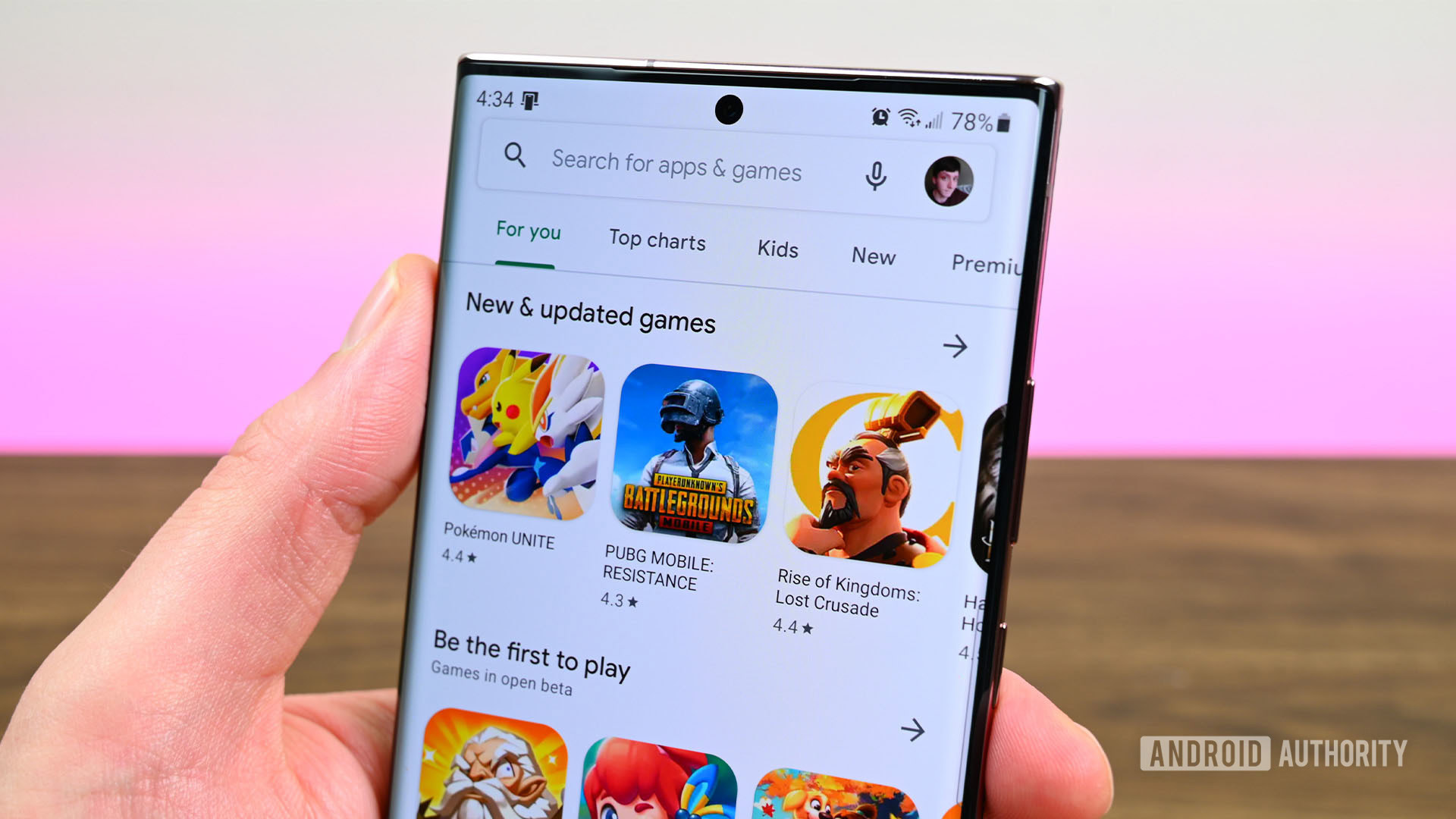
The Google Play Store’s interface is designed for ease of use, making content discovery simple and efficient. The main screen typically presents a curated selection of recommended apps, games, and other media, often based on your past activity and popular trends.
- Top Navigation Bar: At the very top, you’ll find a powerful search bar. This is your go-to tool for finding specific apps, developers, or content types. Next to it, there’s usually a profile icon, which, when tapped, reveals a menu for managing your Google account, accessing settings, and navigating to “My apps & games.”
- Bottom Navigation Bar (or Side Menu): Depending on your device and Play Store version, you’ll either have a bottom navigation bar or a hamburger menu (three horizontal lines) in the top-left corner. This bar or menu provides quick access to major content categories such as “Games,” “Apps,” “Movies & TV,” “Books,” and sometimes “Audiobooks” or “Play Pass.”
- “My apps & games”: Accessible from your profile icon, this section is vital. It allows you to see all installed apps, available updates, and your library of owned applications that are not currently installed on your device. This is where you manage your digital inventory.
Spending a few minutes exploring these areas will familiarize you with the layout and make future content discovery much smoother.
Discovering and Acquiring Content
The true power of Google Play lies in its vast repository of digital content. From productivity tools to endless entertainment, the store offers something for everyone. Mastering the art of discovery and acquisition is key to personalizing your Android device.
Finding Apps and Games
The primary method for finding specific content is using the search bar at the top of the screen. Simply type in the name of an app, a developer, or a keyword (e.g., “photo editor,” “puzzle game”) to generate relevant results.
Beyond direct search, Google Play offers numerous ways to explore:
- Categories: Both “Apps” and “Games” sections are further broken down into dozens of categories (e.g., “Education,” “Finance,” “Action,” “Strategy”). This allows for targeted browsing based on your interests.
- Top Charts: This section showcases the most popular free, paid, and grossing apps and games, giving you a glimpse into what’s trending.
- Editor’s Choice: Google’s team curates a selection of high-quality, innovative, and well-designed apps and games, often highlighting hidden gems or exceptional experiences.
- Recommended for You: Leveraging Google’s powerful algorithms, this section provides personalized recommendations based on your past downloads, searches, and app usage.
- Events and Promotions: Keep an eye out for seasonal sales, limited-time free apps, or special bundles promoted directly on the home screen or within category sections.
Exploring Movies & TV, Books, and Audiobooks
Google Play is not just for apps. It’s a comprehensive media store:
- Movies & TV: Here, you can rent or buy individual movies and TV show episodes or seasons. Content can be streamed directly from your device or downloaded for offline viewing. This section also offers trailers, cast information, and user reviews. Purchases are typically tied to your Google account and accessible across devices, including smart TVs with Google TV or Chromecast.
- Books: The “Books” section provides access to millions of e-books, from bestsellers to niche titles. You can purchase books to read directly within the Google Play Books app, which offers customizable reading experiences (font size, background color) and offline access. Many books also offer free samples, allowing you to try before you buy.
- Audiobooks: A growing category, audiobooks allow you to listen to your favorite stories on the go. Like e-books, purchased audiobooks are accessible through the Google Play Books app and can be downloaded for offline listening.
Understanding App Details and Permissions
Before installing any app, it’s crucial to review its details page. This page is a treasure trove of information that helps you make informed decisions:
- Screenshots and Videos: Visuals give you a quick impression of the app’s interface and functionality.
- Description: Read through the app description to understand its purpose, features, and system requirements. Pay attention to the “What’s new” section for recent updates.
- Ratings and Reviews: User ratings and reviews provide valuable feedback. Look for patterns in feedback regarding bugs, performance, or overall satisfaction.
- About this app: This section often contains crucial information like the app’s size, current version, content rating, and release date.
- Data safety: A relatively new section, it details how developers collect and share your data, and what security practices they have in place.
- App Permissions: This is arguably the most critical section. Before installation, Google Play will inform you about the permissions an app requires (e.g., access to your camera, microphone, contacts, location). Always scrutinize these. Does a simple calculator app really need access to your photos or location? Understanding and approving only necessary permissions is a fundamental aspect of digital security and privacy. If an app requests excessive or seemingly irrelevant permissions, it might be a red flag.
Installing and Purchasing Content
- Free Content: For free apps and games, simply tap the “Install” button. The app will download and install automatically.
- Paid Content: For paid apps, games, movies, books, or in-app purchases, tap the price button. You’ll then be prompted to confirm your purchase using your chosen payment method.
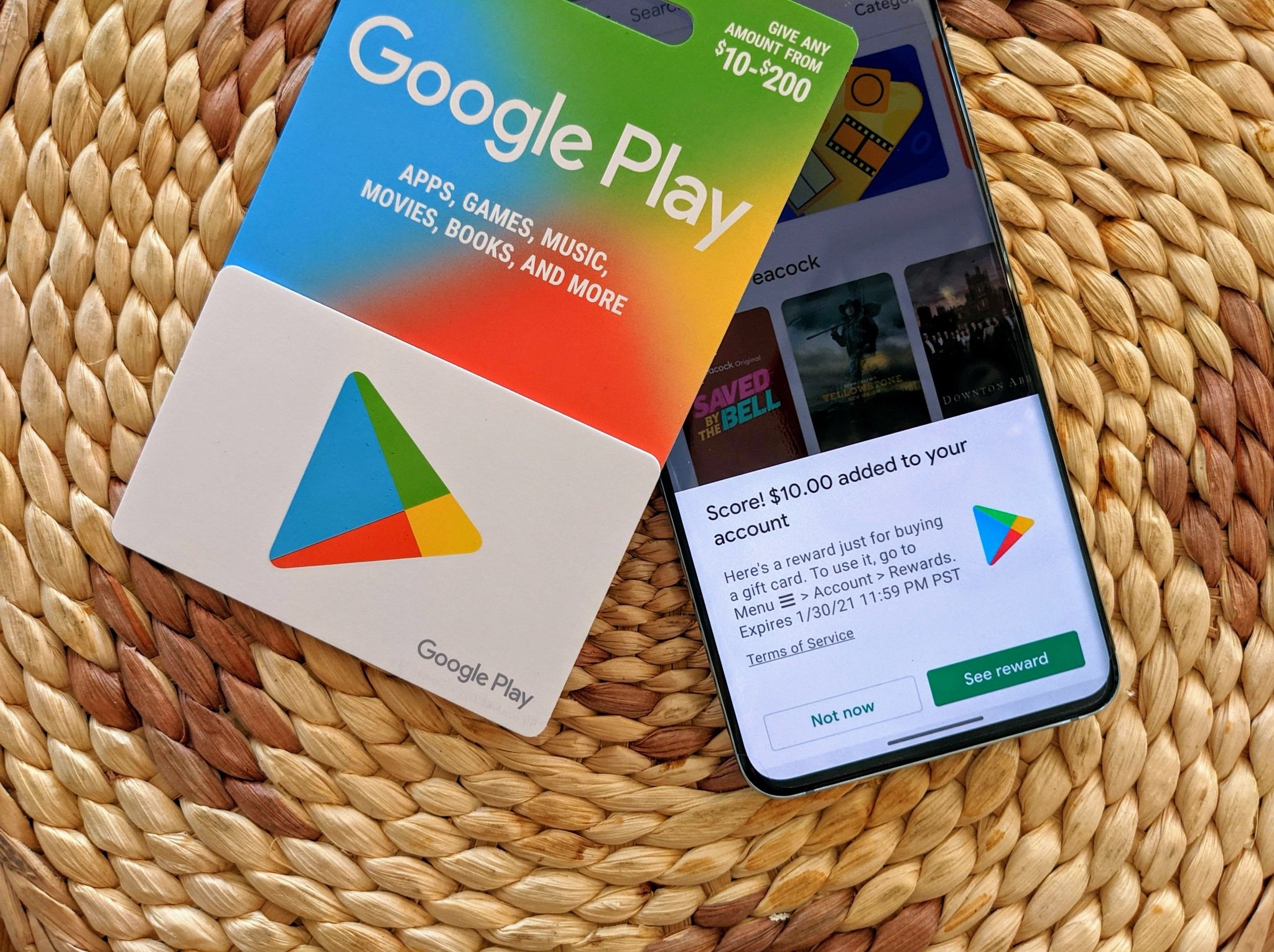
- Payment Methods: You can add various payment methods to your Google Play account, including credit/debit cards, PayPal, Google Play gift cards, and direct carrier billing (if supported by your mobile provider). These can be managed in the “Payment methods” section accessible from your profile icon.
- One-Tap Purchases: Once a payment method is set up, you can enable one-tap purchases for quicker transactions, though it’s often wise to require authentication for security.
Managing Your Google Play Library
Once you start accumulating apps and media, effectively managing your Google Play library becomes essential for maintaining device performance, security, and a streamlined digital experience.
Updating Apps and Games
Software updates are critical for several reasons:

- Security: Updates often include patches for newly discovered vulnerabilities, protecting your device from malware and exploits.
- Performance and Bug Fixes: Developers continuously optimize their apps, fixing bugs that cause crashes or slowdowns, and improving overall performance.
- New Features: Updates frequently introduce new functionalities, enhancing the user experience and keeping apps relevant.
You can manage updates via the “My apps & games” section (accessible from your profile icon, then select “Manage apps & device”). Here, you can:
- Update All: Tap the “Update all” button to download and install all pending updates at once.
- Individual Updates: See a list of apps with available updates and choose to update them one by one.
- Automatic Updates: In Play Store settings, you can choose to enable automatic updates over Wi-Fi or any network. It’s generally recommended to enable this for convenience and security, especially over Wi-Fi to save mobile data.
Uninstalling and Reinstalling Content
- Uninstalling: To free up storage space or remove an app you no longer use, go to “My apps & games,” select the “Manage” tab, find the app, and tap “Uninstall.” You can also long-press an app icon on your home screen or in your app drawer and drag it to an “Uninstall” option.
- Reinstalling: If you’ve uninstalled a purchased app or a free app you want back, you don’t need to buy it again. Go to “My apps & games,” then the “Manage” tab. Switch the filter to “Not installed” to see all apps ever linked to your Google account that aren’t currently on your device. You can then reinstall them with a tap. This is incredibly useful when setting up a new device.
Managing Subscriptions
Many apps offer subscription-based services (e.g., premium features, cloud storage). These are typically recurring payments. To manage your subscriptions:
- Tap your profile icon.
- Select “Payments & subscriptions.”
- Tap “Subscriptions.”
Here, you’ll see a list of all active and expired subscriptions tied to your Google account. From this screen, you can:
- Cancel a Subscription: Stop future charges for a service.
- Resume a Subscription: Reactivate a previously canceled service.
- Change Payment Method: Update the card or account used for billing.
- Manage Backup Options: Some subscriptions allow you to control data retention after cancellation.
It’s crucial to regularly check this section to avoid unwanted recurring charges.
Wishlist and Family Library
- Wishlist: When browsing apps, games, movies, or books, you might come across something you’re interested in but aren’t ready to acquire immediately. Tapping the three-dot menu on an item’s details page usually reveals an “Add to wishlist” option. This saves the item to a dedicated list, easily accessible from your profile icon, allowing you to revisit it later without having to search again.
- Family Library: Google Play allows you to share eligible purchased apps, games, movies, TV shows, and books with up to five other family members. To set this up, go to your profile icon, then “Settings,” and look for “Family” and “Family Library.” Once configured, family members can access shared content on their own devices without needing to re-purchase it. This is a fantastic cost-saving feature for households.
Optimizing Your Google Play Experience
Beyond the basics, several settings and features can significantly enhance your Google Play experience, focusing on security, personalized controls, and financial management.
Security and Privacy Settings
Google Play integrates robust security features to protect users:
- Play Protect: This built-in security feature scans all apps on your device and those being downloaded from the Play Store for malware. It runs continuously in the background. You can manually scan your device by going to “My apps & games” and looking for the “Play Protect” section. Ensure it’s active.
- Parental Controls: For families with children, parental controls (found in “Settings” > “Family” > “Parental controls”) allow you to restrict content based on maturity ratings for apps and games, and prevent purchases without approval. You can set a PIN to secure these settings.
- Data Usage: In “Settings,” you can configure app download preferences (e.g., “over Wi-Fi only”) to save mobile data. You can also manage app data permissions (location, camera, microphone) on a per-app basis within your device’s main system settings.
- Ad Personalization: Google uses your activity to show personalized ads. You can manage these preferences through your Google account settings, accessible from your profile icon in Play Store. While you can’t remove ads entirely, you can limit their personalization.
Payment Methods and Purchase History
Managing your financial information within Google Play is straightforward:
- Adding/Removing Payment Methods: From your profile icon, go to “Payments & subscriptions” > “Payment methods.” Here, you can add new credit/debit cards, link a PayPal account, redeem gift cards, or remove old payment methods. Keep your payment information updated to ensure smooth transactions.
- Purchase History: Also under “Payments & subscriptions” is “Budget & history.” This section provides a detailed record of all your Google Play purchases, including apps, in-app items, movies, books, and subscriptions. This is useful for tracking your spending, reconciling statements, or confirming past transactions.
Utilizing Google Play Points
Google Play Points is a loyalty program that rewards users for purchases made on Google Play.
- Earning Points: You earn points for every dollar spent on apps, games, movies, books, and in-app purchases. You can also earn bonus points for installing featured free apps or achieving certain tiers.
- Tiers: The program has different tiers (Bronze, Silver, Gold, Platinum, Diamond) that offer increasingly better perks, including higher earning rates, weekly prizes, and premium support. Your tier depends on the number of points you earn annually.
- Redeeming Points: Points can be redeemed for Google Play Credit (which can be used for any purchase on the store) or for special in-app items and discounts in supported apps and games. This offers a tangible benefit for regular Play Store users.
Troubleshooting Common Issues
Even with a robust system, users might encounter occasional issues. Here are quick tips for common problems:
- “Download Pending” or App Won’t Download:
- Check your internet connection (Wi-Fi or mobile data).
- Clear cache and data for the Google Play Store and Google Play Services apps (via device’s main Settings > Apps).
- Check device storage; insufficient space is a common culprit.
- Restart your device.
- App Crashes or Freezes:
- Clear the app’s cache and data (via device’s main Settings > Apps).
- Update the app to the latest version.
- Uninstall and reinstall the app.
- Payment Problems:
- Verify your payment method details (card number, expiry, CVC).
- Ensure sufficient funds or credit limit.
- Check with your bank or card issuer if there are any blocks.
- Try a different payment method.
- “No Connection” Error:
- Ensure your internet connection is active and stable.
- Check your device’s date and time settings are correct.
- Restart your router/modem if on Wi-Fi.
For persistent issues, Google’s official support pages offer extensive troubleshooting guides and contact options.
Conclusion
Google Play is far more than just a simple app repository; it’s a dynamic, multifaceted digital ecosystem that fuels the Android experience. By understanding its interface, leveraging its powerful search and discovery tools, carefully managing your library, and optimizing its various settings, you can unlock the full potential of your Android device. From maintaining digital security with Play Protect to sharing content with your family and earning rewards through Play Points, Google Play is designed to be an indispensable companion in your digital life. Embrace its capabilities, explore its vast offerings, and personalize your device to perfectly match your needs and preferences, creating a truly rich and engaging technological experience.
aViewFromTheCave is a participant in the Amazon Services LLC Associates Program, an affiliate advertising program designed to provide a means for sites to earn advertising fees by advertising and linking to Amazon.com. Amazon, the Amazon logo, AmazonSupply, and the AmazonSupply logo are trademarks of Amazon.com, Inc. or its affiliates. As an Amazon Associate we earn affiliate commissions from qualifying purchases.