
In an increasingly digital world, the ability to leverage technological tools for complex tasks is paramount. While calculators are often associated with quick arithmetic or intricate scientific functions, their utility extends profoundly into the realm of fractions. For many, fractions remain a challenging concept, a vestige of early mathematics that can still induce a pang of anxiety. Yet, modern calculators, from the simplest scientific models to advanced graphing powerhouses, offer robust features for simplifying, manipulating, and solving problems involving fractions. Mastering these features not only demystifies fraction arithmetic but also significantly boosts efficiency and accuracy in academic, professional, and everyday contexts. This article delves into the precise mechanics of using fractions on a calculator, transforming a potentially daunting task into a streamlined, intuitive process.
Understanding Your Calculator’s Capabilities
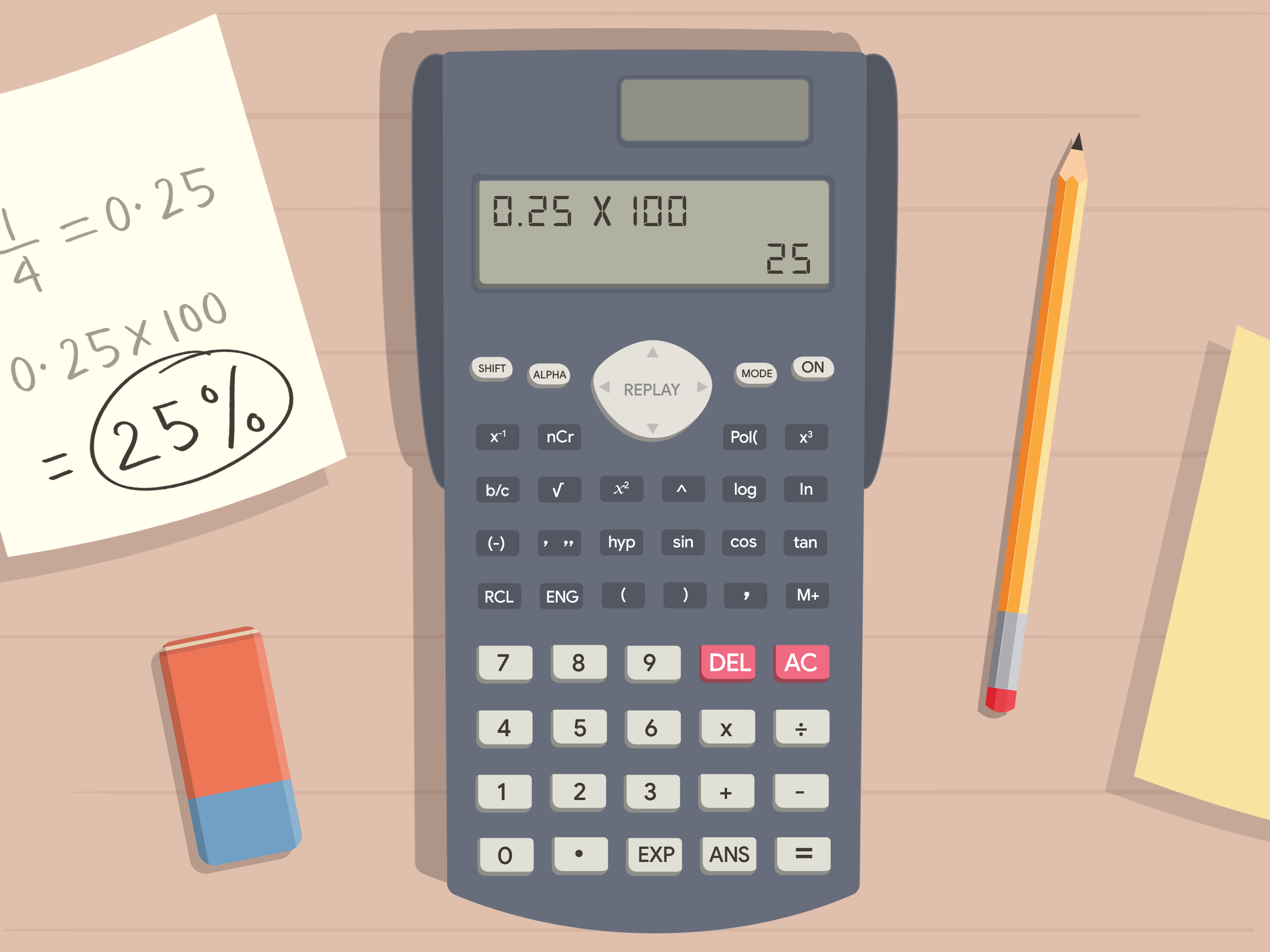
Before diving into specific operations, it’s crucial to understand the type of calculator you’re working with and its inherent capabilities regarding fraction input and display. Not all calculators are created equal, and their interfaces for fractions can vary significantly.
Basic vs. Scientific vs. Graphing Calculators
Basic Calculators: These are generally limited to decimal operations. While some might allow for simple division to convert a fraction to a decimal (e.g., 1 ÷ 2 = 0.5), they typically lack dedicated fraction keys or the ability to display results as fractions. Their utility for complex fraction work is minimal.
Scientific Calculators: This is where fraction handling truly begins. Most modern scientific calculators, like those from Casio, Texas Instruments, or Sharp, come equipped with dedicated keys for inputting and manipulating fractions. They can display answers in fractional form, convert between mixed numbers and improper fractions, and switch between fraction and decimal representations. These are the workhorses for students and professionals in fields requiring precise fraction computations without the need for graphing.
Graphing Calculators: At the pinnacle of calculator technology, graphing calculators offer all the fraction functionalities of scientific calculators, often with more intuitive displays, advanced mathematical environments, and the ability to perform symbolic manipulation (though symbolic fraction simplification is often a separate function). Their large screens allow for clearer display of complex fractions and expressions. While overkill for simple fraction arithmetic, they excel in higher-level mathematics where fractions are integrated into functions and equations.
Identifying the Fraction Key (a b/c, d/c, F↔D)
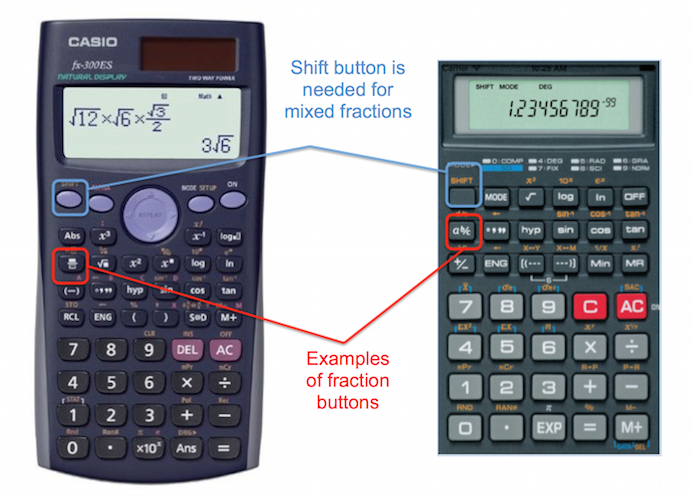
The most critical step in using fractions on a calculator is locating the dedicated fraction key. This key’s labeling can differ based on the manufacturer and model:
a b/c(orabc): This is perhaps the most common label, particularly on Casio and some Texas Instruments models. It’s used to input mixed numbers (a b/c) and often also for simple fractions (a/b). Pressing it once typically starts a simple fraction (e.g., 1a b/c2 for 1/2), and pressing it a second time might allow for mixed numbers or switch between mixed and improper fractions.d/c(orn/d): Some calculators, especially older models or specific brands, used/c(denominator/numerator) orn/d(numerator/denominator) to denote fraction input.F↔D(orS↔D): This key is not for inputting fractions directly but for converting between fraction and decimal (F↔D) or standard and decimal (S↔D) forms of a number. It’s invaluable for checking answers or presenting them in a required format./(Division Symbol): While the standard division symbol can be used to perform division (resulting in a decimal), it doesn’t typically create a “fraction object” on the calculator display that can be manipulated as a fraction. Some advanced graphing calculators might interpret1 / 2within a calculation as a fraction, but it’s not the primary fraction input method.
Familiarizing yourself with your calculator’s specific layout and key labels is essential. Consulting your calculator’s user manual, even for a quick scan, can save significant time and frustration.
Display Modes and Fraction Representation
Many scientific and graphing calculators offer different display modes that affect how fractions are shown. You might find settings that allow you to:
- Display fractions as improper fractions (e.g., 7/4).
- Display fractions as mixed numbers (e.g., 1 3/4).
- Automatically simplify fractions to their lowest terms.
- Show answers as exact fractions versus approximated decimals.
These settings are usually found within the calculator’s MODE or SETUP menu. Configuring your calculator to your preferred display can significantly enhance readability and workflow, especially when dealing with complex calculations.
Inputting and Representing Fractions
Once you’ve identified your fraction key and understood your calculator’s display options, inputting fractions becomes straightforward.
Entering Simple (Proper/Improper) Fractions
To enter a simple fraction like 3/4:
- Type the numerator:
3 - Press the fraction key (e.g.,
a b/c). - Type the denominator:
4 - Press
=(equals) to display the fraction or proceed with further calculations.
The display might show 3┘4 or a stacked fraction like ³⁄₄, depending on your calculator model.
To enter an improper fraction like 7/3, the process is identical:
- Type
7 - Press
a b/c - Type
3 - Press
=
The calculator will typically display 7┘3. Many calculators will automatically convert this to a mixed number (2 1/3) if that’s the default display setting, or you might need to press the SHIFT or 2ND function followed by the a b/c key again to toggle between improper and mixed number forms.
Handling Mixed Numbers
Mixed numbers consist of a whole number part and a fractional part (e.g., 1 2/3).
To enter 1 2/3:
- Type the whole number:
1 - Press the fraction key (e.g.,
a b/c). This key now functions as the separator between the whole number and the fractional part. - Type the numerator of the fraction:
2 - Press the fraction key again (e.g.,
a b/c). This key now functions as the separator between the numerator and denominator. - Type the denominator of the fraction:
3 - Press
=
The display should show 1┘2┘3 or a similar stacked format. Your calculator will treat this as a single numerical entity for calculations.
Converting Decimals to Fractions and Vice Versa
This is one of the most powerful features for students and professionals alike.
Decimal to Fraction:
After obtaining a decimal result (e.g., from a division or a prior calculation), you can often convert it to a fraction.
- Perform a calculation that yields a decimal, or simply input a decimal (e.g.,
0.75). - Press the
F↔D(Fraction-to-Decimal) orS↔D(Standard-to-Decimal) key. On some calculators, this might beSHIFTor2NDfollowed by the fraction key itself. - The decimal
0.75should convert to3┘4.
Note: Not all decimals can be perfectly represented as simple fractions (e.g., 0.33333…). The calculator will often provide the closest rational approximation or remain in decimal form if it cannot find an exact fractional equivalent within its display limits.
Fraction to Decimal:
Conversely, if you have a fraction displayed and need its decimal equivalent:
- Input or calculate a fraction (e.g.,
1┘2). - Press the
F↔DorS↔Dkey. - The fraction
1┘2should convert to0.5.
This conversion capability is incredibly useful for comparing fractions, understanding magnitudes, and cross-checking answers derived from different calculation methods.
Performing Operations with Fractions
The true power of using fractions on a calculator comes from its ability to perform arithmetic operations effortlessly while maintaining fractional precision.
Addition and Subtraction of Fractions
Adding or subtracting fractions with a calculator is as straightforward as adding or subtracting whole numbers.
Example: Calculate 1/2 + 3/4
- Input the first fraction:
1 a b/c 2 - Press the addition operator:
+ - Input the second fraction:
3 a b/c 4 - Press
=
The calculator will immediately display the answer, typically simplified, as 5┘4 or 1┘1┘4 (if in mixed number mode).
Example: Calculate 2 1/3 – 1/6
- Input the first mixed number:
2 a b/c 1 a b/c 3 - Press the subtraction operator:
- - Input the second fraction:
1 a b/c 6 - Press
=
The result will be 13┘6 or 2┘1┘6. The calculator automatically finds common denominators, performs the operation, and simplifies the result without any manual intervention from the user, saving considerable time and reducing error.
Multiplication and Division of Fractions
Multiplying and dividing fractions also follows a simple, intuitive process.
Example: Calculate 2/3 × 1/2
- Input the first fraction:
2 a b/c 3 - Press the multiplication operator:
× - Input the second fraction:
1 a b/c 2 - Press
=
The calculator will display 1┘3.
Example: Calculate 3/5 ÷ 2/7
- Input the first fraction:
3 a b/c 5 - Press the division operator:
÷ - Input the second fraction:
2 a b/c 7 - Press
=
The result will be 21┘10 or 2┘1┘10. Again, the calculator handles the reciprocal for division automatically.
Order of Operations (PEMDAS/BODMAS) with Fractions
Calculators are designed to follow the standard order of operations (Parentheses/Brackets, Exponents/Orders, Multiplication and Division, Addition and Subtraction). This is crucial when dealing with multi-step fraction problems.
Example: Calculate (1/2 + 1/3) × 1/4
- Open parentheses:
( - Input first fraction:
1 a b/c 2 - Add:
+ - Input second fraction:
1 a b/c 3 - Close parentheses:
) - Multiply:
× - Input third fraction:
1 a b/c 4 - Press
=
The calculator correctly computes the sum inside the parentheses first and then multiplies by 1/4, yielding 5┘24. Using parentheses correctly ensures that complex fractional expressions are evaluated in the intended sequence, preventing common algebraic errors.
Advanced Tips and Troubleshooting
Even with dedicated fraction functions, a few tips and an understanding of common pitfalls can further enhance your calculator proficiency.
Simplifying Fractions and Reducing to Lowest Terms
Most scientific and graphing calculators are programmed to automatically simplify fractions to their lowest terms whenever an operation is performed or equals is pressed. If your calculator displays an unsimplified fraction (e.g., 2┘4 instead of 1┘2), you might need to:
- Check your calculator’s
MODEorSETUPsettings for an “Auto Simplify” or “Reduce Fraction” option. - Manually force simplification using a
SHIFTor2NDfunction combined with the fraction key or another specific button. - For older models, you might have to divide both the numerator and denominator by their greatest common divisor manually if automatic simplification isn’t available.
Using Parentheses for Complex Expressions
As highlighted with the order of operations, parentheses are your best friend for ensuring accuracy in complex expressions. Always use them:
- Around entire fractions that are part of a larger power (e.g., (1/2)^2).
- When a numerator or denominator is itself an expression (e.g., (2+3)/(4-1)). While some calculators have natural display modes that allow you to build such fractions visually, explicit parentheses are a universal safe bet.
- To group terms in addition/subtraction within multiplication/division expressions.
Common Error Messages and Solutions
- Syntax Error: Often means you’ve entered something incorrectly, like an unmatched parenthesis, or tried to use an operator in an illogical sequence. Review your input.
- Math Error / Divide by Zero Error: Occurs when you attempt to divide by zero (a common error if a denominator accidentally becomes zero) or perform an impossible mathematical operation.
- Overflow / Underflow Error: The result is too large or too small for the calculator to display. This is rare with fractions unless intermediate calculations become extremely large or small.
- “Non-Real Answer” / “Complex Number”: While less common with simple fraction arithmetic, this can appear if you try to take the square root of a negative number within a fractional calculation, indicating a result outside the real number system.
When an error occurs, the first step is always to re-check your input meticulously. Many errors stem from a simple misplaced key press or a misunderstanding of the operation order.
Calculator Settings and Modes
Periodically reviewing your calculator’s MODE or SETUP menu is beneficial. You can typically adjust:
- Angle Units: Degrees, Radians, Gradians (important if fractions appear in trigonometric functions).
- Display Format: Normal, Scientific, Engineering, Fixed (number of decimal places).
- Fraction Display: Mixed, Improper, Auto-simplify.
- Math Input/Output: Natural Display (shows fractions as they would be written) vs. Linear (one line display).
Optimizing these settings to match your current task or preference can significantly improve the user experience and prevent unexpected results.
Why Mastering Fractions on a Calculator Matters
The ability to proficiently use fractions on a calculator extends far beyond merely getting the right answer; it embodies a deeper understanding of mathematical tools and their application in various domains.
Practical Applications in STEM and Everyday Life
Fractions are ubiquitous. In engineering, they appear in measurements, ratios, and stress calculations. In physics, they are fundamental to formulas involving proportions, velocities, and forces. In chemistry, fractional stoichiometry and concentration calculations are common. Even in finance, understanding fractional parts of investments, interest rates, or stock prices is crucial. For the average person, fractions are encountered in cooking recipes, carpentry measurements, dividing bills, and understanding statistics. Using a calculator to handle these fractions ensures precision and expedites problem-solving in these diverse scenarios, making tasks less prone to human error and more efficient.
Enhancing Mathematical Fluency and Problem-Solving
While calculators handle the arithmetic, the user still needs to set up the problem correctly. Mastering fraction input and operations on a calculator strengthens one’s overall mathematical fluency. It allows users to focus on the problem’s conceptual aspects—what operations are needed, in what order, and what the result means—rather than getting bogged down in the minutiae of manual fractional arithmetic (finding common denominators, simplifying large numbers). This shift in focus cultivates better problem-solving skills and a deeper intuition for numerical relationships.

Bridging the Gap Between Manual Calculation and Digital Efficiency
For those who have historically struggled with fractions, the calculator acts as an empowering bridge. It transforms fractions from an intimidating obstacle into manageable components of a larger problem. For those already proficient, it offers a dramatic increase in speed and reliability, especially in time-sensitive situations like exams or professional tasks. In essence, calculators don’t replace understanding; they augment it, providing a powerful digital partner in the pursuit of mathematical accuracy and efficiency.
In conclusion, understanding how to effectively use fractions on a calculator is an indispensable skill in the modern technological landscape. By familiarizing oneself with calculator types, dedicated fraction keys, display modes, and operational sequences, individuals can unlock a significant technological advantage. This proficiency not only simplifies complex calculations but also fosters a more confident and capable approach to numerical problem-solving across all facets of life and learning.
aViewFromTheCave is a participant in the Amazon Services LLC Associates Program, an affiliate advertising program designed to provide a means for sites to earn advertising fees by advertising and linking to Amazon.com. Amazon, the Amazon logo, AmazonSupply, and the AmazonSupply logo are trademarks of Amazon.com, Inc. or its affiliates. As an Amazon Associate we earn affiliate commissions from qualifying purchases.