
In the rapidly evolving landscape of personal computing, the bridge between your physical hardware and the operating system is often the most overlooked component of system maintenance. Device drivers—small yet sophisticated pieces of software—act as the essential translators that allow Windows, macOS, or Linux to communicate effectively with components like your graphics card, motherboard, and network adapter. When these “translators” become outdated, the resulting friction can lead to system crashes, security vulnerabilities, and a significant degradation in performance.
Understanding how to upgrade drivers effectively is more than just a maintenance task; it is a fundamental skill for anyone looking to maximize the longevity and efficiency of their technology. This guide explores the multifaceted world of driver management, offering professional insights into why, when, and how to keep your system running at its peak.

Why Keeping Drivers Updated is Crucial for System Longevity
Before diving into the technical “how-to,” it is vital to understand the “why.” Drivers are not static files; they are living pieces of code that developers constantly refine to address the changing demands of modern software and the discovery of hardware limitations.
Bridging the Gap Between Hardware and Software
Every time a new version of an operating system is released, the way it handles data processing and memory management changes. Hardware drivers must be updated to align with these architectural shifts. For instance, a printer driver designed for an older version of Windows might lack the protocols required to communicate with a newer version’s print spooler, leading to “device not found” errors. By upgrading drivers, you ensure that the communication channel between your OS and your hardware remains seamless and efficient.
Enhancing System Security and Stability
Security is perhaps the most critical reason for driver updates. Hackers often exploit vulnerabilities within outdated drivers to gain kernel-level access to a system, bypassing standard antivirus software. Modern driver updates frequently include “patches” that close these security holes. Furthermore, “Blue Screen of Death” (BSOD) errors are frequently traced back to poorly optimized or corrupt driver files. Regular updates act as a preventative measure, replacing buggy code with more stable iterations that prevent system-wide failures.
Maximizing Performance for Power Users
For gamers, creative professionals, and data scientists, performance is paramount. Graphics processing units (GPUs) are the prime example of hardware that requires frequent driver updates. Companies like NVIDIA and AMD release “Game Ready” or “Studio” drivers that contain specific optimizations for the latest software releases. These updates can unlock double-digit percentage gains in frame rates, reduce rendering times in video editing software, and improve thermal management, ensuring your hardware doesn’t throttle under heavy loads.
The Automated Approach: Using Native Windows Tools
For the average user, the most reliable and safest way to upgrade drivers is through the tools already integrated into the operating system. Microsoft has streamlined this process significantly over the last decade, making it a largely hands-off experience.
Leveraging Windows Update for Essential Drivers
Windows Update is no longer just for OS patches. It now serves as a massive repository for verified drivers. Microsoft collaborates with hardware manufacturers to vet drivers for stability before pushing them to users.
To access these, navigate to Settings > Windows Update. While many updates happen automatically, “Optional Updates” often house specific driver refinements. By clicking on Advanced Options > Optional Updates, you may find a list of driver updates for peripherals like webcaps, specialized keyboards, or Bluetooth adapters that Windows doesn’t consider “critical” but are nonetheless beneficial for performance.
Navigating the Device Manager for Specific Hardware
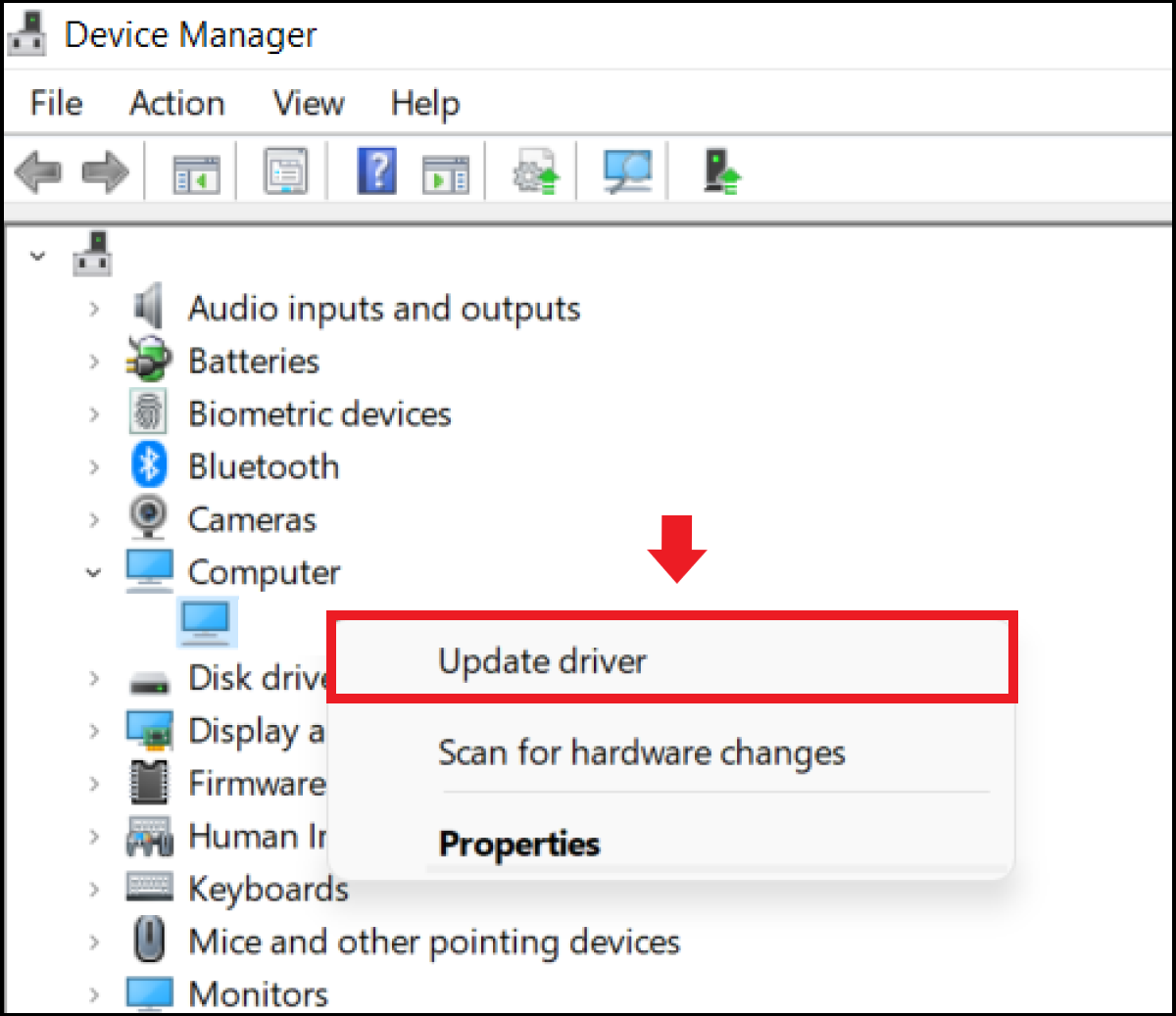
When a specific piece of hardware—such as a Wi-Fi card—is acting up, the Device Manager is your first line of defense. This utility provides a granular view of every component connected to your machine. By right-clicking a device and selecting “Update Driver,” you trigger a targeted search. You can choose to let Windows search automatically online or, if you have downloaded a specific file from a manufacturer, point the system to a local folder. This method is particularly useful for troubleshooting “Unknown Devices” that appear after a fresh OS installation.
Manual Updates: Getting the Best Performance from GPUs and Peripherals
While Windows Update is excellent for stability, it often lags weeks or months behind the cutting-edge releases provided directly by manufacturers. For those who need the absolute latest features, manual updates are the gold standard.
Direct Downloads from Manufacturer Portals
The most powerful components in your PC—the GPU, the chipset, and the NVMe storage—often require drivers straight from the source. Visiting the support pages of Intel, AMD, or NVIDIA allows you to download “WHQL” (Windows Hardware Quality Labs) certified drivers that have passed rigorous testing. When downloading manually, it is imperative to match the driver to your specific hardware model and operating system architecture (e.g., Windows 11 64-bit). Installing a driver meant for a different model can lead to system instability or hardware failure.
Managing Proprietary Software Suites
Many modern hardware manufacturers have moved away from simple driver files in favor of comprehensive software suites. Tools like NVIDIA GeForce Experience, AMD Software: Adrenalin Edition, and Intel Driver & Support Assistant run in the background and notify you the moment a new update is available. These tools offer more than just driver installation; they provide “one-click” optimization settings for software, hardware monitoring, and even screen recording capabilities. For high-performance machines, utilizing these suites is the most efficient way to stay updated without manual searching.
Advanced Strategies for Maintaining Peak Performance
As systems become more complex, simply clicking “update” isn’t always enough. Advanced users employ specific strategies to ensure that new drivers don’t conflict with old ones and that the system can recover if an update goes wrong.
The Role of Third-Party Driver Update Tools
There is a vast market for third-party driver update software. While some are legitimate, many are “bloatware” that can do more harm than good. A reputable third-party updater can be useful for older machines where the manufacturer no longer exists or the official website is defunct. However, professional consensus suggests avoiding these unless necessary. If you choose to use one, ensure it has a robust “rollback” feature and a verified database of drivers to avoid installing malware disguised as a utility.
Safely Rolling Back Drivers and Using System Restore
Not every driver update is an improvement. Occasionally, a new driver may introduce a bug that didn’t exist in the previous version. Windows provides a “Roll Back Driver” feature within the Device Manager for exactly this scenario. If a hardware component stops working after an update, you can revert to the previous version with a few clicks. For even greater security, creating a System Restore Point before performing major driver overhauls (like a BIOS update or a chipset refresh) provides a comprehensive safety net that can return your entire OS to a functional state if things go south.
Troubleshooting and Best Practices
To maintain a healthy digital ecosystem, driver management should be approached with a “measure twice, cut once” mentality. Following a few best practices can prevent the most common technical headaches.
Identifying “Unknown Devices” in Your System
If you see a yellow exclamation mark in your Device Manager labeled “Unknown Device,” it means the OS recognizes hardware is plugged in but has no idea what it is. To fix this, right-click the device, go to Properties > Details, and select Hardware Ids. You can copy the vendor and device ID strings into a search engine to identify exactly what the component is, allowing you to find the correct driver on the web.
Creating a Backup Strategy Before Major Updates
While driver updates are generally safe, “clean installs” are often recommended for critical components like GPUs. Tools like Display Driver Uninstaller (DDU) are used by enthusiasts to completely wipe old driver remnants from the registry and system folders before installing a new version. This prevents “driver conflict,” where pieces of old code interfere with new instructions. Before performing such a deep clean, ensure your data is backed up. A driver update touches the kernel of your operating system; while rare, a failure at this level can lead to boot loops.

Conclusion: The Habit of Maintenance
Upgrading drivers is not a one-time event but a recurring cycle in the life of a healthy computer. By combining the ease of automated Windows updates with the performance-focused manual updates from manufacturers, you create a robust environment where your hardware can truly shine. In the modern tech landscape, a well-maintained system is your best defense against obsolescence and security threats alike. Regularly checking for updates ensures that your technology works for you, providing the speed, security, and stability required for today’s demanding digital tasks.
aViewFromTheCave is a participant in the Amazon Services LLC Associates Program, an affiliate advertising program designed to provide a means for sites to earn advertising fees by advertising and linking to Amazon.com. Amazon, the Amazon logo, AmazonSupply, and the AmazonSupply logo are trademarks of Amazon.com, Inc. or its affiliates. As an Amazon Associate we earn affiliate commissions from qualifying purchases.