
In the rapidly evolving landscape of digital streaming, YouTube TV has emerged as a premier cord-cutting solution, offering a robust lineup of live sports, news, and entertainment. However, to maintain a seamless viewing experience, ensure the highest possible video quality, and access the latest features like Multiview or 5.1 surround sound, keeping the application updated is critical. Unlike traditional cable boxes that update automatically via a proprietary network, YouTube TV relies on the operating system of your specific hardware—be it a smart TV, a streaming stick, or a mobile device.
Staying current with software versions does more than just fix bugs; it optimizes the app for the latest hardware accelerations and security protocols. This guide provides a detailed, technical walkthrough on how to update YouTube TV across every major platform, ensuring your streaming setup remains at the cutting edge of performance.
Why Keeping YouTube TV Updated Matters
Before diving into the “how,” it is essential to understand the “why.” Streaming applications are not static; they are dynamic software environments that interact with various hardware decoders and network protocols.
Access to New Features and Interface Overhauls
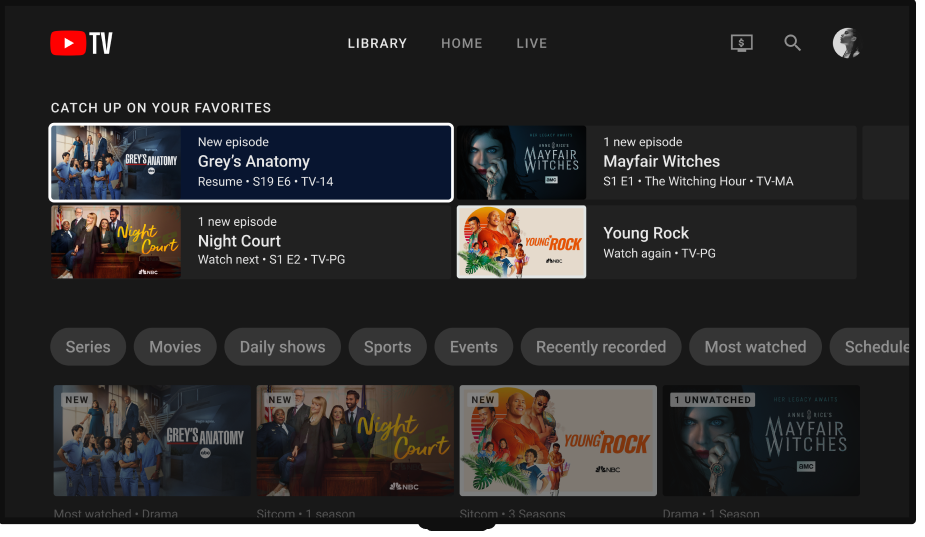
Google frequently rolls out server-side and client-side updates for YouTube TV. Recent updates have introduced “Multiview,” which allows sports fans to watch up to four games simultaneously, and improved “Library” layouts for better DVR management. If your app version is outdated, these features may simply not appear in your menu, or they may function incorrectly. Furthermore, updates often include enhancements to the Electronic Program Guide (EPG), making navigation faster and more intuitive.
Performance Optimization and Bug Fixes
Software updates are the primary vehicle for performance patches. If you notice the app lagging, freezing, or crashing during high-traffic events like the Super Bowl, it is often due to an unpatched memory leak or a conflict with the device’s firmware. Developers release updates to streamline code, reduce CPU usage, and ensure the app runs smoothly even on older hardware.
Security and Stability
Digital security is a constant battle. Updates often include patches for vulnerabilities that could potentially expose your account information or compromise your home network. Additionally, as streaming platforms adopt new DRM (Digital Rights Management) standards to protect high-definition content, an updated app is required to authenticate your subscription and allow for 4K playback.
How to Update YouTube TV on Smart TVs and Streaming Devices
The majority of YouTube TV users consume content on their living room television. Whether you use a built-in smart interface or a dedicated streaming peripheral, the update process is generally managed through the device’s integrated app store.
Updating on Roku Devices
Roku is known for its simplicity, and it typically handles updates automatically. However, you can force a manual check if you suspect you are missing a feature.
-
Press the Home button on your Roku remote.
-
Navigate to the YouTube TV channel icon but do not open it.
-
Press the Star (*) button on your remote to open the options menu.
-
Select Check for updates. If an update is available, Roku will download and install it immediately.
-
Alternatively, you can go to Settings > System > System Update > Check Now to update the entire Roku OS, which often triggers app updates simultaneously.
Updating on Amazon Fire TV and Firestick
Amazon’s Fire OS is based on Android, but it uses its own app store architecture.
-
From the Fire TV Home screen, navigate to the Appstore or the Apps icon (the three squares and a plus sign).
-
Scroll to the App Library.
-
Locate YouTube TV. If an update is available, you will see an “Update” button next to it.
-
If you want to automate this, go to Settings > Applications > Appstore and ensure Automatic Updates is turned ON.
Updating on Apple TV (tvOS)
Apple TV provides a highly polished experience, but updates are essential for maintaining the integration with the “Up Next” feature and Siri voice commands.
-
Open the App Store on your Apple TV.
-
Go to the Purchased tab or search for YouTube TV.
-
If an update is available, the button will say “Update” instead of “Open.”
-
For automatic updates, navigate to Settings > Apps and toggle Automatically Update Apps to “On.”
Updating on Android TV and Google TV
Since YouTube TV is a Google product, it integrates most natively with Android TV and Google TV (found on Sony, Hisense, and Chromecast devices).
-
Open the Google Play Store on your TV.
-
Select your Profile Icon in the top right corner.
-
Go to Manage apps and games.
-
Select Updates. If YouTube TV appears in the list, select it and click Update.
Updating YouTube TV on Mobile Devices (iOS and Android)

Mobile updates are often more frequent than TV updates as developers test new UI elements and mobile-specific features like “Picture-in-Picture” or “Dark Mode.”
Updating on iPhone and iPad
On iOS, the App Store manages all third-party software.
-
Open the App Store.
-
Tap your Profile Icon at the top of the screen.
-
Scroll down to see pending updates and release notes.
-
Find YouTube TV and tap Update. If it is not in the list, you are already running the latest version compatible with your iOS version.
Updating on Android Smartphones and Tablets
Android devices offer granular control over app versions through the Play Store.
-
Open the Google Play Store app.
-
Tap your Profile Icon at the top right.
-
Tap Manage apps & device.
-
Go to the Updates available section.
-
Find YouTube TV and tap Update.
To ensure you never miss a critical patch, it is highly recommended to enable automatic updates. On Android, you can do this within the Play Store settings under Network preferences > Auto-update apps.
Troubleshooting Common Update Issues
Sometimes, the standard update process fails. This can manifest as an “Update Failed” error message, the app hanging during the download process, or the app store claiming the app is up to date when you know a new feature has been released.
Connection Problems and Bandwidth
A stable internet connection is required for downloading updates. If the update is stalling, try power-cycling your router. Furthermore, ensure that your device is not on a “Guest” network or a “Metered” connection, as some operating systems restrict large downloads on limited data plans to save costs.
Storage Limitations
Smart TVs and streaming sticks (especially older Firesticks and Chromecasts) often have very limited internal storage—sometimes as little as 4GB or 8GB. If your storage is 90% full, the device may not have enough “scratch space” to download and unpack the new update files.
- The Fix: Navigate to your device settings, view your installed apps, and uninstall apps you no longer use. Clearing the cache of large apps like Netflix or YouTube can also free up several hundred megabytes.
Clearing Cache and Data
If the YouTube TV app is glitching after an update, or if the update won’t trigger, clearing the app’s cache can resolve underlying file corruption.
-
On Android/Google TV: Go to Settings > Apps > YouTube TV > Clear Cache.
-
On Fire TV: Go to Settings > Applications > Manage Installed Applications > YouTube TV > Clear Cache.
-
Note: Clearing “Data” will log you out of the app, so you will need to sign back into your Google account.
Reinstalling the App
When all else fails, a clean installation is the most effective troubleshooting step. This involves deleting the YouTube TV app entirely from your device and then downloading it fresh from the app store. This process forces the device to pull the most recent version available on the server and clears out any legacy configuration files that might be causing conflicts.
Future-Proofing Your Streaming Experience
As the tech industry moves toward higher resolutions and more complex data compression (such as the shift from H.264 to AV1 or HEVC codecs), older hardware eventually becomes obsolete. If you find that you can no longer update YouTube TV or that the app is sluggish despite being updated, it may be a hardware limitation.
Hardware Longevity
Streaming devices typically have a functional lifecycle of 3 to 5 years before the processor struggles with modern app requirements. If you are using an early-generation Roku or a first-generation Firestick, the hardware may lack the RAM necessary to run the latest version of the YouTube TV interface. Upgrading to a modern 4K-capable streaming device ensures that you can receive software updates for several years to come.

Network Optimization for 4K Streaming
If you subscribe to the YouTube TV 4K Plus add-on, keeping your app updated is only half the battle. Ensure your hardware is connected via 5GHz Wi-Fi or, preferably, a hardwired Ethernet connection. Updates to the YouTube TV app often include better logic for “Adaptive Bitrate Streaming,” which adjusts your video quality in real-time based on your bandwidth. An updated app on a fast network provides the best possible “Quality of Service” (QoS), preventing the dreaded buffering wheel during live events.
By following these procedures and understanding the technical infrastructure behind app updates, you ensure that your YouTube TV experience remains robust, secure, and feature-rich. Regular maintenance of your streaming software is the simplest way to get the full value out of your monthly subscription.
aViewFromTheCave is a participant in the Amazon Services LLC Associates Program, an affiliate advertising program designed to provide a means for sites to earn advertising fees by advertising and linking to Amazon.com. Amazon, the Amazon logo, AmazonSupply, and the AmazonSupply logo are trademarks of Amazon.com, Inc. or its affiliates. As an Amazon Associate we earn affiliate commissions from qualifying purchases.