
In the ecosystem of modern computing, the graphics processing unit (GPU) stands as one of the most critical components for both creative professionals and gaming enthusiasts. However, even the most powerful hardware is only as good as the software that tells it how to function. This software is known as a graphics driver. Whether you are seeking to eliminate frame rate stutters in the latest AAA game, accelerate your video rendering times, or simply ensure that your high-resolution display functions without flickering, keeping your drivers updated is paramount. This guide provides an in-depth look at why drivers matter and a comprehensive tutorial on how to update them across various platforms.

Understanding the Role of Graphics Drivers in Modern Computing
To understand how to update a driver, one must first understand what it actually does. A driver acts as a translator between your operating system (Windows, macOS, or Linux) and your hardware (the GPU). Without a functional driver, the operating system cannot send complex instructions to the graphics card, leading to poor display resolution or a complete lack of visual output.
What is a GPU Driver?
At its core, a GPU driver is a set of instructions that allows the software to communicate with the hardware. Graphics cards are incredibly complex, containing thousands of tiny cores designed to handle parallel processing tasks. The driver manages how these cores are allocated, how memory is utilized, and how various graphical APIs (Application Programming Interfaces) like DirectX, Vulkan, or OpenGL are implemented. As software evolves, these drivers must be updated to bridge the gap between new code and existing hardware.
Why Keeping Drivers Current is Essential
The tech industry moves at a blistering pace. Game developers and software engineers frequently release patches that utilize new rendering techniques. If your driver is outdated, your hardware won’t know how to execute these new instructions. Update cycles often include “Game Ready” patches that provide day-one optimizations for major releases, ensuring that the GPU operates at maximum efficiency. Furthermore, driver updates often include critical security patches that protect your system from vulnerabilities that could be exploited through the graphics stack.
How to Identify Your Graphics Card (GPU) Model
Before you can update your drivers, you must know exactly what hardware is inside your machine. While some users build their own PCs and know their specs by heart, many use pre-built systems or laptops where the specific GPU model may not be immediately obvious.
Using Windows Device Manager
The most direct way to identify your GPU on a Windows machine is through the Device Manager. You can access this by right-clicking the Start button and selecting “Device Manager.” Inside, look for the section labeled “Display adapters.” Clicking the arrow next to it will reveal the name of your graphics card. It will typically be from one of three major manufacturers: NVIDIA, AMD, or Intel.
Using System Information and Third-Party Tools
For those who need more granular detail—such as the specific driver version currently installed or the amount of VRAM available—the “System Information” tool is invaluable. Type msinfo32 into the Windows search bar to open it. Navigate to “Components” and then “Display.”
Alternatively, many enthusiasts use third-party tools like GPU-Z. This lightweight utility provides a deep dive into your GPU’s specifications, including its architecture, revision number, and BIOS version. Knowing these details is crucial if you intend to perform a manual update, as it ensures you download the exact file required for your specific hardware revision.
Automatic vs. Manual Updates: Choosing the Right Path
There are two primary schools of thought when it comes to updating drivers: the automated “set it and forget it” approach and the manual “control-freak” approach. Both have their merits depending on your technical proficiency and the specific needs of your workstation.

Utilizing Manufacturer Software Suites
The easiest method for most users is to use the official software provided by the GPU manufacturer. These programs run in the background, monitor for new releases, and provide a one-click installation process.
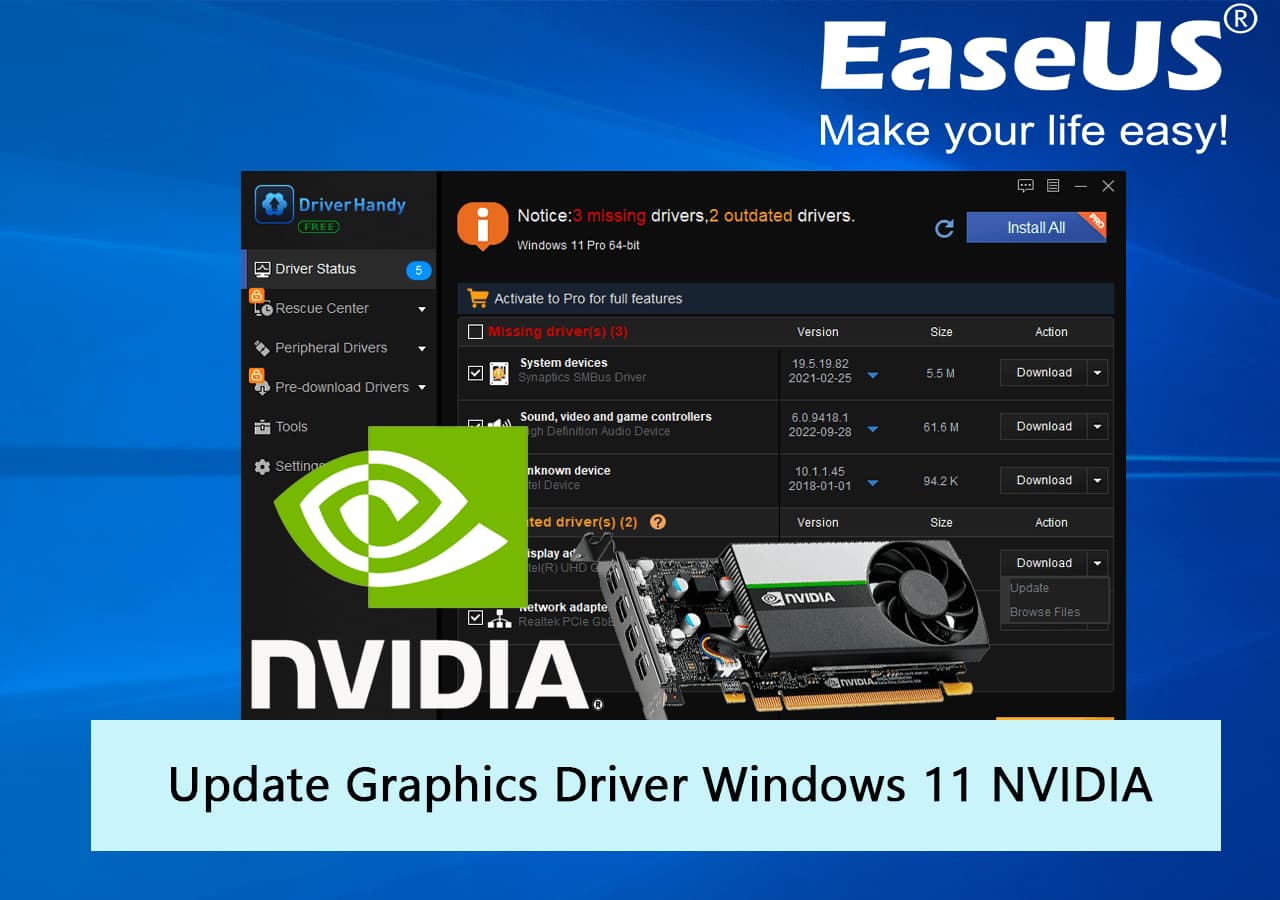
- NVIDIA GeForce Experience: This is the standard for NVIDIA users. It not only notifies you of new drivers but can also optimize your game settings based on your hardware. It streamlines the download and installation process, often allowing for “Express Installations” that require zero user intervention.
- AMD Radeon Software (Adrenalin Edition): AMD’s suite is highly robust, offering a sleek interface that integrates performance monitoring with driver updates. It allows users to check for updates directly from the home screen and provides detailed release notes on what the update improves.
- Intel Graphics Command Center: For those using integrated Intel graphics or the newer Intel Arc dedicated GPUs, this software handles driver updates while providing tools to tweak display settings and power consumption.
The Case for Manual Installation
While automatic tools are convenient, they can occasionally lead to bloatware or background resource consumption. Manual installation involves visiting the manufacturer’s website, selecting your specific model, and downloading the standalone installer. This method is preferred by professionals who need to maintain a very specific environment for stability. It ensures that no unnecessary telemetry or additional features are installed, leaving you with a “lean” driver.
Step-by-Step: Performing a Clean Installation
Sometimes, simply “updating” a driver isn’t enough. If you are experiencing persistent crashes, graphical artifacts, or if you are switching from an NVIDIA card to an AMD card (or vice versa), a “Clean Installation” is the gold standard for system stability.
Preparing the System with DDU (Display Driver Uninstaller)
When you update a driver using standard methods, fragments of the old driver are often left behind in the Windows Registry or system folders. Over time, these remnants can conflict with new drivers. DDU (Display Driver Uninstaller) is a popular community-developed tool that completely wipes every trace of a graphics driver from your system.
To use it effectively, you should download your new driver first, then disconnect from the internet (to prevent Windows Update from automatically installing a generic driver). Run DDU in “Safe Mode,” choose the “Clean and Shutdown” option, and then install your new hardware or the newly downloaded driver.
The Installation Process
Once the old drivers are purged, run the installer you downloaded from the official NVIDIA, AMD, or Intel site. During the installation wizard, you will often see an option for a “Custom” or “Advanced” installation.
- Select Custom/Advanced: This allows you to choose which components to install (e.g., you might want the driver but not the audio controller or the “experience” software).
- Perform a Clean Install: Even if you didn’t use DDU, many installers have a checkbox that says “Perform a clean installation.” Checking this will reset all your global 3D settings to factory defaults, which often resolves performance bugs.
- Restart your PC: Never skip the reboot. The driver needs to initialize at the kernel level during the boot sequence to function correctly.
Troubleshooting and Driver Rollbacks
Not every driver update is a success. Occasionally, a new driver might introduce a bug that affects a specific piece of software you rely on. In these instances, knowing how to retreat to a stable state is just as important as knowing how to move forward.
How to Roll Back a Driver in Windows
If your system becomes unstable immediately after an update, Windows provides a built-in safety net.
- Open Device Manager.
- Right-click your GPU under Display adapters and select Properties.
- Navigate to the Driver tab.
- If available, click Roll Back Driver.
This will restore the previous version of the driver that was working correctly. Note that this button is often greyed out if a clean installation was performed, as the previous files were deleted.
Dealing with Crashes and “TDR” Errors
A common issue after a driver update is the “TDR” (Timeout Detection and Recovery) error, where the screen goes black for a second and a notification says the “Display driver stopped responding and has recovered.” This is often caused by the GPU taking too long to process a frame, leading Windows to think the hardware has hung. If this happens, it may be a sign that the new driver is incompatible with your current power settings or that your overclock is no longer stable under the new driver’s architecture. Reverting to the previous “WHQL” (Windows Hardware Quality Labs) certified driver is usually the best fix for this.
Conclusion: Maintaining a Healthy Graphics Ecosystem
Updating your graphics drivers should not be a chore, but rather a routine part of digital maintenance. By staying current, you ensure that your hardware can leverage the latest technological advancements, from ray tracing improvements to AI-driven upscaling like DLSS or FSR. Whether you choose the ease of automatic software or the precision of manual clean installs, the result is the same: a smoother, faster, and more secure computing experience. Treat your GPU as the powerhouse it is, and give it the software support it deserves to keep your visuals crisp and your performance peak.
aViewFromTheCave is a participant in the Amazon Services LLC Associates Program, an affiliate advertising program designed to provide a means for sites to earn advertising fees by advertising and linking to Amazon.com. Amazon, the Amazon logo, AmazonSupply, and the AmazonSupply logo are trademarks of Amazon.com, Inc. or its affiliates. As an Amazon Associate we earn affiliate commissions from qualifying purchases.