
In the modern computing landscape, the Graphics Processing Unit (GPU) has evolved from a simple component used to render basic 2D images into a powerhouse of parallel processing. Whether you are a competitive gamer seeking the highest frame rates, a creative professional rendering 4K video, or an enthusiast exploring the frontier of local AI models, your graphics card is the engine driving your experience. However, hardware is only as capable as the software that dictates its behavior.
Updating your graphics card encompasses two distinct but equally vital processes: maintaining the latest software drivers and, eventually, upgrading the physical hardware itself. This guide provides a comprehensive roadmap for both, ensuring your system remains at the cutting edge of technological efficiency.
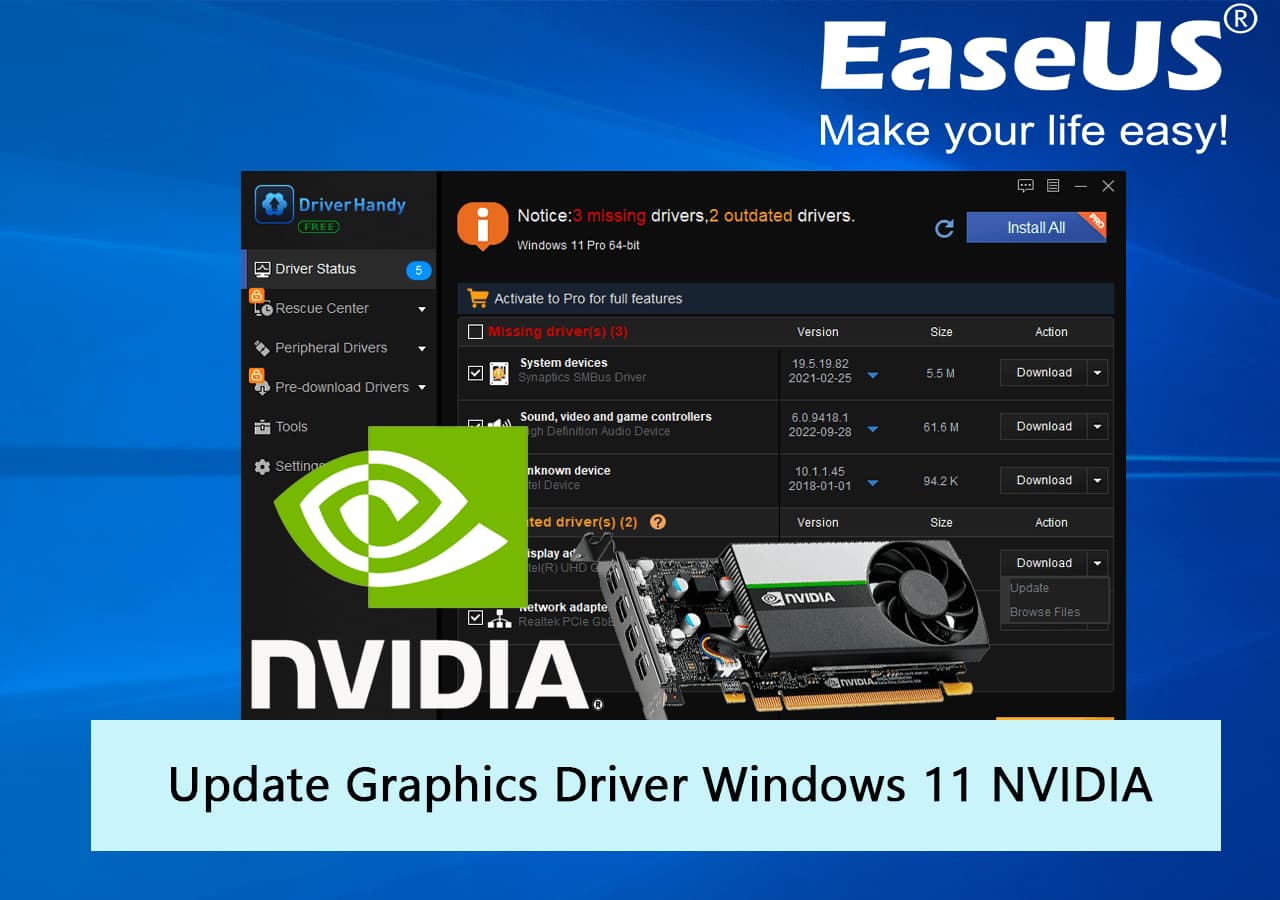
Why Keeping Your GPU Drivers Current Matters
Software drivers act as the essential translator between your operating system, your applications, and your hardware. Without an optimized driver, even the most powerful GPU will underperform or fail to function correctly.
Performance Gains in Modern Gaming and Applications
The most immediate benefit of a driver update is often a performance boost. Major manufacturers like NVIDIA, AMD, and Intel frequently release “Day-0” drivers optimized for specific high-profile game releases. These updates contain specialized code paths that allow the GPU to handle a game’s unique rendering engine more efficiently. Beyond gaming, creative suites like Adobe Premiere Pro or DaVinci Resolve receive updates that leverage new driver features to accelerate video encoding and hardware-accelerated effects.
Stability, Security, and Bug Fixes
Technology is rarely perfect at launch. Initial driver releases may contain memory leaks, stability issues that lead to “Blue Screen of Death” (BSOD) errors, or graphical artifacts like flickering and texture popping. Regular updates provide patches for these glitches. Furthermore, digital security is an often-overlooked aspect of GPU drivers. As GPUs gain more direct access to system memory, they become potential vectors for vulnerabilities. Updating ensures that any discovered security exploits are patched, protecting your system from low-level attacks.
Support for Cutting-Edge Technologies (Ray Tracing, DLSS, FSR)
The current generation of graphics technology relies heavily on software-hardware synergy. Features like Real-Time Ray Tracing, NVIDIA’s Deep Learning Super Sampling (DLSS), and AMD’s FidelityFX Super Resolution (FSR) are constantly being refined. A driver update can unlock new versions of these technologies, such as moving from DLSS 2 to DLSS 3.5, which introduces Ray Reconstruction to improve visual fidelity without requiring a new physical card.
Identifying Your Hardware and Current Driver Version
Before you can update, you must accurately identify what hardware is currently residing in your PC. Using the wrong driver can lead to installation failures or system instability.
Using Windows Built-in Tools
The quickest way to identify your GPU on a Windows machine is through the Device Manager. By right-clicking the Start button and selecting Device Manager, you can expand the “Display adapters” section to see your GPU model. For more detailed information, you can use the DirectX Diagnostic Tool (DxDiag). Simply type “dxdiag” into the Windows search bar and hit enter; the “Display” tab will provide your chip type, total memory (VRAM), and the date of your current driver.
Third-Party Diagnostic Tools
For enthusiasts who want a deeper look into their hardware specifications, GPU-Z is the industry standard. This lightweight utility provides real-time information regarding clock speeds, BIOS versions, memory type (e.g., GDDR6X), and fabrication process (e.g., 5nm). Knowing these specifics is particularly useful if you are troubleshooting performance issues or planning a physical upgrade, as it allows you to compare your current specs against the requirements of modern software.
Manufacturer-Specific Control Panels
If you already have drivers installed, you likely have the NVIDIA Control Panel, AMD Software: Adrenalin Edition, or Intel Graphics Command Center on your system. These applications not only tell you your current driver version but also provide an interface to check for updates automatically. This is usually the most user-friendly way to stay current.
Step-by-Step Guide: How to Update Your Graphics Card Drivers
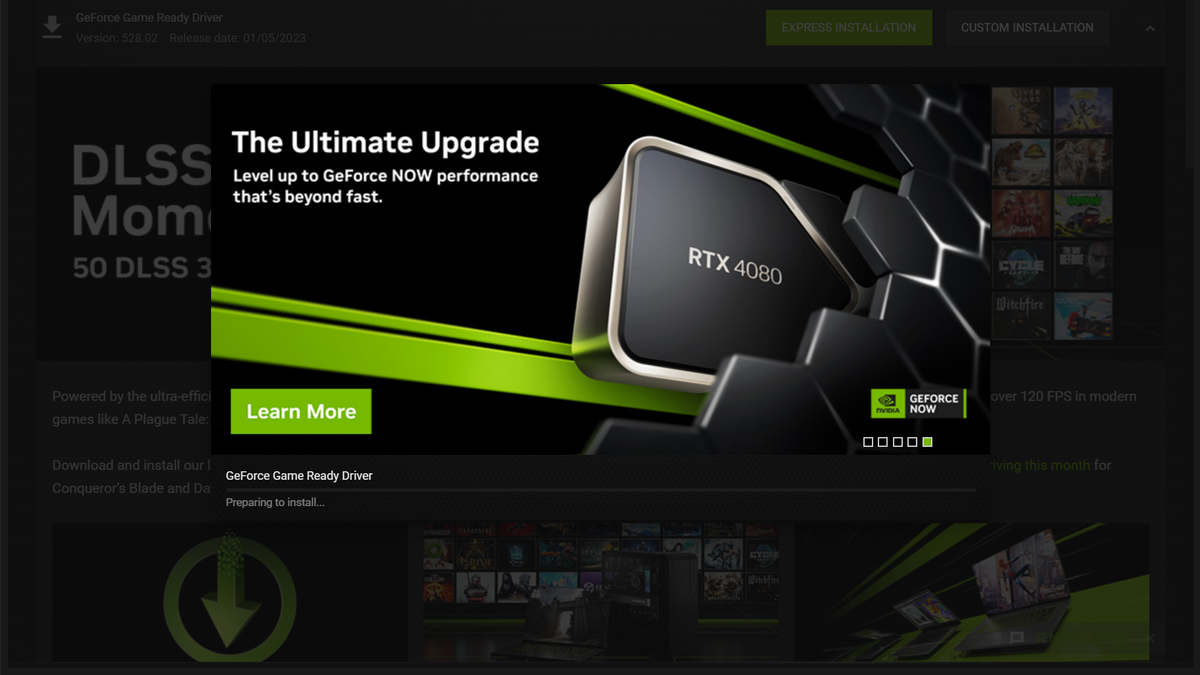
Updating drivers has become significantly more streamlined over the last decade. There are two primary methods: automatic via proprietary software and manual via manufacturer websites.
The Automatic Route: GeForce Experience and AMD Adrenalin
For the vast majority of users, automatic updates are the best choice.
- NVIDIA Users: Open GeForce Experience. Navigate to the “Drivers” tab and click “Check for Updates.” If a new version is available, click “Download.” Once the download completes, choose “Express Installation.”
- AMD Users: Open AMD Software: Adrenalin Edition. On the Home or System tab, look for the “Software & Driver” section. Click “Check for Updates” and follow the prompts to install.
- Intel Users: Use the Intel Driver & Support Assistant (DSA). This web-based tool scans your system and notifies you through the Windows tray when a new Arc or Iris Xe driver is ready.
The Manual Route: Precision and Control
Manual updates are preferred if you are offline or if the automatic software is malfunctioning.
- Visit the official download page (nvidia.com/drivers, amd.com/en/support, or intel.com).
- Manually select your GPU series, model, and operating system.
- Pro Tip: For NVIDIA users, you may see an option between “Game Ready Drivers” (optimized for the latest games) and “Studio Drivers” (optimized for stability in creative apps like Maya or AutoCAD). Choose the one that matches your primary use case.
- Download the executable file (.exe), run it, and follow the installation wizard.
Updating Drivers on macOS and Linux
The process differs on non-Windows platforms. On macOS, graphics drivers are bundled with system updates. To update, go to System Settings > General > Software Update. On Linux, updates are generally handled through the package manager (like apt or pacman). Users often choose between open-source drivers (Mesa) and proprietary drivers (NVIDIA) depending on whether they prioritize open-source philosophy or raw gaming performance.
Troubleshooting and Best Practices for a Clean Installation
Sometimes, a standard update isn’t enough. Residual files from old drivers can conflict with new ones, leading to “driver hangs” or crashes.
Using Display Driver Uninstaller (DDU)
When you encounter persistent graphical issues, a “Clean Install” is necessary. Display Driver Uninstaller (DDU) is a professional-grade utility that completely removes all traces of previous driver installations from the Windows Registry and system folders.
- The Process: Download DDU, boot Windows into Safe Mode, and run the utility. Select “Clean and restart.” Once the system reboots into normal mode, install the fresh driver you downloaded earlier. This ensures no legacy code interferes with the new installation.
Managing Windows Update Conflicts
A common headache for PC users is Windows Update automatically installing an older, generic driver over a newer, manufacturer-specific one. To prevent this, you can navigate to System > Advanced System Settings > Hardware > Device Installation Settings and select “No.” This gives you total control over your graphics environment.
Rolling Back Drivers
Technological progress isn’t always linear. Occasionally, a new driver version might introduce a bug that affects a specific game you play. If performance drops after an update, Windows allows you to “Roll Back Driver” via the Device Manager. Simply find your GPU, right-click for Properties, go to the Driver tab, and select “Roll Back Driver” to return to the previously stable version.
Physical Upgrades: When Software Updates Aren’t Enough
There comes a point where no amount of software optimization can compensate for aging hardware. If you are unable to hit 60 FPS at your monitor’s native resolution, it may be time for a physical replacement.
Assessing Bottlenecks (CPU vs. GPU)
Before buying a new card, ensure your GPU is actually the bottleneck. Use an overlay like MSI Afterburner while gaming. If your GPU usage is at 99% while your CPU usage is at 50%, a new graphics card will significantly help. However, if your CPU usage is maxed out while the GPU sits idle, a newer graphics card won’t improve your frame rates; you would need a CPU upgrade instead.
Compatibility Check: PSU, Slot, and Case Size
A physical upgrade requires careful planning:
- Power Supply Unit (PSU): Modern high-end cards (like the RTX 4090) can pull over 450W of power. Ensure your PSU has the wattage and the necessary 8-pin or 16-pin (12VHPWR) connectors.
- Physical Dimensions: GPUs are getting larger. Measure the interior length of your computer case to ensure a triple-fan card will actually fit.
- PCIe Generation: While PCIe is backward compatible, putting a PCIe 4.0 or 5.0 card into a PCIe 3.0 slot may result in a minor loss of bandwidth, particularly on mid-range cards with fewer lanes.

The Future of Graphics Technology: AI and Real-Time Rendering
As we look toward the future, “updating” your graphics experience will increasingly involve AI-driven features. We are moving away from traditional rasterization toward “Neural Rendering.” This means that when you update your card in the future, you aren’t just buying more transistors; you are buying more specialized “Tensor Cores” designed to handle the AI calculations that make modern visuals possible. Staying informed on these technological shifts ensures that when you do choose to update—whether through a driver download or a hardware purchase—you are making an informed decision that will serve your computing needs for years to come.
aViewFromTheCave is a participant in the Amazon Services LLC Associates Program, an affiliate advertising program designed to provide a means for sites to earn advertising fees by advertising and linking to Amazon.com. Amazon, the Amazon logo, AmazonSupply, and the AmazonSupply logo are trademarks of Amazon.com, Inc. or its affiliates. As an Amazon Associate we earn affiliate commissions from qualifying purchases.