
In the modern computing landscape, the Graphics Processing Unit (GPU) has evolved from a simple component used to render basic desktop interfaces into a powerhouse capable of handling complex mathematical computations, high-fidelity gaming, and intensive creative workflows. However, the hardware itself is only as effective as the software that instructs it. Graphics drivers serve as the critical bridge between your operating system, your applications, and the physical silicon of your GPU. Keeping these drivers updated is not merely a matter of maintenance; it is a fundamental practice for ensuring system stability, security, and maximum performance.

Understanding the Importance of Driver Optimization
Graphics drivers are complex sets of software instructions that tell the hardware how to render pixels, manage memory, and interface with APIs like DirectX, Vulkan, and OpenGL. When a new high-profile software application or video game is released, hardware manufacturers like NVIDIA, AMD, and Intel often release “day-zero” drivers. These updates contain specific optimizations designed to prevent crashes and improve frame rates for those specific titles.
Beyond performance gains, driver updates frequently address critical security vulnerabilities. As GPUs gain more direct access to system memory through technologies like Resizable BAR and Unified Memory Architecture, they become potential vectors for exploits. Manufacturers regularly patch these holes to prevent unauthorized code execution. Furthermore, updates often resolve long-standing bugs, such as screen flickering, incorrect color reproduction, or compatibility issues with multiple-monitor setups. For creative professionals using suites like Adobe Creative Cloud or DaVinci Resolve, updated drivers ensure that hardware acceleration remains stable, preventing hours of lost work due to unexpected crashes during rendering.
Determining Your Graphics Hardware
Before you can update your drivers, you must accurately identify the hardware currently installed in your machine. While many users know whether they have an NVIDIA, AMD, or Intel chip, knowing the specific model number and the current driver version is essential for a successful update.
The most direct way to find this information in a Windows environment is through the Device Manager. By right-clicking the Start button and selecting “Device Manager,” you can navigate to the “Display adapters” section. Expanding this will reveal the exact model of your GPU. Right-clicking the device and selecting “Properties,” followed by the “Driver” tab, will provide the driver date and version number. This allows you to compare your current installation against the latest version available on the manufacturer’s website.
For a more detailed technical overview, the DirectX Diagnostic Tool (dxdiag) is invaluable. By typing dxdiag into the Windows search bar and running the command, you can access the “Display” tab, which provides information on the chip type, the driver model (such as WDDM 3.1), and the specific feature levels supported by your hardware.
Automated Update Solutions: Pros and Cons
For the majority of users, the easiest path to keeping a system current is through the proprietary software suites provided by GPU manufacturers. These tools are designed to monitor for updates in the background and provide a “one-click” installation process.
NVIDIA GeForce Experience and the NVIDIA App
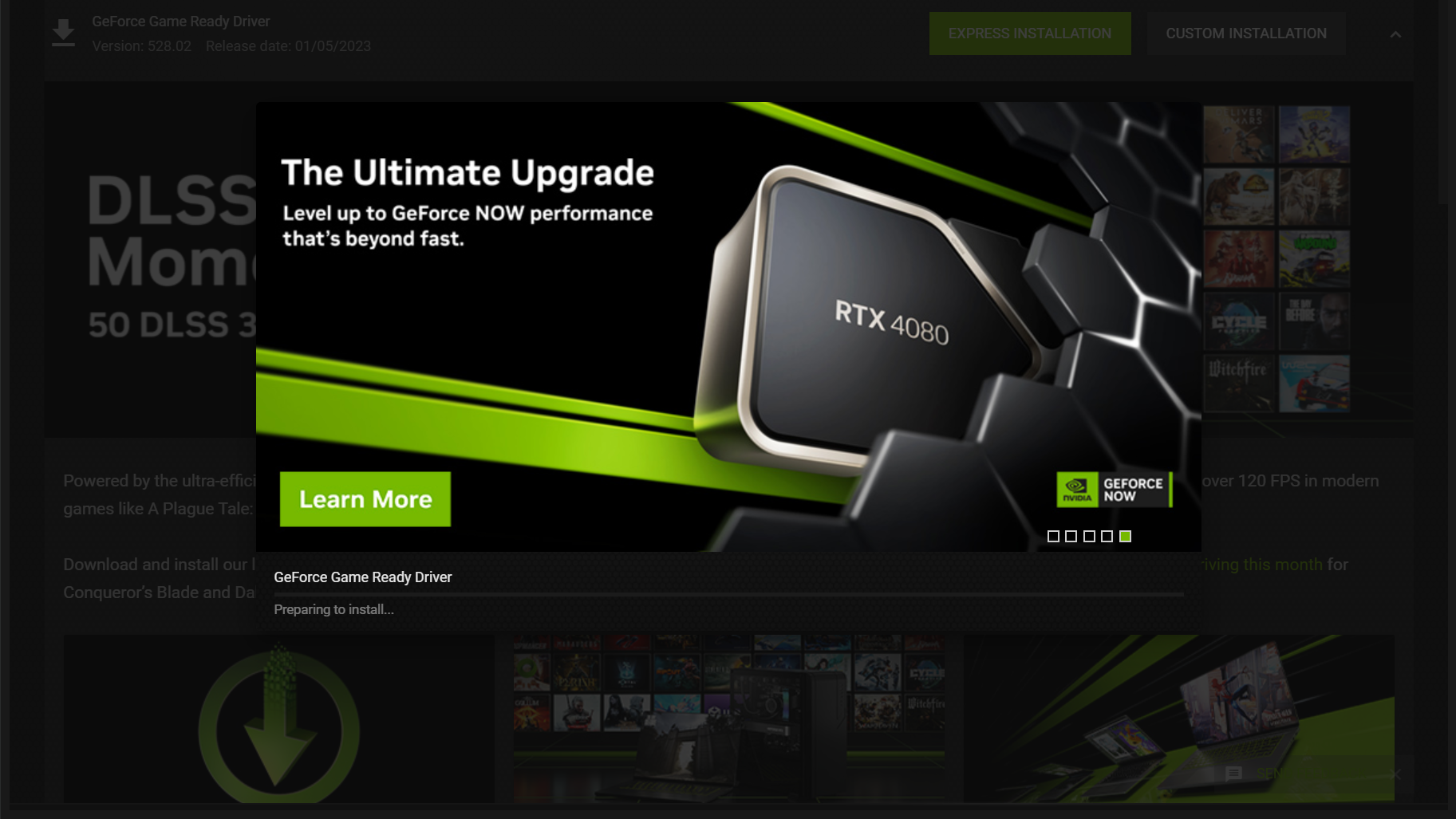
NVIDIA users traditionally rely on GeForce Experience, though the company is currently transitioning to a unified “NVIDIA App.” These platforms offer the “Game Ready Driver” program, which prioritizes optimization for the latest gaming releases. One of the primary benefits of these tools is the ability to perform an “Express Installation,” which handles the removal of old files and the application of new ones without requiring a system reboot in most cases. Additionally, these apps allow for “Studio Drivers,” which are tailored for stability in creative applications like Maya or Blender, offering a specialized alternative for professionals.
AMD Software: Adrenalin Edition
AMD’s software suite is often praised for its integrated approach. Unlike NVIDIA, which separates its control panel from its update utility, AMD Adrenalin combines performance tuning, recording tools, and driver updates into a single interface. The “Check for Updates” feature within Adrenalin allows users to choose between “Recommended” releases (WHQL certified for stability) and “Optional” releases (which include the latest performance tweaks but may have minor bugs). This transparency is highly beneficial for tech enthusiasts who want to weigh the risks of early-adoption drivers.
Intel Graphics Command Center and Arc Control
With Intel’s aggressive entry into the discrete GPU market with the Arc series, their software ecosystem has matured rapidly. The Intel Driver & Support Assistant (DSA) is a web-based tool that scans your entire system—not just the GPU—to ensure all Intel components are functioning correctly. For Arc users, the Arc Control overlay provides a modern interface for driver management, emphasizing the rapid improvements Intel has made in their driver stack since the launch of the Alchemist architecture.
While these automated tools provide convenience, they are not without drawbacks. They often require the creation of user accounts, consume background system resources, and can occasionally fail to identify the most stable driver for a specific legacy system.
The Manual Update Process: A Step-by-Step Technical Guide
For users who prefer a “lean” system without background telemetry or for those troubleshooting a persistent issue, manual installation is the gold standard. This method ensures that you are downloading the exact package required for your hardware directly from the source.
Step 1: Navigating the Manufacturer’s Repository
Each of the major hardware vendors maintains a comprehensive archive of their drivers.
-
NVIDIA: Users should visit the official NVIDIA Driver Downloads page, where they can manually select the Product Type, Series, and Operating System.
-
AMD: The AMD Drivers and Support page provides a simple selector or a small “auto-detect” executable for those who want a hybrid approach.
-
Intel: The Intel Download Center allows for precise filtering by “Graphics” and “Generation.”
Step 2: Downloading the Correct Package
It is vital to ensure you are downloading the driver for the correct architecture. For example, mobile GPUs (laptops) often require different driver packages than their desktop counterparts, denoted by an “M” or “Laptop GPU” suffix. Furthermore, ensure you select the correct version of Windows (10 vs. 11) and the correct architecture (typically 64-bit).
Step 3: Performing the Installation
Once the executable is downloaded, it is recommended to close all background applications, especially web browsers and video editing software, as the screen will likely flicker or go black momentarily during the installation. Most installers will offer a “Custom” or “Advanced” installation path. Choosing this option often allows for a “Perform a clean installation” checkbox. Checking this box will reset all global 3D settings and remove old profiles, which is highly recommended if you are experiencing performance regressions.
Advanced Troubleshooting: Using Display Driver Uninstaller (DDU)
Sometimes, a standard update is not enough. If you are switching from an NVIDIA card to an AMD card, or if you are experiencing persistent “blue screen of death” (BSOD) errors related to nvlddmkm.sys or atikmdag.sys, you may need to perform a deep clean of your system’s driver registry.
Display Driver Uninstaller (DDU) is a third-party niche utility that has become a staple in the tech community. It is designed to remove every trace of a graphics driver, including registry keys, folders, and driver stores that the official uninstaller often leaves behind.
The DDU Workflow
To use DDU effectively, one should first download the tool and the new driver package. Then, disconnect the computer from the internet to prevent Windows Update from automatically installing a generic driver the moment the old one is removed. The most critical step is booting into Windows Safe Mode. In Safe Mode, the OS loads a basic VGA driver, leaving the primary GPU driver files “unlocked” and ready for deletion.
Once in Safe Mode, running DDU and selecting the “Clean and restart” option will scrub the system clean. Upon rebooting into normal Windows, you can then run the manual installer you downloaded earlier. This process ensures that no “file version mismatch” occurs, which is a common cause of stuttering in modern games and applications.
Post-Update Best Practices and Optimization
After the installation is complete, the work is not quite finished. Updating your drivers often resets specific optimizations you may have previously toggled.
Verifying the Update
The first step is to return to the Device Manager or the GPU’s control panel to verify that the version number matches the one you downloaded. It is also wise to check the “Refresh Rate” in your Windows Display Settings. Occasionally, a driver update will default a high-refresh-monitor (e.g., 144Hz) back to 60Hz, which can lead to a perceived loss of smoothness.
Reconfiguring Global Settings
If you use specific features like NVIDIA’s “Low Latency Mode” or AMD’s “Radeon Anti-Lag,” you should re-enable these in the control panel. Similarly, if you utilize specialized power management modes—setting the GPU to “Prefer maximum performance” rather than “Power optimal”—these settings should be audited.
Monitoring for Stability
Finally, it is beneficial to run a synthetic benchmark or a demanding application immediately after an update. Tools like 3DMark or Unigine Superposition allow you to stress-test the new driver. If the system crashes under load immediately after an update but was stable before, it may be a sign of a “regression” in the new driver version. In such cases, the “Roll Back Driver” feature in Device Manager is a quick fix, allowing you to return to the previous stable state while waiting for a subsequent patch from the manufacturer.
In conclusion, the process of updating graphics drivers is a vital technical skill for anyone looking to maintain a healthy, high-performing PC. Whether you choose the convenience of automated suites or the precision of manual clean installs, staying current ensures that your hardware can meet the ever-increasing demands of modern software and security standards.
aViewFromTheCave is a participant in the Amazon Services LLC Associates Program, an affiliate advertising program designed to provide a means for sites to earn advertising fees by advertising and linking to Amazon.com. Amazon, the Amazon logo, AmazonSupply, and the AmazonSupply logo are trademarks of Amazon.com, Inc. or its affiliates. As an Amazon Associate we earn affiliate commissions from qualifying purchases.