
In the modern digital landscape, the Graphics Processing Unit (GPU) has evolved from a niche component for gamers into the engine room of the modern workstation. Whether you are rendering 4K video, training machine learning models, or exploring the latest AAA gaming titles, your NVIDIA hardware is only as capable as the software that instructs it. The driver acts as the vital translator between your operating system and your hardware. Keeping this software updated is not merely a matter of routine maintenance; it is a critical practice for ensuring system stability, unlocking hardware-level features, and protecting your digital security.
Why Keeping Your NVIDIA Drivers Updated Matters
The importance of driver updates cannot be overstated. While your computer might function on older drivers, you are essentially leaving performance and security on the table. NVIDIA frequently releases updates that address specific bugs, optimize power consumption, and provide day-one support for new software releases.
Performance Optimization and Frame Rate Stability
For gamers and creative professionals, performance is the primary metric of success. NVIDIA’s “Game Ready” drivers are timed to coincide with major game launches, featuring optimizations specifically tuned for those engines. These updates often result in significant increases in frames per second (FPS) and reductions in system latency. Similarly, for professionals using the NVIDIA Studio suite, updates ensure that applications like Adobe Premiere Pro, DaVinci Resolve, and Blender run with maximum efficiency and minimal crash risk.
Unlocking New Technologies: DLSS, Ray Tracing, and Reflex
NVIDIA is a leader in introducing cutting-edge features like Deep Learning Super Sampling (DLSS) and real-time Ray Tracing. These features are not static; they are constantly improved through software. An update can introduce a newer version of the DLSS library, which can significantly improve image quality or performance without requiring new hardware. Furthermore, updates often expand the library of supported titles for NVIDIA Reflex, a technology designed to minimize input lag.
Critical Security Patches
While we often think of drivers in terms of performance, they are also a common vector for security vulnerabilities. A driver operates at a very high privilege level within the Windows kernel. If a vulnerability is discovered, it could allow malicious actors to gain control of your system. NVIDIA regularly includes security fixes in their driver packages to patch these exploits, making updates a cornerstone of your digital security strategy.
Method 1: Streamlined Updates via NVIDIA GeForce Experience
For the vast majority of users, the NVIDIA GeForce Experience (GFE) is the most efficient way to manage driver updates. This application acts as a hub for your GPU, providing a user-friendly interface that automates much of the technical heavy lifting.
Setting Up and Navigating GeForce Experience
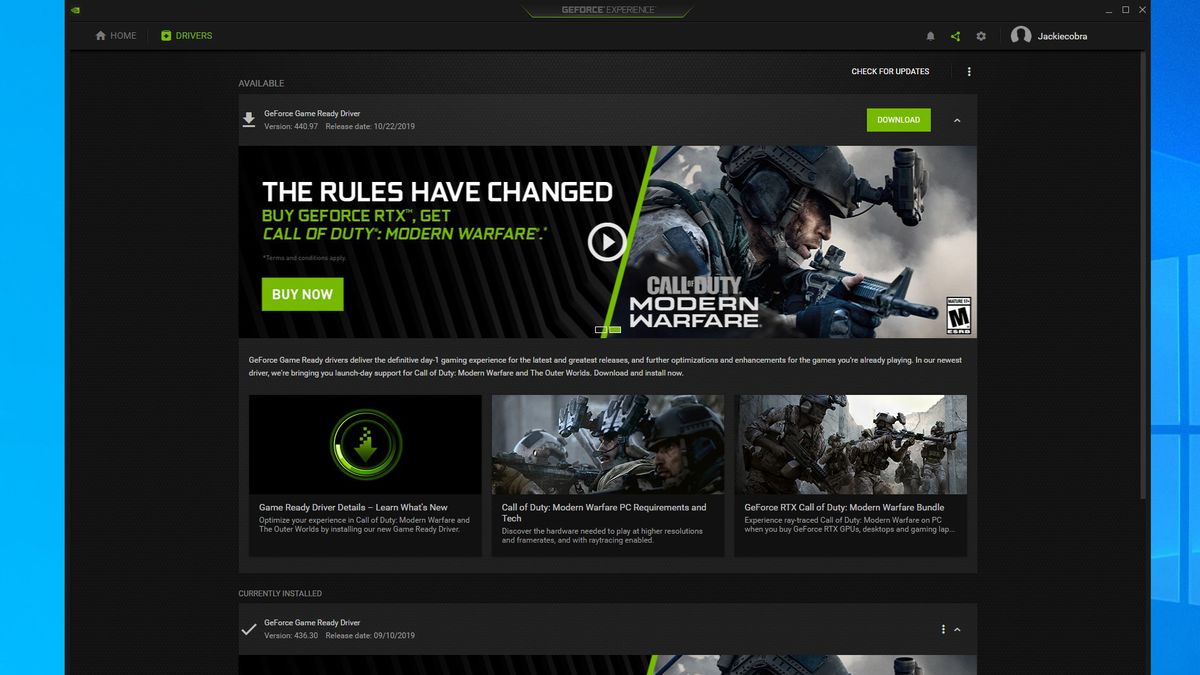
If you don’t already have it installed, GeForce Experience is typically bundled with the initial driver installation. Once opened, the “Drivers” tab at the top of the interface is your primary destination. GFE will automatically scan your current version and compare it against NVIDIA’s cloud database. If a new version is available, a prominent “Download” button will appear.
Choosing Between Game Ready and Studio Drivers
One of the most valuable features within GeForce Experience is the ability to choose your driver “branch.” By clicking the three vertical dots next to the “Check for Updates” button, you can select between the “Game Ready Driver” (GRD) and the “Studio Driver” (SD).
- Game Ready Drivers are optimized for the latest games and provide the most frequent updates.
- Studio Drivers are prioritized for stability and extensive testing with professional creative applications. If your PC is a workstation first and a gaming machine second, the Studio Driver is the superior choice.
Express vs. Custom Installation
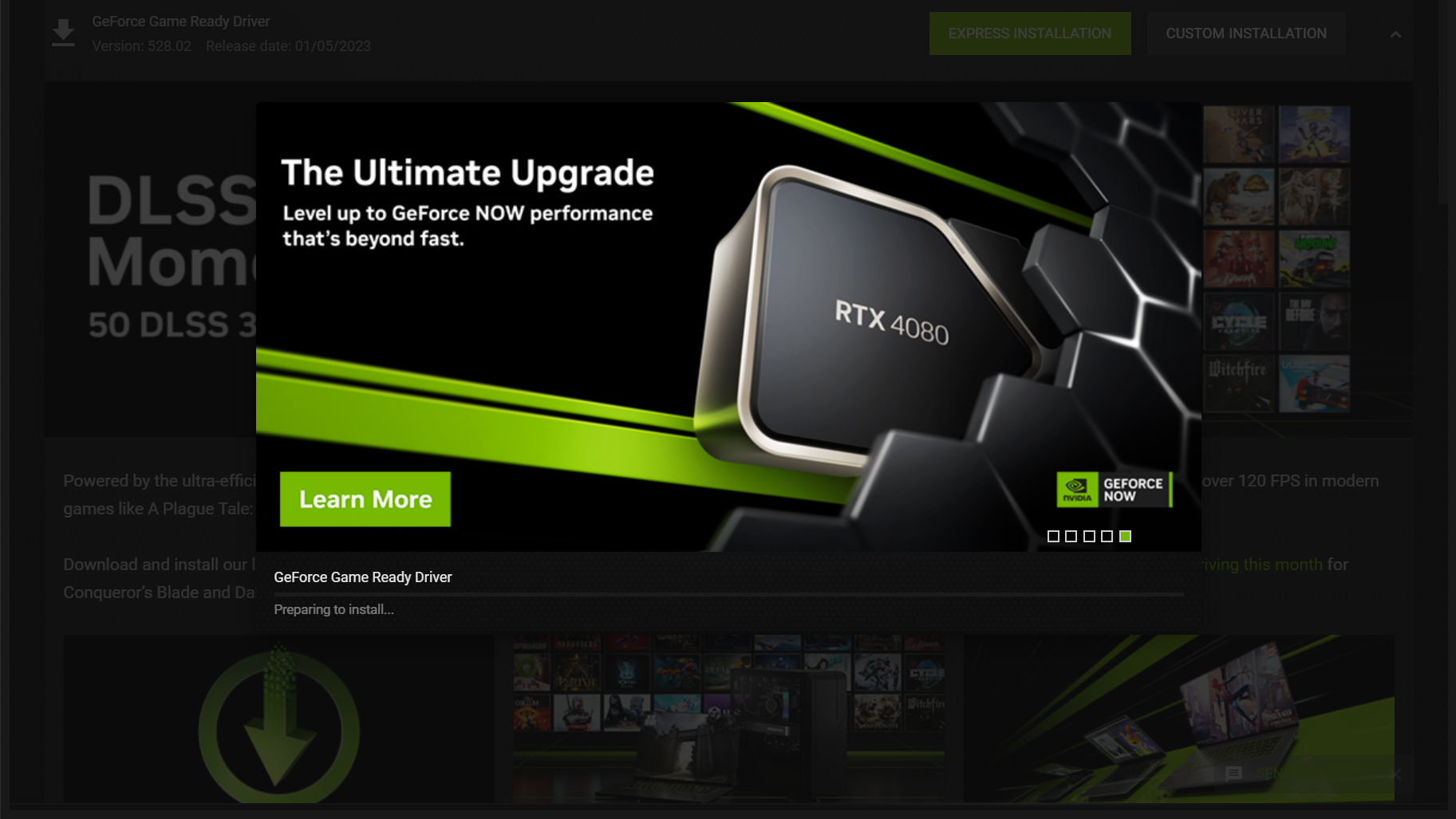
When the download is complete, you are presented with two options: Express and Custom.
- Express Installation is recommended for most users. It replaces the old files and keeps your current settings intact.
- Custom Installation is ideal if you want to perform a “Clean Installation.” By selecting Custom and checking the “Perform a clean installation” box, the installer will remove all previous profiles and settings, essentially resetting the driver environment. This is a powerful troubleshooting step if you have been experiencing graphical glitches.
Method 2: Manual Installation via the NVIDIA Website
Advanced users or those managing systems without constant internet access may prefer the manual method. This approach gives you total control over the specific version you wish to install, which is particularly useful if you need to roll back to a specific stable version for a specialized project.
Identifying Your Hardware Specifications
Before heading to the NVIDIA website, you must know exactly which GPU you are using. You can find this by right-clicking the Start button, selecting “Device Manager,” and expanding the “Display adapters” section. Note the series (e.g., GeForce RTX 30-Series) and the specific model (e.g., RTX 3070). Additionally, verify whether you are using a desktop or a laptop (Notebooks) version, as the drivers are distinct.
Navigating the NVIDIA Download Portal
Visit the official NVIDIA Driver Downloads page. You will be prompted to fill out a series of dropdown menus:
- Product Type: Usually GeForce.
- Product Series: Select the series corresponding to your hardware.
- Product: Select your specific model.
- Operating System: Ensure you choose the correct version of Windows (10 or 11) and the correct architecture (64-bit).
- Download Type: Choose between Game Ready or Studio.
The Manual Installation Process
Once the executable file is downloaded, run it as an administrator. The installer will first extract its files to a temporary folder. Follow the on-screen prompts. Just like in GFE, you will have the option for a clean installation. It is highly recommended to close all other applications—especially web browsers and video editors—during this process to prevent installation conflicts. Your screen may flicker or go black momentarily; this is a normal part of the process as the operating system hands over control from the old driver to the new one.
Troubleshooting Common Driver Issues
Even with NVIDIA’s robust software, the installation process can sometimes encounter hurdles. Understanding how to troubleshoot these issues is essential for maintaining a high-performance system.
Dealing with Installation Failures
If the installer reports a failure, the most common culprit is a conflict with a background process or a corrupted previous installation. Ensure that Windows Update is not currently trying to install a generic display driver in the background. If the problem persists, you may need to use a third-party tool like Display Driver Uninstaller (DDU). DDU is a community-standard utility that completely wipes all traces of NVIDIA drivers from the Windows Registry and file system, providing a “blank slate” for a fresh installation.
Handling “Black Screen” or Flickering Post-Update
In rare cases, a new driver may contain a bug that affects your specific hardware configuration. If your screen remains black after an update, Windows will usually attempt to revert to a basic display driver. If you can access the desktop but experience instability, you can use the “Roll Back Driver” feature in Device Manager. This reverts the system to the previously installed version, allowing you to wait for a subsequent hotfix from NVIDIA.
Managing Windows Update Conflicts
Sometimes, Windows Update will attempt to overwrite your manually installed NVIDIA driver with an older, “certified” version from Microsoft’s servers. This can result in a loss of features or performance. To prevent this, you can use the “Show or Hide Updates” troubleshooter tool provided by Microsoft to block the specific hardware update, ensuring that your NVIDIA-sourced driver remains the primary software.
The Future of Graphics Management: The NVIDIA App
As we move forward, NVIDIA is transitioning away from the older GeForce Experience and NVIDIA Control Panel architecture in favor of the unified “NVIDIA App.” Currently in beta, this application represents the future of how users will interact with their hardware.
A Unified Control Center
The NVIDIA App integrates the driver update functionality of GFE with the deep technical settings of the NVIDIA Control Panel. This creates a more streamlined, responsive experience that consumes fewer system resources. For users looking to stay on the cutting edge of tech, transitioning to the NVIDIA App beta is a great way to see how NVIDIA is optimizing the driver update workflow for the next generation of GPUs.
AI-Driven Enhancements
The future of NVIDIA drivers isn’t just about stability; it’s about intelligence. Newer updates are increasingly incorporating AI-driven features like “RTX HDR,” which can convert Standard Dynamic Range (SDR) games into High Dynamic Range (HDR) in real-time. By keeping your drivers updated, you are essentially receiving free hardware upgrades through the power of sophisticated AI algorithms that are delivered via these software packages.
In conclusion, updating your NVIDIA graphics driver is a fundamental aspect of modern digital literacy. Whether you choose the automated convenience of GeForce Experience or the precision of manual installation, the result is a system that is faster, more secure, and ready for the future of computing. By following the steps outlined in this guide, you ensure that your investment in high-end hardware continues to pay dividends in every frame and every render.
aViewFromTheCave is a participant in the Amazon Services LLC Associates Program, an affiliate advertising program designed to provide a means for sites to earn advertising fees by advertising and linking to Amazon.com. Amazon, the Amazon logo, AmazonSupply, and the AmazonSupply logo are trademarks of Amazon.com, Inc. or its affiliates. As an Amazon Associate we earn affiliate commissions from qualifying purchases.