
The graphics processing unit (GPU) is the heart of a modern computing system, responsible for everything from rendering complex 3D environments in high-end video games to accelerating professional video editing and powering artificial intelligence workloads. However, the hardware itself is only as effective as the software that controls it. NVIDIA drivers serve as the essential bridge between your operating system and the physical silicon of your graphics card. Without regular updates, even the most powerful RTX 40-series card can suffer from poor performance, visual glitches, and system instability.
Updating your NVIDIA drivers is more than just a routine maintenance task; it is a critical step in ensuring digital security and hardware longevity. In this guide, we will explore the multifaceted reasons why updates are necessary, the various methods available to perform these updates, and advanced troubleshooting techniques for when the standard process encounters hurdles.
Why Keeping Your NVIDIA Drivers Current Matters
In the fast-evolving landscape of technology, “day-one” driver support has become the industry standard. When a major software title or a significant Windows update is released, NVIDIA often launches a “Game Ready” driver specifically optimized for that environment. Understanding the underlying benefits of these updates is key to maintaining a high-performance system.
Performance Optimizations for Modern Gaming and Software
NVIDIA’s engineering teams work closely with software developers to optimize how the GPU handles specific rendering pipelines. An update can often result in double-digit percentage increases in frames per second (FPS) for newly released games. These optimizations aren’t limited to gaming; creative professionals using the Adobe Creative Cloud suite or 3D rendering software like Blender benefit from “Studio Drivers,” which prioritize stability and rendering efficiency. By updating, you ensure that your hardware is utilizing its architecture—such as RT cores for ray tracing and Tensor cores for AI-driven upscaling (DLSS)—to its maximum potential.
Stability and Bug Fixes
Software is rarely perfect upon release. Users frequently encounter “TDR” (Timeout Detection and Recovery) errors, where the driver crashes and resets, or visual artifacts like flickering and texture popping. Driver updates contain patches for these known issues. Furthermore, as operating systems like Windows 11 evolve, driver updates ensure that the GPU remains compatible with new kernel-level changes, preventing the dreaded Blue Screen of Death (BSOD) and ensuring a seamless multitasking experience.
Security Vulnerabilities and Digital Safety
A less discussed but equally vital reason for updating is security. Like any software, graphics drivers can have vulnerabilities that malicious actors might exploit to gain unauthorized access to a system or execute arbitrary code. NVIDIA regularly releases security bulletins alongside their driver packages to patch these holes. Keeping your drivers current is an essential component of a robust digital security strategy, protecting your data from low-level hardware exploits.
Method 1: Using NVIDIA GeForce Experience
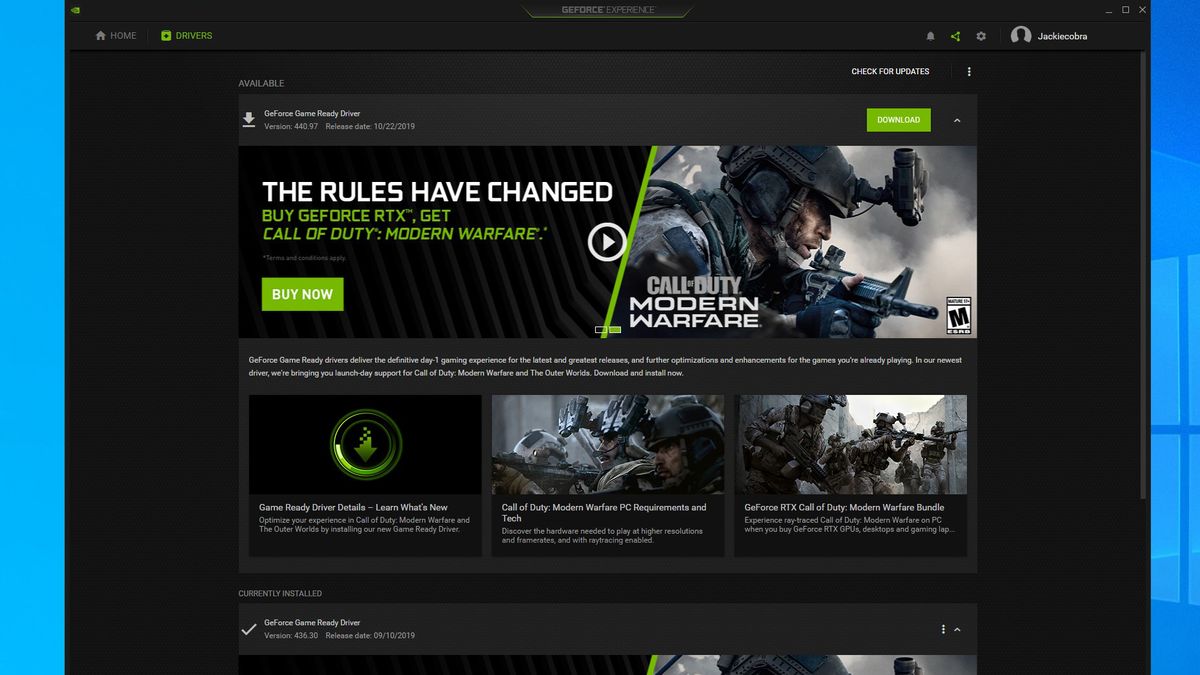
For the vast majority of users, NVIDIA GeForce Experience (GFE) is the most efficient way to manage updates. This companion application automates the process, provides optimal game settings, and includes tools like ShadowPlay for recording gameplay.
Initial Setup and Automatic Notifications
If you have a modern NVIDIA GPU, GeForce Experience is likely already installed. If not, it can be downloaded from the official NVIDIA website. Once installed and logged in, the software runs as a background process. One of its primary features is its notification system; whenever a new driver version is released, a small pop-up appears in the Windows system tray. This eliminates the need for manual checks and ensures you are always running the latest version.
Choosing Between Game Ready and Studio Drivers
Inside the “Drivers” tab of GeForce Experience, users often have a choice between two distinct paths:
-
Game Ready Drivers (GRD): These are released frequently and are optimized for the latest games, patches, and DLCs. They are the best choice for gamers and general users who want the latest features as soon as they are available.
-
Studio Drivers (SD): These undergo more extensive testing against professional creative applications. They are released less frequently but offer a higher level of reliability for those whose livelihood depends on their workstation’s stability.
GFE allows you to switch between these two paths with a simple click in the settings menu, catering the software behavior to your specific workflow.
The Installation Process
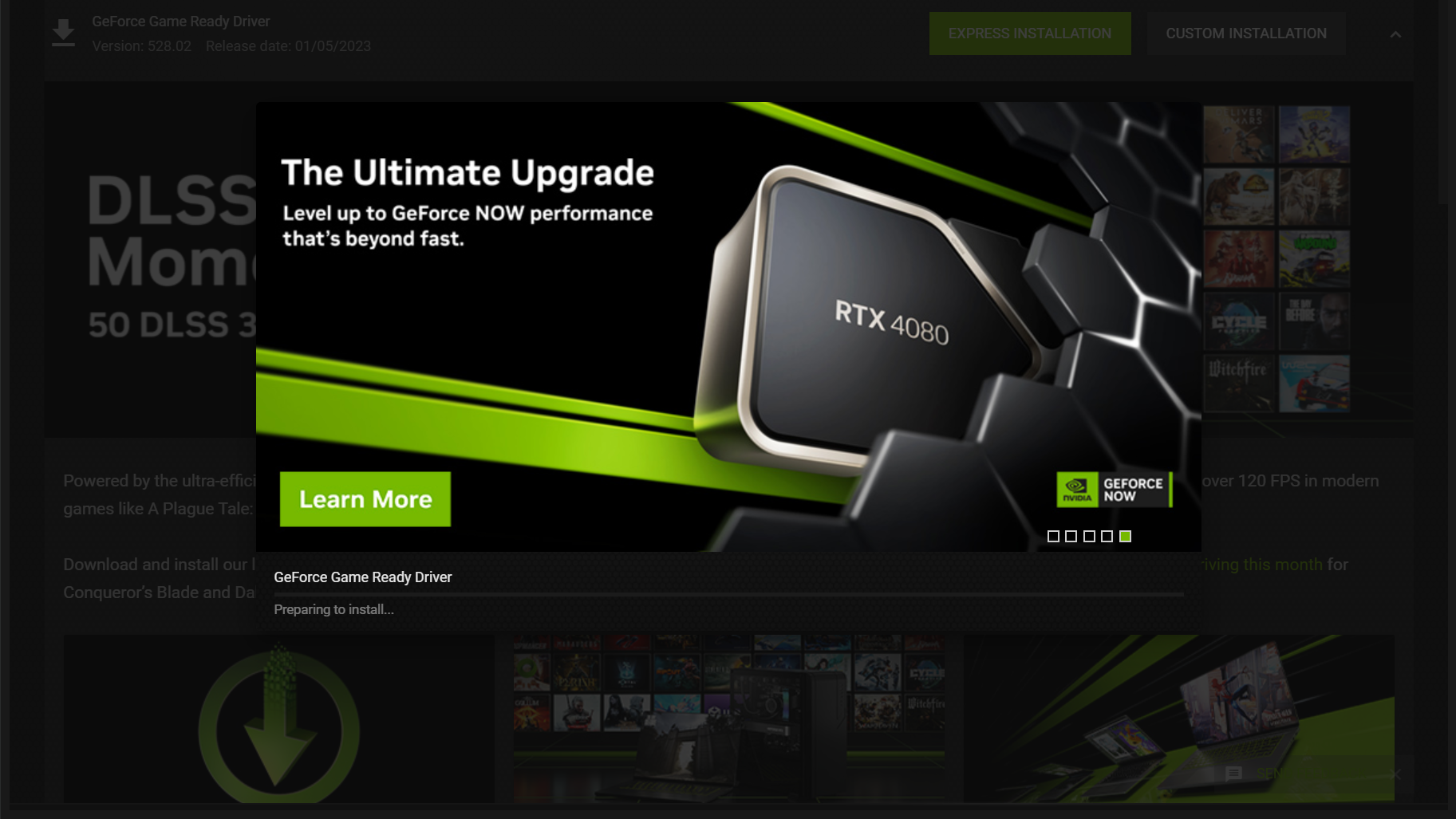
Updating through GFE is a three-step process: Click “Check for Updates,” click “Download,” and finally, click “Express Installation.” The “Express Installation” handles the removal of old driver files and the integration of new ones without requiring user intervention. During this process, it is normal for your screens to flicker or momentarily turn black as the display driver is swapped out. Once completed, the software will confirm the successful installation, and in most cases, a system restart is not even required.
Method 2: Manual Installation via the NVIDIA Website
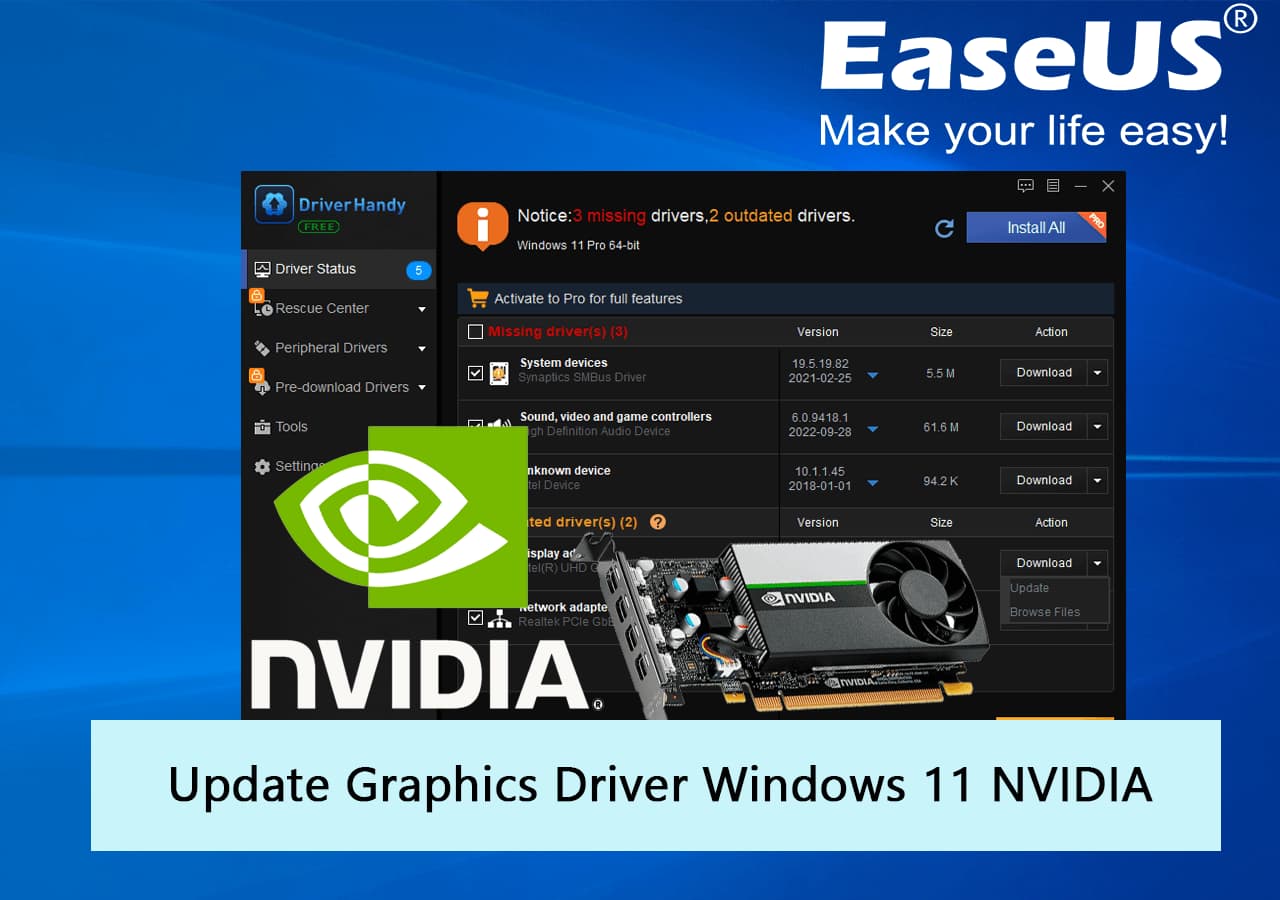
While automation is convenient, many power users and IT professionals prefer the manual approach. This method is essential for legacy hardware, systems without internet-connected background apps, or when performing a clean OS installation.
Identifying Your Hardware Specifications
Before downloading a driver manually, you must know exactly which GPU you are using. If you are unsure, you can right-click the Start button, select “Device Manager,” and expand the “Display adapters” section. This will list your specific model (e.g., NVIDIA GeForce RTX 3070). Additionally, you need to know your operating system type (usually Windows 10 or 11, 64-bit).
Navigating the NVIDIA Download Portal
The official NVIDIA driver download page features a series of dropdown menus. You must select the Product Type (GeForce, Quadro, etc.), the Product Series (e.g., GeForce RTX 40 Series), and the specific Product Model. After clicking “Search,” the site will provide the most recent driver package. This download is an executable file (.exe) that contains all the necessary components for the driver, the NVIDIA Control Panel, and optionally, GeForce Experience.
Clean Installation vs. Express Installation
When running the manual installer, you are presented with two main options: “Express” and “Custom (Advanced).” Choosing “Custom” allows you to perform a “Clean Installation.” By checking the “Perform a clean installation” box, the installer will delete all previous profiles and settings before installing the new version. This is highly recommended if you are experiencing bugs or if you are upgrading from an older generation of card, as it prevents configuration conflicts between different architectures.
Advanced Techniques: Using Display Driver Uninstaller (DDU)
Sometimes, a standard update is not enough. If your system is plagued by persistent crashes, or if you are switching from an AMD GPU to an NVIDIA GPU, old driver remnants can cause significant conflicts. In these scenarios, the community-standard tool is Display Driver Uninstaller (DDU).
When a Standard Update Fails
Standard uninstalls often leave behind registry keys and stray files in the Windows System32 folder. DDU is a specialized utility designed to completely wipe every trace of a graphics driver from the system. It is “the nuclear option” for driver management, used when you encounter errors like “NVIDIA Installer Failed” or when your GPU is not being recognized correctly by the operating system.
Safe Mode Procedures
To use DDU effectively, you must boot Windows into Safe Mode. This prevents the OS from loading the active graphics driver, allowing the utility to delete files that would otherwise be “in use.” Once in Safe Mode, you run DDU, select “NVIDIA” from the device type, and choose “Clean and restart.” This process returns your system to a “generic VGA” state, providing a blank slate for the new driver installation.
A Fresh Start for Your GPU
After the system restarts from the DDU process, you should immediately run the manual driver installer you previously downloaded. This sequence—DDU followed by a manual install—is the gold standard for troubleshooting hardware performance issues. It ensures that no corrupted legacy files are interfering with the new software, often restoring performance to factory-new levels.
Post-Installation Optimization and Troubleshooting
Once the driver is updated, the task is not quite finished. Fine-tuning the software settings can lead to a more responsive and visually impressive experience.
Configuring the NVIDIA Control Panel
The NVIDIA Control Panel is a separate interface from GeForce Experience, focusing on low-level hardware settings. After an update, it is wise to check your “Manage 3D Settings” tab. Key settings to review include:
-
Power Management Mode: Setting this to “Prefer maximum performance” can prevent the GPU from down-clocking during intense tasks.
-
Vertical Sync: Users with G-SYNC compatible monitors should ensure this is configured correctly to eliminate screen tearing without adding input lag.
-
Texture Filtering Quality: Setting this to “High Quality” or “Performance” depending on your hardware’s capabilities.
Dealing with Common Error Codes
If an update results in an error code (such as Error 43 in Device Manager), it usually indicates a communication failure between the driver and the hardware. This can often be resolved by checking the physical seating of the GPU in the PCIe slot or ensuring the power cables are firmly connected. On the software side, ensuring that your Windows version is fully updated is crucial, as modern NVIDIA drivers require specific Windows build numbers to function correctly.
Monitoring Temperatures and Performance
After a successful update, it is good practice to monitor your GPU’s vitals using tools like MSI Afterburner or the built-in GFE overlay (Alt+R). Observe the idle and load temperatures; a driver update should not significantly increase heat. If you notice an unusual spike in temperature or a drop in clock speeds, it may indicate a setting conflict that requires a revert to a previous driver version—a process known as “rolling back.” Windows facilitates this through the Device Manager, allowing you to return to the previous stable state if the latest update proves incompatible with your specific system configuration.
By mastering these methods—from the automated ease of GeForce Experience to the surgical precision of DDU—you empower yourself to maintain a system that is fast, stable, and secure. Keeping your NVIDIA graphics card updated is the single most effective way to ensure that your investment in high-end hardware continues to pay dividends in every digital task you undertake.
aViewFromTheCave is a participant in the Amazon Services LLC Associates Program, an affiliate advertising program designed to provide a means for sites to earn advertising fees by advertising and linking to Amazon.com. Amazon, the Amazon logo, AmazonSupply, and the AmazonSupply logo are trademarks of Amazon.com, Inc. or its affiliates. As an Amazon Associate we earn affiliate commissions from qualifying purchases.