
In the modern computing landscape, the synergy between hardware and software defines the user experience. For Windows 11 users equipped with NVIDIA hardware, the graphics driver acts as the vital translator, converting complex code into the fluid visuals seen in high-end gaming, professional 3D rendering, and AI-driven applications. Keeping these drivers updated is not merely a matter of maintenance; it is a critical practice for ensuring system stability, security, and access to the latest performance optimizations. Windows 11, with its refined architecture and specialized features like Auto HDR and DirectStorage, requires a finely tuned graphical interface to function at its zenith.
Updating your NVIDIA drivers can be approached through several methodologies, ranging from automated software solutions to meticulous manual installations. Understanding these paths allows you to choose the method that best aligns with your workflow, whether you are a competitive gamer seeking every possible frame per second or a creative professional requiring the rock-solid stability of Studio Drivers.
Automated Updates via NVIDIA GeForce Experience
For the vast majority of users, the NVIDIA GeForce Experience (GFE) represents the most efficient and user-friendly path to maintaining an up-to-date system. GFE is a companion application that bridges the gap between the user and the cloud-based driver repository, offering a streamlined interface that removes the guesswork from the update process.
The Installation and Notification Process
If you do not already have GeForce Experience installed, it can be acquired directly from the NVIDIA website. Once installed, the application runs as a background process, periodically polling NVIDIA’s servers for new driver releases. When a new version becomes available—typically coinciding with the launch of major AAA game titles—a notification appears in the Windows 11 Action Center.
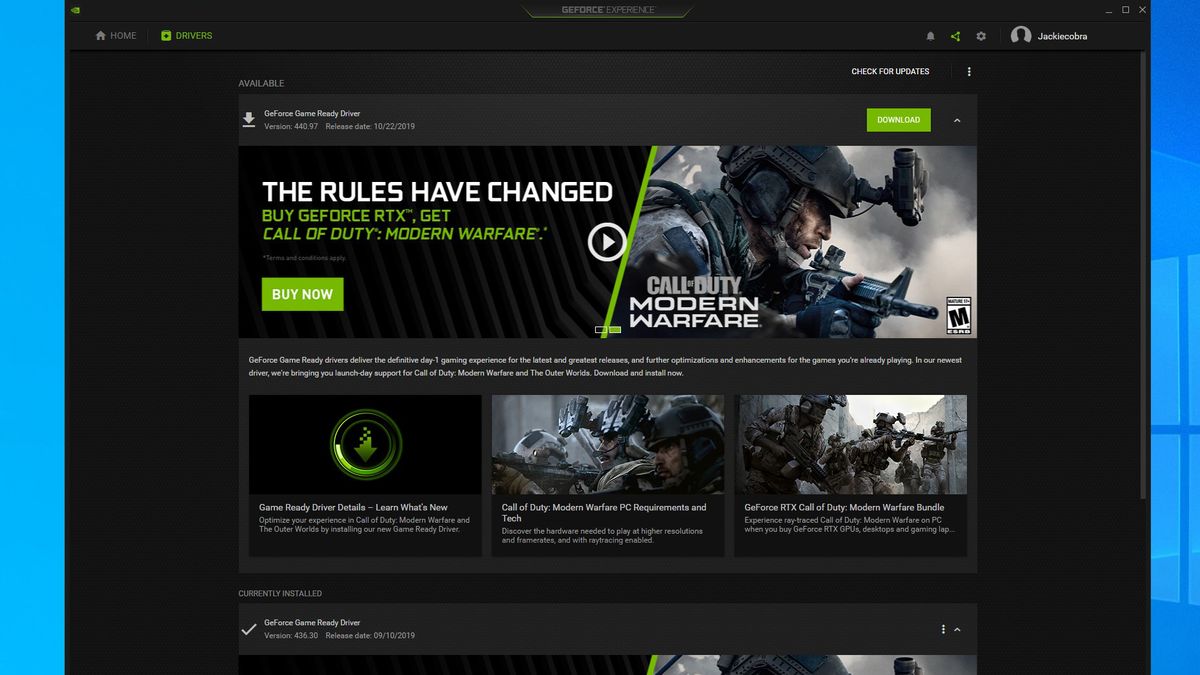
To initiate an update through GFE, open the application and navigate to the “Drivers” tab located in the upper-left corner. Here, you will see the “Check for Updates” button. If a new version is available, a “Download” button will appear. One of the primary benefits of this method is the “Express Installation” option, which automates the entire setup, including the removal of redundant files and the configuration of new registry keys, without requiring user intervention.
Customizing Your Experience: Game Ready vs. Studio Drivers
Within the GeForce Experience interface, users have the unique ability to toggle between two distinct driver branches: Game Ready Drivers (GRD) and Studio Drivers (SD).
Game Ready Drivers are optimized for the latest gaming releases, often including “day-one” patches that resolve specific bugs and enhance performance for newly launched titles. Conversely, Studio Drivers are designed for content creators who prioritize stability in applications like Adobe Premiere Pro, DaVinci Resolve, and Blender. These drivers undergo extensive testing against creative workflows to ensure that long render times are not interrupted by driver-related crashes. Choosing the correct branch for your specific use case is a fundamental step in optimizing your Windows 11 environment.
Manual Driver Installation for Advanced Control
While automated tools offer convenience, many power users and system administrators prefer the manual installation method. This approach provides greater transparency and allows users to archive specific driver versions that they know to be stable for their unique hardware configurations.
Identifying Your Hardware Specifications
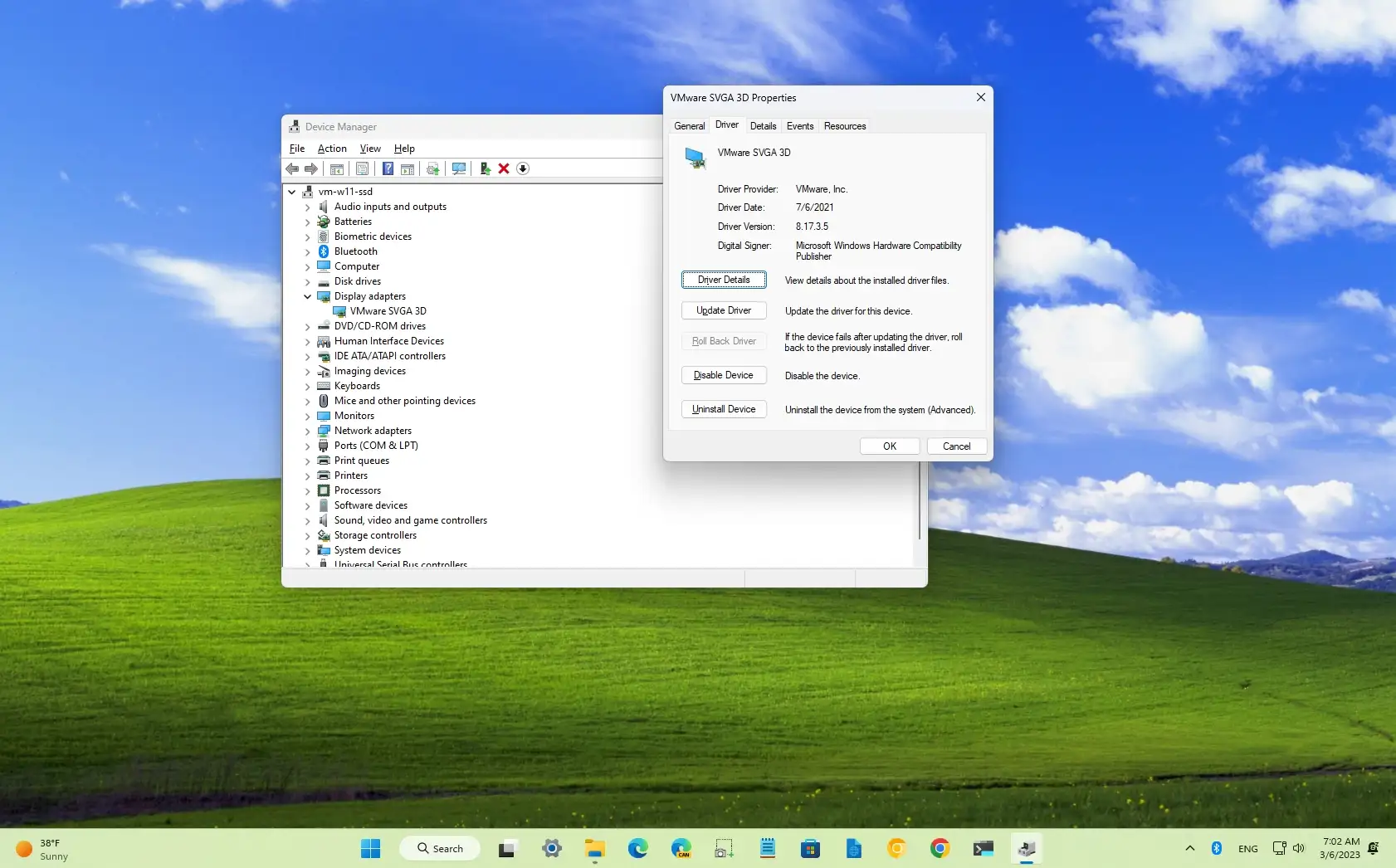
Before downloading a manual installer, you must accurately identify your GPU model and system architecture. On Windows 11, you can quickly find this information by right-clicking the Start button, selecting “Device Manager,” and expanding the “Display adapters” section. Additionally, ensuring you are running the 64-bit version of Windows 11 (which is the standard for the OS) is necessary for compatibility.
Navigating the NVIDIA Driver Download Portal
The official NVIDIA download page offers a granular search tool. You will need to select the Product Type (e.g., GeForce), the Product Series (e.g., GeForce RTX 40 Series), and the specific Product model. Crucially, ensure the Operating System is set to “Windows 11.”
Once the executable file is downloaded, running it as an administrator is recommended. The manual installer offers a “Custom (Advanced)” installation path. This is particularly useful for users who wish to perform a “Clean Installation.” By selecting this checkbox, the installer deletes all previous profiles and settings, effectively resetting the NVIDIA software environment. This is a common troubleshooting step for resolving persistent graphical glitches or performance degradation that may have accumulated over several incremental updates.
Utilizing Windows 11 Integrated Tools
Windows 11 includes its own built-in mechanisms for driver management via Windows Update and the Device Manager. While these methods are generally slower to receive the absolute latest versions compared to NVIDIA’s direct channels, they offer a layer of Microsoft-vetted stability that some users prefer.
Windows Update Integration
Microsoft works closely with hardware vendors to distribute “WHQL” (Windows Hardware Quality Labs) certified drivers through the Windows Update service. To check for updates this way, navigate to Settings > Windows Update > Check for updates.
In many cases, driver updates are categorized as “Optional updates.” You can find these by going to Advanced options > Optional updates. If your system is running an older or generic driver, Windows 11 will often find a stable, compatible version here. However, it is important to note that these versions are frequently several months behind the “Game Ready” versions available through GeForce Experience.
Managing Drivers via Device Manager
The Device Manager remains a staple tool for hardware management. By right-clicking your NVIDIA GPU under Display Adapters and selecting “Update driver,” you can prompt Windows to search automatically for updated driver software. This method is most effective when a driver has become corrupted or if you have recently performed a fresh installation of Windows 11 and need a base driver to get the system operational before installing the full NVIDIA software suite.
Best Practices and Troubleshooting for Driver Stability
Updating drivers is generally a smooth process, but the complexity of modern operating systems occasionally leads to conflicts. Implementing best practices can prevent downtime and ensure that your hardware continues to perform at its peak.
The Role of Display Driver Uninstaller (DDU)
When a standard update fails or results in decreased performance, a tool known as Display Driver Uninstaller (DDU) is the industry standard for troubleshooting. DDU is a third-party utility that completely strips all traces of NVIDIA, AMD, or Intel drivers from the Windows Registry and system folders.
To use DDU effectively, it is recommended to run the utility in Windows 11 Safe Mode and disconnect the internet to prevent Windows Update from automatically installing a generic driver before you can install the fresh NVIDIA package. This “scorched earth” approach is often the only way to fix deep-seated software conflicts that cause Blue Screen of Death (BSOD) errors or “TDR” (Timeout Detection and Recovery) crashes.
Rollbacks and System Restore Points
Before performing a major driver update, it is a prudent tech-savviness to create a System Restore point. If the new driver introduces instability, Windows 11 allows you to revert your system state to the point immediately preceding the installation. Furthermore, the Device Manager offers a “Roll Back Driver” feature in the GPU properties window, which allows you to quickly return to the previously installed version if the new update is not performing as expected.
Optimizing Windows 11 Settings Post-Update
Once your NVIDIA drivers are updated to the latest version, the final step involves ensuring that Windows 11 is configured to take full advantage of the new software. The operating system includes several features that work in tandem with NVIDIA’s architecture to enhance the visual experience.
Enabling Hardware-Accelerated GPU Scheduling
One of the standout features in Windows 11 is Hardware-accelerated GPU scheduling. This allows the graphics card to manage its own memory, reducing latency and improving performance in CPU-bound scenarios. To enable this, go to Settings > System > Display > Graphics > Change default graphics settings. Once enabled, a system restart is required. The latest NVIDIA drivers are specifically optimized to leverage this feature, particularly on RTX series cards.
Configuring the NVIDIA Control Panel
While GeForce Experience handles game settings, the NVIDIA Control Panel remains the hub for global 3D settings. After an update, it is worth verifying that your refresh rate is set correctly under “Change resolution” and that “G-SYNC” is enabled if you have a compatible monitor. Furthermore, the “Manage 3D Settings” tab allows you to set the “Power management mode” to “Prefer maximum performance,” ensuring the GPU does not downclock during critical gaming moments.

Embracing the Future: AI and Tensor Cores
Modern NVIDIA drivers do more than just render pixels; they manage the complex AI computations required for DLSS (Deep Learning Super Sampling) and NVIDIA Broadcast. Keeping your drivers current ensures that the Tensor cores on your RTX GPU are utilizing the latest AI models provided by NVIDIA. In Windows 11, this results in sharper image upscaling and more efficient background noise removal during video calls, demonstrating how a simple driver update can impact productivity far beyond the realm of gaming.
In conclusion, maintaining NVIDIA drivers on Windows 11 is a foundational task for any user who values system integrity and performance. Whether through the automation of GeForce Experience, the precision of manual downloads, or the stability of Windows Update, staying current ensures that your hardware evolves alongside the software it supports. By following these professional guidelines, you can ensure a seamless, high-performance computing experience tailored to the demands of the modern digital world.
aViewFromTheCave is a participant in the Amazon Services LLC Associates Program, an affiliate advertising program designed to provide a means for sites to earn advertising fees by advertising and linking to Amazon.com. Amazon, the Amazon logo, AmazonSupply, and the AmazonSupply logo are trademarks of Amazon.com, Inc. or its affiliates. As an Amazon Associate we earn affiliate commissions from qualifying purchases.