
In the modern computing landscape, the Graphics Processing Unit (GPU) has evolved from a simple component used for rendering basic visuals into a powerhouse of parallel processing that fuels everything from high-end gaming and 3D rendering to artificial intelligence and deep learning. Whether you are a competitive gamer seeking the highest frame rates, a creative professional working in DaVinci Resolve or Blender, or a data scientist leveraging CUDA cores, your hardware is only as good as the software that communicates with it. This software is the driver.
Updating NVIDIA drivers is one of the most fundamental yet impactful maintenance tasks for any PC user. An outdated driver can lead to system instability, visual artifacts, reduced performance, and even critical security vulnerabilities. This guide provides an exhaustive look at the various methods for updating NVIDIA drivers, troubleshooting common installation hurdles, and understanding the technological benefits of keeping your system current.
Why Keeping Your NVIDIA Drivers Updated Is Essential for Peak Performance
A driver acts as a translator between the operating system (Windows or Linux) and the physical hardware of the graphics card. Without a highly optimized driver, the OS cannot effectively utilize the thousands of tiny cores found on a modern NVIDIA RTX or GTX board.
Performance Gains and “Day 0” Optimizations
NVIDIA frequently releases “Game Ready” drivers. These are specifically timed to coincide with the launch of major software titles or updates. These drivers contain specific micro-code optimizations for that software, often resulting in performance increases of 10% to 20% compared to generic or older driver versions. For competitive titles like Counter-Strike 2 or Valorant, these updates can also reduce system latency via NVIDIA Reflex, providing a literal competitive advantage.
Stability and Bug Fixes
Software is rarely perfect at launch. Many users experience “TDR” (Timeout Detection and Recovery) errors, where the screen goes black for a moment before the driver restarts. Frequently, these are caused by memory leaks or instruction conflicts within the driver itself. Update cycles patch these stability issues, ensuring that your system doesn’t crash during a critical render or a high-stakes gaming match.
Security and Vulnerability Patching
Hardware drivers operate at a very low level of the system architecture, often within the “Kernel” mode. This makes them a high-value target for malicious actors. Vulnerabilities in display drivers can allow for privilege escalation or remote code execution. NVIDIA regularly includes security patches in their driver bundles to protect against these modern cyber threats, making updates a matter of digital hygiene rather than just performance.
Automated Updates via NVIDIA GeForce Experience
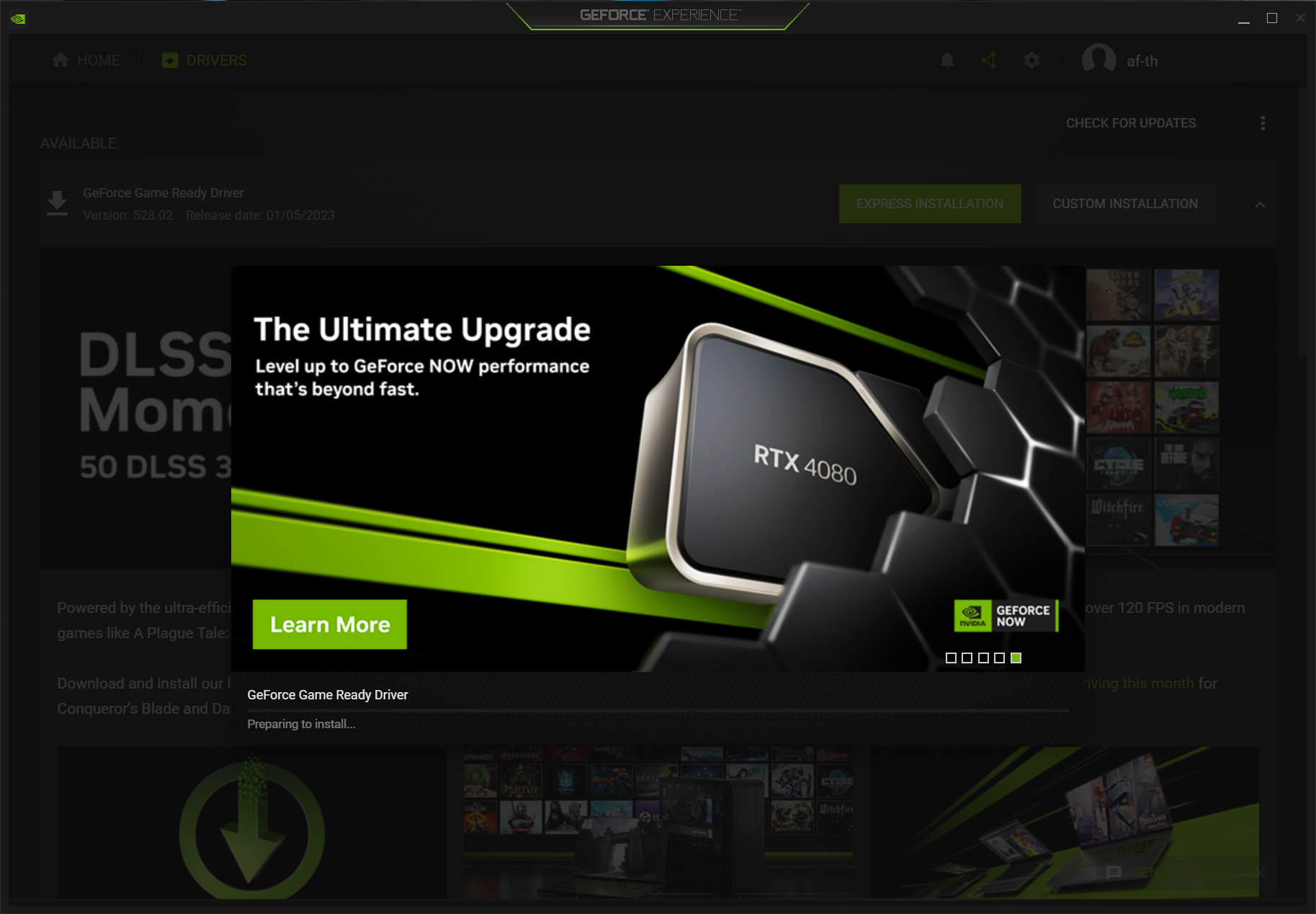
For the vast majority of users, the NVIDIA GeForce Experience (GFE) application is the most streamlined method for managing drivers. It eliminates the guesswork of identifying your specific GPU model and provides a one-click solution for installation.
Setting Up and Using GeForce Experience
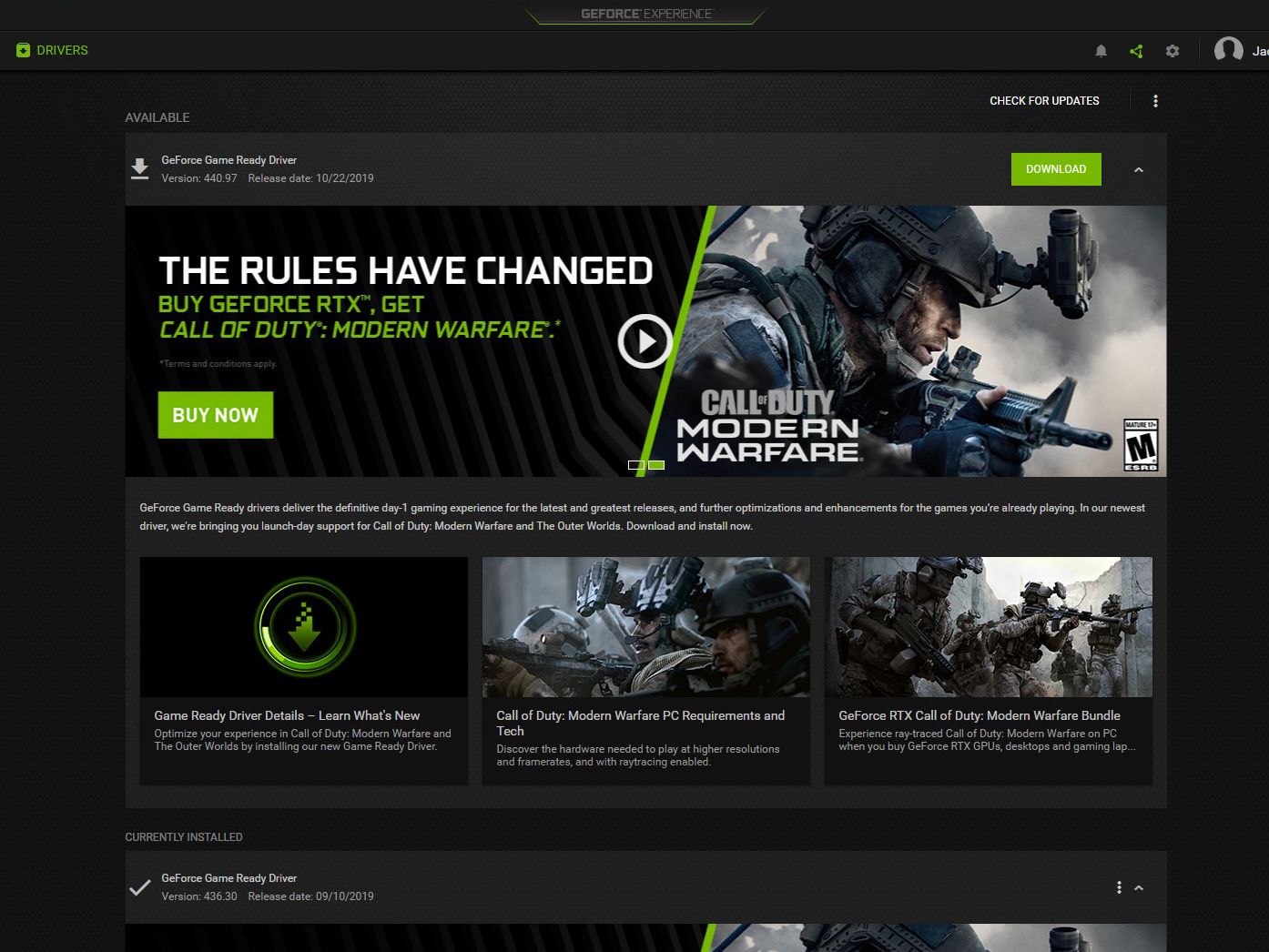
Once installed, GFE sits in your system tray and monitors for new releases. To update through this method:
-
Open NVIDIA GeForce Experience.
-
Click on the Drivers tab located in the top-left corner.
-
Click Check for Updates.
-
If an update is available, click the green Download button.
-
Once the download completes, select Express Installation for a standard update or Custom Installation if you wish to perform a clean install (recommended if you are experiencing glitches).
Game Ready vs. NVIDIA Studio Drivers
One of the most valuable features of the GFE interface is the ability to choose between two different driver “branches.”
-
Game Ready Drivers (GRD): These are updated frequently and are optimized for the latest game releases, patches, and DLCs. If gaming is your primary focus, this is the correct choice.
-
NVIDIA Studio Drivers (SD): These are released less frequently but undergo extensive testing against creative applications like the Adobe Creative Cloud suite, Autodesk, and OBS Studio. They prioritize stability for long render times and professional workflows. You can switch between these by clicking the three vertical dots next to the “Check for Updates” button in GFE.
Manual Driver Installation for Advanced Users
While automated tools are convenient, there are several scenarios where a manual download is preferable. This is common for IT professionals managing multiple systems, users with limited internet access on their primary machines, or those who prefer not to create an NVIDIA account (which GFE requires).
Navigating the NVIDIA Download Portal
To manually update, you must visit the official NVIDIA Driver Downloads page. You will be presented with a series of dropdown menus:
-
Product Type: Select GeForce (for most consumers), Titan, or RTX/Quadro (for professional workstations).
-
Product Series: Choose your generation (e.g., GeForce RTX 40 Series). Ensure you distinguish between “Notebook” versions if you are on a laptop.
-
Product: The specific model (e.g., GeForce RTX 4080).
-
Operating System: Ensure you select the correct version of Windows (10 or 11) and the correct architecture (64-bit).
-
Download Type: As discussed earlier, choose between Game Ready or Studio drivers.
The Importance of the “Clean Installation”
During the manual installation process, the installer will ask if you want to perform an Express or Custom installation. Choosing Custom (Advanced) and checking the box for “Perform a clean installation” is a powerful troubleshooting step. This process removes previous driver profiles and resets all global settings in the NVIDIA Control Panel. It is the best way to resolve issues where the new driver settings might conflict with leftover data from a previous version.
Troubleshooting Common Driver Issues and Using DDU
Sometimes, a standard update isn’t enough. If your screen is flickering, you’re getting “Blue Screen of Death” (BSOD) errors related to nvlddmkm.sys, or your GPU isn’t being recognized properly, you may need a deeper level of intervention.
Display Driver Uninstaller (DDU)
DDU is a third-party niche utility that has become a staple in the tech community. It is designed to completely scrub every trace of the NVIDIA driver from the Windows Registry and the system folders.
-
Download DDU and the latest NVIDIA driver installer.
-
Disconnect your internet (to prevent Windows Update from automatically installing a generic driver).
-
Boot your PC into Safe Mode.
-
Run DDU and select “Clean and restart.”
-
Once back in normal Windows, run the NVIDIA installer you downloaded previously.
This “scorched earth” approach fixes 99% of driver-related software conflicts.
Rolling Back Drivers via Device Manager
If a brand-new driver causes issues that weren’t present before, Windows allows for a quick “Roll Back.”
-
Right-click the Start button and select Device Manager.
-
Expand Display adapters.
-
Right-click your NVIDIA GPU and select Properties.
-
Under the Driver tab, click Roll Back Driver.
This is a temporary fix, but it allows you to remain productive while waiting for NVIDIA to release a hotfix for the buggy version.
The Role of Drivers in Modern Computing: AI, Ray Tracing, and Beyond
Updating drivers is no longer just about “making games run.” We are currently in an era of AI-augmented computing where the driver manages complex technologies that fundamentally change how images are generated.
DLSS and AI Upscaling
Deep Learning Super Sampling (DLSS) requires specific instructions to be passed to the Tensor cores on RTX cards. As NVIDIA refines their AI models, they push these improvements through driver updates. Updating your driver can literally make your AI-upscaled images look sharper and more stable without any change to the hardware.
CUDA and Professional Compute
For those using their GPUs for non-visual tasks—such as folding@home, crypto mining, or local AI model training (like Stable Diffusion)—drivers act as the bridge for the CUDA (Compute Unified Device Architecture) platform. New drivers often include updates to the CUDA toolkit, allowing software to execute mathematical instructions more efficiently, reducing power consumption and heat while increasing compute throughput.

NVIDIA Broadcast and RTX Voice
The driver also manages the integration of NVIDIA’s suite of broadcast tools. These tools use AI to remove background noise from your microphone or replace your webcam background without a green screen. When Windows updates its audio or camera privacy settings, the NVIDIA driver must be updated to maintain compatibility and ensure these AI features continue to function seamlessly within the OS ecosystem.
By maintaining an up-to-date driver environment, you ensure that your hardware remains secure, stable, and capable of utilizing the cutting-edge features that define the current generation of technology. Whether through the automation of GeForce Experience or the precision of a manual clean install, regular driver maintenance is the single most effective way to protect your investment in high-performance hardware.
aViewFromTheCave is a participant in the Amazon Services LLC Associates Program, an affiliate advertising program designed to provide a means for sites to earn advertising fees by advertising and linking to Amazon.com. Amazon, the Amazon logo, AmazonSupply, and the AmazonSupply logo are trademarks of Amazon.com, Inc. or its affiliates. As an Amazon Associate we earn affiliate commissions from qualifying purchases.