
In the contemporary digital landscape, the Graphics Processing Unit (GPU) has evolved from a mere component used for rendering desktop windows into the primary engine driving high-end gaming, professional video editing, and complex artificial intelligence computations. For users of NVIDIA hardware, the hardware’s potential is unlocked not just by the silicon itself, but by the sophisticated software layer known as the driver. Keeping these drivers updated is a fundamental aspect of system maintenance that ensures stability, security, and maximum frame rates.
This guide provides an exhaustive look at the methodologies for updating NVIDIA drivers, the technical nuances between driver types, and troubleshooting strategies to maintain a high-performance computing environment.
Understanding the Role of NVIDIA Drivers and Why Updates Matter
A driver acts as the translator between your operating system (Windows or Linux) and your hardware. Without a functional driver, the operating system cannot communicate specific instructions to the GPU’s thousands of CUDA cores. For NVIDIA users, the “update” is more than just a routine patch; it is often a significant optimization package.
Game Ready Drivers vs. Studio Drivers
NVIDIA offers two distinct “branches” of drivers, and choosing the right one is the first step in a successful update.
- Game Ready Drivers (GRD): These are optimized for the latest titles. NVIDIA works closely with developers to release these drivers just before or on the day of a major game launch. They include “day-zero” optimizations that fix bugs and improve performance specifically for that title.
- Studio Drivers (SD): If your PC is a workstation for Premiere Pro, Blender, or AutoCAD, Studio Drivers are the preferred choice. While they support gaming, their primary focus is on stability and extensive testing against creative applications to ensure that a driver update doesn’t crash a render that has been running for ten hours.
Performance Gains and Security Patches
Beyond compatibility, updates often unlock performance features like Deep Learning Super Sampling (DLSS) or NVIDIA Reflex. Furthermore, driver updates frequently include security patches. Like any software, drivers can have vulnerabilities that malicious actors might exploit to gain kernel-level access to your system. Regular updates are a critical pillar of your digital security strategy.
Method 1: The Automated Approach via NVIDIA GeForce Experience
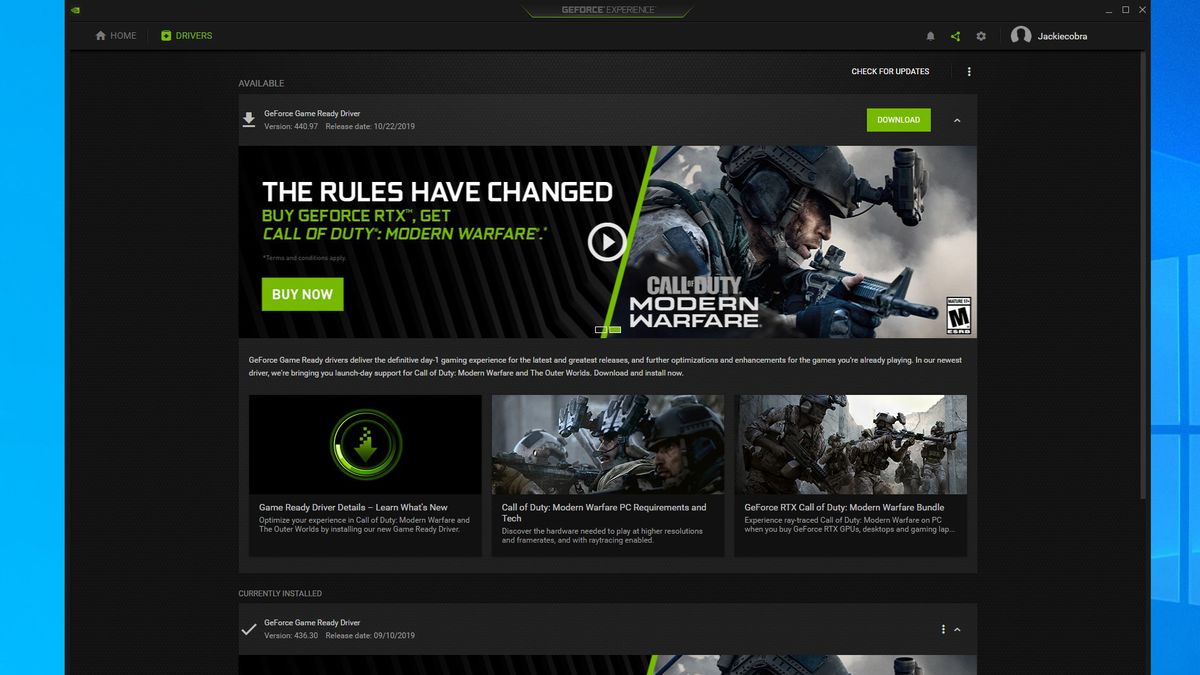
For the vast majority of users, NVIDIA GeForce Experience (GFE) is the most efficient tool for driver management. It streamlines the process by identifying your hardware automatically and notifying you the moment a new version is available.
Setting Up and Navigating the Software
If you do not have GFE installed, it can be downloaded from the official NVIDIA website. Once installed and logged in, the application scans your hardware. To check for updates, navigate to the “Drivers” tab located in the top-left corner of the interface. This dashboard displays your currently installed version and any available “New Version” alerts.
The Installation Process: Express vs. Custom
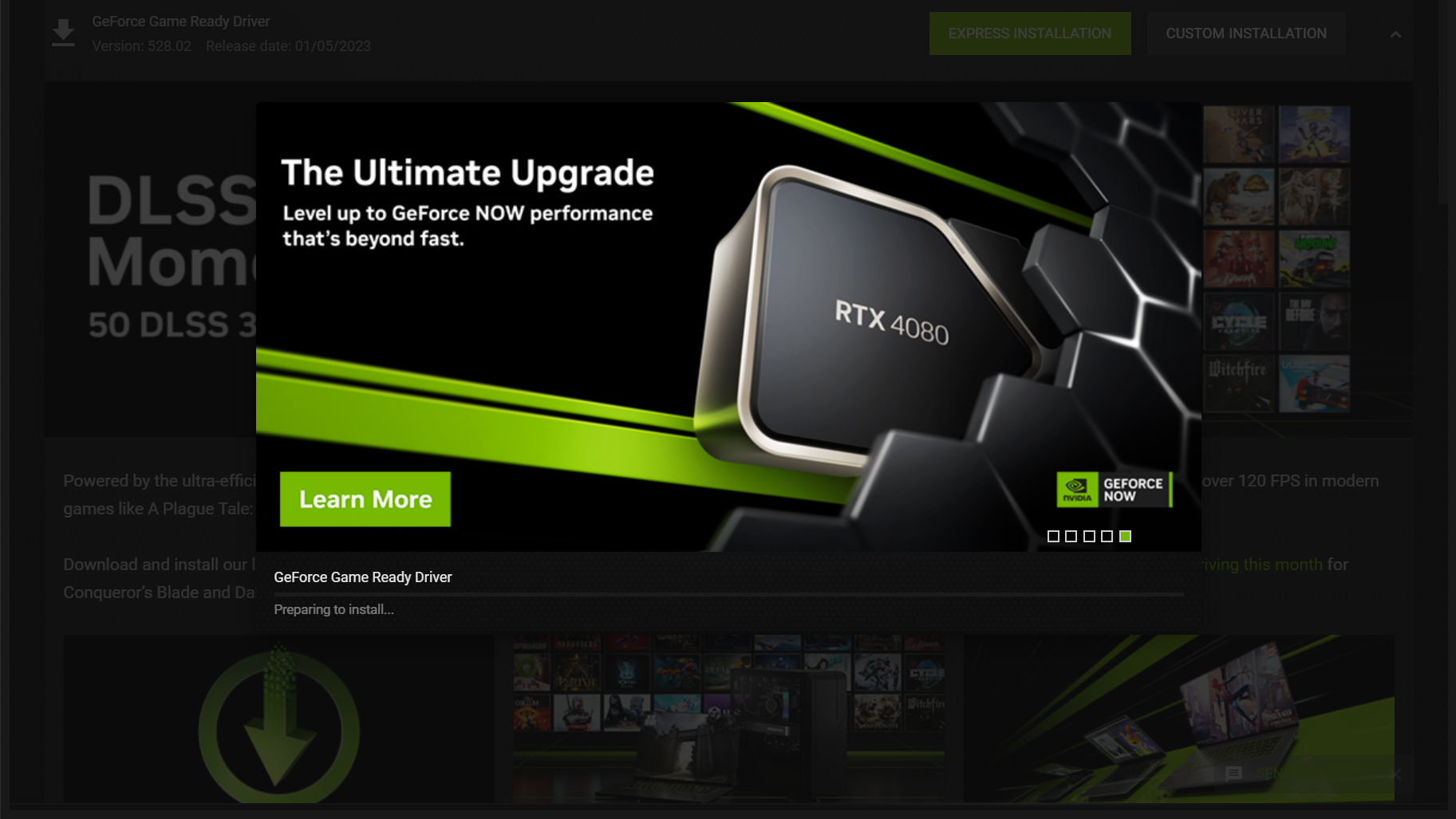
When you click “Download,” GFE fetches the latest package. Once the download is complete, you are presented with two choices:
- Express Installation: This is the recommended route for most. It carries over your existing settings and installs the driver over the old one seamlessly.
- Custom Installation: This is preferred by tech enthusiasts. It allows you to select which components to install (e.g., HD Audio drivers, PhysX System Software). Crucially, the Custom route offers a “Perform a clean installation” checkbox. Checking this box wipes out old profiles and settings, which is highly effective if you have been experiencing glitches or stuttering in applications.
Method 2: Manual Installation for Power Users and Specialized Systems
There are scenarios where the automated tool is either unavailable or undesirable—such as in corporate environments with strict software policies or on systems where users prefer to minimize background processes. In these cases, manual installation is the gold standard.
Navigating the NVIDIA Driver Download Portal
To update manually, you must visit the NVIDIA Driver Downloads page. This method requires you to know your specific hardware details. You will be prompted to select:
- Product Type: (e.g., GeForce, Quadro, RTX / T-Series).
- Product Series: (e.g., GeForce RTX 40 Series, or 40 Series Notebooks for laptops).
- Operating System: (e.g., Windows 10 64-bit or Windows 11).
- Download Type: (Game Ready or Studio Driver).
Identifying Your Hardware Specifications
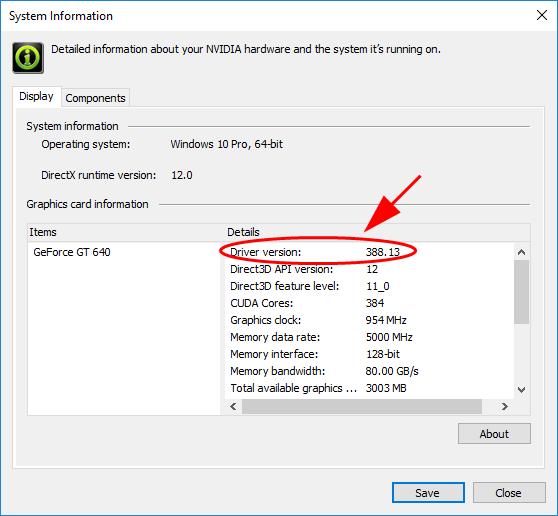
If you are unsure of your GPU model, you can find it easily within Windows. Right-click the “Start” button and select “Device Manager.” Expand the “Display adapters” section, and your NVIDIA model will be listed. Alternatively, pressing Ctrl + Shift + Esc to open Task Manager and navigating to the “Performance” tab will display your GPU model and its current utilization. Once the correct driver is identified and downloaded as an .exe file, simply run the installer and follow the on-screen prompts.
Advanced Troubleshooting and the “Clean Slate” Philosophy
Sometimes, a standard update isn’t enough. If you encounter “black screens,” persistent crashes, or “driver timeout” errors, the problem often lies in corrupted files from previous installations that the standard updater failed to overwrite.
Using Display Driver Uninstaller (DDU)
Display Driver Uninstaller (DDU) is a third-party niche tool highly respected in the tech community. It is designed to completely remove all traces of previous driver installations from the Windows Registry and system folders.
- The Workflow: To use DDU effectively, you should download your new NVIDIA driver first, then disconnect from the internet (to prevent Windows Update from automatically installing a generic driver). Boot into “Safe Mode,” run DDU to “Clean and Restart,” and once back in normal Windows, run the NVIDIA installer you downloaded earlier. This ensures a pristine environment for the new software.
Rolling Back to Previous Versions
Innovation occasionally brings new bugs. If a fresh update causes issues with a specific piece of legacy software, you may need to “roll back.” Within the Windows Device Manager, you can right-click your GPU, select “Properties,” go to the “Driver” tab, and select “Roll Back Driver.” If that option is greyed out, you will need to manually download an older version from the NVIDIA “Advanced Driver Search” archive.
Future-Proofing: Staying Ahead of Software Demands
As we move further into the era of AI-accelerated computing, NVIDIA drivers are becoming more than just graphics instructions; they are becoming the foundation for system-wide efficiency.
Automating Notifications and Optimization
For users who want a “set it and forget it” experience, ensuring that GeForce Experience is set to “Automatically download driver updates” is wise. However, you should also pay attention to “Optimal Playable Settings” (OPS). GFE can analyze your hardware (CPU, RAM, and GPU) and adjust your games’ graphical settings to ensure you stay above 60 FPS. This feature is updated alongside the drivers, ensuring that as games become more demanding, your settings stay optimized.
The Impact of AI and DLSS Technologies
Modern driver updates are the primary vehicle for delivering “AI Upscaling” improvements. Technologies like DLSS 3.5 (Ray Reconstruction) require the latest driver architecture to function. By keeping your software current, you aren’t just fixing bugs; you are essentially giving your hardware a “software-based upgrade.” For instance, a driver update can sometimes improve the efficiency of the Tensor cores, leading to better battery life on laptops or lower thermals on desktop cards during heavy workloads.
In conclusion, maintaining your NVIDIA drivers is a straightforward yet vital task. Whether you opt for the convenience of GeForce Experience or the precision of manual installation, the result is a more stable, secure, and powerful computing experience. In a world where software dictates the limits of hardware, staying updated is the best way to ensure your investment in high-end technology continues to pay dividends.
aViewFromTheCave is a participant in the Amazon Services LLC Associates Program, an affiliate advertising program designed to provide a means for sites to earn advertising fees by advertising and linking to Amazon.com. Amazon, the Amazon logo, AmazonSupply, and the AmazonSupply logo are trademarks of Amazon.com, Inc. or its affiliates. As an Amazon Associate we earn affiliate commissions from qualifying purchases.