
In the fast-evolving world of computing, your graphics card is the powerhouse behind everything from immersive gaming and professional content creation to smooth everyday multimedia experiences. And just like any high-performance component, it requires regular maintenance to perform at its peak. Specifically, keeping your NVIDIA graphics drivers updated isn’t just a suggestion; it’s a fundamental practice for ensuring optimal performance, system stability, and access to the latest features.
Many users, particularly those new to PC gaming or intensive applications, might overlook the importance of driver updates, assuming their system will handle everything automatically. However, NVIDIA frequently releases new driver versions that can significantly impact your user experience. These updates are engineered to address bugs, enhance compatibility with new software and games, introduce performance optimizations, and even patch critical security vulnerabilities. Understanding how to correctly update your NVIDIA drivers is an essential skill for any PC user looking to maximize their hardware’s potential and avoid common issues. This comprehensive guide will walk you through the various methods, best practices, and troubleshooting tips to ensure your NVIDIA graphics card is always running on the latest and greatest software.
Why Keeping Your NVIDIA Drivers Updated Matters
Updating your NVIDIA graphics drivers might seem like a minor technicality, but its impact on your system’s performance and reliability is profound. Far from being a mere chore, it’s a critical aspect of maintaining a healthy, high-performing PC. The benefits extend across various use cases, from hardcore gaming to professional design work.
Enhanced Gaming Performance
This is perhaps the most immediate and noticeable benefit for a vast majority of NVIDIA users. Game developers and graphics card manufacturers work hand-in-hand to optimize performance for new titles. When a major game is released, NVIDIA often rolls out “Game Ready” drivers specifically designed to provide the best possible experience, including performance improvements, bug fixes, and compatibility enhancements. Without these updates, you might experience lower frame rates, stuttering, graphical glitches, or even outright crashes in newer games. Regular driver updates ensure that your graphics card is always prepared to render the latest AAA titles with maximum efficiency, unlocking smoother gameplay and higher visual fidelity.
Improved System Stability and Bug Fixes
Software, by its nature, is never perfect. Drivers are complex pieces of software that interact directly with your hardware and operating system. As such, they can sometimes contain bugs that lead to system instability, application crashes, or unexpected behavior. NVIDIA’s development teams are constantly monitoring feedback, identifying these issues, and releasing driver updates that contain crucial bug fixes. Updating your drivers can resolve a myriad of problems, from display flickering and resolution issues to more severe system freezes and Blue Screens of Death (BSODs). A stable system is a productive system, and up-to-date drivers are a cornerstone of that stability.
Access to New Features and Technologies
Beyond performance and stability, NVIDIA frequently introduces new features and technologies through driver updates. These can range from advanced graphics rendering techniques like Ray Tracing and DLSS (Deep Learning Super Sampling) to productivity-enhancing tools and optimizations for creative applications. For instance, “Studio Drivers” are tailored for creators, providing enhanced stability and performance for popular creative suites like Adobe Creative Cloud, Blender, and Autodesk applications. By keeping your drivers current, you ensure that you can take full advantage of NVIDIA’s innovations, extending the capabilities and lifespan of your graphics card.
Crucial Security Patches
In an increasingly connected world, digital security is paramount. Graphics drivers, being low-level software that interfaces directly with hardware, can sometimes be entry points for security vulnerabilities. Like operating system updates, NVIDIA occasionally releases driver updates that include critical security patches to guard against potential exploits. Failing to update your drivers can leave your system exposed to security risks, making it vulnerable to malware, data theft, or system compromise. Regular updates are a proactive measure to protect your digital environment and maintain peace of mind.
Preparing for Your Driver Update
Before you dive into the update process, a little preparation can go a long way in ensuring a smooth and successful installation. Skipping these preliminary steps might lead to unnecessary complications or an incorrect driver installation.
Identify Your NVIDIA Graphics Card Model
Knowing your exact graphics card model is the most crucial step. NVIDIA offers a vast range of GPUs, and drivers are specific to different series and models (e.g., GeForce RTX 3080, GeForce GTX 1660 SUPER, Quadro series). Incorrectly identifying your card could lead to downloading the wrong driver, which won’t install or, worse, could cause system instability.
You can find this information in a few ways:
- NVIDIA Control Panel: Right-click on your desktop and select “NVIDIA Control Panel.” In the bottom left corner, click “System Information.” Your GPU model will be listed under the “Display” tab.
- Device Manager: Press
Win + Xand select “Device Manager.” Expand “Display adapters.” Your NVIDIA card will be listed there. - System Information (DxDiag): Press
Win + R, typedxdiag, and press Enter. Go to the “Display” tab. - Physical Inspection: If you built your PC or know where your card is, you might see the model printed directly on the graphics card itself.
Check Your Current Driver Version (Optional but Good Practice)
While not strictly necessary for an update, knowing your current driver version can be useful for troubleshooting or simply for tracking your update history. You can find this information in the NVIDIA Control Panel under “System Information,” or through GeForce Experience if you have it installed.
Close All Applications
Before initiating any driver installation, it’s wise to close all open programs, especially games, video players, and any resource-intensive applications. This prevents potential conflicts during the installation process, ensuring that all necessary files can be accessed and replaced without interruption. Background processes can sometimes interfere, so a clean slate is always recommended.
The Primary Methods to Update NVIDIA Graphics Drivers
NVIDIA provides several avenues for users to update their graphics drivers, each catering to slightly different preferences and technical comfort levels. Choosing the right method can make the process straightforward and efficient.
Method 1: NVIDIA GeForce Experience (Recommended for Gamers)
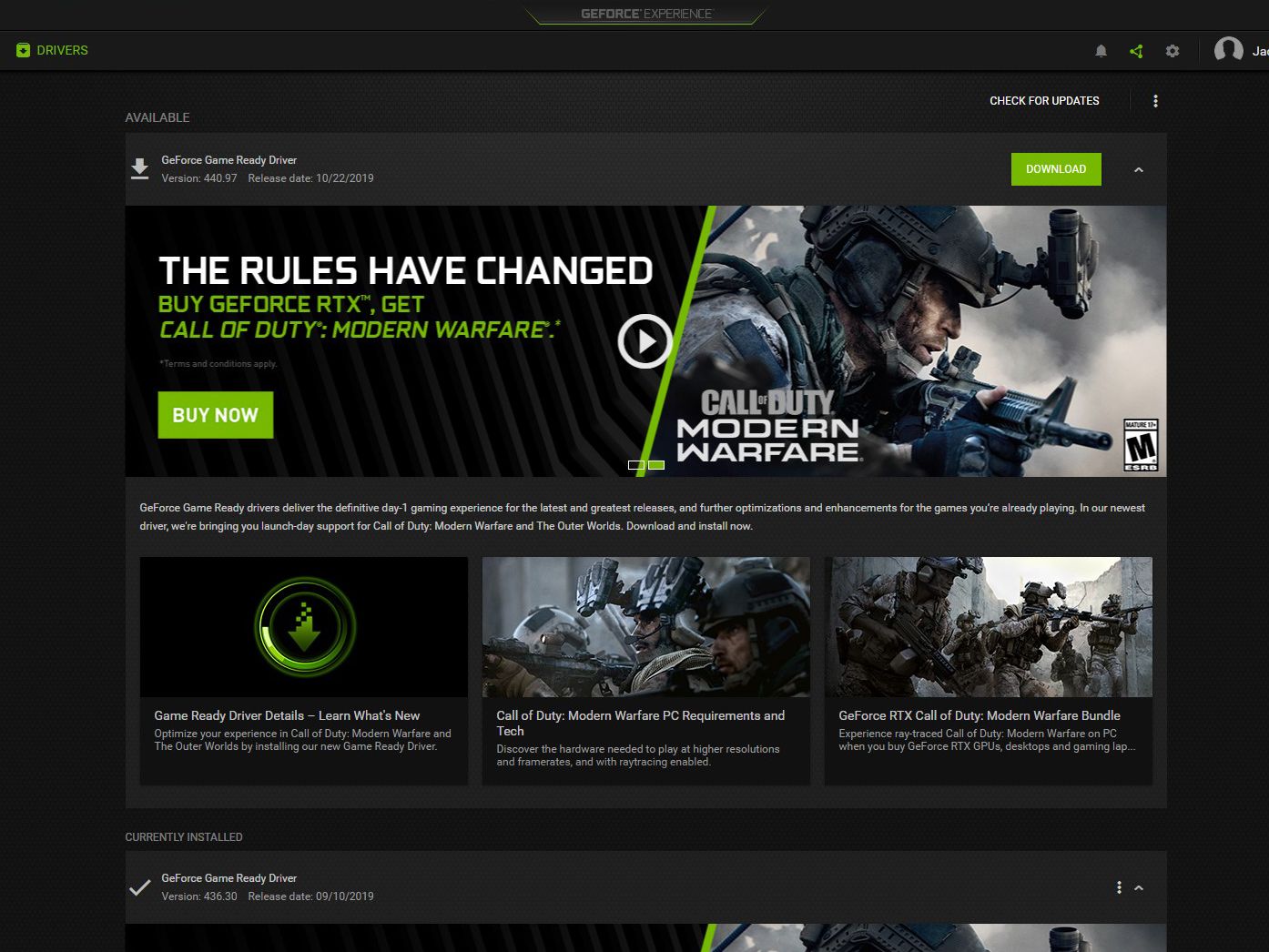
NVIDIA GeForce Experience is a comprehensive companion application designed to optimize your gaming settings, stream gameplay, and, most importantly, keep your drivers up to date. It’s the most convenient method for most users, especially gamers.
How to Check for Updates:
- Launch GeForce Experience: Open the application from your Start menu or system tray.
- Navigate to Drivers: Click on the “Drivers” tab located at the top of the application window.
- Check for Updates: GeForce Experience will automatically check for available updates. If a new driver is found, it will display the driver version and release date.
How to Install Updates:
- Download Driver: Once an update is detected, click the “Download” button. The application will fetch the necessary files.
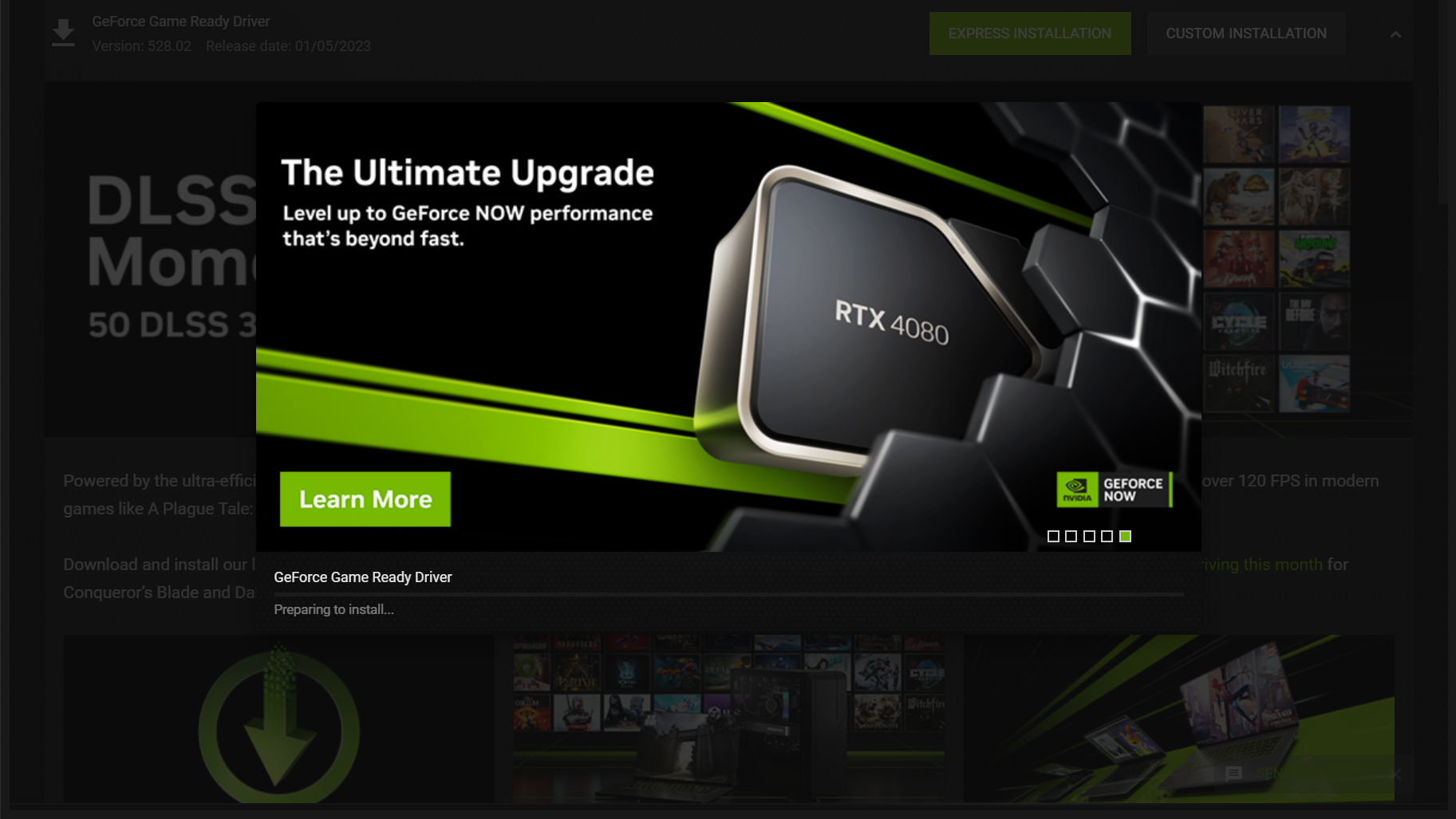
- Choose Installation Type: After the download completes, you’ll be presented with two installation options:
- Express Installation: This is the recommended option for most users. It automatically installs the new driver over your existing one, typically retaining your NVIDIA settings. This is quick and usually problem-free.
- Custom Installation: This option allows you to select specific components to install (e.g., PhysX, HD Audio Driver, GeForce Experience itself). Crucially, it also offers a “Perform a clean installation” checkbox. A clean installation removes all previous NVIDIA drivers and settings before installing the new one, which can be beneficial for resolving persistent issues or ensuring a fresh start. Unless you are troubleshooting, Express is usually sufficient.
- Follow On-Screen Prompts: The installer will guide you through the rest of the process. Your screen may flicker or go black momentarily during the installation, which is normal as the display driver is updated.
- Restart (if prompted): While often not required, sometimes the installer may ask you to restart your computer to finalize the update. It’s generally a good idea to comply.
Method 2: Manual Download from NVIDIA’s Website (For Advanced Users or Specific Needs)
For users who prefer more control, don’t want GeForce Experience installed, or need to download specific driver versions (e.g., an older stable version, or a Studio driver instead of a Game Ready one), manually downloading from NVIDIA’s official website is the way to go.
Navigating the Download Page:
- Visit NVIDIA’s Driver Download Page: Open your web browser and go to
www.nvidia.com/drivers. - Use the Manual Driver Search: You’ll see fields to select your Product Type, Product Series, Product, Operating System, and Driver Type (Game Ready Driver (GRD) or Studio Driver (SD)).
- Enter Your Information: Carefully select each option corresponding to your graphics card and operating system. Make sure you get your Product (specific GPU model) correct. For Driver Type, choose GRD for gaming optimization or SD for creative applications.
- Search: Click “Search” to find the latest available driver.
Choosing the Correct Driver:
- Review the search results. The latest driver will usually be at the top.
- Check the driver version, release date, and supported products to ensure it’s the correct one for your system.
- Click “Get Download” and then “Download” on the subsequent page.
Installation Process:
- Run the Installer: Once the
.exefile is downloaded, double-click it to start the installation process. - Extraction Location: The installer will first ask for a location to extract the driver files. The default location is usually fine.
- System Check: The installer will perform a quick compatibility check.
- License Agreement: Accept the NVIDIA Software License Agreement.
- Installation Options: Similar to GeForce Experience, you’ll be given “Express (Recommended)” or “Custom (Advanced)” options.
- Express: Installs the driver with default settings.
- Custom: Allows component selection and the crucial “Perform a clean installation” option. For manual downloads, opting for a clean installation is often preferred to ensure all old files are removed, especially if you’re troubleshooting or switching driver types.
- Complete Installation: Follow the prompts. The screen will flicker during the process.
- Restart: Restart your PC if prompted to finalize the installation.
Method 3: Windows Device Manager (Least Recommended for NVIDIA)
While Windows Device Manager offers an option to update drivers, it is generally the least recommended method for NVIDIA graphics cards. Windows Update or Device Manager often provides generic or older versions of drivers, not the highly optimized, feature-rich drivers released directly by NVIDIA.
Brief Steps for Completeness:
- Open Device Manager: Press
Win + Xand select “Device Manager.” - Locate Display Adapters: Expand “Display adapters” and right-click on your NVIDIA graphics card.
- Update Driver: Select “Update driver.”
- Search Automatically: Choose “Search automatically for updated driver software.” Windows will attempt to find a driver online or locally. This usually finds only older, generic drivers.
- Browse My Computer: Alternatively, you can choose “Browse my computer for driver software” if you have already downloaded the driver files manually and know their location.
This method is best reserved for basic driver installations when other methods fail or for less critical components, not for ensuring peak graphics performance.
Post-Update Checks and Troubleshooting
After successfully updating your NVIDIA drivers, it’s good practice to perform a few checks. Occasionally, issues can arise, and knowing how to troubleshoot them is invaluable.
Verify Driver Installation
To confirm that the new driver has been installed correctly:
- NVIDIA Control Panel: Right-click on your desktop, select “NVIDIA Control Panel,” and then click “System Information” in the bottom left. Verify that the “Driver Version” matches the one you just installed.
- GeForce Experience: Open GeForce Experience and navigate to the “Drivers” tab. It should show that you have the latest driver installed.
- Device Manager: Check the driver version under “Display adapters” for your NVIDIA card.
Common Issues and Solutions
- Installation Failure: If the installer fails, try downloading the driver again to rule out a corrupted download. Ensure all applications are closed. If it persists, try a “Custom” installation with the “Perform a clean installation” option checked.
- Display Issues (Black Screen, Flickering, Wrong Resolution): This can sometimes occur if the driver didn’t install correctly or if there’s a conflict.
- Restart your PC: Often, a simple reboot can resolve temporary display glitches.
- Roll Back Driver: If the problem began immediately after the update, you can roll back to the previous driver. Go to Device Manager, right-click your GPU, select “Properties,” go to the “Driver” tab, and click “Roll Back Driver.”
- Boot into Safe Mode: If you can’t see anything, boot into Windows Safe Mode (often by repeatedly pressing F8 or Shift+Restart during boot-up) and then try a clean installation or roll back the driver.
- Performance Decreases or Game Crashes: While updates typically improve performance, a rare driver bug might negatively impact specific games.
- Check Forums: See if other users are reporting similar issues for that specific driver version and game.
- Revert to Previous Driver: If the issue is severe, consider rolling back to the previous stable driver version.
- Clean Installation: Perform a clean installation using DDU (Display Driver Uninstaller) if other methods fail.
Clean Installation vs. Express Installation (When to use DDU)
- Express Installation: Ideal for regular updates when you’re not experiencing any issues. It’s quick and generally reliable.
- Custom Installation with “Clean Installation” Checkbox: A good intermediate step if you suspect driver corruption or want a fresh slate without a separate tool.
- Display Driver Uninstaller (DDU): This third-party tool is the gold standard for completely removing all traces of graphics drivers (NVIDIA, AMD, Intel) from your system. Use DDU in Safe Mode when:
- You are experiencing persistent graphics-related issues that regular updates don’t fix.
- You are switching from an AMD or Intel integrated GPU to an NVIDIA discrete GPU (or vice-versa).
- You want to perform a truly pristine driver installation.
- After running DDU, you then proceed with a manual driver installation from NVIDIA’s website.
Best Practices for Driver Management
Effective driver management goes beyond just installing updates; it involves understanding different driver types and establishing a routine that keeps your system optimized without unnecessary disruptions.
Regular Update Schedule
While there’s no fixed rule, a good practice is to check for driver updates roughly once a month, or whenever a major new game or software application you use is released. For critical security patches or significant performance boosts, NVIDIA will often make announcements that prompt an immediate update. Avoid updating too frequently if you’re not experiencing issues, but also don’t let months or years pass without checking.
Understanding Driver Types (Game Ready vs. Studio Drivers)
NVIDIA offers two primary driver types for GeForce GPUs:
- Game Ready Drivers (GRD): These are designed for optimal gaming performance. They are released frequently, often coinciding with new game releases or major game patches, to provide the best possible day-one gaming experience. Gamers should almost always use GRD.
- Studio Drivers (SD): These drivers are built for stability and performance in creative applications (video editing, 3D rendering, graphic design). They are less frequently updated than GRDs but undergo extensive testing with professional software suites to ensure maximum reliability and compatibility. Content creators and professionals relying on GPU-accelerated applications should consider using Studio Drivers.
You can select your preferred driver type when manually downloading from NVIDIA’s website or, in some cases, through GeForce Experience settings.
The Role of Custom Installations (Choosing Components)
During a Custom installation, you have the option to deselect certain components like:
- NVIDIA HD Audio Driver: If you’re using a dedicated sound card or don’t route audio through your HDMI/DisplayPort, you might not need this.
- NVIDIA PhysX System Software: Essential for games that use NVIDIA’s PhysX engine for advanced physics simulations. Most games today don’t exclusively rely on it, but it’s harmless to keep.
- GeForce Experience: If you prefer manual updates and don’t use its other features (ShadowPlay, game optimization), you can opt out.
- NVIDIA USB Type-C Port Policy Driver: Only necessary if your GPU has a USB-C port for VR headsets like the VirtualLink standard.
Generally, for simplicity, most users can stick with all components for an Express install. However, if you are an advanced user looking to minimize background processes or avoid specific software, the custom option provides that control.

Conclusion
Keeping your NVIDIA graphics drivers updated is a foundational aspect of maintaining a high-performance, stable, and secure computing experience. Whether you’re a passionate gamer chasing the highest frame rates, a creative professional demanding unwavering stability, or simply a daily user who values a smooth operation, regular driver updates are non-negotiable. By understanding the available update methods, preparing your system, and knowing how to troubleshoot, you empower yourself to unlock the full potential of your NVIDIA graphics card. Make driver management a regular part of your PC maintenance routine, and enjoy the ongoing benefits of superior performance and reliability.
aViewFromTheCave is a participant in the Amazon Services LLC Associates Program, an affiliate advertising program designed to provide a means for sites to earn advertising fees by advertising and linking to Amazon.com. Amazon, the Amazon logo, AmazonSupply, and the AmazonSupply logo are trademarks of Amazon.com, Inc. or its affiliates. As an Amazon Associate we earn affiliate commissions from qualifying purchases.