
In the modern digital landscape, the Graphics Processing Unit (GPU) has evolved from a simple component used to render basic desktop environments into a powerhouse capable of complex mathematical computations, real-time ray tracing, and driving artificial intelligence. Whether you are a competitive gamer, a professional video editor, or a software developer, your GPU is the engine behind your visual experience. However, hardware is only as good as the software that communicates with it. This is where graphics drivers come into play. Keeping these drivers updated is not merely a recommendation; it is a critical maintenance task for anyone looking to ensure system stability, security, and peak performance.
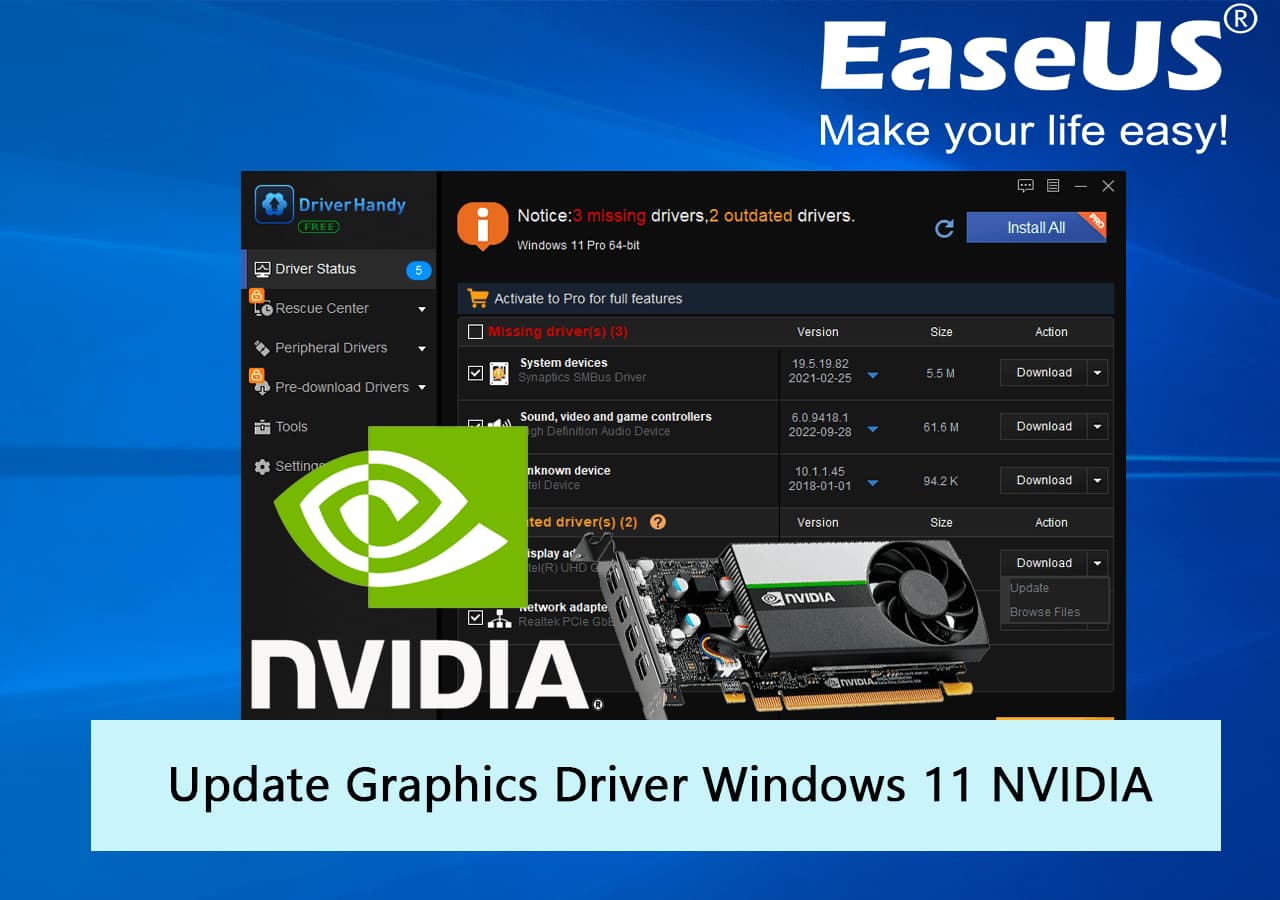
Why Graphics Driver Updates Are Crucial for Modern Computing
A graphics driver is a specialized piece of software that allows your operating system (OS) and applications to communicate with your graphics hardware. Without the correct driver, the OS cannot utilize the GPU’s full potential, often defaulting to a “basic display adapter” mode that offers poor resolution and no hardware acceleration.
Performance Gains in Gaming and Rendering
For gamers, driver updates are often synonymous with performance boosts. Manufacturers like NVIDIA, AMD, and Intel frequently release “Game Ready” drivers timed with the launch of major AAA titles. These updates contain specific optimizations for new game engines, often resulting in double-digit increases in frame rates (FPS). Beyond gaming, professional applications like Adobe Premiere Pro, AutoCAD, and DaVinci Resolve rely on driver updates to improve rendering speeds and utilize new hardware acceleration features, such as AV1 encoding or AI-denoising.
System Stability and Bug Fixes
Software is rarely perfect upon release. As users interact with different hardware combinations, bugs inevitably emerge. You might experience flickering screens, application crashes to desktop (CTD), or the dreaded “Blue Screen of Death” (BSOD). Driver updates often include patches for these stability issues. Furthermore, as Windows or macOS updates their core architecture, graphics drivers must be updated to remain compatible with the latest OS features, such as DirectX 12 Ultimate or Auto HDR.
Security Vulnerabilities and Patch Management
In the age of sophisticated cyber threats, your GPU driver can actually be a security risk. Because drivers operate at a high level of privilege within the system (the kernel mode), a vulnerability in the driver code could allow an attacker to gain control over the entire computer. Manufacturers regularly audit their code and release security patches to close these loopholes. Keeping your drivers current is a vital component of your overall digital security posture.
Identifying Your Hardware and Current Driver Version
Before you can update your drivers, you must know exactly what hardware you are running. The graphics market is dominated by three major players: NVIDIA (GeForce), AMD (Radeon), and Intel (UHD/Iris Xe/Arc). Using the wrong driver can lead to installation failures or system instability.
Using Device Manager on Windows
The quickest way to identify your GPU on a Windows machine is through the Device Manager. You can access this by right-clicking the Start button and selecting “Device Manager.” Under the “Display adapters” section, you will see the name of your graphics card. Right-clicking the device and selecting “Properties” followed by the “Driver” tab will show you the provider, the date the driver was released, and the specific version number currently installed. This information is essential for determining if a newer version is available on the manufacturer’s website.
Identifying Integrated vs. Dedicated GPUs
Many modern laptops and desktops feature two GPUs: an “Integrated” GPU (built into the CPU, usually Intel or AMD) for low-power tasks, and a “Dedicated” GPU (a separate chip, usually NVIDIA or AMD) for high-performance tasks. It is important to update both. The integrated GPU often handles the final output to your screen, so an outdated integrated driver can cause screen flickering even if your powerful dedicated card is fully updated.
Third-Party Diagnostic Tools
If the Windows Device Manager doesn’t provide enough detail, or if you are looking for more technical specifications like BIOS versions or clock speeds, tools like GPU-Z are invaluable. These lightweight applications provide a deep dive into your hardware’s DNA, ensuring you download the exact firmware or driver package required for your specific sub-vendor (such as ASUS, MSI, or EVGA).
Methods for Updating Your Graphics Drivers
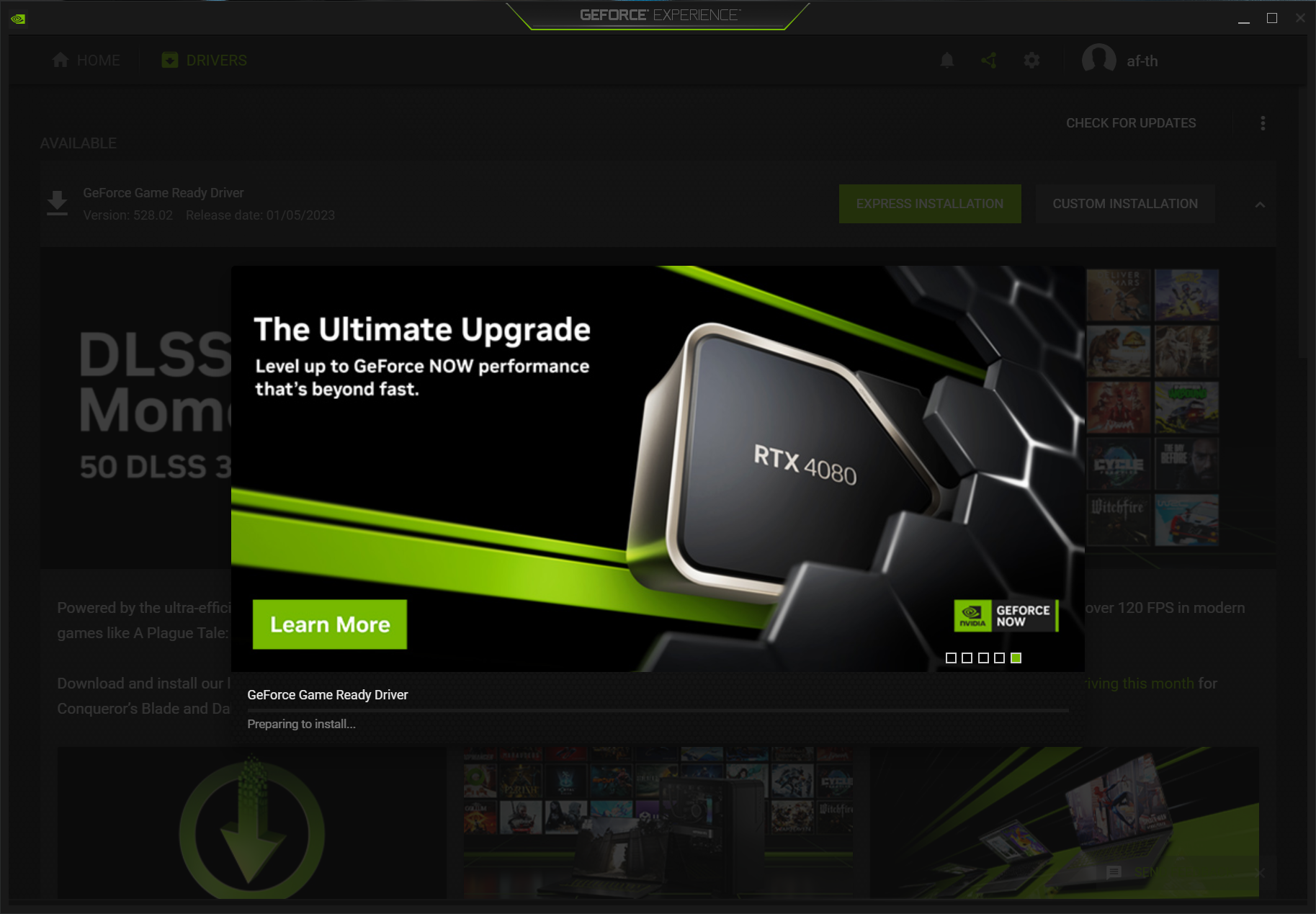
There are several ways to approach the update process, ranging from fully automated software suites to meticulous manual installations. The best method depends on your technical comfort level and how much control you want over the installation.
Automatic Updates via Manufacturer Software
The most user-friendly method is utilizing the proprietary software provided by the GPU manufacturer.
- NVIDIA GeForce Experience: This tool automatically notifies you when a new driver is available. It allows for “Express Installation,” which handles the entire process with a single click. It also offers “Studio Drivers” for creators who prioritize stability over the latest gaming optimizations.
- AMD Software: Adrenalin Edition: AMD’s suite provides a robust interface for updating drivers. It includes a “Check for Updates” feature and allows users to choose between “Recommended” releases (thoroughly tested) and “Optional” releases (which contain the latest features but may be less stable).
- Intel Graphics Command Center: For those using Intel integrated graphics or the new Arc dedicated cards, this tool simplifies the update process and ensures the display settings are optimized.
Manual Installation from Official Websites
For power users or those troubleshooting issues, manual installation is preferred. You visit the official download page (nvidia.com, amd.com, or intel.com), select your specific hardware model and operating system, and download the standalone executable. This method ensures you are getting the “cleanest” version of the driver without unnecessary bundled software. It is also the only way to “roll back” to a specific older version if a new update causes issues on your specific system.
Using Windows Update (The Pros and Cons)
Windows Update automatically downloads graphics drivers as part of its general maintenance. While this is the easiest method, it is often not the best. Windows Update typically provides “WHQL” (Windows Hardware Quality Labs) certified drivers, which are often several months old. If you are a gamer or a professional, these drivers will lack the latest performance optimizations and bug fixes found in the manufacturer’s direct releases.
Advanced Troubleshooting: Clean Installations and DDU
Sometimes, a standard update isn’t enough. Over time, old driver files can become corrupted or conflict with new installations, leading to persistent performance drops or visual artifacts.
When a Simple Update Isn’t Enough
If you have recently switched from an NVIDIA card to an AMD card (or vice versa), or if you are experiencing constant crashes despite being on the latest driver, a “Clean Install” is necessary. While some driver installers offer a “Perform a clean installation” checkbox, they often leave behind registry keys and stray files that can cause issues later.
How to Use Display Driver Uninstaller (DDU)
Display Driver Uninstaller (DDU) is the industry-standard tool for removing every trace of a graphics driver. To use it effectively, you should download your new driver first, then disconnect from the internet (to prevent Windows Update from automatically installing a generic driver). Boot into Windows Safe Mode, run DDU, and select “Clean and restart.” Once the system reboots into normal mode, you can install the new driver on a completely blank slate. This process solves approximately 90% of driver-related software conflicts.
Rolling Back Drivers After a Failed Update
Occasionally, a new driver version may contain a bug that specifically affects your hardware configuration. If you notice a performance regression after an update, Windows allows you to “Roll Back Driver” in the Device Manager. This reinstalls the previous version that was working correctly. Always report these issues to the manufacturer’s forums so they can be addressed in the next patch cycle.
The Future of Graphics Drivers: AI and Automated Optimization
As we look toward the future of technology, graphics drivers are becoming much more than just translators between hardware and software. They are evolving into intelligent platforms that manage system resources dynamically.
AI-Enhanced Upscaling and Driver Integration
Technologies like NVIDIA’s DLSS (Deep Learning Super Sampling) and AMD’s FSR (FidelityFX Super Resolution) are now integrated directly into the driver stack. These technologies use AI and spatial upscaling to render images at a lower resolution and then upscale them to 4K, providing massive performance boosts without sacrificing visual quality. Future driver updates will likely focus heavily on refining these AI models, allowing older hardware to run modern software more efficiently.

Cloud-Based Driver Management and the End of Manual Patches
We are moving toward a “set it and forget it” era of hardware management. Future operating systems may handle driver updates entirely in the background using “seamless updates,” similar to how Chrome or mobile OSs update. With the rise of cloud gaming (like Xbox Cloud Gaming or NVIDIA GeForce NOW), the burden of driver management is shifting from the end-user to the server-side provider. However, for those of us with local hardware, the discipline of manual monitoring and updating will remain the hallmark of a well-maintained and high-performing PC.
In conclusion, updating your graphics driver is a foundational task in the tech world. It bridges the gap between your expensive hardware and the cutting-edge software you use daily. By understanding why updates matter, how to identify your hardware, and how to troubleshoot installation issues, you ensure that your digital experience remains smooth, secure, and visually stunning.
aViewFromTheCave is a participant in the Amazon Services LLC Associates Program, an affiliate advertising program designed to provide a means for sites to earn advertising fees by advertising and linking to Amazon.com. Amazon, the Amazon logo, AmazonSupply, and the AmazonSupply logo are trademarks of Amazon.com, Inc. or its affiliates. As an Amazon Associate we earn affiliate commissions from qualifying purchases.