
The Graphics Processing Unit (GPU) is the powerhouse of your visual experience on Windows 10. Whether you are a high-end gamer, a professional video editor, or a business user relying on smooth multitasking across multiple high-resolution displays, the GPU is responsible for rendering every pixel you see. However, hardware is only as good as the software that instructs it. Graphics drivers serve as the essential communication bridge between the Windows operating system and your hardware. When these drivers are outdated, performance degrades, security vulnerabilities emerge, and system stability suffers.
Updating your graphics driver is one of the most effective ways to optimize your PC’s performance. In this comprehensive guide, we will explore the technical necessity of driver maintenance and provide a detailed roadmap for updating your drivers using various methods, ranging from automated Windows tools to professional-grade manual installations.
Why Keeping Your Graphics Drivers Updated is Critical
Before diving into the “how,” it is vital to understand the “why.” In the world of technology, software evolves at a breakneck pace. New applications, game engines, and operating system patches are released constantly, and your graphics hardware must adapt to these changes through driver updates.
Performance Optimization and Frame Rates
For gamers, the most tangible benefit of a driver update is improved frame rates. Graphics card manufacturers like NVIDIA and AMD often release “Game Ready” drivers tailored specifically for major new titles. These updates contain optimizations that allow the hardware to process specific game engine instructions more efficiently. Without these updates, you may experience “stuttering,” lower frames per second (FPS), or visual artifacts that hinder the experience.
System Stability and Error Prevention
If you have ever encountered the infamous Blue Screen of Death (BSOD) or experienced a sudden application crash while rendering a video, an outdated or corrupted graphics driver is often the culprit. Windows 10 uses a feature called Timeout Detection and Recovery (TDR). If the GPU takes too long to respond to a request, Windows attempts to reset the driver to prevent a total system freeze. Regular updates ensure that the driver remains compatible with the latest Windows 10 builds, reducing the frequency of TDR errors and system-wide crashes.
Security and Modern API Support
Cybersecurity is a growing concern in the hardware space. Modern graphics drivers frequently include patches for security vulnerabilities that could allow malicious software to gain kernel-level access to your system. Furthermore, updates bring support for new Application Programming Interfaces (APIs) such as DirectX 12 Ultimate, Vulkan, and Ray Tracing. These APIs allow software to utilize the hardware’s advanced features, ensuring your system remains capable of running the latest professional and creative software suites.
Using Built-in Windows 10 Tools for Driver Updates
For the average user who uses their computer for web browsing, office productivity, and occasional streaming, Windows 10 provides built-in mechanisms to handle driver updates automatically. These methods are designed for convenience and stability, prioritizing WHQL (Windows Hardware Quality Labs) certified drivers.
Method 1: Windows Update
Windows Update is the first line of defense for driver maintenance. Microsoft collaborates with hardware vendors to distribute stable driver versions directly through the operating system.
-
Click the Start menu and select the Settings gear icon.
-
Navigate to Update & Security.
-
Click Check for updates.
-
If Windows finds an updated graphics driver, it will download and install it automatically.
While convenient, Windows Update is often several months behind the latest releases from the manufacturer. If you are a gamer or creative professional, you will likely need to look beyond this method for peak performance.
Method 2: Device Manager
Device Manager offers a more targeted approach, allowing you to force Windows to search for a driver for a specific piece of hardware.
-
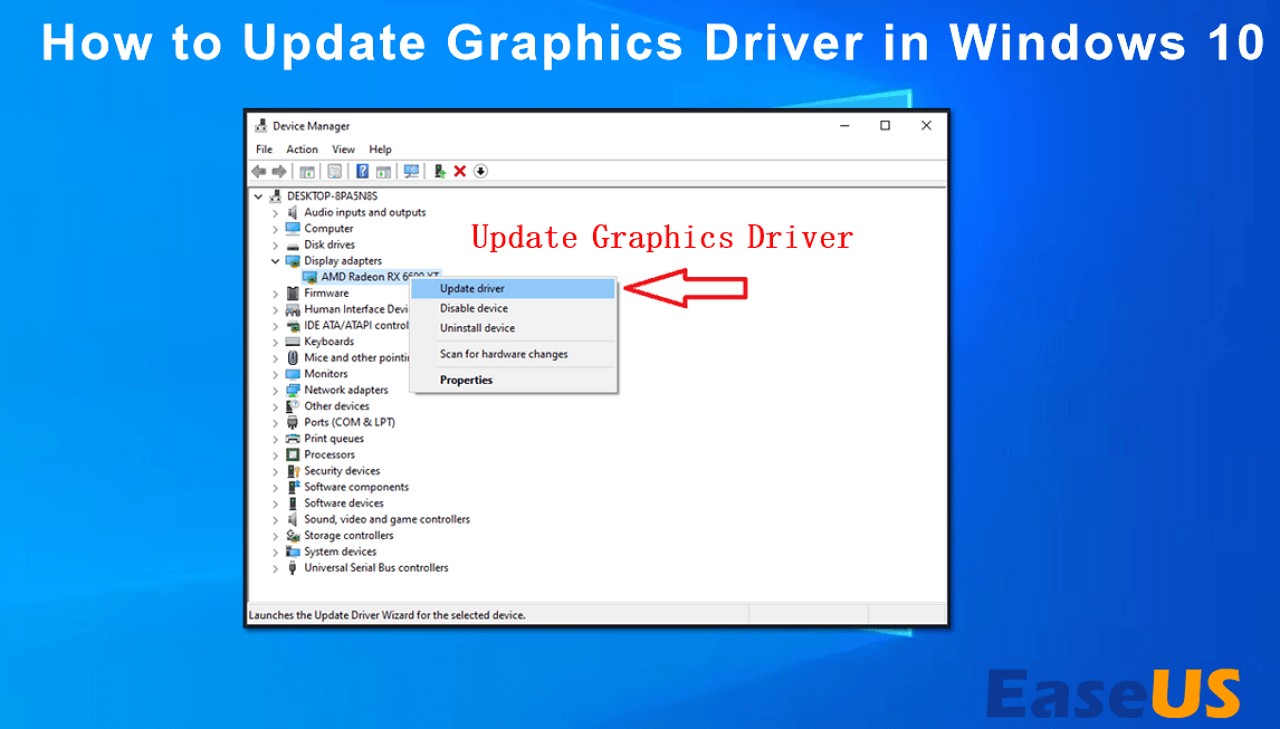
Right-click the Start button and select Device Manager.
-
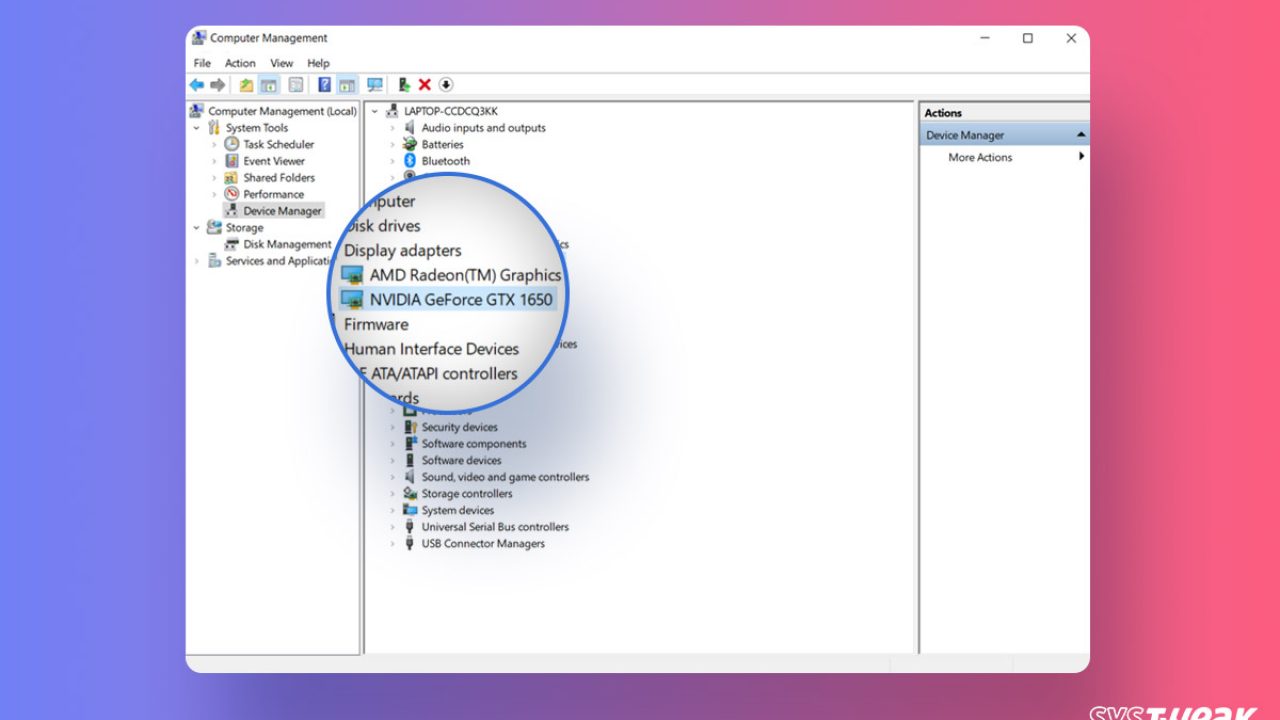
Locate the Display adapters section and click the arrow to expand it.
-
Right-click your graphics card (e.g., NVIDIA GeForce, AMD Radeon, or Intel UHD Graphics) and select Update driver.
-
Choose Search automatically for updated driver software.
If Windows reports that “The best drivers for your device are already installed,” it does not necessarily mean you have the latest version—it simply means Microsoft’s servers do not have a newer certified version on file. In this case, manual intervention is required.
Manual Updates: The Preferred Method for Enthusiasts
To unlock the full potential of your GPU, you should bypass Windows’ automated systems and download drivers directly from the manufacturer’s website. This ensures you have access to the latest optimizations and feature sets.
NVIDIA GeForce Drivers
NVIDIA provides two types of drivers: Game Ready Drivers (GRD) for the best gaming experience and Studio Drivers (SD) for stability in creative applications like Adobe Premiere and Autodesk Maya.
-
Visit the NVIDIA Driver Downloads page.
-
Enter your GPU model, operating system (Windows 10 64-bit), and driver type.
-
Alternatively, download NVIDIA GeForce Experience. This software automatically notifies you of new updates and allows for “one-click” installations. It also includes features like ShadowPlay for recording gameplay and automated game setting optimizations.
AMD Radeon Drivers
AMD’s software suite, known as Radeon Software Adrenalin, is an all-in-one hub for driver updates and performance tuning.
-
Visit the AMD Support and Drivers page.
-
You can use the “Auto-Detect and Install” tool or manually select your product from the list.
-
Once the Adrenalin software is installed, you can check for updates directly within the application’s dashboard. AMD frequently releases “Optional” drivers which contain fixes for the very latest games, and “Recommended” drivers which are more thoroughly tested for general stability.
Intel Graphics Drivers
Many laptops and budget desktops utilize integrated Intel graphics. While these aren’t typically used for heavy gaming, updating them is crucial for smooth video playback and 4K display support.
-
Visit the Intel Download Center.
-
Download the Intel Driver & Support Assistant (Intel DSA).
-
This tool runs in your system tray and monitors your system for any Intel-specific updates, including graphics, Wi-Fi, and Bluetooth drivers. It provides a seamless web-based interface for installation.
Advanced Techniques: Clean Installations and DDU
Sometimes, simply clicking “Update” isn’t enough. If you are switching from an AMD card to an NVIDIA card, or if you are experiencing persistent graphical glitches, a “Clean Installation” is necessary. Over time, old driver files and registry entries can accumulate, leading to conflicts.
Using Display Driver Uninstaller (DDU)
Display Driver Uninstaller (DDU) is a third-party niche tool highly recommended by tech professionals for completely wiping driver remnants.
-
Download DDU from a reputable source like Guru3D.
-
Download the latest driver for your GPU from the manufacturer but do not install it yet.
-
Disconnect your internet (this prevents Windows 10 from automatically installing its own generic driver the moment you reboot).
-
Boot Windows 10 into Safe Mode.
-
Run DDU and select Clean and restart.
-
Once back in normal Windows, run the driver installer you downloaded earlier.
-
Reconnect your internet.
This process ensures that no legacy code interferes with the new driver, providing a pristine environment for your hardware to operate.
Rolling Back Drivers
Technological progress isn’t always linear. Occasionally, a new driver version may introduce a bug that affects your specific setup. If you notice performance drops immediately after an update, Windows 10 allows you to “Roll Back.”
-
Open Device Manager.
-
Right-click your GPU under Display adapters and select Properties.
-
Go to the Driver tab.
-
Click Roll Back Driver.
Windows will revert to the previously installed version, allowing you to wait for a subsequent patch that addresses the issue.
Optimizing Your GPU After the Update
Updating the driver is only the first step. To truly capitalize on your hardware, you should explore the control panels provided by the manufacturer.
Configuring Settings
Both NVIDIA and AMD offer control panels (NVIDIA Control Panel and AMD Software) that allow you to customize how the driver interacts with your display. Here, you can enable features like G-Sync or FreeSync to eliminate screen tearing, adjust power management modes to “Prefer Maximum Performance,” and configure anti-aliasing settings for older applications that don’t have built-in graphics options.

Monitoring Performance
After a successful update, it is wise to monitor your hardware’s behavior. Tools like MSI Afterburner or the built-in overlays in GeForce Experience and Radeon Software allow you to track GPU temperature, clock speeds, and usage. If your temperatures are significantly higher after an update, it may indicate that the new driver is pushing the hardware harder, and you might need to adjust your fan curves to maintain longevity.
In conclusion, maintaining your graphics drivers on Windows 10 is an essential task for anyone looking to secure their system and maximize their hardware investment. By combining the stability of Windows Update with the cutting-edge performance of manufacturer-direct drivers and the thoroughness of clean installations, you ensure that your visual experience remains sharp, fast, and reliable. Regular maintenance prevents the frustration of crashes and ensures that when the next big software innovation arrives, your PC is ready to handle it.
aViewFromTheCave is a participant in the Amazon Services LLC Associates Program, an affiliate advertising program designed to provide a means for sites to earn advertising fees by advertising and linking to Amazon.com. Amazon, the Amazon logo, AmazonSupply, and the AmazonSupply logo are trademarks of Amazon.com, Inc. or its affiliates. As an Amazon Associate we earn affiliate commissions from qualifying purchases.