
In the modern computing landscape, the synergy between hardware and software is the foundation of every digital experience. Whether you are a creative professional rendering 4K video, a competitive gamer seeking high frame rates, or a remote worker relying on a stable Wi-Fi connection, your computer’s performance hinges on a critical but often overlooked component: the device driver. Understanding how to update drivers is not merely a maintenance chore; it is a fundamental skill for ensuring system stability, unlocking new hardware features, and safeguarding your digital environment against vulnerabilities.

Understanding Device Drivers and Why Updates are Essential
Before diving into the technical “how-to,” it is crucial to understand what a driver actually is. In the simplest terms, a device driver is a specialized piece of software that acts as a translator between your computer’s operating system (OS) and its hardware components. Windows, macOS, or Linux speak a different language than your graphics card, printer, or motherboard. The driver facilitates communication, ensuring that when you move your mouse or click “Print,” the hardware executes the command accurately.
The Impact of Outdated Drivers on System Performance
When drivers become obsolete, the communication between the OS and hardware degrades. This often manifests as system sluggishness, application crashes, or peripheral malfunctions. For example, an outdated graphics driver might cause “stuttering” in video playback or prevent a new game from launching entirely. By keeping drivers current, you ensure that your hardware is operating with the latest optimization algorithms, which can significantly boost processing speeds and resource efficiency.
Security Risks and Vulnerabilities
In the realm of digital security, drivers are a common target for exploits. Because drivers operate at a high level of privilege within the system kernel, a vulnerability in a driver can allow malicious actors to gain deep access to your OS. Hardware manufacturers frequently release driver updates specifically to patch these security holes. Neglecting these updates leaves a backdoor open for malware and unauthorized data access.
Enhancing Stability and Compatibility
Operating systems receive frequent updates to introduce new features and interface changes. Often, these OS updates can break the compatibility of older drivers. This mismatch is a leading cause of the infamous “Blue Screen of Death” (BSOD) on Windows. Regularly updating drivers ensures that your hardware remains compatible with the latest version of your operating system, preventing system-wide crashes and “hanging” applications.
Primary Methods for Updating Drivers in Windows
For the vast majority of users, Microsoft Windows provides several built-in avenues for managing drivers. While the system is designed to handle much of this automatically, knowing how to trigger these updates manually is essential for troubleshooting.
Using Windows Update for Seamless Maintenance
Windows Update is the primary gatekeeper for system health. Modern versions of Windows (10 and 11) package many essential drivers—such as those for your chipset, basic audio, and network adapters—directly into their update cycle.
To use this method, navigate to Settings > Update & Security > Windows Update (or Settings > Windows Update on Windows 11) and click Check for updates. However, a professional tip is to look for the “View optional updates” or “Advanced options > Optional updates” link. Manufacturers often categorize non-critical driver updates here, and installing them can resolve persistent minor bugs that the standard update cycle might miss.
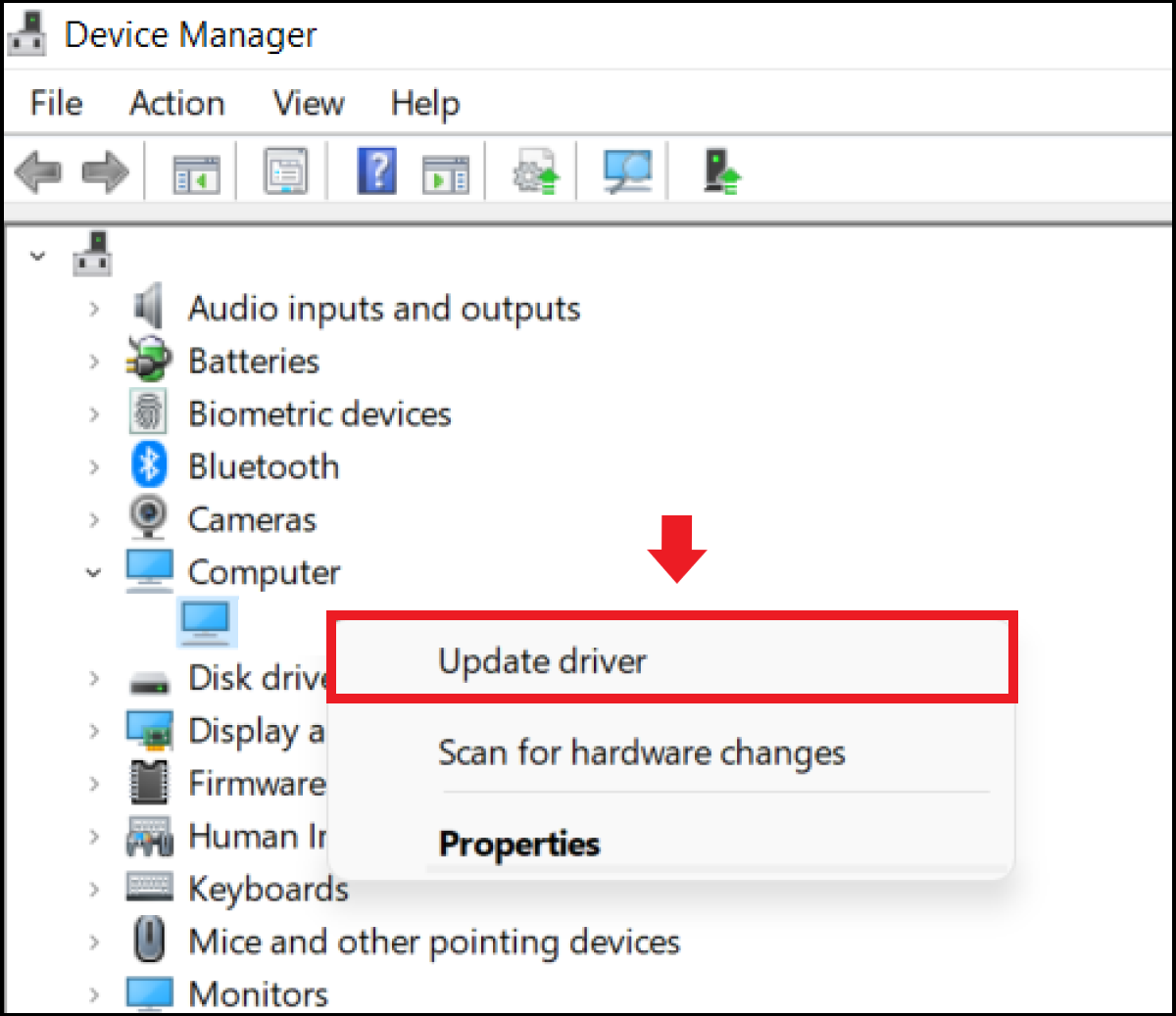
Manually Updating via Device Manager
When a specific piece of hardware—like a webcam or a specialized USB device—is acting up, the Device Manager is your best diagnostic tool. This utility provides a granular view of every hardware component recognized by your system.
To update via Device Manager:
- Right-click the Start button and select Device Manager.
- Locate the category for the hardware you wish to update (e.g., “Display adapters”).
- Right-click the specific device and select Update driver.
- Choose Search automatically for updated driver software.
While effective, this method relies on Microsoft’s database, which may not always have the absolute latest version released by the hardware manufacturer.
Manufacturer-Specific Management Tools
If you own a pre-built system from brands like Dell, HP, Lenovo, or ASUS, your computer likely came with a proprietary support application (e.g., Dell SupportAssist or Lenovo Vantage). These tools are highly effective because they are tuned to your specific hardware configuration. They scan your BIOS, firmware, and drivers simultaneously, offering a holistic update process that generic Windows tools might overlook.
Advanced Driver Management: GPUs and Specialty Hardware
For power users, specifically those in the gaming or design sectors, the generic drivers provided by Windows are often insufficient. High-performance hardware requires specialized management to reach its full potential.
Graphics Card Drivers: NVIDIA and AMD
The Graphics Processing Unit (GPU) is perhaps the most driver-dependent component in a modern PC. Both NVIDIA and AMD release “Game Ready” or “Adrenalin” drivers frequently, sometimes timed specifically with the release of major software titles.
For NVIDIA users, GeForce Experience is the standard interface for updates. It notifies you of new releases and allows for “Express Installation.” AMD users utilize the Radeon Software Adrenalin Edition, which offers similar functionality along with performance tuning. Using these official portals is superior to Windows Update because they include specialized control panels that allow you to tweak hardware settings, such as anti-aliasing, overclocking, and power management.
Motherboard Chipsets and BIOS/UEFI Updates
The motherboard is the nervous system of your computer. While Windows handles basic connectivity, “Chipset Drivers” ensure that the CPU communicates efficiently with memory and storage. These should be sourced directly from the motherboard manufacturer’s website (e.g., MSI, Gigabyte, or ASUS).
Additionally, there is the BIOS (Basic Input/Output System) or UEFI. Updating this is a high-stakes task that can improve system boot times and hardware compatibility. Unlike standard drivers, BIOS updates usually require “flashing” the firmware via a USB drive or a dedicated Windows utility provided by the manufacturer. This should only be done if you are experiencing hardware instability or need to support a newer CPU.
Sound and Networking Hardware
Professional audio interfaces and high-speed Wi-Fi 6E cards often require specific drivers to unlock their full bandwidth or low-latency capabilities. If you are an audio engineer or a streamer, relying on generic “High Definition Audio” drivers will result in lower sound quality and higher latency. Always visit the manufacturer’s support page (e.g., Realtek, Intel, or Creative) to download the full software suite for these devices.
Utilizing Third-Party Driver Update Software
In an effort to simplify the process, many users turn to third-party driver update utilities. While these can be convenient, they require a discerning eye to avoid “bloatware” or security risks.
The Pros and Cons of Automated Driver Updaters
The primary advantage of third-party tools is the “one-click” solution. They scan your entire system, compare your versions against a cloud database, and update everything simultaneously. This saves significant time compared to visiting five different manufacturer websites.
However, the “cons” can be significant. Some low-quality updater tools may suggest “beta” drivers that are unstable, or worse, they may bundle unwanted software with the installation. Furthermore, some of these tools may misidentify hardware, leading to the installation of incorrect drivers that can cause system crashes.
Selecting Reliable Tools
If you choose to use a third-party tool, stick to reputable names such as IObit Driver Booster or Driver Reviver. These companies have extensive databases and typically offer a “Restore” feature that allows you to undo an update if something goes wrong. Always opt for the “Custom Installation” to ensure no additional software is being added to your system.
Avoiding Security Risks
Never download drivers from “aggregator” websites that look cluttered with ads and pop-ups. These sites often host modified drivers that may contain spyware. Only trust the hardware manufacturer’s official site or the verified update tools mentioned above.
Best Practices and Troubleshooting Common Issues
Updating drivers is generally safe, but because you are modifying how the software interacts with the hardware, things can occasionally go wrong. Following a set of best practices will mitigate these risks.
Creating a System Restore Point
Before performing any major driver updates—especially for the GPU or Motherboard—always create a System Restore Point. This creates a “snapshot” of your Windows settings and drivers. If an update causes a black screen or a loop of crashes, you can boot into Safe Mode and roll the system back to exactly how it was five minutes before the update.
How to Roll Back a Driver
If a device stops working immediately after an update, Windows has a built-in “Roll Back” feature.
- Open Device Manager.
- Right-click the problematic device and select Properties.
- Go to the Driver tab and click Roll Back Driver.
This will uninstall the current version and reinstate the previous, stable version.
Dealing with Driver Conflicts and BSOD
If you encounter a Blue Screen of Death, the error code (e.g., DRIVER_IRQL_NOT_LESS_OR_EQUAL) often points to the specific driver at fault. In such cases, the best course of action is to “Clean Uninstall” the driver. For graphics cards, tools like Display Driver Uninstaller (DDU) are industry standards for completely wiping old driver remnants before performing a fresh, clean installation.

Conclusion: Developing a Maintenance Routine
Updating drivers is a vital aspect of tech hygiene. While you don’t need to check for updates every day, a monthly review of Windows Update and your GPU software is a healthy habit. By understanding the role of drivers and the various methods to keep them current, you transition from being a passive user to an active manager of your technology. This proactive approach ensures that your hardware remains fast, your data stays secure, and your system remains a reliable tool for your professional and personal life.
aViewFromTheCave is a participant in the Amazon Services LLC Associates Program, an affiliate advertising program designed to provide a means for sites to earn advertising fees by advertising and linking to Amazon.com. Amazon, the Amazon logo, AmazonSupply, and the AmazonSupply logo are trademarks of Amazon.com, Inc. or its affiliates. As an Amazon Associate we earn affiliate commissions from qualifying purchases.