
In the modern digital landscape, a personal computer is only as powerful as the software that manages its hardware. While many users focus on upgrading their RAM or switching to a faster SSD, they often overlook the invisible bridge that connects the operating system to the physical components: the device driver. Drivers are specialized software files that tell your operating system (OS) exactly how to communicate with hardware like your graphics card, motherboard, printer, and wireless adapter.
When drivers are outdated, the results range from minor inconveniences, like a flickering screen, to catastrophic system failures, such as the infamous “Blue Screen of Death” (BSOD). Furthermore, outdated drivers often harbor security vulnerabilities that hackers can exploit to gain kernel-level access to your machine. Understanding how to manage and update these components is a fundamental skill for any tech-savvy user. This guide explores the most effective methods to keep your drivers current, ensuring your PC remains stable, secure, and fast.

1. Leveraging Windows Update for Seamless Integration
For the vast majority of PC users, Microsoft has simplified the driver update process through the integrated Windows Update service. In the era of Windows 10 and 11, Microsoft collaborates closely with hardware manufacturers to host verified drivers directly on their servers. This is the safest and most convenient method for maintaining a healthy system.
The Role of Automatic Updates
Windows Update is designed to run in the background, identifying your hardware and fetching the most compatible driver versions without user intervention. This process ensures that critical components, such as your chipset and network adapters, receive essential stability patches. While it might not always provide the “bleeding-edge” version favored by hardcore gamers, it prioritizes system stability above all else.
Accessing Optional Updates
One common mistake users make is assuming that a standard update check covers everything. Often, driver updates are categorized as “Optional Updates.” To find these:
- Go to Settings > Windows Update.
- Select Advanced Options.
- Click on Optional Updates.
Under the “Driver updates” dropdown, you may find a list of specific hardware fixes for your touchpad, webcam, or Bluetooth module. If you are experiencing a specific hardware glitch, checking this menu should be your first step.
Windows Update Limitations
While efficient, Windows Update can occasionally lag behind manufacturer releases. For example, a graphics card manufacturer like NVIDIA might release a “Day 0” driver for a new video game, while the Windows Update version might be several months old. For specialized hardware, you will likely need to look beyond the built-in OS tools.
2. Granular Control via Device Manager
When a specific piece of hardware is malfunctioning—such as a USB port failing to recognize a drive or a sound card producing static—the Device Manager is your primary diagnostic tool. This utility provides a tree-view of every component connected to your PC and allows for targeted manual updates.
Manual Driver Refresh
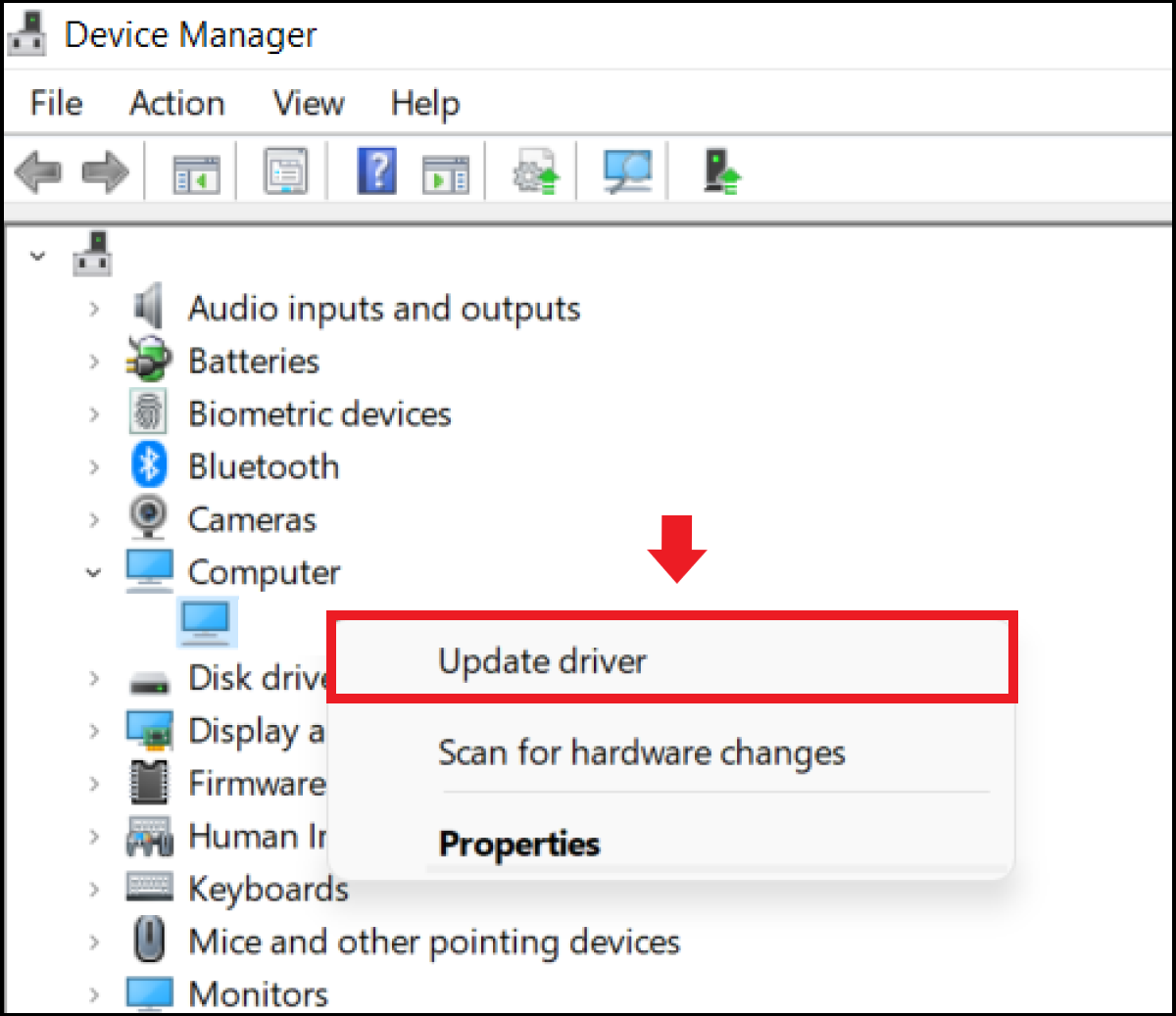
If you suspect a driver is corrupt, you can force a refresh through the Device Manager:
- Right-click the Start button and select Device Manager.
- Locate the hardware category (e.g., “Network adapters”) and expand it.
- Right-click the specific device and select Update driver.
- Choose Search automatically for drivers.
Windows will then scour both your local machine and the Microsoft Update Catalog to find the most recent version for that specific ID.
Handling “Unknown Devices”
Occasionally, after a fresh Windows installation or when plugging in niche hardware, you may see an “Unknown Device” with a yellow warning triangle. This usually means Windows doesn’t have the “plug-and-play” information for that device. In this scenario, you can right-click the device, go to Properties > Details, and select Hardware Ids. Copying the top string into a search engine will typically lead you to the manufacturer’s support page, where the correct driver resides.
Rolling Back Problematic Drivers
One of the most powerful features of Device Manager is the “Roll Back Driver” option. If you install an update and your PC starts crashing, you can return to the previous version. This acts as a safety net, allowing you to experiment with new updates without the fear of permanent system instability.
3. Direct Manufacturer Sourcing for High-Performance Hardware
For users who demand the absolute best performance—such as creative professionals using GPUs for rendering or gamers seeking higher frame rates—waiting for Windows Update isn’t an option. Sourcing drivers directly from the manufacturer (OEM) is the gold standard for high-end components.
Graphics Cards: NVIDIA, AMD, and Intel
The Graphics Processing Unit (GPU) is the most frequently updated component in a PC. Manufacturers release updates almost monthly to optimize for new software releases.
- NVIDIA: Uses the “GeForce Experience” application to notify users of “Game Ready” drivers.
- AMD: Uses the “Adrenalin” software suite to manage GPU performance and updates.
- Intel: Offers the “Intel Driver & Support Assistant” (DSA), which is excellent for integrated graphics and Wi-Fi modules.
Using these proprietary tools ensures you get specialized features like overclocking support and low-latency modes that generic drivers lack.
Laptop-Specific Drivers
Laptops are unique because their hardware is often highly customized by the manufacturer (e.g., Dell, HP, Lenovo, or ASUS). A generic driver from Intel might actually break a laptop’s power management or custom keyboard shortcuts. If you own a laptop, it is best to visit the manufacturer’s official support site, enter your Service Tag or Serial Number, and download the drivers specifically validated for your model.
Motherboard and BIOS Updates
While strictly a firmware update rather than a software driver, updating your BIOS (Basic Input/Output System) or UEFI is crucial for modern PC builds. BIOS updates often improve CPU compatibility and memory stability. Most modern motherboards now include a Windows-based utility (like ASUS Armoury Crate or MSI Center) that can scan for BIOS and chipset updates automatically, reducing the risk of a “bricked” motherboard.
4. The Risks and Rewards of Third-Party Driver Updaters
A quick search for “how to update drivers” will reveal dozens of third-party software tools promising to update all your drivers with a single click. While these tools offer convenience, they should be approached with extreme caution.
The Convenience Factor
Tools like Snappy Driver Installer or Driver Booster can be lifesavers when working with older hardware where the manufacturer’s website no longer exists. They maintain massive databases of legacy drivers, making them useful for refurbishing old machines.
Security and Stability Concerns
The tech industry generally advises against using third-party updaters for modern systems. Some of these tools are “bloatware,” consuming system resources in the background. More dangerously, some may provide “generic” drivers that aren’t perfectly compatible with your specific hardware revision, leading to system instability. If you choose to use one, ensure it is a reputable, well-reviewed tool, and always create a System Restore point before proceeding.
5. Maintenance Best Practices and Troubleshooting
Updating drivers is a powerful way to optimize your PC, but it is not without risks. Following a few professional best practices will protect your data and your hardware during the process.
Create a System Restore Point
Before performing any major driver overhaul, you should create a System Restore point. This allows you to revert your entire OS state to a point in time before the driver installation.
- Search for “Create a restore point” in the Start menu.
- Click Create and give it a name like “Pre-Driver Update.”
If the new driver causes a boot loop or a black screen, you can boot into Windows Recovery Environment and restore your PC to this safe state.
The “If It Ain’t Broke” Rule
In the world of professional IT, there is a common philosophy regarding drivers: if your hardware is performing perfectly and there are no known security vulnerabilities in the current driver, you don’t necessarily need to update. This is particularly true for stable environments like office workstations. Constant updating can occasionally introduce “regressions” (new bugs that didn’t exist in the old version).
Cleaning Up Old Drivers
When you update a driver, the old version often stays on your hard drive “just in case.” Over years of use, this can consume gigabytes of space. You can use the Windows “Disk Cleanup” tool (selecting “Clean up system files”) to remove old device driver packages and reclaim storage space. For graphics drivers, advanced users often use a tool called “Display Driver Uninstaller” (DDU) to completely wipe old driver remnants before installing a new version, ensuring a clean slate and preventing software conflicts.

Conclusion
Keeping your PC drivers updated is a critical component of digital hygiene. By utilizing Windows Update for general stability, Device Manager for troubleshooting, and manufacturer-direct software for high-performance needs, you can ensure that your hardware lives up to its full potential. While the process may seem daunting, the modern Windows ecosystem has made it more accessible than ever. Stay proactive, always keep a backup restore point, and your PC will reward you with years of reliable, high-speed performance.
aViewFromTheCave is a participant in the Amazon Services LLC Associates Program, an affiliate advertising program designed to provide a means for sites to earn advertising fees by advertising and linking to Amazon.com. Amazon, the Amazon logo, AmazonSupply, and the AmazonSupply logo are trademarks of Amazon.com, Inc. or its affiliates. As an Amazon Associate we earn affiliate commissions from qualifying purchases.