
In the modern computing landscape, the visual interface is the primary gateway through which we interact with our digital worlds. Whether you are a competitive gamer seeking every possible frame per second, a creative professional rendering complex 3D environments, or a remote worker relying on high-definition video conferencing, the quality of your visual experience is dictated by a critical piece of software: the display driver. Often overlooked until a problem arises, display drivers act as the essential translator between your computer’s operating system and its graphics hardware. Keeping these drivers updated is not merely a maintenance task; it is a vital optimization strategy for anyone looking to maximize their hardware’s potential.
Understanding the Role of Display Drivers in Modern Computing
To appreciate the necessity of regular updates, one must first understand what a display driver actually does. In technical terms, a driver is a specialized software component that allows the operating system (like Windows or macOS) and other applications to communicate with a specific piece of hardware. In the case of display drivers, they tell the Graphics Processing Unit (GPU) how to render images, handle lighting effects, and output video signals to your monitor.
The Bridge Between Software and Hardware
Without an efficient driver, your computer’s CPU and GPU would speak different languages. When you launch a high-end video game or a video editing suite, the software sends instructions to the OS, which then passes them to the display driver. The driver translates these instructions into machine code that the GPU can execute. As software evolves—becoming more demanding with technologies like Real-Time Ray Tracing or AI-upscaling—drivers must be updated to ensure they can still translate these complex instructions efficiently.
Performance Optimization and “Day Zero” Support
In the tech industry, “Day Zero” drivers are a common phenomenon. Large hardware manufacturers like NVIDIA, AMD, and Intel work closely with software developers months before a major game or application is released. These collaborations result in driver updates specifically optimized for that new software. Failing to update your drivers before a major release can lead to significant performance bottlenecks, graphical artifacts, or even system crashes.
Security and Compatibility Fixes
Beyond performance, display drivers are frequently updated to patch security vulnerabilities. Because drivers operate at a high level of system privilege (the kernel level), an unpatched driver can be a target for malicious actors looking to gain control of a system. Furthermore, as Windows or other operating systems push out their own feature updates, display drivers must be updated to remain compatible with new system architectures.
How to Update Display Drivers Using Native Windows Tools
For many users, especially those using integrated graphics for office work or casual web browsing, the built-in tools provided by Microsoft are the most convenient way to manage driver updates. These methods are designed for stability rather than cutting-edge performance, making them ideal for the average user.
Utilizing the Windows Device Manager
The Device Manager is the command center for hardware management on Windows. To update your display driver here, you can right-click the Start button and select “Device Manager.” Under the “Display adapters” section, you will find your GPU listed. By right-clicking your GPU and selecting “Update driver,” Windows will offer to search automatically for drivers. This method is highly reliable because it pulls drivers that have passed Microsoft’s Windows Hardware Quality Labs (WHQL) testing, ensuring they won’t cause system instability.
Windows Update: The Silent Optimizer
Microsoft has increasingly integrated driver management into the standard Windows Update cycle. While these are often slightly older versions of drivers compared to what you find on manufacturer websites, they are vetted for maximum compatibility. To check for these, navigate to Settings > Update & Security > Windows Update and click “Check for updates.” Often, driver updates are tucked away under “Optional updates,” so it is worth checking that sub-menu if you are experiencing visual glitches.
The Limitations of Native Tools
While convenient, native Windows tools are often several versions behind the latest releases from manufacturers. For gamers or professionals, relying solely on Windows Update may mean missing out on significant performance gains or support for the latest graphical features. If your work or play involves heavy GPU usage, you will likely need to look toward manufacturer-specific software.
Professional Solutions: NVIDIA, AMD, and Intel Direct Updates
For those with dedicated graphics cards, the most effective way to manage drivers is through the proprietary software suites provided by the hardware manufacturers. These tools offer granular control and “bleeding edge” updates that Windows Update simply cannot match.
NVIDIA GeForce Experience
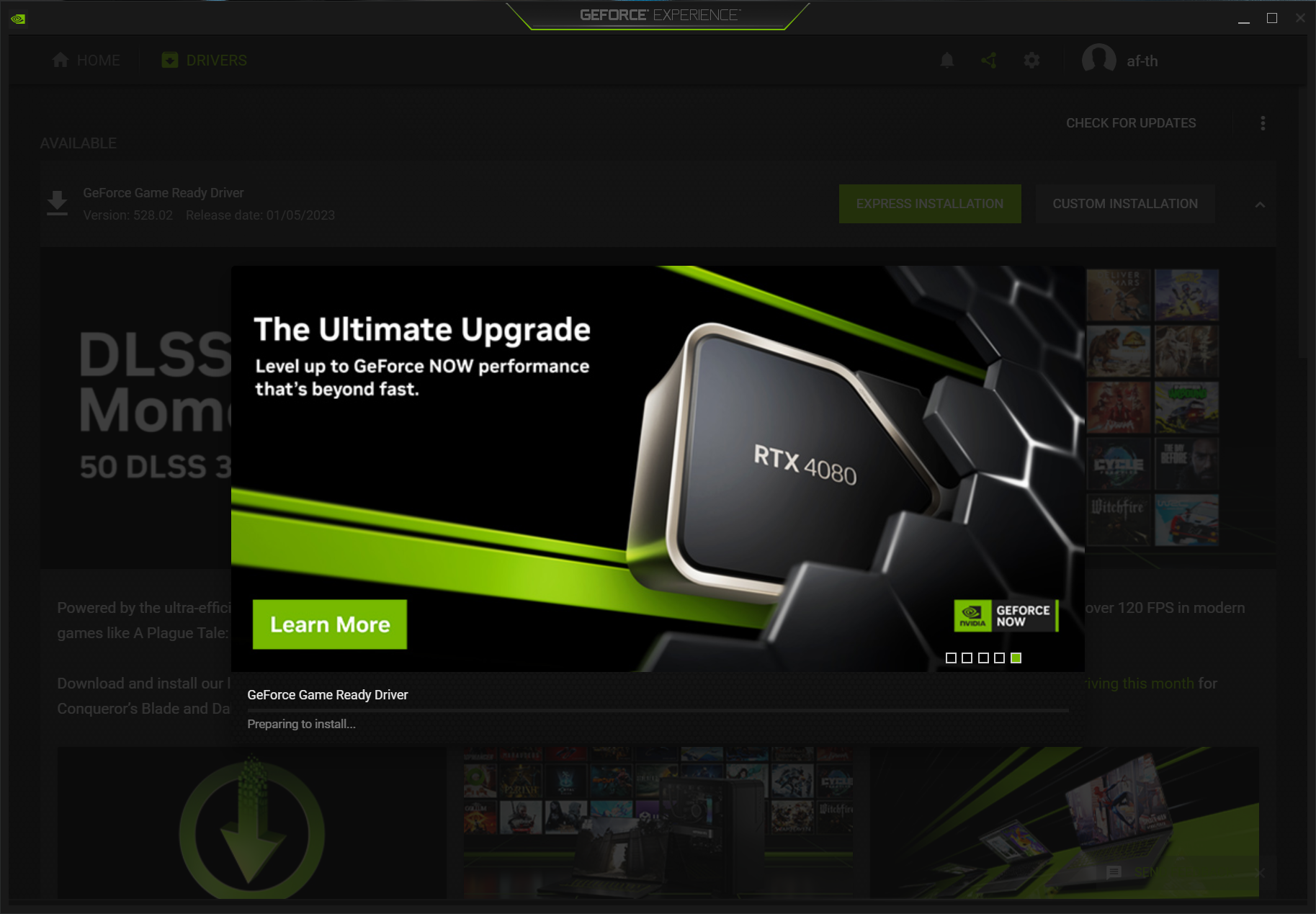
NVIDIA is the market leader in the dedicated GPU space, and their “GeForce Experience” software is a robust tool for driver management. Once installed, it automatically notifies the user when a new “Game Ready” or “Studio” driver is available.
- Game Ready Drivers: Focused on providing the best experience for the latest gaming titles.
- Studio Drivers: Prioritize stability and performance for creative applications like Adobe Premiere Pro, Maya, and DaVinci Resolve.
The software also allows for “Express Installation,” which handles the entire update process with a single click, or “Custom Installation” for users who wish to perform a clean install.
AMD Software: Adrenalin Edition
AMD’s approach is equally comprehensive. The Adrenalin Edition software serves as a hub for both performance monitoring and driver updates. AMD is known for its “FineWine” philosophy, where driver updates over several years can significantly increase the performance of older hardware. Within the Adrenalin interface, users can check for updates, choose between “Recommended” (stable) and “Optional” (latest features) versions, and even overclock their hardware within the same ecosystem.
Intel Graphics Command Center
Historically associated with integrated graphics, Intel has moved into the high-performance arena with its Arc series of GPUs. The Intel Graphics Command Center (and the newer Intel Arc Control) provides a streamlined interface for driver updates. Given that Intel is still rapidly iterating on its discrete GPU drivers, staying updated is more critical for Intel users than perhaps any other group, as each update often brings double-digit percentage gains in performance.
Advanced Techniques and Troubleshooting Driver Issues
Occasionally, the standard update process fails. You might encounter “Blue Screen of Death” (BSOD) errors, screen flickering, or drivers that refuse to install. In these scenarios, a more technical approach is required.
The “Clean Install” Strategy
Over time, as you install driver update over driver update, old files and registry entries can accumulate, leading to “driver rot.” Most manufacturer installers (NVIDIA and AMD) offer a “Clean Install” checkbox. This removes the old driver entirely before installing the new one. It is a highly recommended practice if you are jumping several versions ahead or if you are switching from one GPU brand to another.
Using Display Driver Uninstaller (DDU)
When a standard clean install isn’t enough, professional technicians turn to DDU (Display Driver Uninstaller). This is a third-party utility that should be run in Windows “Safe Mode.” It deep-cleans every trace of a graphics driver from the system registry and file folders. This is the “nuclear option” for fixing persistent graphical errors or preparing a system for a new graphics card. After running DDU, you start with a completely blank slate, allowing the new driver to be installed without any legacy interference.
Rolling Back Drivers
Sometimes, the latest update isn’t the best one. A new driver might introduce a bug that affects your specific workflow. In this case, Windows offers a “Roll Back Driver” feature within the Device Manager. If you find that your system performance plummeted after an update, navigating back to the GPU properties and selecting “Roll Back Driver” will return you to the previously installed, stable version.

Conclusion: Establishing a Routine for Visual Excellence
In the fast-paced world of technology, your hardware is only as good as the software that controls it. Updating display drivers is a fundamental aspect of digital maintenance that pays dividends in the form of smoother frame rates, faster render times, and a more secure operating environment.
For the casual user, letting Windows Update handle the heavy lifting is a safe and effective strategy. However, for the power user, the gamer, or the creative professional, taking a proactive approach by utilizing manufacturer software like NVIDIA GeForce Experience or AMD Adrenalin is essential. By understanding the tools at your disposal—from the simplicity of the Device Manager to the deep-cleaning power of DDU—you ensure that your visual experience remains at the cutting edge of what your technology can offer. Keep your drivers current, and your hardware will continue to reward you with the best performance possible.
aViewFromTheCave is a participant in the Amazon Services LLC Associates Program, an affiliate advertising program designed to provide a means for sites to earn advertising fees by advertising and linking to Amazon.com. Amazon, the Amazon logo, AmazonSupply, and the AmazonSupply logo are trademarks of Amazon.com, Inc. or its affiliates. As an Amazon Associate we earn affiliate commissions from qualifying purchases.