
In the rapidly evolving landscape of digital entertainment, the shift from traditional cable to over-the-top (OTT) streaming services has redefined how we consume media. YouTube TV has emerged as a frontrunner in this space, offering a robust “Skinny Bundle” that mimics the cable experience through a cloud-based interface. However, as the streaming market becomes increasingly fragmented and monthly costs climb, many tech-savvy users are practicing “subscription hopping”—the strategic act of canceling and renewing services based on current content needs or budgetary constraints.
Understanding how to navigate the technical hurdles of unsubscribing from a service as integrated as YouTube TV is essential for maintaining a clean digital footprint and optimizing your software stack. This guide provides a deep dive into the process, the underlying technology, and the security considerations involved in managing your streaming subscriptions.
Navigating the Modern Streaming Ecosystem
The tech industry has shifted toward a “Software as a Service” (SaaS) model for almost everything, including television. While this offers flexibility, it also leads to “subscription fatigue.” YouTube TV, owned by Google, is integrated deeply into the broader Google Workspace and Play Store architecture, making the cancellation process slightly different depending on how you originally signed up.
The Rise of Subscription Fatigue and Digital Minimalism
As of 2024, the average household subscribes to four or more streaming services. This clutter often leads to “ghost subscriptions”—services that are paid for monthly but rarely utilized. Practicing digital minimalism involves auditing these software dependencies. Unsubscribing from YouTube TV isn’t just about saving money; it’s about reclaiming your digital attention and ensuring that your hardware and accounts are only tethered to tools that provide immediate value.
Why YouTube TV is a Dominant Yet Replaceable Player
YouTube TV’s success lies in its cloud DVR technology and its seamless integration with the YouTube interface. However, from a technical perspective, it is a bandwidth-heavy application. Users often find that as their internet service provider (ISP) data caps change, or as competitors like Hulu + Live TV or FuboTV update their codecs for better 4K streaming, switching becomes a technical necessity. Knowing how to exit the ecosystem efficiently is the first step toward exploring better-optimized software alternatives.
A Step-by-Step Technical Guide to Canceling YouTube TV
The process of canceling YouTube TV varies significantly based on the platform you use to manage your billing. Because Google utilizes a unified billing system across its apps, the “Cancel” button is often nested within several layers of account settings.
Canceling via Desktop Browser (The Most Reliable Method)
For most users, using a desktop browser is the most efficient way to ensure the cancellation request is processed and logged correctly in the database.
- Access the Interface: Navigate to
tv.youtube.comand ensure you are logged into the primary account holder’s Google profile. - Navigate to Settings: Click on your profile avatar in the top right corner and select “Settings.”
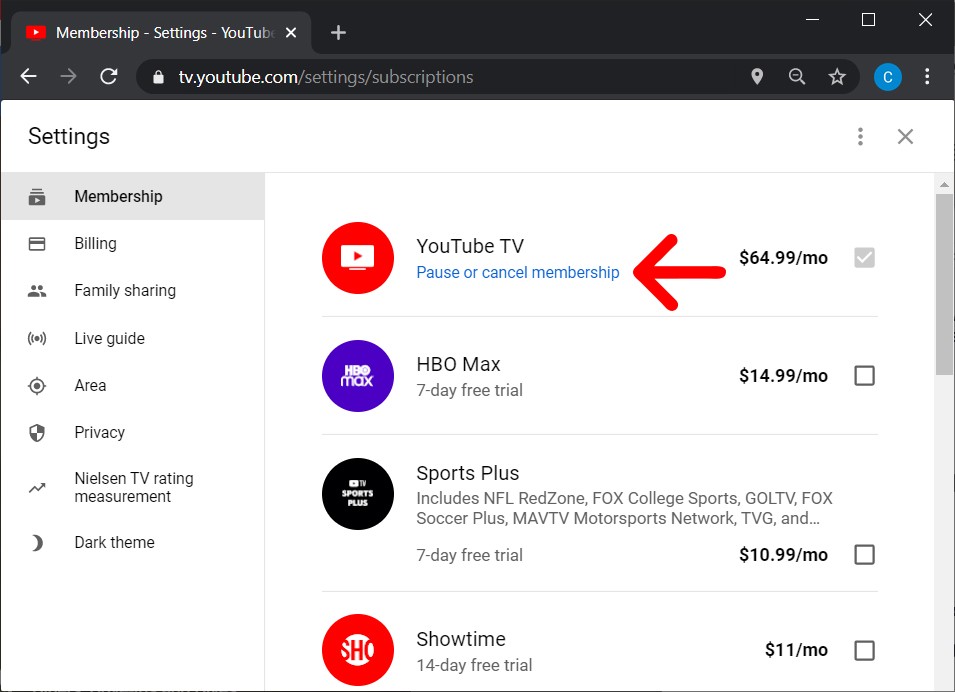
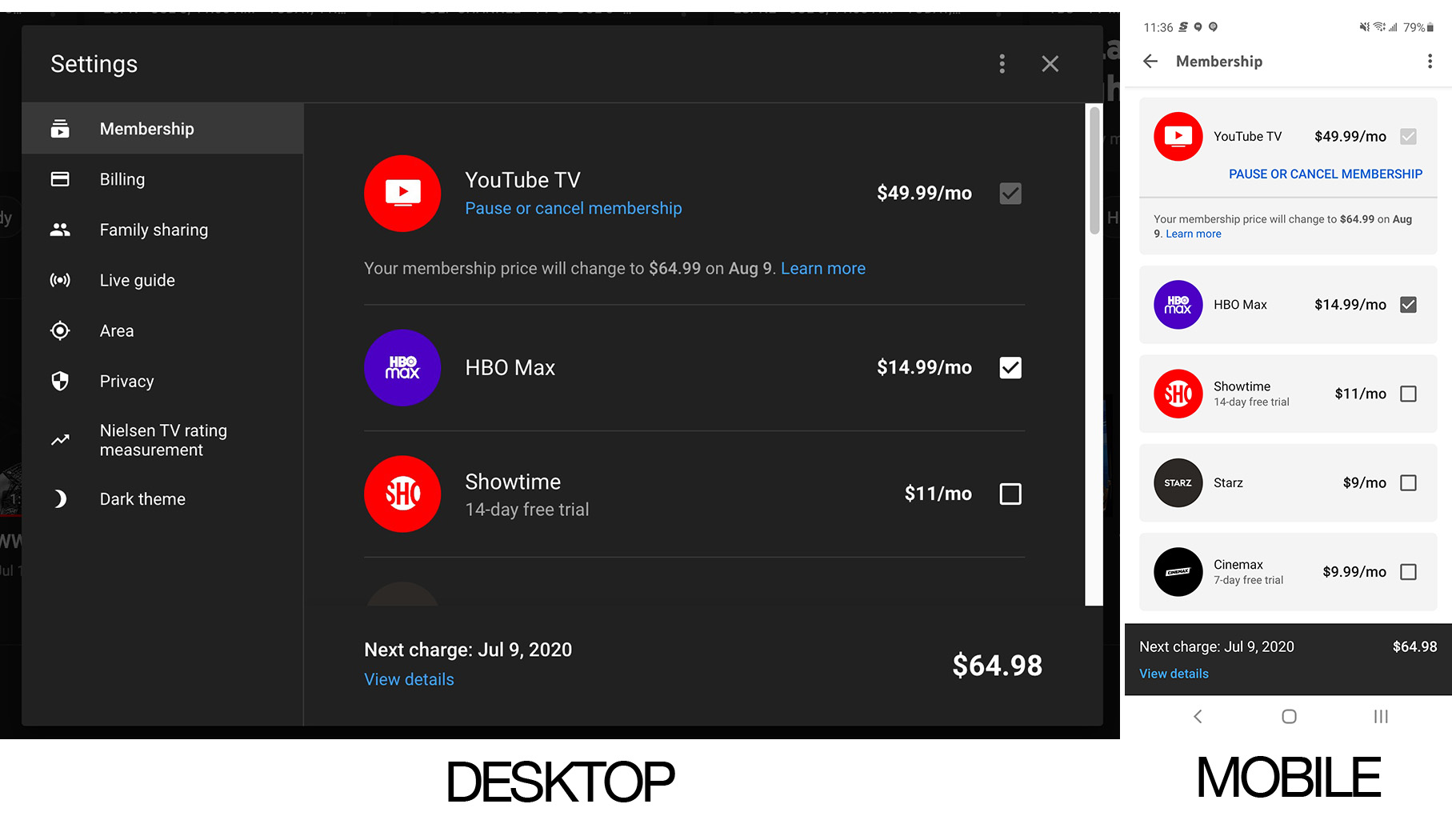
- Membership Management: Within the settings menu, click on the “Membership” tab. Here, you will see your current base plan and any added “bolt-on” channels (like HBO Max or Sports Plus).
- The “Pause” vs. “Cancel” Choice: Google often implements a “Pause” feature, allowing you to suspend billing for up to 6 months while retaining your DVR recordings. To end the service entirely, look for the “Manage” link next to your base plan and select “Cancel Membership.”
- Confirmation and Feedback: You will be prompted to provide a reason for leaving. Once confirmed, you should receive an automated email from Google Cloud Billing—save this for your records.
Managing Subscriptions on Mobile Devices (Android and iOS)
The mobile experience differs between ecosystems due to the “Apple Tax” and Google Play’s internal billing logic.
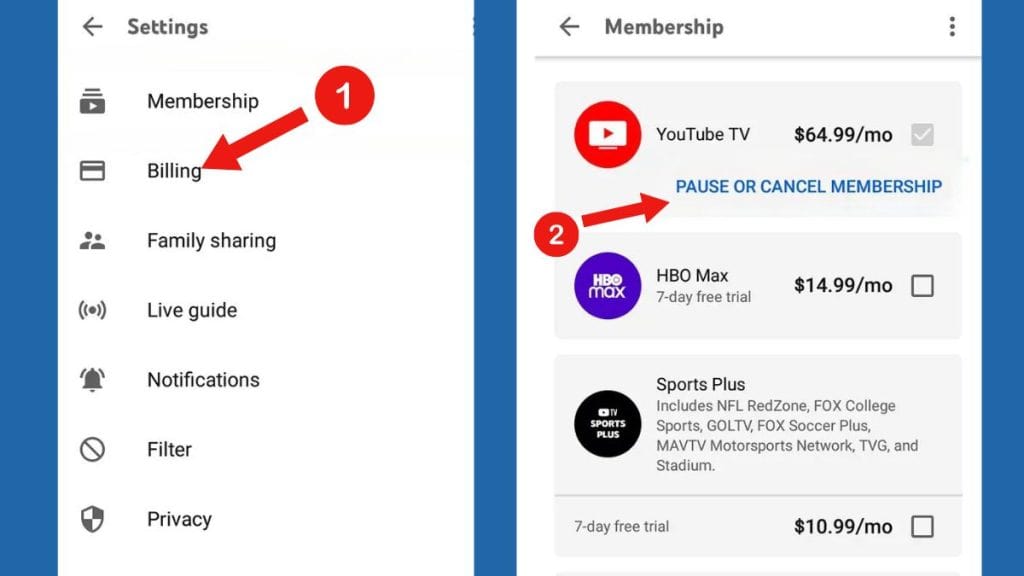
- On Android: Since YouTube TV is a Google product, the subscription is often tied directly to your Google Play Store account. You can cancel by opening the Play Store app, tapping your profile icon, selecting “Payments & subscriptions,” and then “Subscriptions.”
- On iOS (iPhone/iPad): If you signed up through the YouTube TV app on an Apple device, your billing is handled by Apple’s App Store. You must go to your iPhone’s “Settings,” tap your Name/Apple ID, and select “Subscriptions” to terminate the service. Note that Apple often charges a premium for in-app subscriptions, so many users prefer to handle this via a browser to avoid these platform-specific fees.
Dealing with Third-Party Billing (Roku, T-Mobile, and ISPs)
Many users receive YouTube TV as part of a bundle, such as a T-Mobile “Home Internet” promotion or through a Roku account. In these instances, the “Cancel” button within the YouTube TV app will be greyed out or missing. You must log in to the third-party provider’s portal (e.g., your T-Mobile account dashboard) to remove the service from your billing cycle. This is a common technical friction point known as “decoupled billing,” which requires navigating the third party’s specific API or customer service portal.
Understanding Data Retention and Post-Cancellation Access
One of the most common questions regarding the cancellation of a cloud-based service is what happens to the user data. YouTube TV’s backend architecture handles your library and preferences differently than a traditional hard-drive-based DVR.
What Happens to Your Library and DVR?
YouTube TV’s “Unlimited Cloud DVR” is one of its standout features. When you cancel your subscription, your recorded programs are not deleted immediately. Google typically retains your DVR library for 21 days. If you reactivate your subscription within this window, your “Library” tab will remain intact. However, if the account remains inactive beyond this period, the pointers to those recordings in Google’s data centers are purged to free up server space.
Reactivating Your Account: The Digital Footprint
Even after cancellation, your “Watch History” and “Search History” remain tied to your primary Google Account unless you manually delete them in your Google My Activity settings. This data is used by Google’s recommendation engine to suggest content on the standard YouTube platform. From a data privacy standpoint, it is important to realize that canceling the service does not mean Google deletes the profile it built based on your viewing habits.
Troubleshooting Common Cancellation Glitches
Software is rarely perfect, and users occasionally encounter technical bugs when trying to sever ties with a service. Understanding these glitches can prevent unwanted charges.
When the “Cancel” Button Doesn’t Appear
This is often a caching issue or a result of being logged into a “Brand Account” rather than a personal Google Account.
- Clear Cache: If the membership page doesn’t load correctly, clear your browser’s cookies and cache.
- Check Account Permissions: YouTube TV does not allow “Family Group” members to cancel the subscription; only the “Family Manager” (the person whose credit card is on file) has the administrative privileges to terminate the service.
Security Best Practices for Subscription Management
Whenever you cancel a high-profile digital service, it is an excellent time to conduct a security audit.
- Revoke API Access: Check your Google Account security settings to see if any third-party apps (like budget trackers or smart TV aggregators) still have permission to access your YouTube TV data.
- Update Payment Methods: If you are canceling because of a compromised card, ensure you update your “Google Pay” settings globally so that other essential services (like Google One storage) are not interrupted.
- Verify via Bank Statement: Always check your credit card statement the month after cancellation. “Zombie subscriptions”—where a technical error causes billing to continue despite a cancellation—are rare but possible in complex cloud environments.
Final Insights on Digital Service Management
In the modern tech era, the ability to fluidly move between software platforms is a vital skill. Unsubscribing from YouTube TV is a straightforward process, provided you understand the hierarchy of Google’s account management and the platform-specific nuances of mobile billing. By mastering these steps, you take control of your digital environment, ensuring that you are only paying for the technology that serves your current lifestyle. Whether you are moving to a different streaming stack or simply taking a break from the screen, managing your subscriptions with precision is the hallmark of a savvy digital citizen.
aViewFromTheCave is a participant in the Amazon Services LLC Associates Program, an affiliate advertising program designed to provide a means for sites to earn advertising fees by advertising and linking to Amazon.com. Amazon, the Amazon logo, AmazonSupply, and the AmazonSupply logo are trademarks of Amazon.com, Inc. or its affiliates. As an Amazon Associate we earn affiliate commissions from qualifying purchases.