
The seamless integration of digital payment platforms like Cash App with the broader Apple ecosystem is a cornerstone of modern financial convenience. However, users occasionally encounter situations where their Apple-related transactions or services appear “blocked” or restricted within Cash App. This can manifest in various ways, from failed Apple Pay transactions funded by Cash App to issues with linking Apple IDs for subscriptions or purchases. Understanding the underlying technical reasons and systematic steps for resolution is crucial for restoring full functionality. This guide delves into the common technical hurdles and provides a comprehensive, step-by-step approach to unblock Apple services on Cash App.
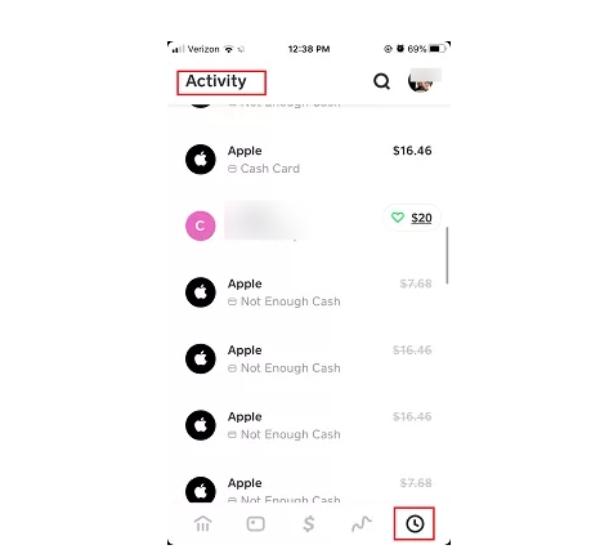
Understanding the “Blocked” Status: Why Apple Services Might Be Restricted on Cash App
When Apple-related services seem “blocked” on Cash App, it’s rarely a direct, intentional block by either entity without a specific technical or security reason. Instead, it’s usually a symptom of a mismatch, a security flag, or an unfulfilled requirement in one of the interconnected systems. Pinpointing the exact cause is the first step toward resolution.
Security Protocols and Fraud Prevention
Both Cash App and Apple prioritize user security and employ sophisticated fraud detection systems. Any unusual activity, such as a large transaction from a new device, multiple failed attempts, or a transaction pattern inconsistent with your history, can trigger automated security flags. These flags might temporarily restrict certain functionalities, including linking or using Apple-related payment methods. The system might perceive a potential unauthorized access attempt or a suspicious transaction, leading to a temporary block to protect your funds and personal information. This is a common defense mechanism across financial technology platforms designed to prevent phishing, account takeovers, and other cybercrimes.
Account Verification Issues
For financial applications, robust identity verification is paramount. If your Cash App account isn’t fully verified—meaning your identity, linked bank accounts, or debit cards haven’t met all regulatory and platform requirements—it could lead to limitations. Similarly, issues with your Apple ID verification, such as an outdated billing address or an expired payment method linked to your Apple account, can cause a ripple effect, preventing Cash App from processing transactions or linking effectively with Apple services. Unverified accounts often have lower transaction limits or restrictions on certain types of transactions, which could inadvertently “block” specific Apple-related actions if they exceed these thresholds or require a higher level of verification.
Payment Method Discrepancies
The most direct link between Cash App and Apple services often involves payment methods. If the debit card or bank account linked to your Cash App balance that you intend to use for Apple purchases has issues (e.g., insufficient funds, expired card, bank fraud alert, or card issuer block), then any attempt to use Cash App via Apple Pay or directly for Apple services will fail. Furthermore, if the details of the card linked within Cash App don’t perfectly match the details held by the card issuer or if there are geographical restrictions on the card itself, transactions can be declined, appearing as a “block.” Ensuring that your primary Cash App payment source is active, funded, and correctly configured is vital.
App Updates and Compatibility
Technology evolves rapidly. Outdated versions of the Cash App or your device’s operating system (iOS) can lead to compatibility issues and unexpected errors. Bugs or changes in API (Application Programming Interface) functionality between app versions can disrupt the communication necessary for smooth transactions. Running an old version of Cash App might mean it’s not compatible with the latest Apple Pay protocols or security measures, leading to transaction failures that users perceive as a block. Similarly, an outdated iOS version might lack critical security patches or features required for modern financial app integrations.
Step-by-Step Guide to Re-enabling Apple Services on Cash App
Resolving a “blocked” status requires a methodical approach, checking various points of failure across both the Cash App and Apple ecosystems.
Verify Your Cash App Account and Information
Start by ensuring your Cash App account is in good standing.
-
Complete Verification: Check if your Cash App account is fully verified. This usually involves providing your full name, date of birth, the last four digits of your Social Security Number (SSN), and sometimes a linked bank account or debit card. Navigate to your profile icon on Cash App, then scroll down to “Personal” to see if any verification steps are pending.
-
Review Linked Bank & Card Details: Ensure all linked bank accounts and debit cards within Cash App are active, not expired, and have correct details. Remove and re-add them if you suspect a discrepancy.
-
Check Balance: Confirm you have sufficient funds in your Cash App balance or linked bank account to cover the Apple transaction.
-
Contact Your Bank: If using a linked debit card, check with your bank if they have placed any temporary blocks or restrictions on transactions with Cash App or Apple.
Review Your Linked Apple Payment Methods
Apple Pay and Apple ID purchases rely on payment methods stored within your Apple Wallet and Apple ID settings.
-
Apple Wallet: Open the Wallet app on your iPhone. Check the status of the Cash App Card (if you have one) or any debit/credit card you use via Apple Pay that is funded by Cash App. Ensure it’s active and not marked as suspended or expired.
-
Apple ID Payment Information: Go to
Settings > [Your Name] > Payment & Shipping. Verify that your payment method (which might be tied to your Cash App-linked card) is current, valid, and your billing address matches the one associated with your bank account. Remove and re-add the payment method if necessary. -
Update Billing Address: An outdated billing address tied to your Apple ID can cause payment rejections. Make sure it’s current and accurate.
Update Cash App and iOS Software
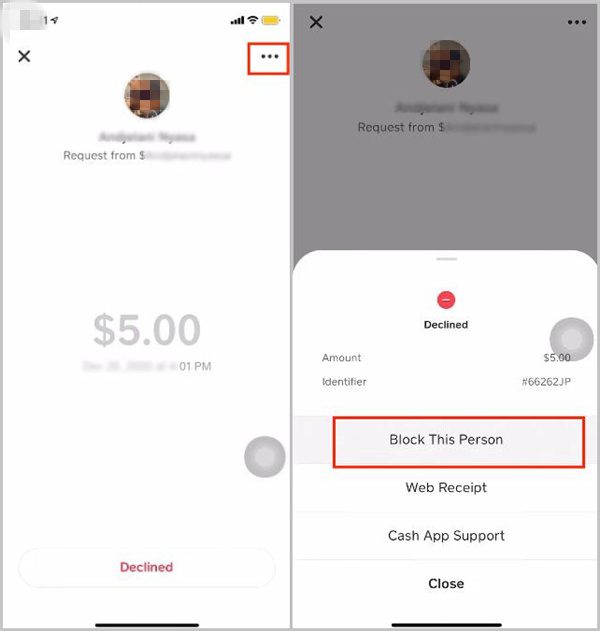
Technical glitches are often resolved by ensuring all software is up-to-date.
-
Update Cash App: Go to the App Store on your iPhone, search for “Cash App,” and tap “Update” if an update is available.
-
Update iOS: Go to
Settings > General > Software Updateon your iPhone. Download and install any pending iOS updates. Restart your device after the update.
Clear Cash App Cache and Data (Android) or Reinstall (iOS/Android)
Sometimes, corrupted app data can cause functionality issues.
-
For iOS Users: Since iOS doesn’t offer a direct way to clear app cache, the most effective method is to delete and reinstall the Cash App.
-
Tap and hold the Cash App icon until it jiggles.
-
Tap the ‘X’ or ‘-‘ icon to delete the app.
-
Restart your iPhone.
-
Download Cash App again from the App Store and sign back in.
-
-
For Android Users:
-
Go to
Settings > Apps & Notifications > See All Apps > Cash App. -
Tap
Storage & Cache. -
Tap
Clear Cacheand thenClear Storage / Clear Data. -
Restart your device and sign back into Cash App.
-
If that doesn’t work, uninstall and reinstall the app as described for iOS.
-
Check Apple ID Payment & Shipping Information
A critical but often overlooked step is ensuring the payment method associated with your Apple ID is correctly configured and reflects the details of your Cash App-linked card or bank. Even if your card is active in Cash App and Wallet, if Apple’s system has incorrect or outdated information for your Apple ID’s primary payment method, it can cause issues. Navigate to your Apple ID settings and meticulously verify every detail.
Contact Cash App Support
If you’ve gone through all the troubleshooting steps and the issue persists, it’s time to engage with Cash App support.
-
In-App Support: The quickest way is often through the app: Tap the profile icon >
Support>Start a Chat. -
Website/Social Media: You can also visit the Cash App support website or reach out via their official social media channels.
When contacting them, provide clear details: what you’re trying to do (e.g., “fund an Apple Pay purchase with Cash App,” “link Cash App as a payment method for Apple services”), the exact error message you receive, and the steps you’ve already taken.
Common Scenarios and Proactive Measures
Understanding specific scenarios and adopting proactive measures can prevent future “blocks.”
Declined Apple Pay Transactions
If your Apple Pay transactions funded by Cash App are declined, ensure:
-
Your Cash App Card (if applicable) is enabled for online and in-store purchases in the Cash App settings.
-
You have sufficient funds.
-
Your device meets Apple Pay security requirements (e.g., Face ID/Touch ID enabled, no jailbreak).
-
The merchant accepts Apple Pay.
Issues with Subscriptions or In-App Purchases
When using Cash App as the underlying funding source for Apple subscriptions (e.g., Apple Music, iCloud storage) or in-app purchases:
-
Confirm the payment method linked to your Apple ID is valid and funded.
-
Check your purchase history in the App Store to ensure no outstanding payments are pending that might be causing a block.
-
Verify regional restrictions, as some services or payment methods might not be available in all countries.
Maintaining Account Security
Proactive security measures reduce the likelihood of fraud flags:
-
Strong Passwords & 2FA: Use unique, strong passwords and enable two-factor authentication (2FA) for both Cash App and your Apple ID.
-
Monitor Activity: Regularly check your transaction history on Cash App and Apple for any unauthorized activity.
-
Keep Software Updated: Regularly updating apps and your OS is not just about features; it’s crucial for security patches that protect against vulnerabilities.
Regularly Reviewing Linked Accounts
Periodically review and update your linked bank accounts and debit/credit cards on Cash App and your payment methods on Apple ID. Removing old or inactive cards can prevent confusion and potential issues. Ensure billing addresses and contact information are consistent across all platforms.
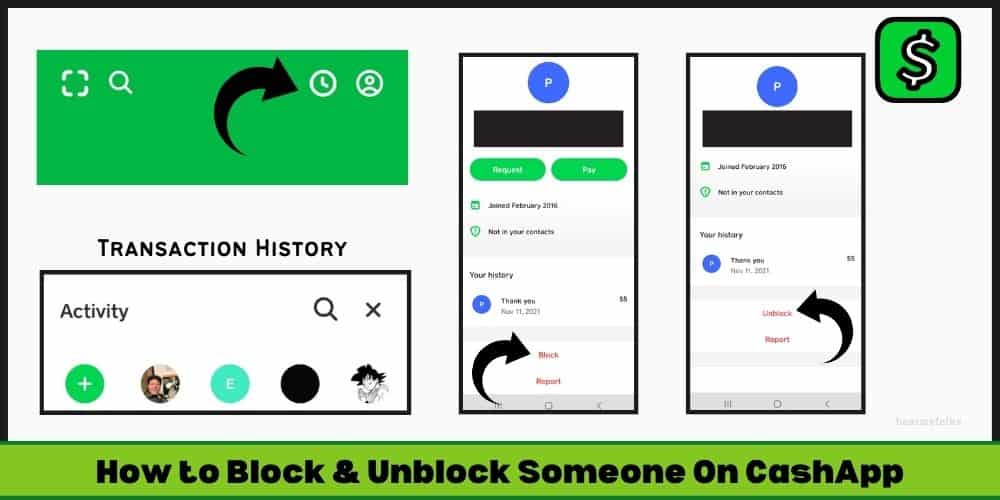
When to Escalate: Engaging Support Teams
If all troubleshooting steps fail, it’s essential to provide detailed information to both Cash App and Apple support. When communicating, describe the exact error messages, the specific actions you are trying to perform, and the full history of your attempts and troubleshooting steps. If Cash App support confirms no issues on their end, the problem might lie within the Apple ecosystem or with your linked bank. Be prepared to provide transaction IDs, screenshots of error messages, and any relevant dates and times to help both support teams diagnose and resolve the issue more efficiently. Remember that financial platforms take security very seriously, and some issues might require manual review to ensure your account’s safety.
aViewFromTheCave is a participant in the Amazon Services LLC Associates Program, an affiliate advertising program designed to provide a means for sites to earn advertising fees by advertising and linking to Amazon.com. Amazon, the Amazon logo, AmazonSupply, and the AmazonSupply logo are trademarks of Amazon.com, Inc. or its affiliates. As an Amazon Associate we earn affiliate commissions from qualifying purchases.