
In an era defined by digital convenience and personalized entertainment, live television has undergone a transformative evolution. Gone are the days when cable boxes and rigid schedules dictated our viewing habits. YouTube TV stands at the forefront of this revolution, offering a seamless blend of live TV channels, on-demand content, and cloud DVR functionality, all accessible across a multitude of devices. However, unlocking this treasure trove of entertainment begins with a fundamental, yet often perplexing, step: signing in.
For both seasoned tech enthusiasts and newcomers to streaming services, navigating the sign-in process can sometimes present unexpected hurdles. From ensuring account security to troubleshooting connectivity issues, a smooth initial setup is paramount to a satisfying viewing experience. This comprehensive guide is designed to demystify the process, providing clear, step-by-step instructions, insightful tips, and solutions to common challenges, ensuring you can quickly and securely access your favorite shows, sports, and news on YouTube TV. We’ll delve into everything from the essential prerequisites to advanced account management, empowering you to fully leverage the power of this cutting-edge streaming service.

Getting Started: Prerequisites and Preparation
Before you even think about entering your credentials, laying the groundwork ensures a smoother sign-in experience. YouTube TV, like most modern streaming platforms, relies on a few fundamental requirements and best practices for optimal performance and security. Understanding these prerequisites will save you time and prevent common frustrations down the line.
Essential Requirements: Google Account and Internet Connection
At the heart of your YouTube TV experience lies your Google Account. YouTube TV is a Google product, meaning seamless integration with your existing Google profile is a cornerstone of its functionality.
- A Valid Google Account: If you already use Gmail, Google Photos, or any other Google service, you likely have one. If not, creating a new Google Account is a straightforward, free process that takes just a few minutes. Ensure your account details, particularly your password, are up-to-date and secure. For enhanced security, enabling two-factor authentication (2FA) on your Google Account is highly recommended. This adds an extra layer of protection, requiring a secondary verification step (like a code from your phone) in addition to your password, significantly reducing the risk of unauthorized access.
- Reliable Internet Connection: YouTube TV streams high-definition video, which demands a stable and sufficiently fast internet connection. While specific speeds can vary based on content resolution and the number of simultaneous streams, a minimum consistent download speed of 3 Mbps is generally recommended for standard definition, 7 Mbps for a single HD stream, and 13 Mbps or higher for multiple HD streams or 4K content. Wi-Fi connections are convenient, but for mission-critical streaming on a main living room device, a wired Ethernet connection often provides superior stability and speed, mitigating buffering and quality drops. Regularly checking your internet speed using online tools can help diagnose potential connectivity issues before they impact your viewing.
Device Compatibility: From Smart TVs to Mobile
YouTube TV boasts impressive versatility, supporting a vast ecosystem of devices. Knowing where you plan to watch will influence your sign-in method.
- Smart TVs: Most modern smart TVs (Samsung, LG, Sony, Vizio, etc.) running their respective operating systems (like Tizen, webOS, Android TV) have a native YouTube TV app available for download from their app stores.
- Streaming Devices: Popular options include Roku devices, Amazon Fire TV sticks, Apple TV, Chromecast with Google TV, and NVIDIA Shield TV. These typically connect to any TV via HDMI and offer robust app ecosystems.
- Gaming Consoles: PlayStation and Xbox consoles also support the YouTube TV app, making them convenient entertainment hubs.
- Mobile Devices and Tablets: Available on both iOS (Apple App Store) and Android (Google Play Store), these apps offer on-the-go viewing.
- Web Browsers: You can access YouTube TV directly through a web browser (Chrome, Firefox, Safari, Edge) on a computer or laptop by visiting tv.youtube.com.
Before attempting to sign in, ensure the YouTube TV app is installed and updated to its latest version on your chosen device. Outdated apps can sometimes lead to sign-in glitches or compatibility issues.
Initial Subscription and Free Trial Activation
While you don’t necessarily need an active subscription before signing in, initiating one is often part of the first-time setup process, especially on new devices or through the web.
- Subscription Status: If you’re a new user, YouTube TV offers free trials. You’ll typically be prompted to start a trial or subscribe after installing the app and attempting to sign in. This often involves providing payment information, which will only be charged after the trial period ends.
- Account Verification: Ensure the Google Account you’re using is the one associated with your YouTube TV subscription or the one you intend to use for your trial. Mixing accounts can lead to confusion and access problems.
Step-by-Step: The Core Sign-In Process
With your preparations complete, the actual sign-in process for YouTube TV is designed to be user-friendly, though it varies slightly depending on your device. The common goal is to securely link your YouTube TV service to your chosen viewing platform.
Signing In on a Smart TV or Streaming Device
This is arguably the most common and sometimes perceived as the most complex method due to the lack of a physical keyboard. Fortunately, YouTube TV streamlines this with a simple activation code.
- Open the YouTube TV App: Navigate to your TV’s app store (e.g., Google Play Store, Roku Channel Store, Fire TV Appstore, Apple App Store) and download the YouTube TV app if you haven’t already. Once installed, launch the app.
- Select “Sign In”: The app will typically present an option to “Sign In.” Select this.
- Note the Activation Code: The TV screen will display a unique, 8-character activation code (e.g., “ABCD-EFGH”) and a specific web address (usually
tv.youtube.com/startoryoutube.com/activate). Keep this screen open. - Go to the Activation Website: On a separate device (your computer, tablet, or smartphone), open a web browser and go to the URL displayed on your TV screen.
- Enter Your Google Account Credentials: If you’re not already signed into your Google Account on that separate device, you’ll be prompted to do so. Make sure it’s the Google Account linked to your YouTube TV subscription.
- Enter the Activation Code: Once signed into your Google Account on the web, you’ll see a field to enter the 8-character code from your TV. Input the code accurately and click “Next” or “Activate.”
- Confirm and Authorize: Follow any on-screen prompts to confirm the link between your TV and your Google Account. Once successful, your TV screen will automatically refresh, and you’ll be signed into YouTube TV.
Authenticating on Mobile Devices and Web Browsers
For smartphones, tablets, and computers, the sign-in process is more direct, leveraging the native account management features of these devices.
- On Mobile Devices (iOS/Android):
- Download and Open the App: Install the YouTube TV app from your device’s app store.
- Tap “Sign In”: When prompted, tap the “Sign In” button.
- Select Your Google Account: Your device will likely present a list of Google Accounts already logged in. Select the one associated with your YouTube TV subscription. If it’s not listed, select “Add another account” and enter your credentials.
- Authorize Access: The app may ask for permission to access certain Google Account data. Granting these permissions allows for personalized features.
- Start Watching: Once authorized, the app will load, and you’ll be ready to stream.
- On Web Browsers (tv.youtube.com):
- Go to tv.youtube.com: Open your preferred web browser and navigate to the YouTube TV website.
- Click “Sign In”: In the top right corner (or prompted directly), click the “Sign In” button.
- Enter Google Account Credentials: You’ll be redirected to Google’s sign-in page. Enter your email or phone number associated with your Google Account, then your password.
- Two-Factor Authentication (if enabled): If you have 2FA enabled, you’ll need to complete the secondary verification step (e.g., enter a code from an authenticator app, approve a notification on your phone).
- Access YouTube TV: Upon successful authentication, you’ll be taken directly to the YouTube TV interface.
Beyond the Basics: Managing Devices and Profiles
Once successfully signed in, understanding how to manage your devices and user profiles is crucial for optimizing your YouTube TV experience, especially in a multi-user household.
Adding and Removing Devices from Your Account
YouTube TV allows a certain number of concurrent streams, and you might want to control which devices have access.
- Adding Devices: The process described above (using the activation code for TVs/streaming devices, or direct sign-in for mobile/web) inherently adds a device to your account. There’s no separate “add device” button in a central settings menu.
- Removing Devices: If you sell a device, lose one, or simply want to log out for security reasons:
- On the Device Itself: The most straightforward way is to go into the YouTube TV app settings on that specific device and look for a “Sign Out” or “Remove Account” option.
- Remotely via Google Account: For lost or inaccessible devices, you can revoke access through your Google Account settings.
- Go to myaccount.google.com on a computer or mobile device.
- Navigate to “Security” > “Your devices.”
- Find the device you wish to remove, click the three dots next to it, and select “Sign out.” This will sign out your Google Account (and thus YouTube TV) from that device.
- Remotely via YouTube TV Settings: While YouTube TV doesn’t have a direct “remove device” list, signing out of a Google Account usually cascades to YouTube TV.
Creating and Managing Family Profiles

YouTube TV is designed for families, offering up to six individual accounts, each with its own personalized library, recommendations, and DVR recordings.
- Google Family Group: To set up family profiles on YouTube TV, you first need to create a Google Family Group. The family manager (the main Google Account holder) can invite up to five other family members (who also have Google Accounts).
- Adding Family Members to YouTube TV:
- As the family manager, sign into YouTube TV on a web browser.
- Go to Settings (gear icon) > Family.
- Select “Set up Google Family Group” if you haven’t already, and invite members.
- Once invited and accepted into the Google Family Group, those members can then sign into YouTube TV using their own Google Accounts on any compatible device. They will have their own profile within YouTube TV, separate from the family manager’s.
- Switching Profiles: On any device, you can easily switch between family member profiles within the YouTube TV app, ensuring each person gets their tailored experience. Look for an icon (often a profile picture or initial) in the top corner of the app.
Understanding Simultaneous Streams
A key benefit of YouTube TV’s family sharing is its allowance for simultaneous streams.
- Simultaneous Stream Limit: YouTube TV typically allows up to three simultaneous streams at any given time per account. This means three different people in your household (or even on the go) can be watching different content on different devices using the same subscription, but from their own individual profiles.
- Home Network Rule: While you can watch YouTube TV anywhere in the United States, your “home area” is crucial. YouTube TV uses your IP address to determine your home area, which impacts local channel availability. To continue receiving local channels, you must use YouTube TV within your home location at least once every three months. This also applies to the three simultaneous streams; while they can be used outside the home, the primary access is anchored to the home network.
Troubleshooting Common Sign-In Issues
Even with the best preparations, sign-in issues can arise. Here’s how to tackle some of the most common problems.
Forgotten Passwords and Account Recovery
The most frequent culprit for sign-in failures is a forgotten password.
- Google Account Recovery: Since YouTube TV uses your Google Account, password recovery is handled directly through Google. Go to accounts.google.com/signin/recovery and follow the prompts. Google offers various recovery methods, including sending a code to your recovery email or phone number, or using previously configured security questions.
- Regular Password Updates: Make it a habit to update your passwords periodically and use a strong, unique password for your Google Account. A password manager can be invaluable here.
Dealing with Connection Errors
Network problems can manifest as endless loading screens or “Cannot connect” messages.
- Check Internet Connection: First, verify your device’s internet connection. Can other apps or websites load? If not, troubleshoot your router: restart it, check cables.
- Restart the YouTube TV App/Device: A simple restart of the app or the entire streaming device (TV, Roku, Fire TV) can often resolve temporary glitches. Unplugging the device from power for 30 seconds can clear cache issues.
- Clear App Cache/Data: On smart TVs and streaming devices, you can usually clear the cache and data for specific apps through the device’s settings menu (e.g., Settings > Apps > YouTube TV > Clear Cache/Data). This often resolves persistent loading or sign-in loops without deleting the app itself.
- Reinstall the App: As a last resort, uninstalling and then reinstalling the YouTube TV app can fix deeply embedded software issues.
Geographic Restrictions and VPN Usage
YouTube TV’s content, particularly local channels, is geographically restricted to the United States and your designated home area within it.
- Out of Home Area: If you’re traveling outside your home area, you might lose access to certain local channels. YouTube TV will prompt you to update your home area if you’ve moved permanently.
- VPNs: Using a Virtual Private Network (VPN) can interfere with YouTube TV’s ability to determine your location accurately. While some users attempt to use VPNs to bypass geographic restrictions, YouTube TV actively detects and blocks known VPN servers. If you’re using a VPN, try disabling it and then attempting to sign in.
Contacting YouTube TV Support
If all else fails, professional help is available.
- YouTube TV Help Center: support.google.com/youtubetv is an excellent resource with extensive FAQs and troubleshooting guides.
- Direct Support: Through the Help Center, you can usually find options to contact YouTube TV support via chat, email, or phone. Be prepared to provide details about your device, the error message, and the steps you’ve already taken.
Maximizing Your YouTube TV Experience
Successfully signing in is just the first step. To truly unlock the value of YouTube TV, understanding its features and personalizing your experience is key.
Personalizing Your Live TV Guide
The sheer number of channels can be overwhelming, but YouTube TV allows you to tailor your guide.
- Customizing Channel Order: Within the YouTube TV app, go to Settings > Live Guide. Here you can drag and drop channels to reorder them, hide channels you never watch, and prioritize your favorites. This creates a bespoke viewing experience, cutting through clutter and making navigation intuitive.
- Filtering: Utilize guide filters (often found at the top of the guide) to quickly jump to specific categories like “Sports,” “News,” or “Movies.”
Utilizing Cloud DVR Features
One of YouTube TV’s most powerful offerings is its unlimited cloud DVR, a feature that distinguishes it from many competitors.
- Unlimited Storage: Record as many shows and movies as you want without worrying about storage limits. Recordings are saved for nine months.
- Recording Shows: Simply navigate to a show in the guide or search for it, and select “Add to Library.” Any future airings will automatically be recorded.
- Fast Forward/Rewind: With the DVR, you can fast-forward through commercials, giving you ultimate control over your viewing. Some networks may enforce commercial-free versions of their on-demand content, but the DVR typically allows skipping.
- Accessing Your Library: All your recordings are conveniently organized in your “Library” tab, making it easy to pick up where you left off or discover new recordings.
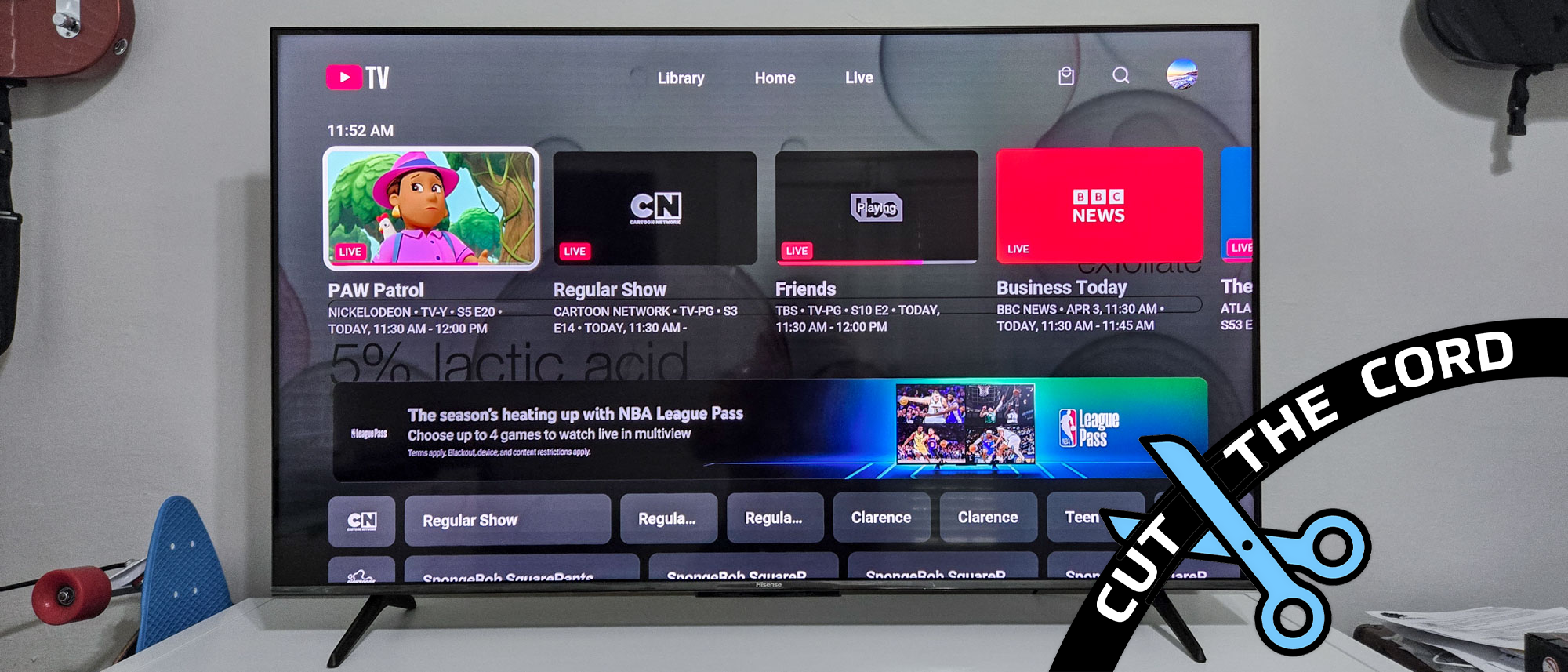
Exploring On-Demand Content and Add-ons
Beyond live TV and DVR, YouTube TV offers a wealth of on-demand content and premium channel add-ons.
- On-Demand Library: Many networks make their shows available on-demand shortly after they air live. Explore the “Home” and “Library” tabs for a vast selection of movies and TV series included with your subscription.
- Premium Add-ons: Enhance your entertainment with optional add-on packages. These can include premium movie channels like HBO Max, Showtime, Starz, sports packages like NBA League Pass or NFL RedZone, or even specialized genre channels. These can be subscribed to directly through your YouTube TV account settings on the web.
In conclusion, signing into YouTube TV is the gateway to a flexible, feature-rich live television experience. By understanding the prerequisites, following the straightforward sign-in steps, managing your account effectively, and leveraging the powerful troubleshooting tips, you’re well-equipped to dive into a world of entertainment. With its personalized guides, unlimited cloud DVR, and vast content library, YouTube TV offers a compelling alternative to traditional cable, placing you firmly in control of your viewing habits. Embrace the future of television, one seamless sign-in at a time.
aViewFromTheCave is a participant in the Amazon Services LLC Associates Program, an affiliate advertising program designed to provide a means for sites to earn advertising fees by advertising and linking to Amazon.com. Amazon, the Amazon logo, AmazonSupply, and the AmazonSupply logo are trademarks of Amazon.com, Inc. or its affiliates. As an Amazon Associate we earn affiliate commissions from qualifying purchases.