
In an increasingly digital world, access to subscription services like Amazon Prime has become a cornerstone of daily entertainment, shopping, and convenience. Yet, for many, the seemingly simple act of “signing in” can present various technical nuances, security considerations, and troubleshooting challenges. This guide delves into the technicalities of accessing your Amazon Prime account, offering an insightful, step-by-step approach from the perspective of a tech-savvy user. We will explore the diverse technological pathways to Prime, emphasizing secure practices, common pitfalls, and advanced management techniques to ensure a seamless and protected digital experience.

Understanding the Amazon Prime Ecosystem and Access Points
Before diving into the mechanics of signing in, it’s crucial to grasp the multifaceted nature of Amazon Prime from a technological standpoint. It’s not merely a single application but an integrated suite of digital services accessed through a unified Amazon account.
What is Amazon Prime?
Technically, Amazon Prime is a subscription-based service that aggregates a wide array of benefits under a single user account. These benefits span various digital and physical realms, including streaming media (Prime Video, Prime Music), expedited shipping services, exclusive deals, cloud storage for photos, and access to digital libraries (Prime Reading). Each of these services, while distinct, is digitally tethered to your central Amazon account, making the initial sign-in a gateway to an expansive digital ecosystem rather than just one application. The underlying infrastructure relies on robust server architecture, content delivery networks (CDNs), and sophisticated identity management systems to deliver content and services globally.
Diverse Platforms for Access
The technological ubiquity of Amazon Prime is evident in its platform independence. Users can access their Prime benefits across an impressive array of devices and operating systems, each requiring specific software interfaces and often distinct sign-in methodologies.
-
Web Browsers: The foundational access point, compatible with virtually any operating system (Windows, macOS, Linux) through standard web browsers like Chrome, Firefox, Safari, Edge. This method relies on HTML5, JavaScript, and secure communication protocols (HTTPS).
-
Mobile Applications: Dedicated apps for iOS (iPhone, iPad) and Android smartphones and tablets (e.g., Amazon Shopping app, Prime Video app, Amazon Music app). These native applications are optimized for touch interfaces and mobile network conditions.
-
Smart TVs & Streaming Devices: Integration into Smart TV operating systems (e.g., Samsung Tizen, LG webOS, Android TV) and dedicated streaming hardware like Amazon Fire TV devices, Roku, Apple TV, and Chromecast. These platforms often use a device-specific application that communicates with Amazon’s authentication servers.
-
Gaming Consoles: Applications available on popular consoles such as PlayStation and Xbox, leveraging their respective online ecosystems for download and integration.
-
Amazon’s Own Devices: Seamless, often pre-integrated access on Kindle e-readers, Fire tablets, and Fire TV devices, benefiting from deep OS-level integration with the Amazon ecosystem.
Understanding this diverse landscape is the first step towards a successful and secure sign-in, as each platform might present unique technical considerations for authentication.
The Core Process: Step-by-Step Technical Sign-In
While the user interface might differ slightly across platforms, the underlying technical authentication flow remains consistent. It involves providing credentials (username/email and password) to an authentication server, which then verifies your identity and grants access tokens.
Web Browser Sign-In
-
Navigate to the Amazon Domain: Open your preferred web browser and type
www.amazon.com(or your specific regional Amazon domain likeamazon.co.uk,amazon.de) into the address bar. It’s crucial to verify the URL for security against phishing. -
Locate the Sign-In Portal: Hover over “Accounts & Lists” in the top right corner and click “Sign in.” This action triggers a secure redirect to Amazon’s authentication server.
-
Enter Credentials: On the sign-in page, enter the email address or mobile number associated with your Amazon account in the designated field. Click “Continue.”
-
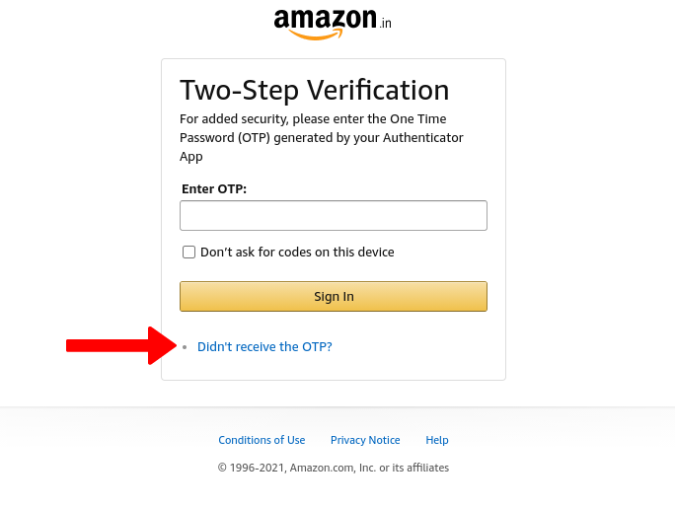
Provide Password: On the subsequent screen, input your password. If Two-Factor Authentication (2FA) is enabled, you will be prompted for a verification code after submitting your password.
-
Complete Sign-In: Click “Sign in.” Upon successful authentication, the server issues a session cookie, securely logging you into the Amazon platform. This cookie allows your browser to maintain an authenticated state across various Amazon services without re-entering credentials.
Mobile App Sign-In (iOS/Android)
-
Download and Launch: Ensure you have the relevant Amazon app (e.g., Amazon Shopping, Prime Video) installed from your device’s official app store (App Store for iOS, Google Play Store for Android). Launch the app.
-
Initiate Sign-In: The app will typically present a “Sign In” or “Already a customer? Sign in” option. Tap this to proceed.
-
Enter Credentials: Input your Amazon account email/mobile number and password into the respective fields. The app uses secure API calls to Amazon’s authentication service.
-
2FA Prompt (if applicable): If 2FA is active, enter the verification code received via SMS, authenticator app, or another configured method.
-
Biometric Options: Many mobile apps offer the convenience of biometric sign-in (Face ID, Touch ID, fingerprint scan) after the initial password-based login. This leverages secure enclave technology on the device to store an encrypted authentication token, enabling quick, secure re-authentication without re-entering complex passwords.
Smart TV and Streaming Device Sign-In
Accessing Prime Video on these devices often involves a unique pairing process due to the input limitations of remote controls.
-
Launch Prime Video App: Open the Amazon Prime Video app on your Smart TV or streaming device.
-
Two Primary Methods:
-
Direct Credential Entry: Some devices allow you to directly type your email and password using an on-screen keyboard. This can be cumbersome.
-
Activation Code Method (Recommended): The app will often display a unique 5-6 character alphanumeric code and instruct you to visit
amazon.com/mytv(or a similar URL) on a web browser (computer or mobile phone).
-
-
Browser-Based Activation: On your external device, sign into your Amazon account at the specified URL. Once logged in, enter the code displayed on your TV screen into the web interface.
-
Device Pairing: Upon successful entry, Amazon’s servers establish a secure link between your account and the TV device, pushing the necessary authentication tokens. Your TV app will then automatically sign in. This method enhances security by isolating credential entry to a more secure and user-friendly interface.
Enhancing Digital Security During the Sign-In Process
Security should always be paramount when interacting with online services. Amazon employs robust server-side security, but user-side practices are equally critical.
The Importance of Strong Credentials
Your password is the primary digital key to your Amazon Prime account. A strong password should be:
-
Complex: A mix of uppercase and lowercase letters, numbers, and symbols.
-
Long: At least 12-16 characters is a good baseline.
-
Unique: Never reuse passwords across different online services.
-
Unpredictable: Avoid easily guessable information like birthdays or common phrases.
Utilizing a reputable password manager (e.g., LastPass, 1Password, Bitwarden) is a highly recommended technical solution to generate and securely store complex, unique passwords for all your online accounts, including Amazon.

Leveraging Two-Factor Authentication (2FA)
2FA adds a critical second layer of security beyond just a password. Even if your password is compromised, an attacker cannot access your account without the second factor.
-
How it Works: After entering your password, Amazon sends a one-time verification code to a registered device or app.
-
Setup: You can enable 2FA in your Amazon account security settings (Accounts & Lists > Account > Login & Security > Two-Step Verification).
-
Methods: Amazon supports various 2FA methods:
-
SMS Text Message: Code sent to your registered phone number. While convenient, SIM swap attacks are a potential vulnerability.
-
Authenticator Apps: Apps like Google Authenticator or Authy generate time-based one-time passwords (TOTP). This is generally considered more secure than SMS.
-
Security Keys: Physical hardware keys (e.g., YubiKey) provide the strongest form of 2FA but require compatible hardware.
-
Implementing 2FA is a non-negotiable step for comprehensive digital security.
Recognizing and Avoiding Phishing Attempts
Phishing is a common social engineering tactic where attackers impersonate legitimate entities (like Amazon) to trick users into revealing credentials.
-
Technical Indicators: Always scrutinize the URL in your browser’s address bar. Legitimate Amazon domains use
https://(indicating a secure connection) and clearly displayamazon.com(or your regional variant). Be wary of misspellings, subdomains not directly related to Amazon, or IP addresses. -
Email Scrutiny: Phishing emails often contain suspicious links, generic greetings, poor grammar, or urgent threats. Do not click links in unsolicited emails.
-
Direct Navigation: The safest approach is to always navigate directly to
www.amazon.com(or launch the official app) rather than clicking links from emails or third-party sites when signing in.
Secure Network Connections
The network you use for signing in also plays a role in security.
-
Private Networks: Always prefer signing into Amazon Prime (or any sensitive account) from a secure, private network (e.g., your home Wi-Fi with WPA3/WPA2 encryption).
-
Public Wi-Fi Risks: Public Wi-Fi networks (cafes, airports) are inherently less secure. They can be susceptible to “man-in-the-middle” attacks where an attacker intercepts your data. If you must use public Wi-Fi, employing a Virtual Private Network (VPN) encrypts your internet traffic, providing a secure tunnel for your login credentials.
Troubleshooting Common Sign-In Challenges
Even with robust security and careful adherence to processes, technical glitches can occur. Understanding how to diagnose and resolve these issues is a valuable tech skill.
Forgotten Passwords and Account Recovery
If you forget your password, Amazon provides a secure account recovery mechanism:
-
Initiate Reset: On the sign-in page, click “Forgot your password?”
-
Identity Verification: You’ll be prompted to enter your registered email address or mobile number. Amazon will then send a one-time password (OTP) or a password reset link to that verified contact method.
-
Reset and Re-authenticate: Follow the instructions in the email/SMS to create a new, strong password. Once reset, use the new credentials to sign in. In some complex cases, Amazon might require additional identity verification, such as providing a partial credit card number on file.
Persistent Login Issues
If you encounter repeated sign-in failures despite correct credentials, consider these technical remedies:
-
Clear Browser Cache and Cookies: Accumulated browser data can sometimes interfere with session management. Clear your browser’s cache and cookies and then attempt to sign in again.
-
Update Apps/Browsers: Ensure your Amazon app and web browser are updated to their latest versions. Outdated software can have bugs or security vulnerabilities that prevent proper authentication.
-
Check Network Connectivity: Verify your internet connection. A weak or intermittent connection can interrupt the authentication process. Try connecting to a different Wi-Fi network or using mobile data.
-
Disable VPN (Temporarily): While VPNs enhance security, some VPN configurations or server locations might conflict with Amazon’s geo-restriction or fraud detection systems, temporarily preventing login. Try disabling your VPN, signing in, and then re-enabling it.
Error Messages Interpretation
Understanding common error messages can guide your troubleshooting:
-
“The email or password you entered does not match any accounts on file.”: This usually means a typo. Double-check your credentials. If certain, proceed with password recovery.
-
“Network Error,” “No Internet Connection.”: Indicates a problem with your device’s connection to Amazon’s servers. Check your Wi-Fi/mobile data.
-
“Too many failed login attempts.”: Amazon temporarily locks your account for security reasons. Wait for a specified period or initiate a password reset.
-
“Authentication Failed.” (or similar generic errors): Could be a server-side issue (rare), or a problem with your app/browser. Try updating or clearing cache.
When to Contact Technical Support
If you’ve exhausted all troubleshooting steps and still cannot sign in, it’s time to reach out to Amazon Customer Service. Be prepared to provide account details for identity verification. They have access to advanced diagnostic tools and account management functionalities unavailable to end-users.
Optimizing Your Amazon Prime Digital Experience After Sign-In
Once successfully signed in, your journey into the Amazon Prime ecosystem doesn’t end. There are several technical functionalities to manage and optimize your digital experience and security.
Managing Connected Devices
A crucial security feature is the ability to monitor and manage all devices currently signed into your Amazon account.
-
Access Device Management: Navigate to “Accounts & Lists” > “Account” > “Content & Devices” > “Devices.”
-
Revoke Access: Here, you can view a list of all devices (Fire tablets, Smart TVs, mobile phones, computers) that have active Amazon sessions. If you lose a device, sell one, or notice an unfamiliar device, you can remotely “Deregister” it, immediately revoking its access to your Amazon account and its associated Prime benefits. This is vital for digital security and preventing unauthorized use.
Profile Management and Personalization
Prime Video, in particular, offers advanced user profile management features:
-
Creating Profiles: Within the Prime Video app or website, you can create separate user profiles for different family members. This ensures personalized recommendations, watch histories, and progress tracking for each individual.
-
Parental Controls: Implement PIN-based parental controls to restrict access to content based on age ratings for specific profiles. This is a crucial technical safeguard for family viewing.
Understanding Digital Rights Management (DRM)
Amazon, like other content providers, employs Digital Rights Management (DRM) technologies to protect copyrighted content (movies, music, e-books).
- Impact on Playback: DRM might manifest as limitations on the number of devices you can simultaneously stream content on, or restrictions on downloading content for offline viewing. These are technical limitations designed to enforce licensing agreements and prevent piracy, and are generally transparent to the user unless limits are hit.
Staying Updated with Software
Finally, maintaining the technological integrity of your access points is paramount:
-
Regular Updates: Consistently update your operating systems (Windows, macOS, iOS, Android), web browsers, and Amazon-specific apps. Software updates frequently include security patches, bug fixes, and performance enhancements that improve your overall sign-in experience and safeguard your digital identity.
-
Automatic Updates: Where possible, enable automatic updates for Amazon apps and critical system software to ensure you are always running the most secure and efficient versions.
Accessing Amazon Prime is more than just typing a username and password; it’s an interaction with a complex digital infrastructure. By understanding the technological underpinnings of the sign-in process, embracing robust security practices, and confidently troubleshooting common issues, users can ensure a seamless, secure, and fully optimized Amazon Prime experience. Proactive management of your digital identity and devices is key to unlocking the full potential of this vast digital ecosystem.
aViewFromTheCave is a participant in the Amazon Services LLC Associates Program, an affiliate advertising program designed to provide a means for sites to earn advertising fees by advertising and linking to Amazon.com. Amazon, the Amazon logo, AmazonSupply, and the AmazonSupply logo are trademarks of Amazon.com, Inc. or its affiliates. As an Amazon Associate we earn affiliate commissions from qualifying purchases.