
In today’s interconnected digital landscape, the television has evolved far beyond a simple broadcast receiver. Smart TVs and streaming devices have transformed our living rooms into personalized entertainment hubs, with YouTube standing as a cornerstone of this revolution. While many users are content to simply browse YouTube content anonymously on their big screen, signing in to your personal account unlocks a significantly richer, more tailored, and ultimately more satisfying viewing experience. This comprehensive guide will walk you through the various methods of signing into YouTube on your TV, delve into the benefits of doing so, and offer practical troubleshooting tips to ensure a seamless setup.

Understanding the Benefits of Signing In
Signing into YouTube on your TV isn’t just about accessing content; it’s about personalizing your entire viewing ecosystem. By linking your Google account, you bridge the gap between your mobile, desktop, and TV experiences, creating a unified and intelligent content stream.
Personalized Content Experience
One of the most immediate and impactful benefits of signing in is the access to a deeply personalized content feed. YouTube’s powerful recommendation engine thrives on your watch history, subscribed channels, and interaction data (likes, dislikes, comments). When you sign in on your TV, all of this information is leveraged to present you with videos that genuinely align with your interests.
- Subscriptions: Instantly access all the channels you’ve subscribed to, making it easy to catch up on new uploads from your favorite creators.
- Watch History: Pick up exactly where you left off on a video, regardless of which device you started watching on. Your TV will remember your viewing progress.
- Custom Recommendations: The home screen transforms from a generic feed to a curated selection of videos YouTube thinks you’ll love, dramatically improving content discovery.
- Playlists: Access your carefully crafted playlists, whether they’re for music, tutorials, or binge-watching specific series.
Enhanced Control and Features
Beyond just content discovery, signing in grants you greater interactive control over your YouTube experience directly from your TV interface.
- Interaction with Content: You can easily like or dislike videos, add them to your “Watch Later” list, or save them to custom playlists. While commenting directly from the TV can be cumbersome, these core interactions are readily available.
- Casting and Remote Control: When signed in, your mobile YouTube app can often act as a sophisticated remote, allowing you to queue videos, browse, and control playback directly from your phone or tablet, projecting content seamlessly to your TV.
- Voice Search Integration: Many smart TVs and streaming devices integrate voice assistants. With a signed-in YouTube account, your voice commands become even more powerful, allowing you to search for specific content within your subscriptions or history with greater accuracy.
Seamless Cross-Device Syncing
In our multi-device world, continuity is key. Signing into YouTube on your TV ensures that your viewing habits and preferences are synchronized across all your devices.
- Seamless Playback: Start watching a video on your phone during your commute and resume it precisely from that point on your TV when you get home.
- Unified Experience: Your “Watch Later” list, saved playlists, and watch history are consistent across your smartphone, tablet, computer, and TV, offering a truly integrated user experience.
Parental Controls and Restrictions
For households with children, signing in allows for the implementation and management of parental controls. Depending on your TV’s capabilities and YouTube’s features (like YouTube Kids or restricted mode settings), you can manage what content is accessible, ensuring a safer viewing environment for younger audiences.
Methods for Signing In to YouTube on Your TV
The process of signing into YouTube on your TV is generally straightforward, but the exact steps can vary slightly depending on your specific device. The most common methods involve using a web browser on a separate device (like a smartphone or computer) to link your TV.
Method 1: Sign in with a Smart TV App (Most Common)
This is the prevalent method for most modern smart TVs (Samsung, LG, Sony, Vizio, TCL, etc.) and dedicated streaming devices like Roku, Amazon Fire TV, Apple TV, and Android TV boxes.
- Open the YouTube App: Navigate to your TV’s home screen or app launcher and select the YouTube application. If you don’t have it, you may need to download it from your TV’s app store.
- Initiate the Sign-In Process: Once the app opens, you’ll typically see an option like “Sign In,” “Account,” or a profile icon in the top left or right corner. Select this option.
- Choose Your Sign-In Method: The YouTube app on your TV will usually present two primary ways to sign in:
- Sign in with your phone/tablet (via a QR code): This is often the quickest method. Use your phone’s camera to scan the QR code displayed on your TV screen. This will open a link in your phone’s browser, prompting you to select your Google account and confirm the connection.
- Sign in with your web browser (via a code): This is the most widely supported and reliable method. The TV will display a unique 8-character code and instruct you to visit a specific URL on a separate device (e.g.,
youtube.com/activateorgoogle.com/device).
- Complete Sign-In on Your Companion Device:
- On your smartphone, tablet, or computer: Open a web browser (Chrome, Firefox, Safari, Edge).
- Go to the specified URL: Type in
youtube.com/activateorgoogle.com/device(whichever your TV instructs). - Enter the 8-character code: You will be prompted to enter the unique code displayed on your TV screen. Ensure you enter it correctly.
- Select your Google account: If you have multiple Google accounts, choose the one associated with the YouTube account you wish to use. You may need to enter your Google account password if you’re not already signed in on that device.
- Grant permission: The system will ask for your permission to allow your TV to access your YouTube account. Confirm this action.
- Confirmation on TV: Once the process is complete on your companion device, your TV screen should automatically refresh and display your YouTube profile, confirming that you are successfully signed in.
Method 2: Sign in Using a Smartphone or Tablet (Casting/Mirroring)
While not a direct “sign-in” to the TV’s YouTube app, casting allows you to project content from your signed-in mobile YouTube app to your TV, effectively giving you a personalized experience. This method relies on casting technologies like Google Cast (Chromecast built-in) or Apple AirPlay.
- Ensure Device Compatibility: Your TV or streaming device must support Google Cast (often labeled “Chromecast built-in”) or Apple AirPlay. Both your mobile device and TV must be on the same Wi-Fi network.
- Open YouTube on Your Phone/Tablet: Make sure you are signed into your desired YouTube account on your mobile device.
- Find the Cast Icon: Look for the cast icon (a rectangle with a Wi-Fi signal in the bottom-left corner) within the YouTube app.
- Select Your TV: Tap the cast icon and choose your TV or streaming device from the list of available devices.
- Start Playing: Once connected, any video you play on your mobile device will appear on your TV. Your phone then acts as the remote control for playback, volume, and queue management, leveraging your signed-in YouTube account.
Method 3: Using a Dedicated Streaming Device
Devices like Roku sticks, Amazon Fire TV Sticks, Apple TV boxes, and NVIDIA Shield (Android TV) operate similarly to smart TV apps. The key difference is that these devices are external hardware plugged into your TV’s HDMI port.
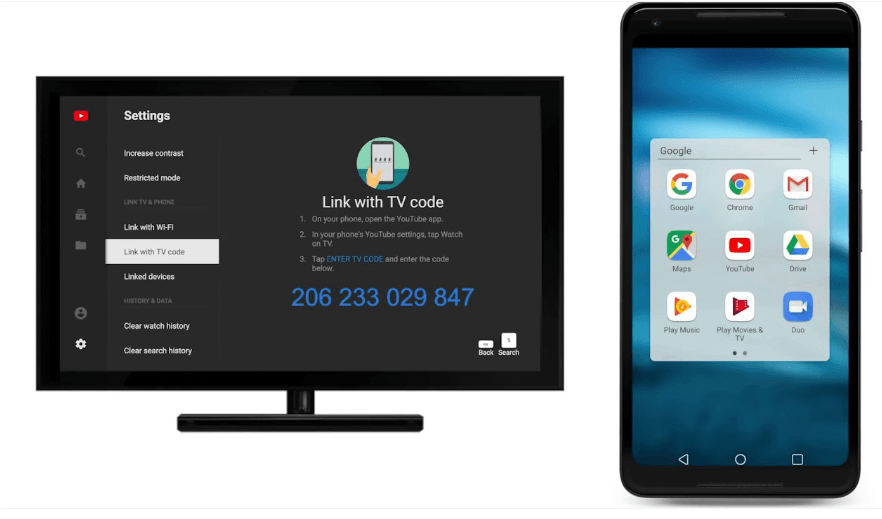
- Install/Open YouTube App: Ensure the YouTube app is installed and open on your streaming device.
- Follow Smart TV App Instructions: The sign-in process will largely mirror Method 1, involving a code displayed on your TV screen which you then enter on
youtube.com/activateorgoogle.com/deviceusing a separate web browser.
Troubleshooting Common Sign-In Issues
Even with clear instructions, technology can sometimes present challenges. Here are some common issues you might encounter during the YouTube TV sign-in process and how to resolve them.
Incorrect Code or Expired Code
- Double-Check: Ensure you’re entering the 8-character code exactly as it appears on your TV, paying attention to case sensitivity.
- Refresh: If too much time has passed since the code was displayed, it might have expired. Go back in the TV app and re-initiate the sign-in process to generate a new code.
Network Connectivity Problems
- Check Wi-Fi: Ensure both your TV/streaming device and the companion device you’re using to activate the code are connected to the same, stable Wi-Fi network.
- Test Internet Connection: On your TV, navigate to its network settings and perform an internet connection test. If your TV can’t connect to the internet, YouTube won’t work.
- Restart Router: Sometimes, a simple restart of your home Wi-Fi router can resolve connectivity glitches.
App Glitches or Outdated Software
- Restart the YouTube App: Close the YouTube app on your TV completely and reopen it.
- Restart the TV/Device: Power cycle your smart TV or streaming device by unplugging it from the power outlet for 30 seconds, then plugging it back in and turning it on. This can clear temporary software bugs.
- Update App/Firmware: Check for available updates for the YouTube app within your TV’s app store. Also, check for any system software or firmware updates for your smart TV or streaming device. Outdated software can lead to compatibility issues.
Google Account Issues
- Correct Password: Ensure you’re entering the correct password for your Google account on the companion device.
- Two-Factor Authentication (2FA): If you have 2FA enabled on your Google account (which is highly recommended for security), be prepared to approve the sign-in request on your primary device or enter the verification code when prompted.
- Account Lockouts: If you’ve made too many incorrect login attempts, Google might temporarily lock your account for security reasons. Wait a while or try to recover your account via Google’s account recovery process.
Device Compatibility
- App Version: Older smart TVs or streaming devices might not support the latest version of the YouTube app, which could lead to sign-in difficulties. Ensure your device meets the minimum requirements if possible, or consider upgrading your streaming device.
Maintaining Your YouTube TV Experience
Once you’re signed in and enjoying YouTube on your big screen, a few practices can help you maintain a smooth and secure viewing experience.
Regularly Updating the App and TV Firmware
Keeping your YouTube app and your TV’s operating system (firmware) updated is crucial. Updates often bring new features, performance enhancements, and, critically, security patches that protect your data and device from vulnerabilities. Make it a habit to check for and install updates when available.
Understanding Privacy Settings
Your signed-in YouTube account aggregates a lot of data about your viewing habits. Take a moment to review your Google account privacy settings, particularly those related to YouTube history and ad personalization. You have control over what data is collected and how it’s used.
Signing Out When Necessary
If you share your TV with others, especially in public or semi-public spaces like hotel rooms, or if you’re selling or giving away your TV, always remember to sign out of your YouTube and Google accounts. This protects your personal information and prevents unauthorized access to your watch history and subscriptions. The sign-out option is usually found within the YouTube app’s settings or account section.
Leveraging Voice Commands (If Available)
Many smart TVs and streaming devices come with integrated voice assistants (e.g., Google Assistant, Alexa). When signed into YouTube, these voice commands become incredibly powerful. You can simply say things like “Hey Google, play the latest video from [Channel Name]” or “Alexa, search for cat videos on YouTube,” enhancing the ease and speed of content discovery.

Conclusion
Signing into YouTube on your TV is a simple yet transformative step that unlocks a world of personalized entertainment. By connecting your Google account, you gain access to custom recommendations, your full library of subscriptions and playlists, and seamless synchronization across all your devices. While the process is generally straightforward, understanding the various sign-in methods and being prepared to troubleshoot common issues will ensure a smooth setup. Embrace the full potential of YouTube on your big screen and immerse yourself in an entertainment experience truly tailored to you.
aViewFromTheCave is a participant in the Amazon Services LLC Associates Program, an affiliate advertising program designed to provide a means for sites to earn advertising fees by advertising and linking to Amazon.com. Amazon, the Amazon logo, AmazonSupply, and the AmazonSupply logo are trademarks of Amazon.com, Inc. or its affiliates. As an Amazon Associate we earn affiliate commissions from qualifying purchases.