
Accessing YouTube’s vast universe of content, from educational tutorials to entertainment and news, is typically a straightforward process. However, to unlock its full potential, including personalized recommendations, subscription management, comment interaction, and content creation, signing in with a Google account is essential. This technical guide delves into the mechanisms of signing in across various platforms, explores the underlying Google account integration, addresses common troubleshooting scenarios, and emphasizes the critical role of account security in maintaining a seamless and protected digital experience.
The Technical Essentials of YouTube Account Access
Signing into YouTube fundamentally means authenticating your identity through a Google account. This integration ensures a unified user experience across Google’s suite of services. Whether you’re using a desktop browser, a mobile device, or a smart TV, the core authentication protocol remains consistent, leveraging Google’s robust security infrastructure.

Signing In on Desktop Browsers
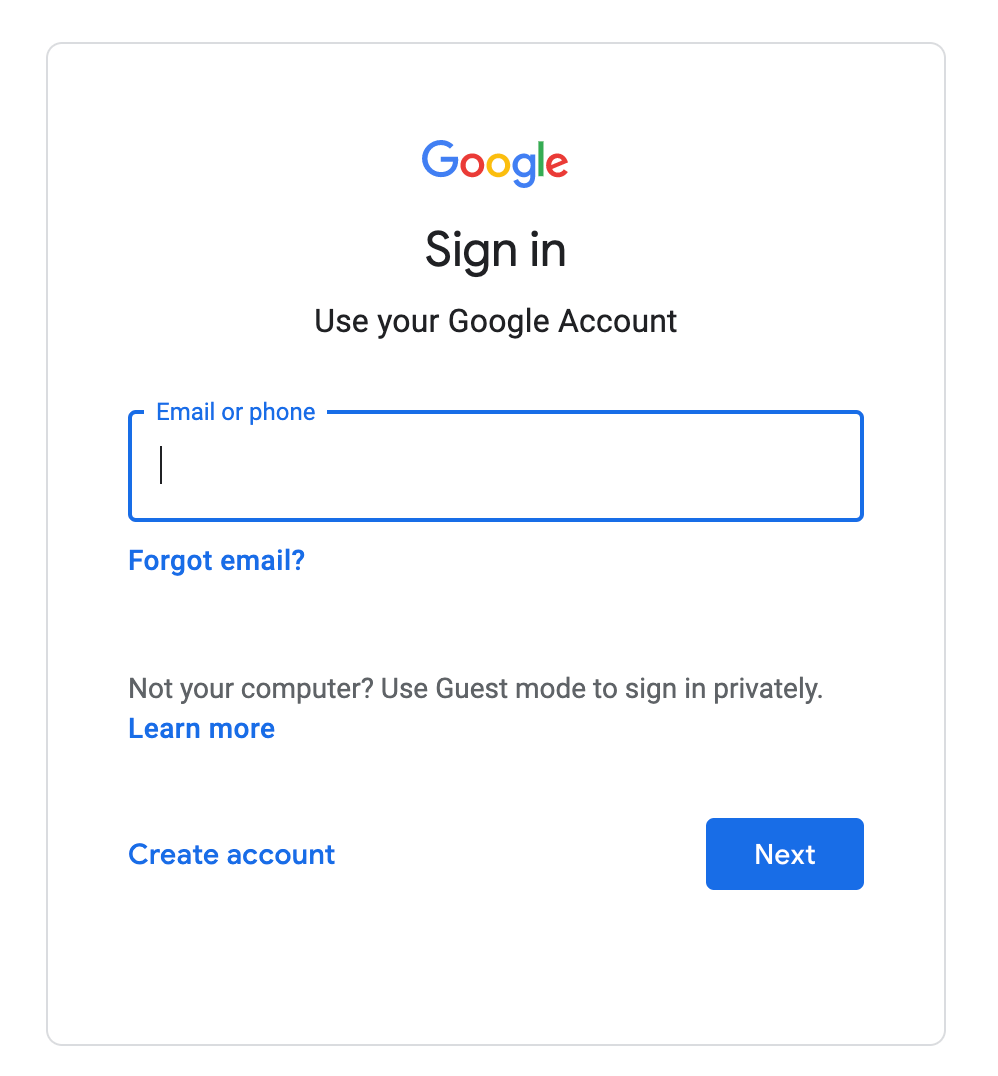
For desktop users, the sign-in process is typically initiated by navigating to youtube.com. In the top right corner of the page, a “Sign In” button is prominently displayed. Clicking this button redirects the user to Google’s secure authentication portal.
- Email or Phone Number Entry: The system first prompts for the Google account’s associated email address or phone number. This initial step helps Google identify the specific account requesting access.
- Password Input: Following the account identification, the user is directed to input their corresponding password. Google employs encrypted communication channels (HTTPS) to protect these credentials during transmission.
- Two-Factor Authentication (2FA) (If Enabled): Should 2FA be active on the Google account – a highly recommended security measure – the system will request a secondary verification step. This might involve entering a code from an authenticator app, confirming a prompt on a trusted device, or using a physical security key. This multi-layered authentication significantly reduces the risk of unauthorized access.
- Session Management: Upon successful authentication, a secure session token is issued to the browser, allowing the user to remain signed in without re-entering credentials for a defined period, or until they explicitly sign out or clear their browser’s cache and cookies. This token management is crucial for user convenience and security.
Accessing YouTube via Mobile Applications
The YouTube mobile app, available on Android and iOS platforms, streamlines the sign-in process, often leveraging existing Google account integrations on the device.
- Initial App Launch or Profile Icon Tap: Upon first launching the app, or by tapping the profile icon in the upper right corner, users are presented with a “Sign In” option.
- Device Account Integration: On Android devices, the app typically detects and lists Google accounts already logged into the device’s operating system. Users can simply select an existing account to sign in, often bypassing manual password entry. On iOS, if the Google app is installed and signed in, it might offer a similar streamlined process.
- Manual Sign-In: If the desired Google account is not already registered on the device, or if the user prefers to sign in with a different account, a manual option is available. This mirrors the desktop process: enter email/phone, then password, followed by 2FA if applicable.
- Persistent Login: Similar to desktop browsers, the mobile app maintains a persistent login session, using secure tokens to keep the user signed in across app sessions, enhancing user convenience.
Understanding Google Account Integration and Its Advantages
The tight integration between YouTube and the Google account ecosystem is not merely a convenience; it’s a foundational technical architecture designed to enhance personalization, security, and cross-platform functionality. Your Google account serves as a universal digital passport across Google’s extensive suite of services, with YouTube being a prime beneficiary.
The Single Sign-On (SSO) Advantage
Google’s Single Sign-On (SSO) mechanism is a core technical feature enabling users to access multiple Google services, including Gmail, Drive, Calendar, and YouTube, with a single set of credentials. This streamlines the user experience by eliminating the need to log in separately for each application. From a security standpoint, SSO centralizes authentication, allowing for more robust security protocols, such as universal 2FA enforcement and centralized account recovery, across all linked services. When you sign into YouTube, you are, in essence, signing into your Google account, and that authentication propagates across other Google services if accessed from the same browser or device.
Leveraging YouTube Features with a Google Account
Signing in transforms YouTube from a passive content viewer into an interactive and personalized platform. The Google account acts as the backend database for your specific user profile and preferences.
- Personalized Recommendations: Google’s sophisticated machine learning algorithms analyze your watch history, subscribed channels, liked videos, and search queries (all stored against your Google account) to generate highly relevant content recommendations. This dynamic profiling continuously refines your feed, making content discovery more efficient and engaging.
- Subscription Management: A signed-in account is essential for subscribing to channels. Your subscription list is stored in your Google account profile, ensuring that your preferred content creators are always accessible, and new uploads appear in your personalized feed.
- Watch History and Playlists: Every video you watch while signed in is logged in your watch history. This feature allows you to revisit previously viewed content and informs recommendation algorithms. Similarly, creating, managing, and sharing custom playlists – for music, tutorials, or specific topics – requires a signed-in account, with all playlist data stored centrally.
- Interactive Engagement: Commenting on videos, liking or disliking content, and participating in live chats are all functions tied directly to your signed-in Google account. This links your actions to your digital identity on the platform, fostering community interaction while providing accountability.
- Content Uploads and Management: For content creators, signing in is paramount. It grants access to the YouTube Studio dashboard, where videos are uploaded, monetized, analyzed with detailed analytics, and managed. All intellectual property and channel settings are intrinsically linked to the Google account.
Advanced Sign-In Scenarios and Device Management
The YouTube experience extends beyond personal computers and mobile devices. Managing account access across a diverse range of hardware platforms and handling multiple accounts efficiently requires an understanding of advanced sign-in methods and device management practices.
Signing In on Smart TVs and Streaming Devices
Smart TVs, streaming sticks (like Chromecast, Roku, Fire TV), and gaming consoles offer dedicated YouTube applications. The sign-in process here differs slightly due to the lack of a traditional keyboard for easy credential entry.
- Code-Based Linking: Typically, the YouTube app on these devices will display a unique alphanumeric code. The user is then instructed to visit a specific Google URL (e.g.,
youtube.com/activate) on a separate web-enabled device (computer or smartphone), sign in to their Google account there, and enter the displayed code. This process securely links the device app to the Google account without exposing credentials on the TV screen. - QR Code Scanning: Some modern smart TV apps may offer a QR code. Scanning this code with a smartphone camera can directly open the activation URL on the phone, pre-populating the code, streamlining the linking process.
- Persistent Sessions: Once linked, these devices generally maintain a persistent sign-in session. It’s crucial to understand that if the device is shared, anyone with physical access can view content and interact with YouTube as the signed-in user.
Managing Multiple Accounts
Many users have multiple Google accounts – one for personal use, one for work, or dedicated accounts for specific YouTube channels. Switching between these accounts on YouTube is a built-in feature.
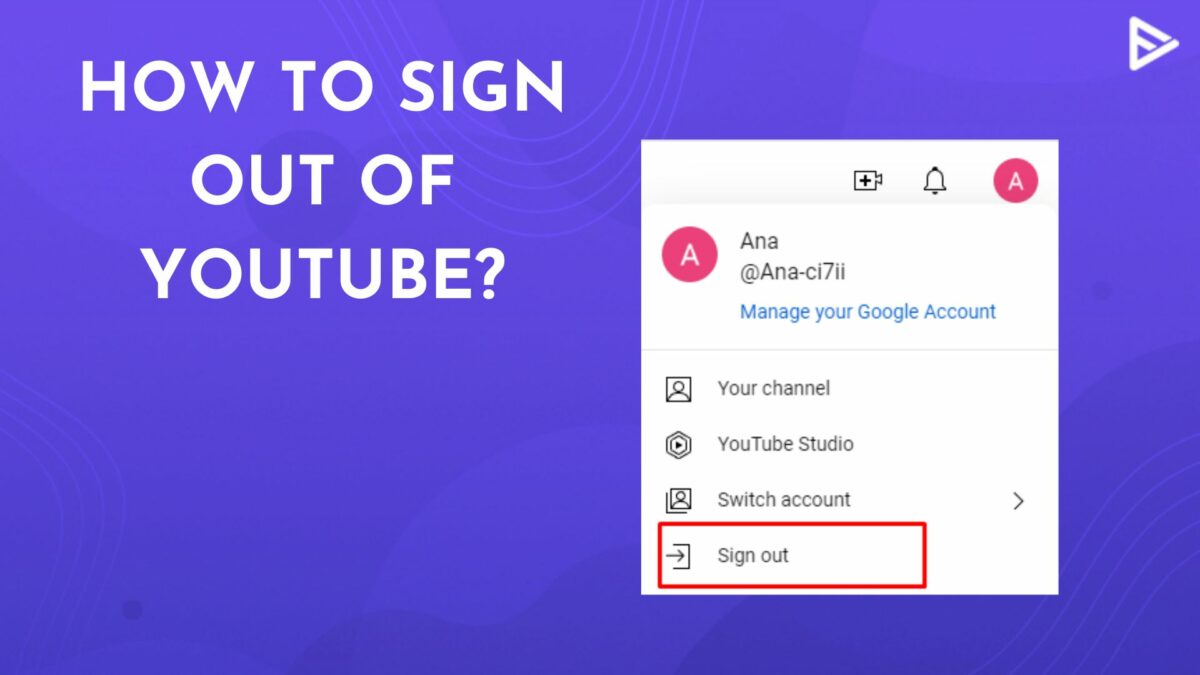
- Account Switcher: On both desktop and mobile apps, clicking the profile icon typically reveals an “Add Account” or “Switch Account” option. This allows users to add additional Google accounts to their session.
- Session Isolation: While multiple accounts can be active on a single browser or device, they generally maintain isolated sessions. Actions performed under one account (e.g., watching a video) do not affect the history or recommendations of another signed-in account unless explicitly switched.
- Privacy Considerations: When sharing a device or browser, ensure you explicitly sign out of accounts or use incognito/private browsing modes to prevent unintended access or mix-ups.
Device Deauthorization and Security
Maintaining control over where your Google account is signed in is a critical security practice.
- Google Account Security Checkup: Google provides a comprehensive “Security Checkup” tool within your Google Account settings (
myaccount.google.com). This tool lists all devices currently signed into your Google account, including YouTube sessions. - Remote Sign Out: From the Security Checkup, you can review “Your devices” and remotely sign out of devices you no longer recognize or use. This immediately terminates the session on that device, protecting your account from unauthorized access. This is particularly useful after using YouTube on public computers or shared devices.
- App Permissions: Reviewing connected apps and services (also in Google Account settings) is important. This shows third-party applications that have been granted access to your Google account data, some of which might include YouTube data. Revoking access for unused or suspicious apps enhances security.
Troubleshooting Common Sign-In Issues
Despite the robust design, users can occasionally encounter issues when trying to sign in to YouTube. Understanding the technical root causes and systematic troubleshooting steps can quickly resolve most problems.
Forgotten Passwords and Account Recovery
The most frequent sign-in hurdle is a forgotten password. Google provides a comprehensive account recovery process.
- “Forgot Password” Link: On the Google sign-in page, clicking “Forgot password?” initiates the recovery flow.
- Verification Methods: Google attempts to verify your identity using various pre-configured recovery options linked to your account:
- Recovery Email: Sending a verification code to a secondary email address.
- Recovery Phone Number: Sending a verification code via SMS to a registered phone number.
- Trusted Device Prompt: Sending a prompt to a logged-in trusted smartphone for a “Yes, it’s me” confirmation.
- Security Questions: Answering previously set security questions (less common now due to improved methods).
- Authenticator App: Providing a code from a 2FA authenticator app.
- New Password Creation: Once identity is verified, you are prompted to create a new, strong password. It is crucial to choose a unique password not reused across other services.
Two-Factor Authentication Challenges
While 2FA significantly enhances security, it can sometimes present its own set of challenges.
- Lost or Unavailable 2FA Device: If your phone with the authenticator app or SMS capabilities is lost or inaccessible, recovery codes become vital. These are typically generated when 2FA is first set up and should be stored securely offline. Google also offers alternative verification steps if recovery codes are unavailable.
- Authenticator App Sync Issues: Ensure the time on your device running the authenticator app is automatically synchronized with network time, as time desynchronization can cause codes to be rejected.
- Security Key Issues: Ensure physical security keys are properly inserted and recognized by the device. For Bluetooth keys, confirm they are paired and charged.
Browser and App-Specific Troubleshooting
Client-side issues within the browser or app can interfere with the sign-in process.
- Clear Cache and Cookies: Accumulated browser cache and cookies can sometimes corrupt session data or interfere with authentication tokens. Clearing these data points and retrying the sign-in is often an effective first step. This can be done via browser settings (e.g., Chrome:
Settings > Privacy and security > Clear browsing data). - Update Browser/App: Outdated browser versions or YouTube app versions may contain bugs or lack compatibility with current Google authentication protocols. Ensuring all software is up-to-date can resolve many unforeseen issues.
- Disable Extensions/Add-ons: Browser extensions, particularly ad-blockers or privacy extensions, can sometimes inadvertently block necessary scripts or cookies required for Google’s sign-in process. Temporarily disabling them can help diagnose if they are the cause.
- Try Incognito/Private Mode: These modes typically disable extensions and prevent cookies from previous sessions, offering a “clean slate” for sign-in attempts. If sign-in works in incognito, it points to an issue with browser settings, extensions, or cached data.
Network Connectivity Problems
A stable internet connection is fundamental for any online service, including YouTube sign-in.
- Check Internet Connection: Verify that your device has a stable connection to the internet. Attempt to access other websites or services to confirm general connectivity.
- Router/Modem Restart: A simple restart of your home router or modem can often resolve transient network issues that might be preventing successful authentication with Google’s servers.
- DNS Issues: In rare cases, Domain Name System (DNS) resolution problems can prevent your device from correctly finding Google’s authentication servers. Switching to public DNS servers (like Google’s 8.8.8.8 or Cloudflare’s 1.1.1.1) can sometimes bypass local DNS issues.
Enhancing Your YouTube Experience Through Account Security
Beyond simply signing in, proactively managing your Google account’s security posture directly impacts the safety and integrity of your YouTube experience. Robust security measures protect your watch history, subscriptions, uploaded content, and personal data from unauthorized access.
Implementing Strong Passwords
The foundation of account security is a strong, unique password.
- Complexity and Length: A strong password should be a minimum of 12-16 characters, combining uppercase and lowercase letters, numbers, and symbols. The longer and more complex, the harder it is to crack through brute-force attacks.
- Uniqueness: Never reuse passwords across different services. If one service is compromised, a unique password prevents a “credential stuffing” attack where attackers use leaked credentials to access other accounts.
- Password Managers: Utilizing a reputable password manager (e.g., LastPass, 1Password, Bitwarden) is highly recommended. These tools generate and store complex, unique passwords for all your online accounts, requiring you to remember only one master password.
The Importance of Two-Factor Authentication (2FA)
2FA adds a critical second layer of defense, making it significantly harder for unauthorized individuals to access your account even if they manage to acquire your password.
- Mechanism: 2FA requires something you know (your password) and something you have (a physical device like a phone or security key) or something you are (biometrics, though less common for Google logins).
- Types of 2FA: Google supports various 2FA methods:
- Google Prompts: Receiving a “Yes, it’s me” notification on a trusted smartphone. This is generally the most convenient and secure software-based method.
- Authenticator Apps: Using apps like Google Authenticator or Authy to generate time-based one-time passwords (TOTP).
- SMS Codes: Receiving verification codes via text message (less secure than other methods due to SIM swap risks).
- Security Keys: Physical hardware keys (e.g., YubiKey) offering the strongest form of 2FA, resistant to phishing and man-in-the-middle attacks.
- Enable Immediately: It is strongly advised to enable 2FA on your Google account immediately if it’s not already active.
Regular Security Check-ups
Periodically reviewing your Google Account’s security settings can help you detect and mitigate potential vulnerabilities.
- Activity Review: Regularly check your “Recent security activity” within your Google Account. This log details sign-ins, password changes, and other security-related events. Alert Google immediately if you see any unfamiliar activity.
- Connected Devices and Apps: As discussed previously, routinely review the list of devices signed into your account and the third-party apps with access. Remove any you no longer recognize or use.
- Recovery Information: Ensure your recovery email address and phone number are up-to-date. These are crucial for regaining access to your account if you forget your password or if your account is compromised.
Recognizing Phishing Attempts
Phishing attacks are a common method for attackers to steal login credentials.
- Suspicious Emails/Messages: Be wary of emails or messages purporting to be from YouTube or Google that ask for your login details, threaten account suspension, or promise unrealistic rewards.
- Check URLs: Always scrutinize the URL before entering your credentials. Phishing sites often use domains that look similar to
youtube.comorgoogle.combut contain subtle misspellings or extra characters. Always verify the domain isaccounts.google.comwhen signing in. - Unexpected Requests: Google will never ask for your password via email. If you receive such a request, it’s a phishing attempt.
- Report and Delete: Report any suspicious emails to Google and delete them immediately.
By understanding the technical underpinnings of YouTube sign-in, leveraging Google’s integrated account management features, and proactively implementing security best practices, users can ensure a safe, efficient, and personalized experience across all their devices.
aViewFromTheCave is a participant in the Amazon Services LLC Associates Program, an affiliate advertising program designed to provide a means for sites to earn advertising fees by advertising and linking to Amazon.com. Amazon, the Amazon logo, AmazonSupply, and the AmazonSupply logo are trademarks of Amazon.com, Inc. or its affiliates. As an Amazon Associate we earn affiliate commissions from qualifying purchases.