
In an increasingly connected world, sharing digital subscriptions has become a common practice, allowing households and close-knit groups to maximize value from their entertainment services. YouTube TV, Google’s live TV streaming service, is no exception, offering robust features designed to facilitate sharing without compromising individual viewing experiences. This comprehensive guide delves into the technical intricacies of sharing YouTube TV, ensuring you and your designated family members can enjoy seamless access to live channels, on-demand content, and unlimited DVR, all while adhering to Google’s established guidelines and best practices.
YouTube TV stands out in the crowded streaming market for its extensive channel lineup, cloud DVR, and user-friendly interface. However, understanding its sharing mechanics, particularly the reliance on Google Family Groups, is crucial for optimizing its utility. This article will walk you through the setup process, discuss critical limitations, and provide insights into making the most of your shared YouTube TV subscription, all through a technical lens focusing on software, apps, and digital security.
Understanding YouTube TV’s Sharing Mechanism: The Google Family Group
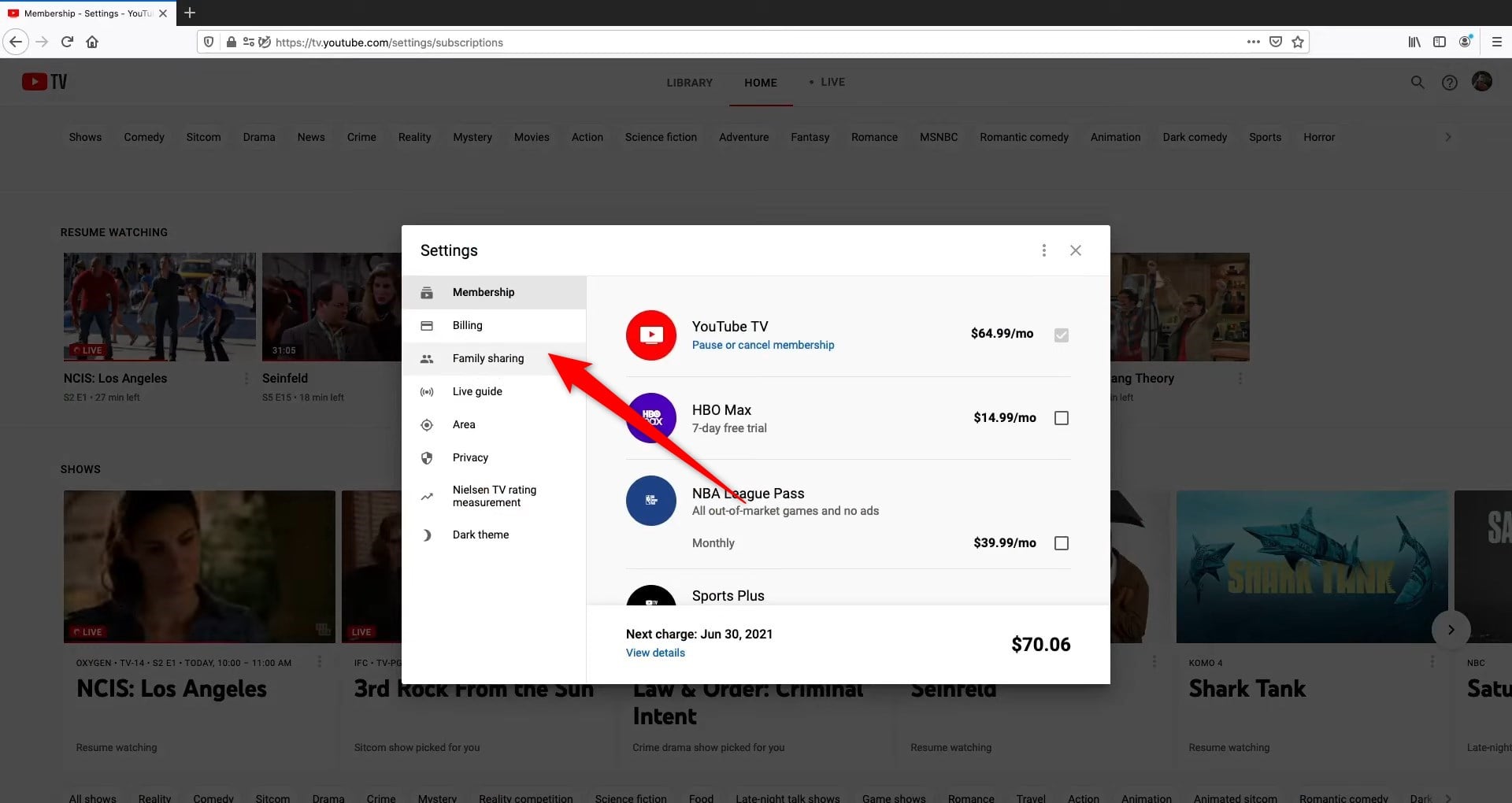
At the heart of YouTube TV’s sharing capabilities lies the Google Family Group. This unified system, managed directly through your Google account, serves as the central hub for sharing various Google services, including YouTube TV, Google Play purchases, Google One storage, and more. It’s not just a casual sharing arrangement; it’s a structured technical framework designed by Google to manage access and permissions across its ecosystem.
The Core of Sharing: Google Family
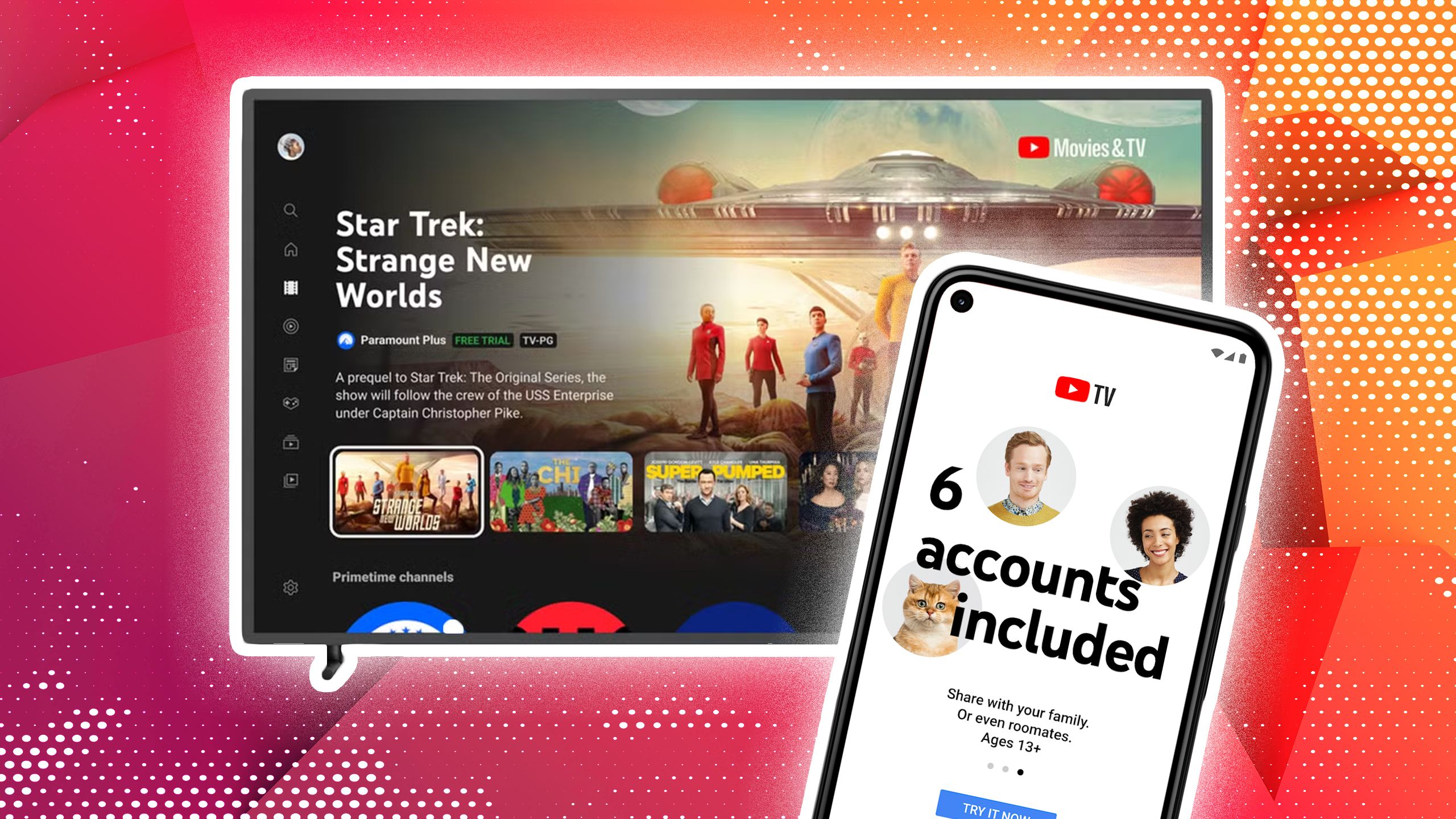
A Google Family Group allows up to six family members (including the family manager) to share eligible Google products. For YouTube TV, this means that once the family manager subscribes, all invited members within that group can access the service. Each family member gets their own personalized library, recommendations, and viewing history, ensuring a tailored experience despite sharing a single subscription. The family manager is the one who pays for the YouTube TV subscription and is responsible for inviting and managing other family members. This structure ensures a clear technical hierarchy and billing responsibility.
Eligibility and Requirements for Family Members
To be eligible to join a Google Family Group and consequently share YouTube TV, individuals must meet specific criteria. Each member must have a Google account. Children under 13 (or the applicable age in your country) can have accounts managed by the family manager via Google Family Link. Importantly, all family members must reside in the same physical household, specifically within the same “home area” as defined by YouTube TV. This geographic restriction is enforced through IP address verification and is a critical technical safeguard against widespread sharing beyond a single household. Furthermore, family members can only switch family groups once every 12 months, preventing rapid changes and potential abuse of the system. This technical constraint ensures stability within family arrangements.
Key Benefits of a Family Group for YouTube TV
Beyond merely sharing access, a Google Family Group offers several technical benefits for YouTube TV users. Firstly, it provides distinct user profiles, meaning each family member maintains their own unique viewing preferences, watch history, and DVR recordings. This prevents mixing watchlists and provides a highly personalized experience for everyone. Secondly, it leverages Google’s robust security infrastructure, ensuring that account management and access are secure. The family manager has granular control over who can join and remain in the group, offering peace of mind regarding digital access. Lastly, it streamlines billing, as the family manager’s payment method is used for the single YouTube TV subscription, simplifying financial management for the shared service.
Step-by-Step Guide to Setting Up and Managing Your Family Group
Setting up a Google Family Group and integrating YouTube TV into it is a straightforward process, but it requires careful attention to detail. This section provides a technical walkthrough, ensuring you can successfully configure sharing for your household.
Creating or Joining a Google Family Group
If you don’t already have a Google Family Group, the first step is to create one. This is typically done via the Google Family Link app or directly through your Google account settings on a web browser. The process involves designating a family manager (who must be over 18), reviewing Google’s terms, and confirming your role. If you are being invited to an existing family group, you will receive an email invitation to your Google account. Accepting this invitation integrates your Google profile into the family structure, granting you access to shared services like YouTube TV once enabled. This is a crucial initial technical handshake for the sharing process.
Inviting Members to Your Family Group
Once a family group is established, the family manager can invite up to five other members. This is done by navigating to the Google Family settings, selecting “Invite family member,” and entering their email addresses. An invitation link or email will be sent, which the recipient must accept within a specified timeframe (usually 14 days) to join the group. It’s imperative that all invited members are indeed part of the same physical household, as YouTube TV’s technical checks will verify this. Misalignment can lead to access issues or even account suspension.
Adding YouTube TV to Your Family Group’s Shared Services
After successfully forming your Google Family Group, the next step is to ensure YouTube TV is linked to it. If the family manager already has a YouTube TV subscription, it is automatically eligible for sharing within the family group. If not, the family manager must subscribe to YouTube TV using their Google account associated with the family group. Once subscribed, YouTube TV becomes one of the services available to all family members. Each family member will then need to log into the YouTube TV app or website using their own Google account credentials to access the service. The system automatically recognizes their family group membership and grants access.
Managing Family Members and Permissions
The family manager retains full control over the family group. From the Google Family settings, they can add or remove family members, review permissions, and even manage settings for child accounts via Family Link. For YouTube TV specifically, while family members generally have full access to the subscription, the manager can monitor linked devices and active streams. Regularly reviewing your family group settings is a good digital security practice, especially if there are changes in household members or device usage. Removing an individual from the family group immediately revokes their access to shared services, including YouTube TV, ensuring tight control over digital assets.
Navigating Sharing Limitations and Best Practices
While YouTube TV’s sharing capabilities are generous, they come with specific technical limitations and guidelines designed to ensure fair use and prevent unauthorized sharing. Understanding these is key to a smooth, uninterrupted viewing experience for everyone in your household.
Simultaneous Stream Limits Explained
One of the most critical technical limitations to be aware of is the simultaneous stream limit. A YouTube TV subscription allows for up to three simultaneous streams at any given time. This means that if three family members are watching YouTube TV on different devices concurrently, a fourth attempt to start a stream will be blocked. This limit applies across all devices linked to the family group’s YouTube TV subscription. While this generally suffices for most households, large families or multiple users with differing viewing habits might occasionally encounter this ceiling. Some add-ons, like the 4K Plus package, can increase this limit within the home to an unlimited number of streams, and extend the simultaneous stream limit outside the home.
Location and Home Area Restrictions
YouTube TV is designed for use within a single household. This is enforced through a “home area” verification system. When the family manager first sets up YouTube TV, a home area is established based on the device’s IP address. All family members must primarily use YouTube TV within this designated home area. While occasional travel outside the home area is permitted for individual users, prolonged use away from home will trigger location verification prompts. If discrepancies are detected, individual family members or even the entire group may temporarily lose access until the home area is re-verified by the family manager. This geographical restriction is a robust technical measure to prevent sharing beyond a single physical residence.
Device Compatibility and Access
YouTube TV supports a wide array of devices, including smart TVs, streaming media players (Roku, Apple TV, Chromecast, Fire TV), gaming consoles, smartphones, and tablets. Each family member can access YouTube TV on any compatible device by simply logging in with their own Google account. It’s important to ensure that all devices being used have the latest version of the YouTube TV app installed for optimal performance and security. While multiple devices can be linked, remember the three-stream limit. Additionally, consider the security implications of logging into shared devices; always log out when using public or untrusted hardware.
Protecting Your Account: Security Considerations
Sharing digital services necessitates a heightened awareness of digital security. The family manager’s Google account is the linchpin of the entire system, making it paramount to use a strong, unique password and enable two-factor authentication (2FA). This adds an essential layer of security, protecting against unauthorized access to billing information and personal data. Additionally, encourage all family members to secure their individual Google accounts with strong passwords and 2FA. Regularly review the list of devices logged into YouTube TV and remove any unfamiliar or inactive ones. Educating family members about phishing attempts and safe online practices can further enhance overall digital security for the shared service.
Common Pitfalls and Troubleshooting Tips
Despite the straightforward setup, users might encounter issues. Common pitfalls include family members not residing in the same home area, exceeding the simultaneous stream limit, or difficulties with Google account syncing. For “home area” issues, the family manager must periodically re-verify their location within the YouTube TV settings. Stream limit issues often require coordinating viewing schedules. For account syncing problems, ensure all Google accounts are active, and try logging out and back into the YouTube TV app on the affected device. In persistent cases, Google’s support documentation and community forums offer further technical guidance and troubleshooting steps.
Maximizing Your YouTube TV Sharing Experience
Once your YouTube TV family group is properly configured, you can truly leverage its features to enhance the entertainment experience for everyone. This involves understanding how personalization, DVR, and add-ons integrate with the sharing framework.
Personalizing Profiles for Each Family Member
As mentioned, each family member within the Google Family Group gets their own distinct profile on YouTube TV. This is more than just a name; it’s a personalized experience. Each profile maintains separate viewing history, favorite channels, custom guides, and tailored content recommendations. This feature is particularly valuable as it allows different household members, from children to adults, to have their own curated TV experience without interfering with others. Emphasize to family members the importance of always selecting their correct profile upon launching the app to maintain this personalization and ensure their DVR recordings are saved to their respective libraries.
Leveraging Unlimited DVR for Everyone
One of YouTube TV’s standout features is its unlimited Cloud DVR, and thankfully, this benefit extends to every member of the family group. Each family member can record as many shows, movies, and events as they wish, and these recordings are stored for nine months. This means that if three different people record the same show, it only counts as one instance in the cloud storage but appears in each individual’s DVR library. This technical efficiency is a huge advantage, eliminating conflicts over DVR space and ensuring everyone can watch their favorite content on their own schedule, without deleting someone else’s recordings.

Exploring Add-ons and Their Sharing Implications
YouTube TV offers various add-ons, such as HBO Max, Showtime, Sports Plus, and the 4K Plus package, to further customize your viewing experience. When the family manager subscribes to an add-on, it is generally shared with all members of the Google Family Group, just like the base subscription. However, there can be nuances. For example, while the content of most add-ons is shared, a service like NFL Sunday Ticket (when available as an add-on) might have specific terms regarding multi-user access. The 4K Plus add-on, as noted earlier, significantly enhances the streaming experience by offering 4K content, offline downloads, and unlimited simultaneous streams at home, benefits that are fully extended to all family members. Always review the specific terms and conditions of any add-on to understand its sharing implications fully.
In conclusion, sharing YouTube TV is a robust and user-friendly process, thanks to the integrated Google Family Group system. By understanding the technical requirements, setting up your group correctly, and adhering to the platform’s limitations, you can provide a seamless and personalized live TV streaming experience for your entire household. This approach not only maximizes the value of your subscription but also promotes a harmonious digital entertainment environment, all built on a solid technical foundation.
aViewFromTheCave is a participant in the Amazon Services LLC Associates Program, an affiliate advertising program designed to provide a means for sites to earn advertising fees by advertising and linking to Amazon.com. Amazon, the Amazon logo, AmazonSupply, and the AmazonSupply logo are trademarks of Amazon.com, Inc. or its affiliates. As an Amazon Associate we earn affiliate commissions from qualifying purchases.