
In the rapidly evolving landscape of fintech and mobile software, Google Pay has emerged as a cornerstone of the digital wallet revolution. Transitioning from a simple payment method to a comprehensive digital ecosystem, Google Pay leverages sophisticated hardware and software integrations to redefine how we interact with physical and digital currency. This guide provides an exhaustive technical walkthrough of setting up Google Pay, exploring the underlying technologies that make it possible, and ensuring your digital security remains uncompromised.
Understanding the Technology Behind Google Pay
Before diving into the setup process, it is essential to understand the technological framework that powers Google Pay. Unlike traditional magnetic stripe cards, Google Pay utilizes a combination of Near Field Communication (NFC) and advanced encryption protocols to facilitate transactions.

Near Field Communication (NFC)
At its core, Google Pay relies on NFC technology. This is a short-range wireless communication standard that allows devices to exchange data when they are within four centimeters of each other. In the context of Google Pay, your smartphone acts as an active NFC device, while the point-of-sale (POS) terminal acts as a passive or active reader. When you tap your phone, the software initiates a handshake protocol that transfers payment information in milliseconds.
Tokenization: The Software Shield
One of the most significant technological advantages of Google Pay is “Tokenization.” When you add a card to the app, Google does not store or share your actual credit or debit card number with merchants. Instead, the software creates a Virtual Account Number—a “token”—that represents your card. During a transaction, this token is sent to the merchant along with a one-time security code. This ensures that even if a merchant’s database is compromised, your actual financial data remains shielded within Google’s secure servers.
The Unified Software Interface
Google Pay represents a merger of previous iterations, including Android Pay and Google Wallet. The current software architecture is designed to be a “one-stop shop” for digital life, integrating not just payments, but also boarding passes, loyalty programs, and transit tickets into a single, cohesive user interface (UI).
Step-by-Step Setup: From Software Installation to Initial Configuration
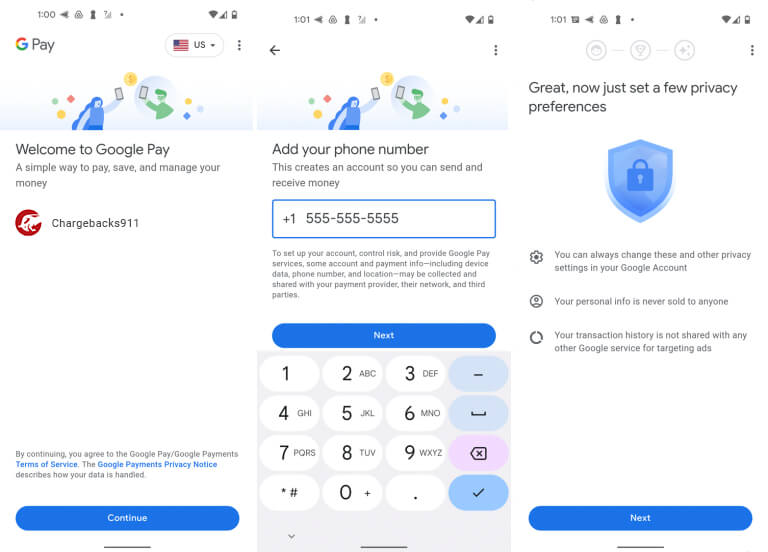
Setting up Google Pay is a systematic process that requires specific hardware and software prerequisites. Follow these steps to ensure a seamless integration of the app into your daily routine.
Hardware and Software Requirements
To begin, you must ensure your device is compatible. Google Pay requires an Android device running Lollipop 5.0 or higher. Crucially, the device must have an NFC chip. You can verify this in your phone’s “Settings” under “Connected Devices” or “Connection Preferences.” Furthermore, for security reasons, Google Pay will not function on devices that have been “rooted” or are running a custom ROM, as these modifications can compromise the integrity of the Android Keystore system.
Initial App Installation and Account Syncing
- Download the App: Navigate to the Google Play Store and search for “Google Pay” (it may be labeled as “GPay” in certain regions). Download and install the latest version.
- Sign In: Open the app and sign in with your primary Google Account. It is highly recommended to use an account secured with Two-Factor Authentication (2FA).
- Permissions: The app will request permissions for your camera (to scan cards), location (to find nearby stores and offer relevant loyalty cards), and contacts (for peer-to-peer payments). Granting these permissions optimizes the software’s functionality.
Adding Payment Methods
The heart of the setup involves digitizing your physical cards.
- Scanning the Card: Tap the “Add a card” or “Payment” tab. You can use your phone’s camera to capture the card details. The software uses Optical Character Recognition (OCR) to automatically fill in the card number and expiration date.
- Manual Entry: If OCR fails, you can enter the details manually. You will need the 16-digit card number, the CVV code, and the billing address.
- Bank Verification: This is a critical security step. Your bank will require verification to ensure the cardholder is authorizing the digital clone. Most banks offer verification via an SMS code, an email, or a direct confirmation through the bank’s own mobile app. Once the code is entered, the card is “provisioned” for NFC payments.
Advanced Features and Software Integration
Once the basic setup is complete, Google Pay offers a suite of advanced features that integrate deeply with the Android operating system and third-party services.
Peer-to-Peer (P2P) Payments
In many regions, Google Pay facilitates direct software-to-software money transfers. By syncing your contacts, you can send money as easily as sending a text message. This process uses the Unified Payments Interface (UPI) or direct debit/credit rails depending on your location. The software handles the background handshake between banks, providing an instant confirmation of the transfer.
Digital Passes and Loyalty Integration
Google Pay acts as a digital version of your physical wallet’s side pockets. You can add:
- Loyalty Cards: Use the camera to scan barcodes from grocery stores or retailers. The app will then display these barcodes for scanning at checkout.
- Transit Passes: In supported cities, you can add bus and train passes directly to the app. Some systems allow for “Open Loop” payments, where you simply tap your phone at the turnstile without needing a specific transit card.
- Boarding Passes and Tickets: If you receive a ticket via Gmail, Google Pay’s software can often automatically detect it and suggest adding it to your wallet for easy access at the airport or venue.
Google Assistant Integration
For users deep within the Google ecosystem, Google Pay integrates with Google Assistant. You can use voice commands like “Hey Google, send $20 to Jane for coffee.” The Assistant utilizes Google Pay’s secure API to verify the recipient and prompt you for biometric authentication before finalizing the transaction.
Digital Security: Protecting Your Financial Tech Ecosystem
As with any software that handles sensitive data, security is paramount. Google Pay utilizes multi-layered security protocols to protect your information from both physical theft and digital hacking.
Biometric Authentication and Screen Locks
Google Pay requires a screen lock to be active. Whether it is a PIN, pattern, or biometric data (fingerprint or facial recognition), the software uses these as a “gatekeeper.” For larger transactions, the app will explicitly require biometric re-authentication to ensure the user is present and authorized.
Find My Device and Remote Data Wipe
If your hardware is lost or stolen, Google Pay is protected by the “Find My Device” ecosystem. Through a web browser, you can remotely lock your device or perform a factory reset. Because your card data is tokenized and stored in the cloud (not directly on the phone’s storage in a readable format), your physical card numbers remain safe even if the phone is physically accessed.
Software Updates and Patch Management
Google frequently releases security patches for the Android OS and updates for the Google Pay app itself. These updates often include fixes for “Zero-day” vulnerabilities and improvements to the encryption algorithms. It is vital to keep your software updated to the latest version to maintain the highest level of security.
Troubleshooting and Future-Proofing Your Mobile Wallet
Despite its robust design, users may occasionally encounter technical hurdles. Understanding how to troubleshoot these issues is key to maintaining a functional digital wallet.
Resolving NFC Communication Errors
If you tap your phone and nothing happens, the issue is often physical. Ensure that NFC is toggled “On” in your settings. Additionally, thick phone cases—especially those containing metal or magnets—can interfere with the NFC signal. The placement of the NFC antenna varies by phone model; it is usually located near the camera module or the center of the back panel.
Addressing Card Verification Failures
If a card cannot be verified, it is usually due to a mismatch in the billing information or a lack of support from the issuing bank. Check that the address in Google Pay matches the address on file with your bank exactly. If the problem persists, contact your bank’s technical support department to ensure they allow “Third-party wallet provisioning.”

The Future: Google Pay and the Web3/AI Evolution
Looking forward, Google Pay is expected to integrate more deeply with Artificial Intelligence to provide “Smart Spending” insights, categorizing transactions automatically through machine learning. Furthermore, as digital currencies and CBDCs (Central Bank Digital Currencies) gain traction, the software architecture of Google Pay is being positioned to support these new forms of value exchange, ensuring that your digital wallet remains relevant in the next generation of tech.
By following this guide, you have transformed your smartphone into a sophisticated financial tool. The setup of Google Pay is more than just a convenience; it is an adoption of a secure, encrypted, and highly efficient software ecosystem that represents the future of global commerce.
aViewFromTheCave is a participant in the Amazon Services LLC Associates Program, an affiliate advertising program designed to provide a means for sites to earn advertising fees by advertising and linking to Amazon.com. Amazon, the Amazon logo, AmazonSupply, and the AmazonSupply logo are trademarks of Amazon.com, Inc. or its affiliates. As an Amazon Associate we earn affiliate commissions from qualifying purchases.