
The transition from traditional cable to digital streaming services has fundamentally altered how we consume media. One of the most significant advantages of this shift is the ability to move away from rigid, pre-determined channel lineups toward a highly personalized viewing environment. YouTube TV, Google’s premier live-streaming service, has emerged as a leader in this space, not just because of its robust channel list but because of its sophisticated user interface (UI). Central to this UI is the ability to set “favorite channels”—a feature that allows users to bypass the clutter of dozens of unwanted stations and jump straight to the content they value most.

For many users, the sheer volume of content available on YouTube TV can be overwhelming. With over 100 channels covering sports, news, entertainment, and local networks, the traditional “channel surfing” method is no longer efficient. Personalizing your “Live” guide is not just a matter of convenience; it is a way to optimize your digital experience, ensuring that your most-watched networks are always front and center.
Mastering the Custom Guide: The Path to a Personalized Lineup
YouTube TV offers two primary ways to view your channel list: “Default” and “Custom.” The Default view organizes channels according to a standard layout determined by the service. The Custom view, however, is where the real power lies. This is where you can select your favorites, hide the channels you never watch, and reorder the entire list to suit your specific preferences.
Using the Web Browser for Maximum Control
While you can access YouTube TV on a variety of devices, the web browser interface remains the most efficient way to manage your favorite channels. The larger screen real estate and precision of a mouse make the reordering process significantly faster than using a remote control.
-
Access Settings: Navigate to the YouTube TV website and sign in to your account. Click on your profile picture in the top-right corner and select “Settings.”
-
Navigate to Live Guide: On the left-hand sidebar, click on “Live Guide.” This section displays your entire subscription package.
-
Select Your Favorites: You will see a list of all available channels. Next to each channel name is a circle or a checkbox. By clicking these, you can choose which channels will appear in your Custom guide.
-
Reorder via Drag-and-Drop: To the left of each channel name is a handle (usually represented by six small dots). Click and hold this handle to drag the channel up or down. If you want “ESPN” and “local news” at the very top, simply drag them to the first and second positions.
-
Toggle the View: Once you have saved your preferences, return to the main “Live” tab. Click the “Sort” dropdown menu (usually set to “Default”) and switch it to “Custom.” Your personalized favorites list will now be the primary way you browse live television.
Customizing via the Mobile App
For those who prefer managing their tech on the go, the YouTube TV mobile app (available on iOS and Android) offers full customization capabilities. This is particularly useful for making quick adjustments while you are away from your main television setup.
To set favorites on mobile, tap your profile icon and select “Settings,” then “Live Guide.” Similar to the web interface, you can uncheck the channels you wish to hide and use the drag-and-drop feature to move your favorites to the top. Because YouTube TV syncs via the cloud, any changes you make on your phone will immediately reflect on your Smart TV, Roku, Apple TV, or gaming console.
Advanced Optimization: Sorting, Hiding, and Profile Management
Setting favorites is the first step, but truly mastering the YouTube TV interface requires understanding how the software handles different viewing profiles and hidden content. The goal is to create a “lean” UI that reduces the cognitive load of choosing what to watch.
The Art of Hiding Unwanted Content
In the “Live Guide” settings, unchecking a channel doesn’t just move it to the bottom; it removes it from your view entirely. This is one of the most powerful features for decluttering your experience. If you are not a fan of shopping networks, niche sports you don’t follow, or news outlets that don’t align with your interests, you can simply uncheck them.
This creates a “curated” television experience. Instead of scrolling through 100 channels to find the five you actually care about, your guide can consist solely of those five favorites. This technical flexibility is a significant upgrade over traditional cable boxes, which often force users to scroll through hundreds of “locked” or unwanted channels to find their destination.
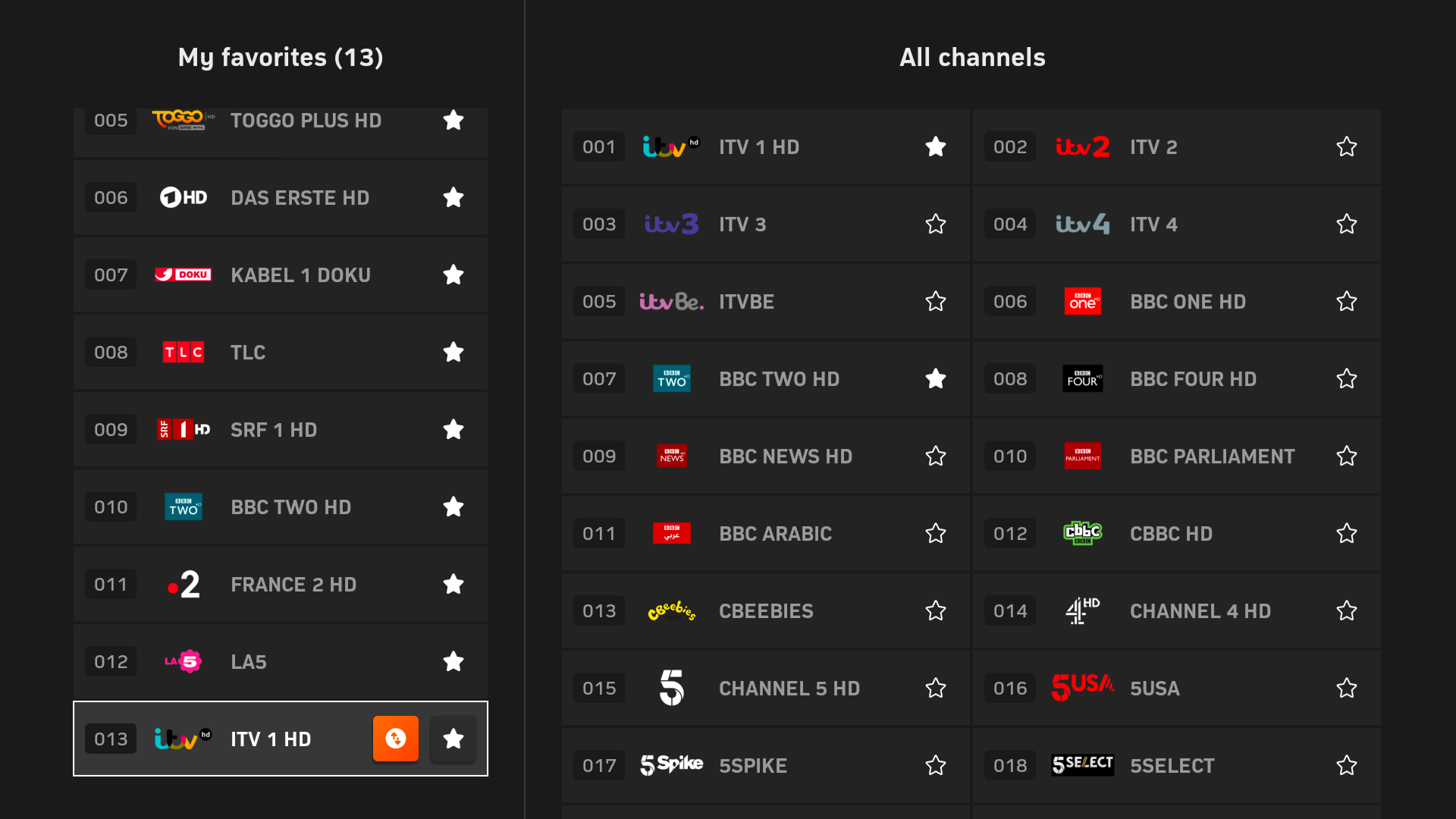
Leveraging Individual User Profiles
YouTube TV allows for up to six individual profiles per household. This is a critical feature for maintaining a personalized “favorites” list. In a multi-user household, one person might prioritize sports and action movies, while another might prefer cooking shows and local news.
Each profile maintains its own unique “Custom” guide. This means that when you set your favorites, you are only affecting your own view. This prevents the friction of “guide wars,” where family members constantly reorder channels to suit their own needs. From a software perspective, this segregation of user data ensures that recommendation algorithms remain accurate for each individual, rather than becoming a muddled average of the entire household’s habits.
Syncing Across Devices and Hardware
A common question among tech enthusiasts is how these settings propagate across different hardware ecosystems. Because YouTube TV is a cloud-based service, your “Custom” guide settings are tied to your Google account, not the specific device you are using.
Whether you are using an Nvidia Shield, a Chromecast with Google TV, or a native app on a Samsung Smart TV, your favorites will follow you. However, it is important to remember that you must manually select the “Custom” sort option on each new device the first time you use it. Once selected, the device will typically remember that preference for future sessions.
The Impact of Customization on Content Discovery
Beyond the “Live” tab, setting favorite channels has a secondary, more subtle effect on the YouTube TV ecosystem: it influences the “Home” screen and the recommendation engine. The service’s software uses your viewing habits and guide preferences to suggest content in the “Top Picks for You” section.
Enhancing the “Home” Tab
The “Home” tab is the first thing you see when you open the app. It is designed to show you what is currently airing on your most-watched channels, as well as upcoming recordings in your Library. By refining your Live Guide and focusing on your favorite channels, you provide the algorithm with clearer signals about your preferences. Over time, you will notice that the “Home” tab becomes more accurate, displaying live tiles from the channels you prioritized in your custom settings.
Integration with the DVR (Library)
While the “favorites” feature primarily affects the Live Guide, it also streamlines how you interact with the unlimited cloud DVR. When you have a lean, customized guide, it is much easier to identify shows you want to “Add to Library.” Since there is no storage limit, the combination of a favorited channel list and an aggressive recording strategy allows you to build a personalized “on-demand” library that rivals any standalone streaming service.

The Future of UI Customization in Streaming Tech
As we look toward the future of streaming technology, the level of customization offered by platforms like YouTube TV is likely to increase. We are seeing a move toward more “dynamic” interfaces where AI might suggest a reordered guide based on the time of day—prioritizing news in the morning and entertainment in the evening.
For now, the manual “Custom” guide remains the gold standard for user control. It empowers the viewer to take charge of their digital environment. In an era of “content bloat,” the ability to hide the noise and amplify the channels that matter is a vital tool for any tech-savvy consumer. By taking ten minutes to set up your favorites via a web browser or mobile app, you transition from being a passive consumer of a broadcast stream to an active curator of your own media empire.
The technical simplicity of these adjustments belies their impact. A well-organized YouTube TV guide reduces the time spent searching and increases the time spent watching, which is the ultimate goal of any high-quality software interface. Whether you are a sports fan wanting every game at the top of your list or a movie buff looking for premium networks, the “Custom” guide is the key to unlocking the full potential of your streaming subscription.
aViewFromTheCave is a participant in the Amazon Services LLC Associates Program, an affiliate advertising program designed to provide a means for sites to earn advertising fees by advertising and linking to Amazon.com. Amazon, the Amazon logo, AmazonSupply, and the AmazonSupply logo are trademarks of Amazon.com, Inc. or its affiliates. As an Amazon Associate we earn affiliate commissions from qualifying purchases.