
In our increasingly connected world, smartphones have become indispensable extensions of ourselves. They are our communication hubs, entertainment centers, productivity tools, and even our personal assistants. With this profound integration comes a heightened awareness, and often concern, about privacy. One of the most common worries revolves around microphone access – the unsettling thought that an app might be listening in on our conversations without our explicit knowledge or consent. This concern is not unfounded, as the potential for data misuse and privacy breaches continues to be a hot topic in digital security.
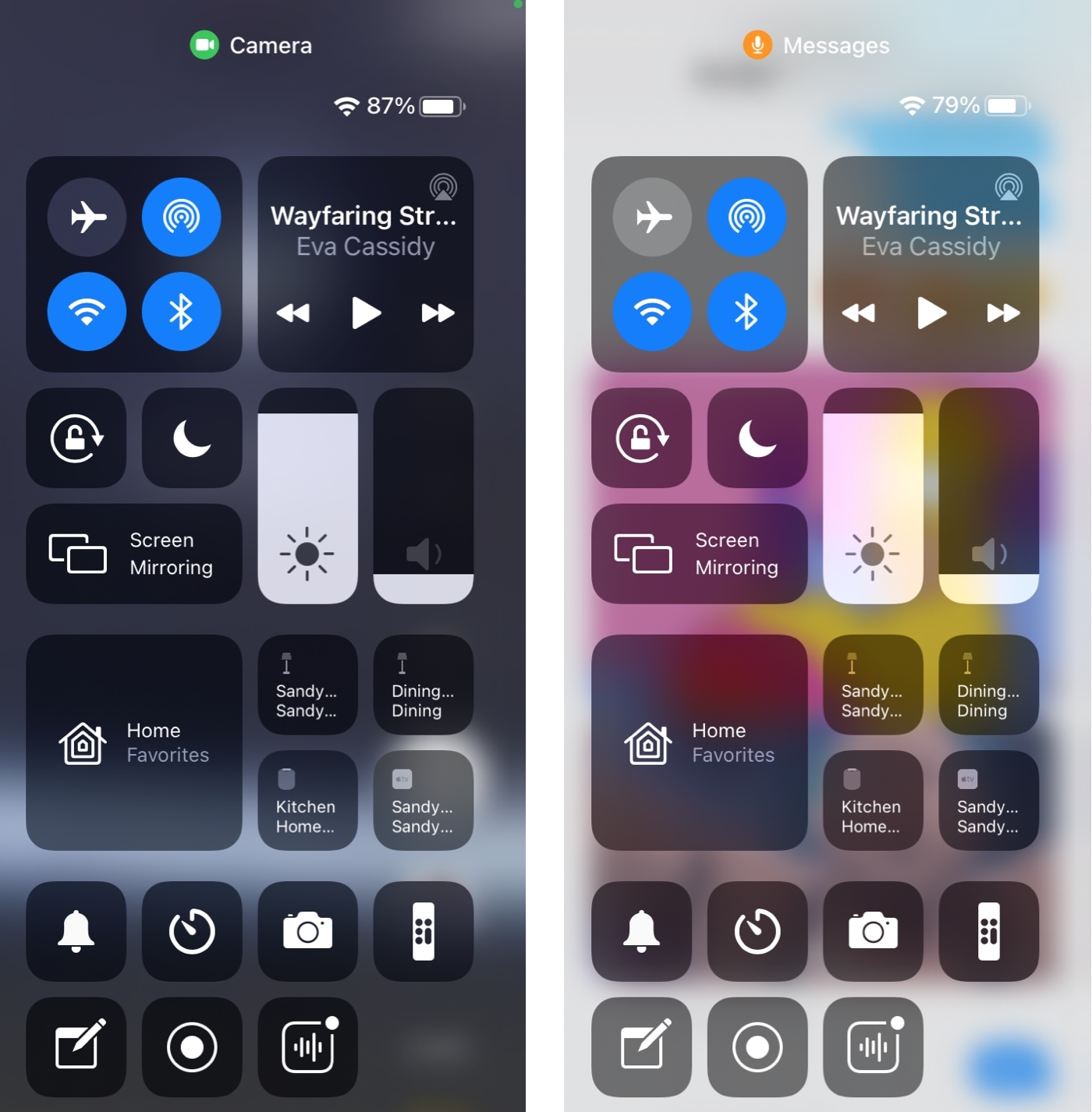
Fortunately, Apple, a brand synonymous with intuitive technology and increasingly, with user privacy, has implemented robust features within its iOS ecosystem to empower users with greater control and transparency. For anyone invested in understanding their digital footprint, protecting their personal brand, or simply ensuring their technology serves them securely, knowing how to monitor microphone usage on an iPhone is a fundamental skill. This comprehensive guide will walk you through the various ways your iPhone informs you about active and past microphone usage, how to manage app permissions, and best practices to safeguard your digital security and peace of mind.
Understanding iPhone’s Privacy Indicators: Your First Line of Defense
Apple’s commitment to user privacy is perhaps best exemplified by its real-time privacy indicators. These subtle yet powerful visual cues are designed to give you instant feedback on whether your device’s microphone or camera is actively in use. They are not just aesthetic additions; they are crucial components of your digital security toolkit, acting as an immediate warning system that empowers you to question and investigate potential unauthorized access.
The Orange Dot: Real-time Microphone Usage
The most direct indicator of microphone activity is the orange dot that appears at the top of your iPhone’s screen. When any app or system process is actively using your device’s microphone, this small, distinct orange circle will illuminate in the Dynamic Island on newer iPhones (iPhone 14 Pro and later) or in the status bar (just above the cellular signal bars) on older models.
This isn’t just a notification; it’s a dynamic alert. The moment an app begins recording audio, whether it’s for voice notes, a search query, or even in the background, the orange dot lights up. The moment the microphone is no longer in use, the dot disappears. This real-time feedback loop is invaluable for immediate awareness. For instance, if you’re not on a call, recording a memo, or actively using Siri, and you see the orange dot, it’s a clear signal that something is accessing your microphone, prompting you to investigate which app might be responsible. This instant visibility is a cornerstone of Apple’s privacy-centric software design, providing users with unprecedented transparency into how their apps interact with sensitive hardware. It strengthens Apple’s brand reputation for user-centric security, demonstrating that they are actively helping users monitor their digital environment.
The Green Dot: Camera and Microphone Usage
Similar to the orange dot, the green dot serves a parallel, but broader, function. If an app or system process is actively using your iPhone’s camera – which, by extension, often includes microphone access for video recording – a green dot will appear in the same location as the orange dot. This indicator is a comprehensive alert for audiovisual recording.
While the orange dot specifically points to microphone activity, the green dot indicates that your camera is active, and it can include microphone usage. If you’re using a video conferencing app, taking a video, or scanning a QR code with the camera, seeing the green dot is expected. However, if you’re just browsing social media and you spot the green dot, it signifies that an app might be accessing your camera (and potentially microphone) without a clear purpose, raising a red flag for potential privacy invasion. Both the orange and green dots empower you to practice better digital security by providing immediate, undeniable proof of hardware access, allowing you to react swiftly and protect your personal space and data. This level of immediate feedback helps users maintain control over their device’s functionalities, fostering trust in the technology while also encouraging proactive user behavior.
Uncovering Past Microphone Activity with the Control Center
While the real-time indicators are excellent for immediate alerts, you might not always be looking at your phone at the exact moment an app briefly accesses the microphone. This is where the iPhone’s Control Center comes in, offering a historical log of recent privacy events. This feature moves beyond mere real-time alerts to provide a crucial audit trail, allowing you to review and understand what apps have recently accessed your microphone, and when. It’s an essential tool for a thorough digital security check-up.
Accessing the Control Center
Accessing the Control Center is a straightforward gesture on your iPhone, though it varies slightly depending on your model:
- For iPhones with Face ID (iPhone X and later): Swipe down from the top-right corner of the screen.
- For iPhones with a Home button: Swipe up from the bottom edge of the screen.
Once opened, the Control Center provides quick access to various system controls like Wi-Fi, Bluetooth, brightness, and volume. However, its most valuable contribution to privacy monitoring is the dedicated section detailing recent hardware access.
Deciphering the Privacy Indicator Section
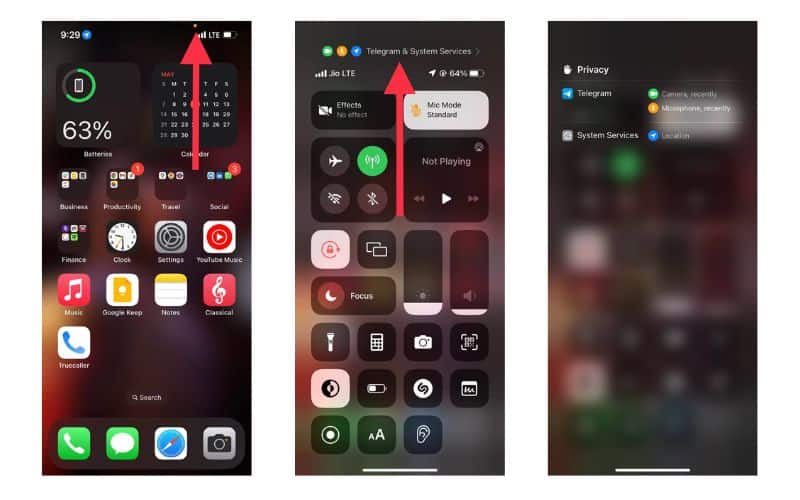
At the very top of the Control Center (for newer iOS versions), you’ll find a small, but incredibly important, area that displays the most recent app to have accessed your camera or microphone. This section doesn’t just show the orange or green dot; it provides context.
When you see the orange or green dot within the Control Center, tapping on it will expand a detailed privacy report. This report will list the specific app that most recently used your microphone or camera, along with a timestamp of when that access occurred. For example, it might show “Voice Memos used your microphone 2 minutes ago” or “Instagram used your camera and microphone 5 minutes ago.” This level of detail is critical for retrospective analysis. If you see an app listed that you weren’t actively using for its microphone function at that specific time, it warrants further investigation into that app’s permissions and behavior. This feature transforms passive observation into actionable insight, moving users from merely noticing a dot to understanding the exact source and timing of a privacy event.
Identifying Specific Apps and Their Timestamps
The power of the Control Center’s privacy indicator section lies in its ability to present a clear, historical record. This isn’t just about showing the last app; if multiple apps have accessed your microphone or camera in recent times, you can often scroll through a short list of these recent activities. This allows you to build a clearer picture of your apps’ behavior patterns over a short period.
For example, if you notice the orange dot briefly, but then it disappears before you can react, a quick swipe to the Control Center will immediately tell you which app was responsible and precisely when. This timestamped log is invaluable for auditing app behavior. It helps you identify apps that might be accessing your microphone more frequently than necessary or at unusual times. This feature aligns perfectly with effective digital security practices, enabling users to proactively manage their devices. By providing such transparency, Apple reinforces its brand commitment to privacy, helping users identify potential threats to their personal data and, by extension, their personal brand and financial security if sensitive information were to be compromised through surreptitious listening.
Taking Control: Managing Microphone Permissions for Apps
Knowing when your microphone is in use is the first step; the next crucial step is taking proactive control over which apps have access to it. iPhone’s iOS provides granular control over app permissions, allowing you to dictate precisely what hardware and data each app can access. This is where you transition from observation to action, locking down your digital environment and ensuring your privacy settings align with your comfort level. This proactive management is a cornerstone of maintaining strong digital hygiene and protecting your data.
Navigating to Privacy & Security Settings
All the controls for managing app permissions, including microphone access, are centralized within your iPhone’s Settings app. To get there:
- Open the Settings app on your iPhone.
- Scroll down and tap on Privacy & Security.
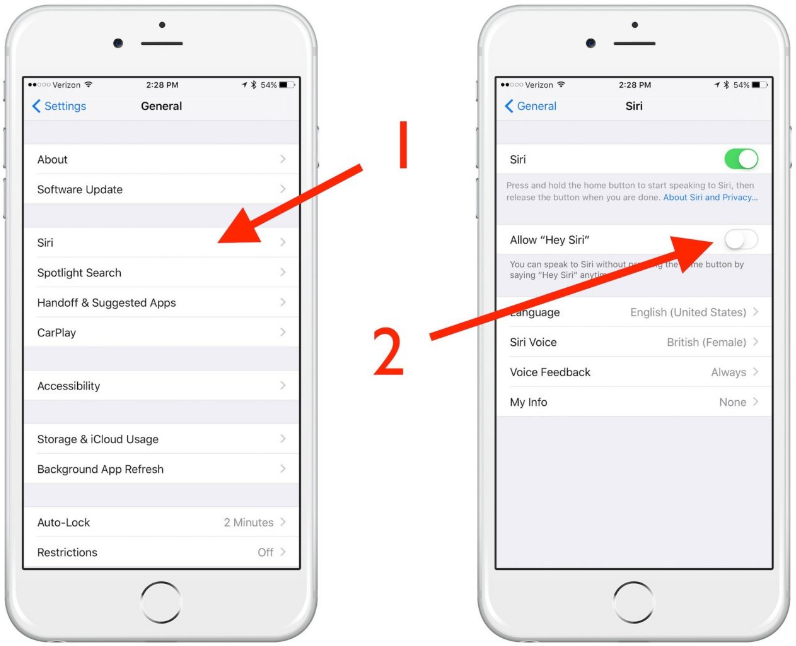
This section is the nerve center for all privacy-related controls on your device. Within “Privacy & Security,” you’ll find a list of various hardware and data types, such as Location Services, Contacts, Photos, Camera, and most importantly for this discussion, Microphone.
Reviewing App-Specific Microphone Access
Once you tap on Microphone within the Privacy & Security settings, you’ll be presented with a comprehensive list of every app installed on your iPhone that has ever requested or currently has access to your microphone. Each app will have a toggle switch next to its name.
This list is incredibly revealing. You might be surprised by how many apps have microphone access, sometimes granted out of habit during initial setup or unknowingly accepted through vague prompts. For each app, the toggle switch allows you to:
- Enable (Green): The app has permission to use your microphone.
- Disable (Gray): The app does not have permission to use your microphone.
Carefully review this list. For each app, ask yourself: “Does this app genuinely need microphone access to function correctly, and do I trust it with this sensitive permission?” For example, a voice recorder, a video call app, or a smart assistant like Siri obviously needs microphone access. But does a flashlight app, a simple game, or a note-taking app truly require it? Often, apps request broad permissions they don’t strictly need, or which are only relevant to a minor, unused feature. Revoking unnecessary access is a fundamental step in minimizing your digital attack surface and reinforcing your privacy.
Best Practices for Granting Permissions
When an app requests microphone access, or when you are reviewing existing permissions, it’s vital to apply a critical lens. Here are some best practices:
- Grant Sparingly: Only grant microphone access to apps that absolutely require it for their core functionality. When in doubt, deny permission. You can always grant it later if an app fails to work without it.
- “While Using the App” vs. “Always”: For permissions like location (which can sometimes be tied to microphone use in context), iOS often offers options like “Ask Next Time,” “While Using the App,” or “Always.” While not directly for the microphone, the principle applies: if an app offers more restrictive access options, choose them. For the microphone specifically, access is usually “on” when granted, but you can revoke it when not actively using the app.
- Regular Audits: Make it a habit to revisit your Microphone permissions list every few months. Delete unused apps, and re-evaluate the permissions of apps you still use. App updates can sometimes alter permission requirements or introduce new features that might prompt you to reconsider your access grants.
- Understand the “Why”: Before granting any permission, try to understand why the app needs it. A reputable app will usually explain its need for microphone access. If the explanation seems dubious or non-existent, proceed with caution. This vigilance protects your personal brand and contributes to overall digital security, preventing data leakage that could have financial implications.
By diligently managing these permissions, you’re not just securing your microphone; you’re taking a significant step in controlling your overall digital privacy and data security. This meticulous approach helps reinforce Apple’s brand message of user control, while simultaneously empowering users to safeguard their own interests in an increasingly data-driven world.
Beyond the Basics: Advanced Privacy Strategies and Digital Hygiene
While understanding indicators and managing permissions are foundational, truly robust digital security involves a broader approach. It’s about cultivating a mindset of continuous vigilance and adopting proactive strategies that extend beyond specific settings. This holistic view helps protect your entire digital footprint, safeguarding not just your conversations but also your identity, your brand, and your financial well-being.
Regular Audits of App Permissions
Treat your app permission settings like you would your financial statements – requiring regular review. Apps are constantly updated, and their behaviors can change. New features might be introduced that request additional permissions, or an app you rarely use might suddenly start behaving suspiciously.
- Monthly Check-ups: Set a reminder to visit your “Privacy & Security” settings at least once a month.
- Focus on Dormant Apps: Pay special attention to apps you haven’t used in a while but still have installed. If you don’t use them, consider deleting them entirely. Less apps mean fewer potential vectors for privacy breaches.
- Read Update Notes: When apps update, briefly scan their release notes. Sometimes, changes in permissions are mentioned there.
This consistent auditing practice is a key element of strong digital hygiene, much like regularly brushing your teeth. It ensures that your privacy settings remain aligned with your preferences and minimizes the risk of unnoticed permission creep.
Understanding App Business Models and Data Collection
One of the most powerful privacy tools is knowledge. Understanding how apps make money often sheds light on why they request certain permissions and collect specific data.
- “Free” Apps: Many “free” apps operate on business models that rely heavily on data collection, including usage patterns, location data, and sometimes even audio snippets (though reputable companies typically process audio locally for commands rather than recording conversations). Your data, in these cases, is currency.
- Subscription vs. Ad-Supported: Apps with clear subscription models often have less incentive to collect vast amounts of user data beyond what’s necessary for service improvement. Ad-supported apps, conversely, thrive on collecting data to personalize ads, which can sometimes lead to more invasive data practices.
- Read Privacy Policies (The Gist): While often lengthy and convoluted, try to get the gist of an app’s privacy policy, especially for apps that request extensive permissions. Look for sections on data collection, storage, and sharing.
This insight into app economics empowers you to make more informed decisions about which apps you trust with your data. It helps you see beyond the immediate utility of an app to its underlying operational philosophy, thereby better protecting your personal brand from potential exploitation.
Leveraging Other iOS Privacy Features
The microphone is just one piece of the privacy puzzle. iOS offers a suite of integrated features designed to give you comprehensive control over your data:
- App Tracking Transparency (ATT): Introduced in iOS 14.5, ATT requires apps to ask for your permission before tracking your activity across other companies’ apps and websites. Always deny tracking if you value your privacy.
- Location Services: Just like the microphone, review which apps have access to your location and set it to “While Using the App” or “Ask Next Time” whenever possible. Location data, especially when combined with other data, can paint a very detailed picture of your life.
- Photos, Contacts, Calendar Access: Apply the same rigorous review to these permissions. Does a social media app really need access to all your photos, or just the ones you explicitly choose to share?
- Report App Privacy: Apple’s App Store now includes “App Privacy Labels,” often referred to as “nutrition labels.” These labels, located on each app’s product page, provide a summary of the data an app might collect and how it’s used. Make it a habit to check these before downloading new apps.
These combined features form a multi-layered defense system, making your iPhone a more secure digital environment.
The Broader Impact: Protecting Your Brand and Finances
The implications of compromised privacy extend far beyond mere discomfort; they can have tangible impacts on your personal brand and financial security.
- Personal Brand: In an era of increasing digital scrutiny, leaked personal information or even the perception of lax privacy can damage your professional and personal reputation. Ensuring microphone privacy means your private conversations remain private, protecting you from potential misunderstandings or manipulative data targeting.
- Financial Security: The data collected from your apps, including information derived from microphone access, can be used for highly targeted scams, phishing attempts, or even identity theft. If bad actors gain insight into your financial habits, conversations about investments, or banking details through compromised microphone access, the financial repercussions could be severe. Protecting your privacy is a direct investment in your financial security, reducing your vulnerability to online fraud and maintaining the integrity of your monetary assets.
- AI Tools and Data: With the rise of AI tools integrated into many apps, the data they collect becomes even more valuable. Ensuring your microphone access is controlled means you’re not inadvertently feeding sensitive personal data into large language models or other AI systems that could then use it in unforeseen ways.
By adopting these advanced privacy strategies and maintaining rigorous digital hygiene, you’re not just configuring settings; you’re actively cultivating a safer, more controlled digital life. This proactive stance ensures that your technology remains a tool for empowerment, not a potential vulnerability, solidifying your control over your digital identity and securing both your personal brand and your financial future in the long run.
Conclusion
The power of your iPhone lies not just in its advanced features, but also in the sophisticated privacy controls Apple has integrated into the iOS ecosystem. While concerns about microphone access are valid in today’s data-driven world, your iPhone provides a comprehensive suite of tools to address these worries head-on. From the real-time vigilance offered by the orange and green dots, to the historical insights provided by the Control Center, and the granular command over permissions in the Settings app, you are equipped with everything you need to understand and manage how apps interact with your microphone.
Taking control of your digital privacy is an ongoing process, not a one-time setup. It requires consistent vigilance, regular audits of app permissions, and a critical understanding of how apps function and monetize their services. By diligently applying the strategies outlined in this guide, you empower yourself to navigate the digital landscape with greater confidence and security. This isn’t just about preventing eavesdropping; it’s about safeguarding your digital security, protecting your personal brand from potential compromise, and shielding your financial well-being from the myriad risks associated with unchecked data collection. Your iPhone is a powerful device; ensure it serves your interests, securely and privately.
aViewFromTheCave is a participant in the Amazon Services LLC Associates Program, an affiliate advertising program designed to provide a means for sites to earn advertising fees by advertising and linking to Amazon.com. Amazon, the Amazon logo, AmazonSupply, and the AmazonSupply logo are trademarks of Amazon.com, Inc. or its affiliates. As an Amazon Associate we earn affiliate commissions from qualifying purchases.