
In the rapidly evolving landscape of wearable technology, the Apple Watch has maintained its position as the gold standard for smartwatches. Since its initial release in 2015, Apple has launched numerous iterations, ranging from the budget-friendly SE models to the rugged, high-performance Ultra series. Because Apple maintains a consistent design language across many of its generations, it is remarkably easy to lose track of exactly which model is sitting on your wrist.
Knowing your specific Apple Watch model is not merely a matter of curiosity; it is a technical necessity. Whether you are looking to purchase a new protective case, checking for watchOS software compatibility, determining trade-in value, or troubleshooting a hardware issue, precise identification is the first step. This guide provides a comprehensive technical breakdown of how to identify your Apple Watch through software settings, physical inspection, and model number decoding.

Identifying Your Apple Watch via Software and iPhone Integration
The most accurate and efficient way to identify your Apple Watch is through the software interface. Because Apple tightly integrates the watch with the iOS ecosystem, you can find detailed specifications either directly on the wearable or through your paired iPhone.
Using the Apple Watch Settings App
If your watch is powered on and functional, the device itself holds the key to its identity. To find this information, navigate to the Settings app (the gear icon) on your Apple Watch. From there, go to General and then tap About.
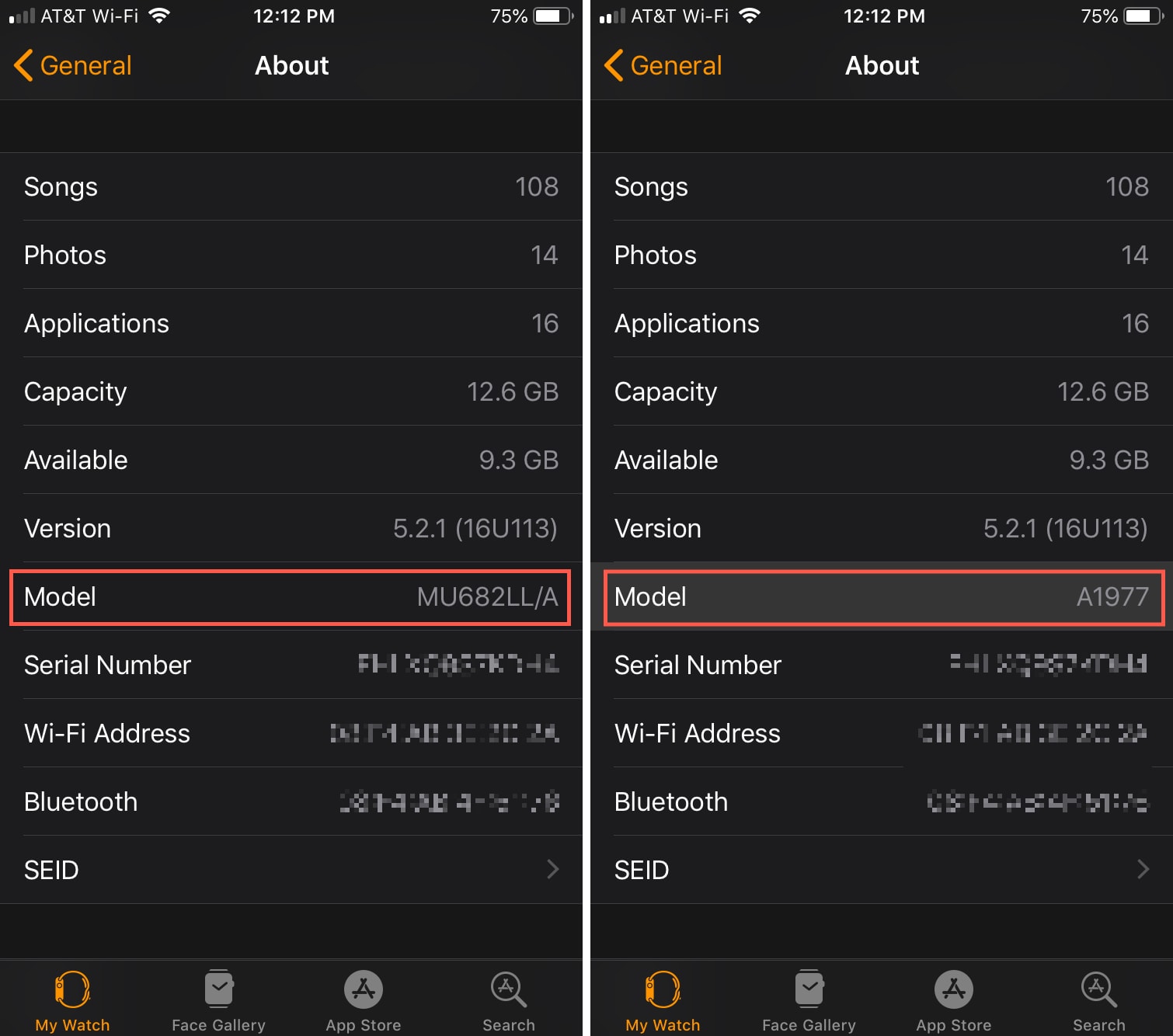
In the “About” menu, you will see a wealth of technical data. The “Model” field is particularly important. Initially, you may see a code starting with the letter “M.” This is the part number, which indicates specific configurations like color and storage. However, for most identification databases, you need the “A” model number. To see this, simply tap on the “M” code, and it will toggle to a five-digit code starting with the letter “A” (e.g., A2978). This “A” number is the definitive identifier for your hardware generation.
Utilizing the iPhone Watch App
For many users, the iPhone provides a more readable interface for checking device specs. Open the Watch app on your paired iPhone and ensure you are on the My Watch tab. Tap on General, then About.
Just like on the watch itself, you will find a “Model” field. Tapping this field toggles between the part number and the “A” model number. This screen also displays your Serial Number, which is useful for checking warranty status on Apple’s official support website. The Watch app is particularly helpful if you have multiple watches paired to a single phone, as it allows you to toggle between them at the top of the screen to view the specs for each.
Checking via Your Apple ID Profile
If your Apple Watch is not currently with you or won’t power on, you can still identify it using your Apple ID. On your iPhone, go to Settings, tap your Name at the very top, and scroll down to the list of devices. Tap on your Apple Watch in the list. This section will usually provide the model name (e.g., “Apple Watch Series 7”) along with the serial number and the version of watchOS currently installed.
Decoding Physical Characteristics and Hardware Cues
If the watch is out of power or locked, you can rely on physical inspection. Apple has subtly changed the hardware over the years, and these visual cues can help narrow down the generation.

Inspecting the Engravings on the Back Case
Every Apple Watch features text engraved in a circular pattern around the heart rate sensor on the back of the device. This text is the most reliable physical identifier. By looking closely (you may need a magnifying glass or a high-resolution photo), you can read the following details:
- The Series: It will explicitly state “Series 9,” “Ultra 2,” or “SE.”
- Case Size: Measured in millimeters (e.g., 40mm, 41mm, 45mm, or 49mm).
- Material: It will specify if the case is Aluminum, Stainless Steel, Titanium, or Ceramic.
- Sensor Type: Older models may only list “Ion-X Strength,” while newer models mention Sapphire Crystal and GPS/Cellular status.
Differentiating Features: Digital Crown and Sensors
The appearance of the Digital Crown is a major indicator of cellular capability and model age. On older cellular models (Series 3 through Series 7), the Digital Crown featured a solid red circle or a red ring on its face. The Apple Watch Ultra changed this design language with a larger, more protected crown and an “International Orange” Action Button on the opposite side.
The back sensor array also provides clues. The original Apple Watch and Series 1–3 feature a cluster of four circular windows. Series 4, 5, and 6 introduced a more integrated, single-circle sensor design with the ability to take ECGs (indicated by a titanium electrode on the Digital Crown). The Series 7 and 8 refined this further, while the Ultra series has a distinct, flat back with exposed screws, reflecting its ruggedized tech specs.
Screen Design and Case Dimensions
The evolution of the Apple Watch display is one of its most defining tech trends.
- Series 1, 2, and 3: These feature a smaller, rectangular display with significant black bezels (38mm and 42mm sizes).
- Series 4, 5, and 6: These introduced rounded corners and a larger display area (40mm and 44mm sizes).
- Series 7, 8, and 9: These feature nearly “edge-to-edge” displays with much thinner bezels (41mm and 45mm sizes).
- Ultra Series: This is the only model with a completely flat sapphire front crystal and a 49mm case.
Technical Specifications and Model Number Reference
Once you have retrieved the “A” model number from your settings or the back of the case, you can match it against Apple’s technical database. This is the only way to be 100% certain of your device’s internal capabilities, such as its processor (S-series chip) and specific wireless bands.
Common Model Number Ranges
- Apple Watch Ultra 2: A2986, A2987. These represent the pinnacle of current wearable hardware, featuring the S9 chip and 3000 nits of brightness.
- Apple Watch Series 9: A2978 (41mm), A2982 (45mm). These models introduced the “Double Tap” gesture powered by the new 4-core Neural Engine.
- Apple Watch SE (2nd Gen): A2722, A2723. These provide the core Apple Watch experience without the Always-On display or ECG capabilities.
- Legacy Models: Models like the A1553 (the original 38mm “Series 0”) are now considered “obsolete” in tech terms, meaning they no longer receive software updates and are limited in their app compatibility.
Why the Processor (SiP) Matters
Understanding which “System in a Package” (SiP) your watch uses is vital for performance expectations. For instance, the transition from the S5 to the S6 chip introduced a 20% performance increase and the U1 Ultra Wideband chip. Knowing you have an S9 chip means your device is equipped for on-device Siri processing, a major leap in privacy and speed. If you are using an older S3 chip (found in the Series 3), you will likely experience significant lag with modern watchOS versions, identifying it as a candidate for an upgrade.
Software Compatibility, Security, and Lifecycle Management
Identifying your Apple Watch is a prerequisite for effective digital maintenance. As software grows more demanding, Apple eventually drops support for older hardware architectures.
Determining your watchOS Limit
Apple typically supports its watches with software updates for about five to six years. For example, watchOS 10 required an Apple Watch Series 4 or later. If you identify your watch as a Series 3, you are locked into watchOS 8, which means you miss out on the latest security patches, redesigned interface elements, and new fitness tracking algorithms. Knowing your model allows you to plan for the “end of life” of your device and ensures you don’t attempt to install software or features that your hardware cannot support.
Digital Security and Preparation for Trade-in
When it comes to digital security, knowing your model is essential for “Activation Lock.” Before selling or gifting your device, you must unpair it correctly to remove the lock. Identifying the model helps you determine the fair market value. Tech enthusiasts and professional trade-in sites (like Apple’s own trade-in program or third-party resellers) require the exact series and material type to give an accurate quote. An Apple Watch Series 6 in Stainless Steel is worth considerably more than the same series in Aluminum due to the sapphire glass and premium build.
Conclusion: The Value of Hardware Literacy
In an era where technology is seamlessly integrated into our daily health and productivity routines, being “hardware literate” is an asset. Identifying your Apple Watch goes beyond knowing its name; it is about understanding the sensors, the processing power, and the software longevity of the tool on your wrist. Whether you are troubleshooting a technical glitch, looking for the right band size, or evaluating an upgrade to the latest AI-driven features, the ability to quickly and accurately identify your model ensures you get the most out of the Apple ecosystem. By following the software and physical steps outlined in this guide, you can confidently manage your device throughout its entire lifecycle.
aViewFromTheCave is a participant in the Amazon Services LLC Associates Program, an affiliate advertising program designed to provide a means for sites to earn advertising fees by advertising and linking to Amazon.com. Amazon, the Amazon logo, AmazonSupply, and the AmazonSupply logo are trademarks of Amazon.com, Inc. or its affiliates. As an Amazon Associate we earn affiliate commissions from qualifying purchases.