
In an increasingly digital world, access to our favorite streaming services, social media platforms, and online accounts relies heavily on a simple yet critical component: the password. Spotify, as one of the leading music streaming platforms globally, holds a significant place in many users’ daily routines. Losing access to your Spotify account, whether due to a forgotten password, a security concern, or simply a desire to update your credentials, can be frustrating. However, the process of resetting your Spotify password is a straightforward and essential aspect of maintaining your digital security.
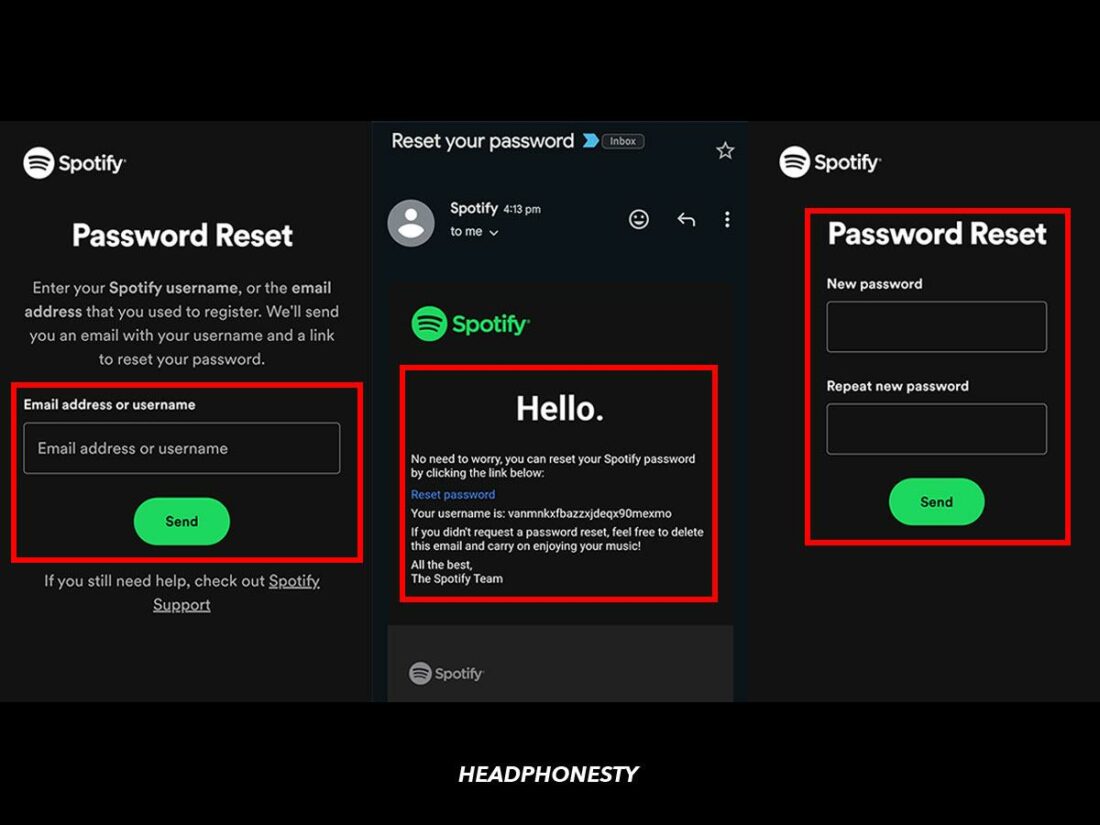
This guide will walk you through the precise steps to regain control of your Spotify account, offering insights into the broader context of digital security best practices. Beyond just the mechanics of a password reset, we’ll delve into why strong security habits are crucial, how to proactively protect your digital life, and what to do if you encounter common issues. Understanding these processes is not merely about getting back to your playlists; it’s about fortifying your personal cybersecurity posture against an ever-evolving threat landscape.
The Essential Steps to Regain Access: A Step-by-Step Tutorial
Regaining access to your Spotify account begins with a clear, methodical approach to the password reset process. Spotify has designed this procedure to be user-friendly, ensuring that even users unfamiliar with technical troubleshooting can navigate it successfully. Following these steps carefully will lead you back to your music in no time.
Initiating the Password Reset Process
The first action you need to take is to signal to Spotify that you require a password change. This process is initiated directly from Spotify’s login interface, rather than within the app itself if you’re already logged out.
-
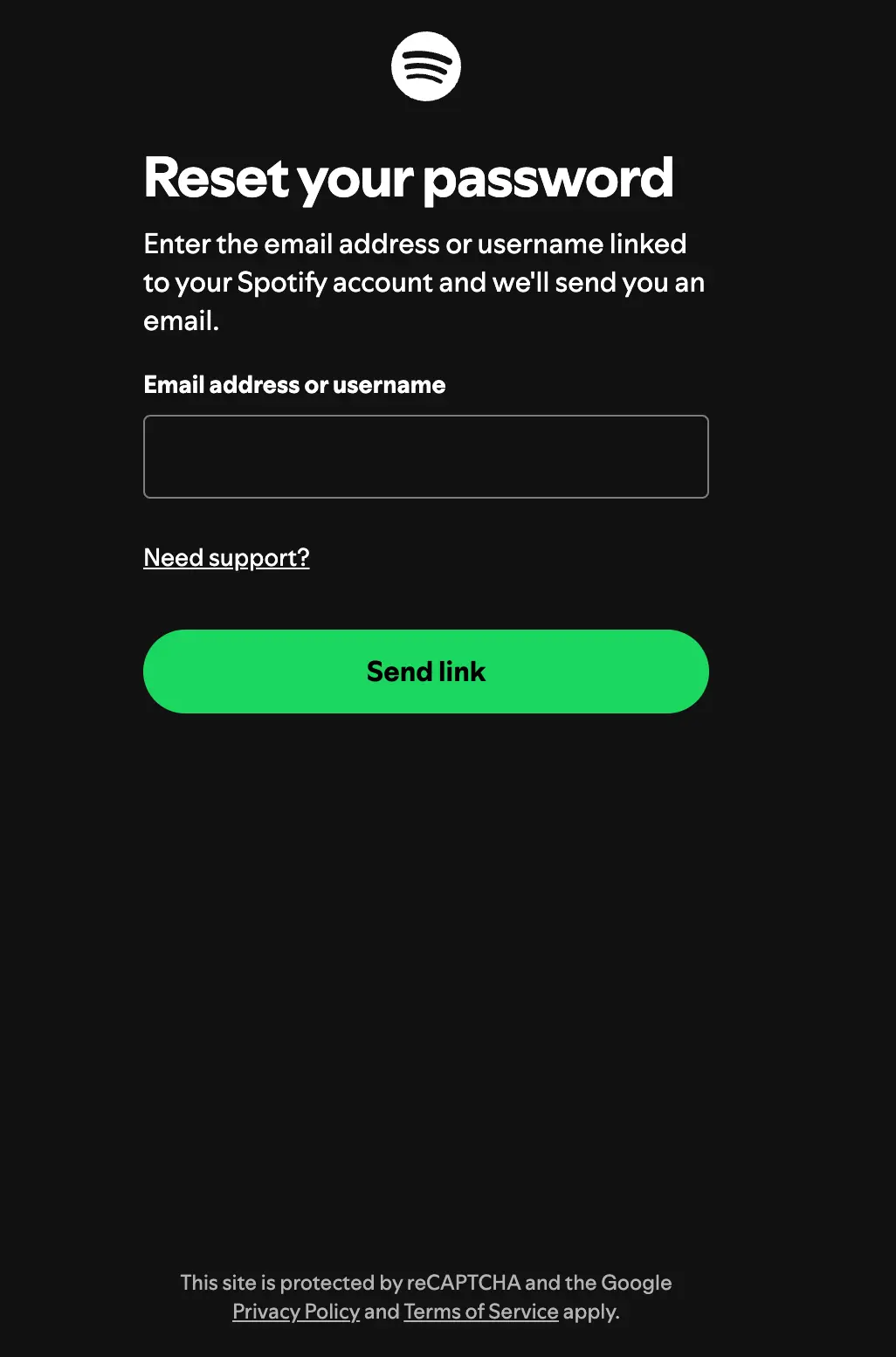
Navigate to the Spotify Password Reset Page: Open your web browser and go directly to Spotify’s password reset portal. You can often find a link by attempting to log in on the main Spotify website (spotify.com) and clicking on “Forgot your password?” This will typically redirect you to a specific URL such as
https://www.spotify.com/password-reset/. -
Enter Your Registered Email Address or Username: On the password reset page, you will be prompted to enter either the email address or the username associated with your Spotify account. It is crucial to use the exact email or username you signed up with. If you signed up using a social media account (like Facebook or Apple), the process might differ slightly, requiring you to reset your password through that respective platform or ensuring your Spotify account has an associated email address for direct recovery. Once entered, click the “Send” or “Submit” button.
Verifying Your Identity (Email/Phone)
Upon submitting your email or username, Spotify will send a verification link or code to the registered contact method to confirm your identity. This is a critical security measure to ensure that only the legitimate account owner can reset the password.
-
Check Your Email Inbox: Immediately after submitting your request, open the email client associated with the email address you provided. Look for an email from Spotify, typically with a subject line like “Reset your password” or “Spotify password reset request.” If you don’t see it in your primary inbox within a few minutes, check your spam or junk folder. Email filters can sometimes misclassify legitimate emails.
-
Click the Password Reset Link: Inside the email, you will find a unique link. This link is time-sensitive and designed for a single use. Click on it to proceed. It will direct you to a secure page where you can create a new password. If you receive multiple reset emails, always use the most recent one.
Creating a Strong, New Password
This is arguably the most important step in the entire process, as it directly impacts the future security of your Spotify account. A weak password is an open invitation for unauthorized access.
-
Input Your New Password: On the page the link directs you to, you’ll see fields to enter your new password. You will typically be asked to enter it twice to ensure accuracy and prevent typos.
-
Adhere to Strong Password Guidelines: Spotify, like most secure platforms, will have requirements for your new password. These usually include:
-
Minimum Length: Often 8-12 characters or more.
-
Combination of Character Types: A mix of uppercase letters, lowercase letters, numbers, and symbols (e.g., !, @, #, $, %, ^, &).
-
Avoid Personal Information: Do not use easily guessable information such as your name, birthdate, or common phrases.
-
Uniqueness: Crucially, do not reuse a password you have used for any other online service. This is a fundamental rule of digital security.
-
-
Confirm and Save: Once you have entered a strong, compliant new password, click “Save” or “Reset Password.” Spotify will confirm that your password has been successfully updated.
Finalizing and Logging In
With your new password set, you can now log back into your Spotify account and resume your listening experience.
-
Log In with Your New Credentials: Return to the Spotify website or open the Spotify app on your device. Enter your username or email address and your newly created password.
-
Update on All Devices: If you use Spotify on multiple devices (phone, tablet, computer, smart speaker), you will likely need to log in again on each of them with your new password. This ensures all instances of your account are using the updated, secure credentials.
Proactive Digital Security: Best Practices Beyond the Reset
While resetting a forgotten password is a reactive measure, a truly robust digital security posture involves proactive strategies. A strong password, though foundational, is just one component of a comprehensive security approach. By implementing additional layers of protection, you can significantly reduce the risk of future account compromises across all your digital platforms, not just Spotify.
The Imperative of Strong, Unique Passwords
As highlighted during the reset process, the strength and uniqueness of your password are your first line of defense. The common practice of reusing passwords across multiple sites is one of the biggest vulnerabilities in personal cybersecurity. If an attacker gains access to one of your accounts due to a data breach on a different, less secure site, they can use those same credentials to try and access your other accounts (a technique known as “credential stuffing”).
-
Utilize Password Managers: To overcome the challenge of remembering dozens of complex, unique passwords, invest in a reputable password manager (e.g., LastPass, 1Password, Bitwarden). These tools securely store all your passwords, generate strong new ones, and autofill login fields, simplifying your digital life while enhancing security.
-
Regular Password Audits: Periodically review the strength and uniqueness of your passwords. Many password managers offer auditing features that can identify weak or reused passwords, prompting you to update them.
Enabling Two-Factor Authentication (2FA) for Enhanced Protection
Two-Factor Authentication (2FA), sometimes called multi-factor authentication (MFA), adds a crucial second layer of security beyond just your password. Even if an attacker somehow obtains your password, they would still need this second factor to gain access.
-
How 2FA Works: Typically, after entering your password, you’ll be prompted to provide an additional piece of information – a code sent to your phone via SMS, a code generated by an authenticator app (like Google Authenticator or Authy), or a physical security key.
-
Activating 2FA on Spotify: While Spotify’s direct 2FA options are sometimes limited compared to other services, it’s vital to check your account settings for any available enhancements. Crucially, if you link your Spotify account to a service that does offer 2FA (like Facebook or Apple ID), ensure 2FA is enabled on those primary accounts. This indirect protection is still highly effective.
-
Implement 2FA Everywhere: Make enabling 2FA a standard practice for all your critical online accounts – email, banking, social media, and any service that offers it.
Regularly Reviewing Connected Devices and Apps
Sometimes, unauthorized access doesn’t come from a direct password breach but from persistent sessions on forgotten devices or through third-party applications granted excessive permissions.
-
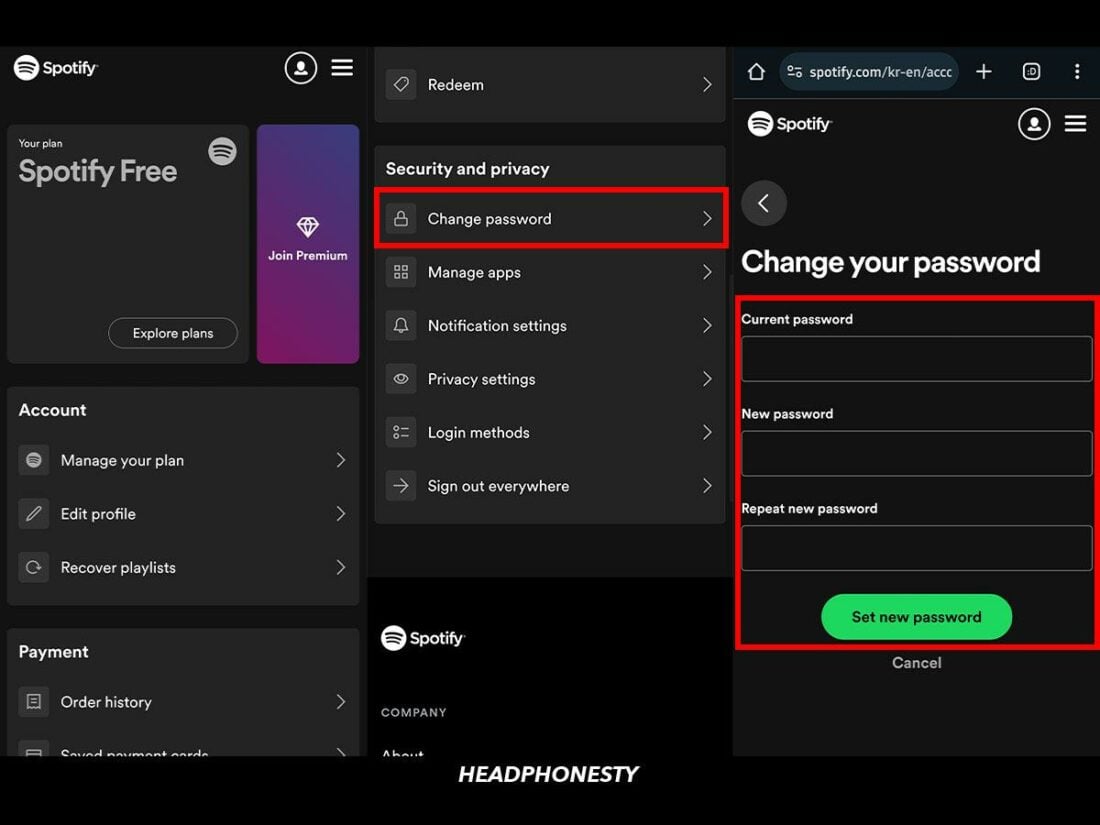
Spotify’s “Sign Out Everywhere” Feature: Periodically, visit your Spotify account settings on the web. Look for a “Sign Out Everywhere” or “Log out of all devices” option. Using this can quickly revoke access from any device that might still be logged in, intentionally or unintentionally, giving you a fresh start.
-
Revoke Unused App Access: Review the list of third-party applications that you have granted access to your Spotify account (e.g., concert tracking apps, DJ software). If you no longer use an app, revoke its access permissions to prevent potential data exposure through a third-party breach.
Recognizing and Avoiding Phishing Attempts
Phishing remains one of the most common and effective methods attackers use to steal credentials. These are deceptive attempts to trick you into revealing sensitive information, often by mimicking legitimate organizations.
-
Be Skeptical of Suspicious Emails/Messages: Any unsolicited email or message asking for your password, financial details, or to click a suspicious link should be treated with extreme caution.
-
Check the Sender and URL: Always verify the sender’s email address – is it truly from Spotify (e.g.,
account.spotify.com, notspotify-support.info)? Hover over links (without clicking) to see the actual URL they point to. If it looks suspicious, don’t click. -
Report Phishing Attempts: If you receive a phishing attempt related to Spotify, report it to Spotify’s security team and then delete the email.
Troubleshooting Common Issues During Password Reset
While the Spotify password reset process is generally smooth, users can occasionally encounter hurdles. Understanding common issues and their solutions can save time and reduce frustration.
Email Not Arriving: Checking Spam and Email Settings
The most frequent issue is not receiving the password reset email.
-
Check Spam/Junk Folder: This is the first place to look. Email providers sometimes flag automated messages as spam.
-
Verify Email Address: Double-check that you entered the correct email address associated with your Spotify account. A small typo can prevent the email from reaching you.
-
Allow Sender (Whitelist): Add Spotify’s official email domains (e.g.,
@spotify.com,@e.spotify.com) to your email client’s safe sender list or contacts to prevent future issues. -
Wait a Few Minutes: Sometimes there’s a slight delay. Give it 5-10 minutes before trying again.
-
Re-initiate the Reset: If after checking spam and waiting, you still haven’t received it, go back to the Spotify password reset page and try initiating the process again.
Account Not Found: Verifying Username or Email
If Spotify tells you “account not found” or that the email/username doesn’t exist.
-
Verify Credentials: Carefully re-enter your email or username. Ensure there are no typos, extra spaces, or incorrect characters.
-
Alternative Login Methods: Did you originally sign up using Facebook, Apple, or Google? If so, you might need to use their respective login flows, or try resetting the password for that linked account first, as Spotify often delegates authentication in such cases.
-
Try Both Email and Username: If you’re unsure which you used or if one isn’t working, try the other.
Technical Glitches and Browser Compatibility
Browser-related issues can sometimes interfere with web processes.
-
Clear Browser Cache and Cookies: Accumulated data can sometimes cause problems. Clear your browser’s cache and cookies and then try again.
-
Try a Different Browser: If you’re using Chrome, try Firefox or Edge, or vice-versa. This can rule out browser-specific issues or extensions interfering with the process.
-
Disable Browser Extensions: Temporarily disable ad blockers or security extensions, as they can sometimes block legitimate pop-ups or scripts necessary for the reset page to function correctly.
-
Use Incognito/Private Mode: This mode often runs without extensions and a clean slate for cookies, which can help bypass certain issues.
When All Else Fails: Contacting Spotify Support
If you’ve exhausted all troubleshooting steps and still can’t access your account, it’s time to reach out to Spotify’s official support channels.
-
Visit Spotify’s Help Center: Go to
support.spotify.com. They have extensive FAQs and guides that might cover your specific issue. -
Contact Customer Service: Look for options to contact support directly, often via live chat or submitting a support ticket. Be prepared to provide as much detail as possible to verify your identity (e.g., past payment details, date of account creation, linked social media accounts, specific playlists).
The Broader Landscape of Account Security: Why It Matters for All Your Digital Life
The specific act of resetting a Spotify password is a microcosm of a much larger, overarching necessity: robust account security across your entire digital footprint. The insights gained from securing a streaming service account can be applied to protect far more sensitive data.
Understanding the Risks: Data Breaches and Identity Theft
The digital world is unfortunately rife with threats. Data breaches, where attackers steal vast amounts of user data from companies, are increasingly common. If your email and password combination is compromised in one breach, attackers will attempt to use it on hundreds of other services. This can lead to:
-
Financial Fraud: Access to banking, e-commerce, or investment accounts.
-
Identity Theft: Attackers using your personal information to open new lines of credit, apply for loans, or commit other crimes in your name.
-
Reputational Damage: Compromise of social media or professional accounts leading to malicious posts or interactions.
-
Loss of Access: Being locked out of critical services like email, which can then be used to reset passwords for almost every other online account you own.
The Ripple Effect: How One Compromised Account Can Affect Others
The interconnectedness of our digital lives means that a breach in one area can quickly cascade into others. For example, if an attacker gains access to your email account, they can then easily initiate password resets for most of your other online services. Similarly, if your Spotify account is linked to Facebook, a compromise of one can expose the other. This “ripple effect” underscores the importance of securing every account, treating each as a potential gateway to your broader digital identity.
Building a Culture of Cybersecurity in Your Personal Digital Ecosystem
True digital security isn’t a one-time fix; it’s an ongoing commitment and a shift in mindset. It involves cultivating habits that prioritize protection:
-
Stay Informed: Keep abreast of common cyber threats and security best practices.
-
Regular Software Updates: Ensure your operating systems, browsers, and applications are always up to date. Updates often contain critical security patches.
-
Be Mindful of Permissions: When installing new apps or connecting services, be cautious about the permissions you grant. Only allow what is absolutely necessary.
-
Backup Critical Data: While not directly related to password resets, regularly backing up important files ensures that even if you face a severe compromise, your most valuable data remains safe.
Conclusion
Resetting your Spotify password is more than just a momentary inconvenience; it’s a practical exercise in digital security management. By understanding the steps involved and, more importantly, the underlying principles of online safety, you empower yourself to protect not just your music library, but your entire digital identity. Embracing strong, unique passwords, activating two-factor authentication, being vigilant against phishing, and regularly reviewing your account settings are not just recommendations; they are essential disciplines in today’s digital landscape. Your peace of mind, and the security of your personal data, depend on them.
aViewFromTheCave is a participant in the Amazon Services LLC Associates Program, an affiliate advertising program designed to provide a means for sites to earn advertising fees by advertising and linking to Amazon.com. Amazon, the Amazon logo, AmazonSupply, and the AmazonSupply logo are trademarks of Amazon.com, Inc. or its affiliates. As an Amazon Associate we earn affiliate commissions from qualifying purchases.