
The digital landscape has fundamentally transformed how we consume media, shifting from physical discs to on-demand streaming protocols. At the forefront of this evolution is Amazon Prime Video, a sophisticated platform that combines subscription-based content with a massive transactional video-on-demand (TVOD) storefront. While the interface is designed for user-friendliness, the underlying technology involves complex digital rights management (DRM), device-specific hardware acceleration, and varied licensing agreements. Understanding how to rent a video on Amazon requires more than just clicking a button; it involves navigating cross-platform compatibility, selecting the appropriate resolution for your hardware, and managing digital ownership windows.

Navigating the Prime Video Ecosystem
Before initiating a rental, it is essential to understand the distinction between the Prime Video subscription service and the Prime Video Store. Many users assume that an Amazon Prime membership grants access to the entire catalog. However, the Prime Video Store operates on a separate licensing model, allowing users to rent or buy titles that are not included in the “Free to Me” library.
Understanding the Rental Window and Licensing
When you rent a title on Amazon, you are purchasing a limited-time license to view the content. Typically, Amazon provides two distinct timeframes. First, you usually have 30 days from the moment of purchase to begin watching the video. Second, once you press “Play” for the first time, a shorter window—typically 48 hours—begins. During this 48-hour period, you can watch the video as many times as you wish. Once the window expires, the digital license is revoked, and the title is automatically removed from your active library.
Resolution Standards: SD, HD, and 4K UHD
Amazon offers rentals in various resolutions, each with different price points and technical requirements:
-
Standard Definition (SD): Best for legacy devices or low-bandwidth connections. It uses less data but lacks the clarity required for modern large-screen displays.
-
High Definition (HD): The industry standard, providing 1080p resolution. Most modern laptops, tablets, and mid-range televisions handle this flawlessly.
-
4K Ultra High Definition (UHD): This offers the highest fidelity, often accompanied by High Dynamic Range (HDR) features like HDR10+ or Dolby Vision. Renting in 4K requires a compatible display, a high-speed internet connection (at least 15-25 Mbps), and a device that supports the HEVC (H.265) codec.
Step-by-Step Rental Procedures Across Devices
The process of renting a video varies slightly depending on the hardware and operating system you are utilizing. Due to various “app store taxes” and platform competition, some devices have different transactional workflows.
Renting via Web Browser (PC and Mac)
The most direct way to rent a video is through a desktop browser. This method bypasses mobile app restrictions and provides the most comprehensive view of your account settings.
-
Navigate to the Amazon website and log in to your account.
-
Select the “Prime Video” category from the navigation menu.
-
Use the search bar to find a specific title or browse the “Store” tab.
-
On the product detail page, select the “Rent” button. You may see different prices for HD and SD; select the one that fits your needs.
-
If you have a “Purchase PIN” enabled, enter it to authorize the transaction. The rental will now be available in your “My Stuff” or “Purchases & Rentals” section.
Mobile Devices: iOS vs. Android
There is a significant technical distinction between the iOS and Android experiences. For several years, Apple’s App Store policies led Amazon to disable direct in-app purchases within the Prime Video app for iPhone and iPad.
-
On iOS: You generally cannot rent a movie directly inside the Prime Video app. Instead, you must open Safari or Chrome, go to the Amazon website, complete the rental there, and then return to the app to stream it.
-
On Android: Most Android users can rent directly within the app, provided their billing information is linked to their Amazon account.
Smart TVs and Streaming Sticks
Devices like the Amazon Fire TV Stick, Roku, and integrated Smart TV apps offer the most seamless experience for living room viewing.
-
Open the Prime Video app on your TV.
-
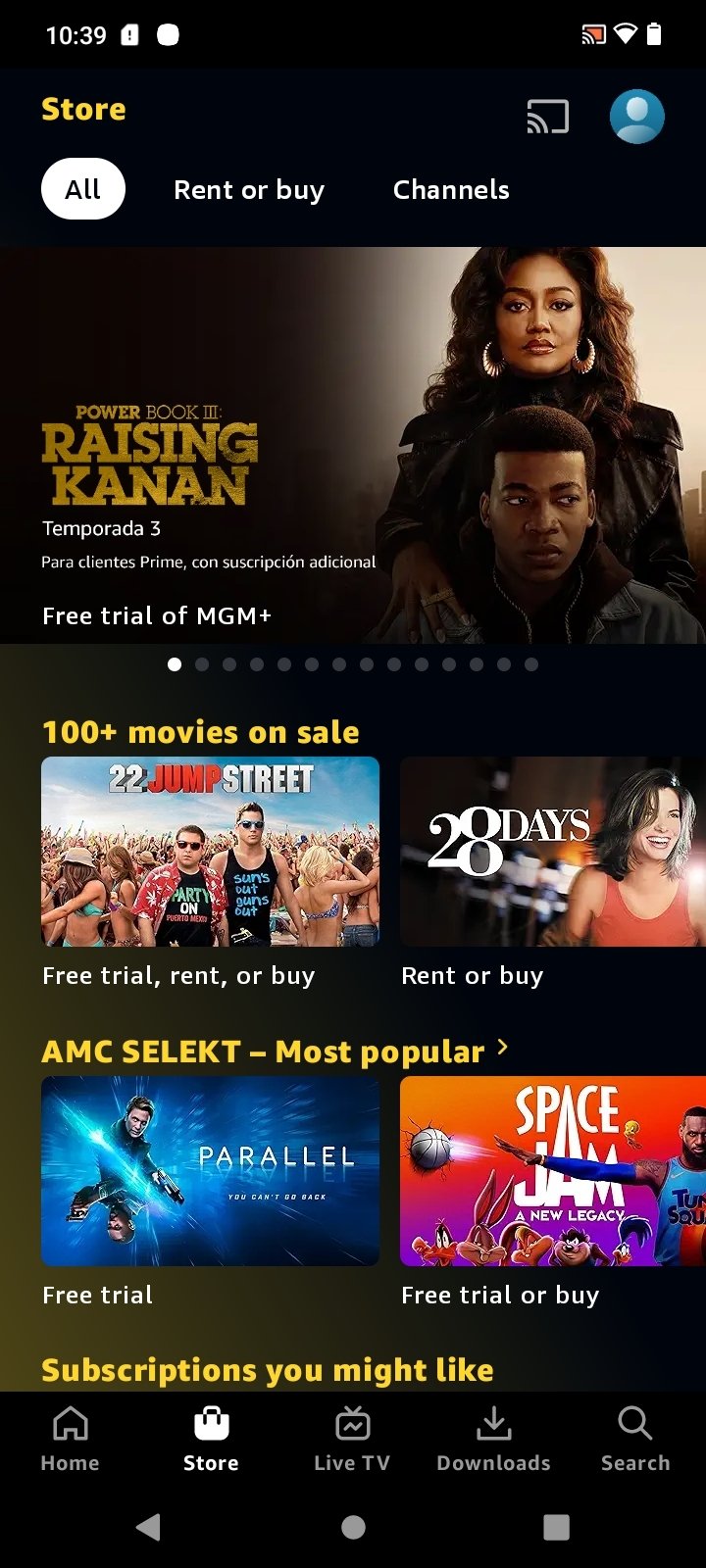
Navigate to the “Store” or “Rentals” tab.
-
Select the movie you wish to view.
-
Click “Rent.” If your 1-Click settings are enabled, the purchase happens instantly.
-
The movie will immediately appear at the top of your home screen under “Recently Added.”
Optimization and Technical Configuration
To ensure the best viewing experience, users should optimize their hardware and network settings. Streaming a rented 4K movie requires significant system resources and a stable network pipeline.
Managing Bandwidth and Data Usage
Streaming video is data-intensive. An HD movie can consume approximately 3GB to 6GB of data per hour, while a 4K UHD stream can exceed 15GB per hour. Within the Prime Video settings, users can adjust “Streaming Quality” to “Good,” “Better,” or “Best.”
-
Good: Prioritizes stability over resolution, useful for congested networks.
-
Best: Unlocks the maximum bitrate allowed by your hardware and connection.
Offline Viewing and Encrypted Downloads
One of the primary advantages of the Prime Video mobile and desktop apps is the ability to download rented content for offline viewing. This is particularly useful for travel or areas with intermittent connectivity.
-
Storage Requirements: Ensure your device has enough local flash storage. A high-definition feature-length film can require 4GB to 8GB of space.
-
DRM and Expiration: Downloaded rentals still obey the 48-hour viewing window. Furthermore, the files are encrypted; you cannot move the file to another media player (like VLC) because the Prime Video app must handle the decryption key during playback.
Audio and Visual Enhancements
For those with home theater setups, checking the technical specifications of a rental is crucial. Many Amazon rentals support Dolby Atmos (spatial audio) and 5.1 Surround Sound. To utilize these, your hardware (TV or Receiver) must support the specific audio passthrough. In the video description, look for icons representing “5.1,” “Atmos,” “HDR,” or “Vision” to confirm the rental supports your hardware’s capabilities.
Security, Privacy, and Account Management
Because Amazon accounts are often linked to credit cards and “1-Click” ordering, securing your digital storefront is a vital technical step to prevent unauthorized rentals.
Implementing a Purchase PIN
To prevent children or unauthorized guests from renting videos, you should establish a Prime Video PIN. This is a five-digit code required before any transaction can be completed.
-
Go to “Prime Video Settings” on the Amazon website.
-
Navigate to the “Parental Controls” tab.
-
Set a “Prime Video PIN” and toggle the “Purchase Restrictions” to “On.”
-
This setting will synchronize across all devices logged into your account.
Troubleshooting DRM and Playback Errors
Occasionally, users encounter errors like “HDMI Connection Not Found” or “HDCP Error.” This is usually related to High-bandwidth Digital Content Protection (HDCP). HDCP is a digital copy protection system that requires a secure handshake between your streaming device and your monitor. If you encounter this, try:
-
Switching to a different HDMI port.
-
Ensuring your HDMI cable is version 2.0 or 2.1 (for 4K content).
-
Restarting the hardware to reset the digital handshake.
Refund Eligibility for Digital Rentals
Amazon’s system is programmed to handle accidental purchases, provided the content has not been streamed. If you rent a movie by mistake, you can usually request an immediate refund through the “Digital Orders” section of your account, as long as the “Play” button has not been pressed. Once the stream begins, the license is considered “consumed,” and refunds become significantly harder to obtain through automated systems.

The Future of Digital Rentals and Cloud Distribution
The technology behind Amazon’s rental service continues to evolve. We are seeing a move toward more robust cloud-based distribution networks that minimize latency and buffering. Amazon uses its vast AWS (Amazon Web Services) infrastructure to cache popular rental titles on edge servers closer to the end-user, ensuring that when you hit “Rent,” the high-bitrate stream starts almost instantaneously.
As display technology moves toward 8K and beyond, the compression algorithms used by Amazon—such as AV1—will become more prevalent. These codecs allow for higher quality at lower bitrates, making high-fidelity rentals accessible even to those with moderate internet speeds.
By understanding the technical nuances of the Prime Video Store, from DRM windows to HDCP requirements, users can ensure they are getting the maximum value and performance from their digital rentals. Whether you are downloading a movie for a long flight or triggering a 4K HDR stream for a home cinema experience, the intersection of software and hardware is what makes modern digital cinema possible.
aViewFromTheCave is a participant in the Amazon Services LLC Associates Program, an affiliate advertising program designed to provide a means for sites to earn advertising fees by advertising and linking to Amazon.com. Amazon, the Amazon logo, AmazonSupply, and the AmazonSupply logo are trademarks of Amazon.com, Inc. or its affiliates. As an Amazon Associate we earn affiliate commissions from qualifying purchases.