
Managing your digital footprint extends beyond personal computers and smartphones, reaching into the very heart of your living room entertainment: your Smart TV. Disconnecting your YouTube account from a Smart TV is a crucial step for maintaining privacy, securing your personal data, and ensuring a tailored viewing experience, especially in shared household environments. While the process is generally straightforward, it can vary slightly depending on your television’s operating system and the YouTube app version. This guide will navigate the technical pathways to efficiently remove your account, troubleshoot common issues, and reinforce broader digital security practices for your connected home.

Understanding Account Management on Smart TV Platforms
Smart TVs, by their very nature, are sophisticated computing devices designed to integrate internet services directly into your home entertainment system. This convenience, however, necessitates a proactive approach to account management, particularly for platforms like YouTube, which are deeply tied to personal Google accounts.
Why Account Removal Matters for Smart TVs
The decision to remove a YouTube account from a Smart TV is driven by several critical factors:
- Privacy and Data Security: Your YouTube account is intrinsically linked to your Google account, which often contains sensitive personal information. Leaving it signed in on a publicly accessible or shared Smart TV could expose your viewing history, search queries, and even payment information if linked for purchases or subscriptions. Removing the account minimizes the risk of unauthorized access to your personal data and ensures your viewing habits remain private.
- Preventing Unintended Content Access: In multi-user households, a logged-in YouTube account means that anyone using the TV has access to that specific profile. This can lead to unwanted content recommendations appearing for others, children accidentally accessing mature content, or viewing history being mixed, diminishing the personalized experience for the primary account holder.
- Optimizing Performance and Experience: While less common, an accumulation of multiple logged-in accounts or profiles within the YouTube app could, in some fringe cases, subtly impact the app’s performance or user interface responsiveness. More importantly, it can clutter the interface and make switching between desired accounts more cumbersome.
- Device Handover or Resale: If you plan to sell, donate, or give away your Smart TV, removing all personal accounts, including YouTube, is absolutely essential. Failing to do so is a significant security oversight, potentially granting the new owner full access to your digital life linked through that device.
Different Operating Systems, Different Approaches
The landscape of Smart TV operating systems is diverse, with major players including Google’s Android TV (now often Google TV), LG’s webOS, Samsung’s Tizen, Roku OS, and Amazon’s Fire TV. While each platform boasts its unique user interface and navigation logic, the core principles for managing accounts within applications remain largely consistent. The differences typically manifest in the exact terminology used for menu options or the placement of icons.
- Android TV / Google TV: Often presents a more direct integration with Google accounts. Account management is frequently accessible through the main profile icon within the YouTube app or sometimes via the TV’s broader system settings under “Accounts.”
- webOS (LG) and Tizen (Samsung): These proprietary operating systems typically isolate app settings more distinctly. You’ll usually find account options within the YouTube app itself, often under a “Settings” or “Profile” menu accessed from the sidebar.
- Roku OS and Fire TV: These platforms function more like dedicated streaming sticks or boxes built into a TV. Account management within the YouTube app will be similar to their standalone device counterparts, usually requiring navigation within the app’s internal settings.
Regardless of the specific OS, the general approach involves accessing the YouTube app, locating its internal settings, and identifying an option related to account management, signing out, or switching users. Understanding this commonality simplifies the process across various devices.
Step-by-Step Guide to Disconnecting YouTube
Removing your YouTube account from a Smart TV can be accomplished primarily through two methods: directly from the television or remotely via a web browser. Both offer distinct advantages and are crucial for comprehensive digital security.
Method 1: Removing Directly from the Smart TV
This is the most common and intuitive method when you have physical access to the television and its remote.
- Launch the YouTube App: Turn on your Smart TV and navigate to the YouTube application from your home screen or app launcher. Select it to open.
- Access Account Settings: Once inside the YouTube app, look for your profile picture or an account icon. This is typically located in the top-left or top-right corner of the screen, or sometimes accessible by pressing the left directional button on your remote to bring up a sidebar menu. Select your profile icon.
- Navigate to Account Management: Within the profile menu, you should see options related to your account. Look for selections such as “Switch account,” “Accounts,” “Sign out,” or “Manage accounts.” The exact wording can vary.
- Select the Account to Remove: If multiple accounts are logged in, you will see a list of them. Select the specific account you wish to remove.
- Confirm Disconnection/Sign Out: After selecting the account, you will usually find an option like “Remove account from this device,” “Sign out,” or “Unlink.” Select this option. The app may ask for a confirmation prompt. Confirm to proceed.
Important Note for Advanced Removal: In some persistent cases, or if you want to ensure a deeper removal, you might need to go into your Smart TV’s overarching system settings:
- Navigate to your TV’s “Settings” menu (usually a gear or cog icon on the home screen).
- Find “Apps,” “Applications,” or “Storage & Apps.”
- Locate the “YouTube” app from the list.
- Select “Clear cache” and then “Clear data.” Be aware that clearing data will reset the app to its factory state, removing all accounts and personalized settings for all users of that app on the TV. This is a more drastic measure but ensures a clean slate. You will need to sign back in with any desired accounts afterwards.
Method 2: Disconnecting from a Web Browser (Remote Sign Out)
This method is invaluable for situations where you don’t have physical access to the Smart TV (e.g., if it’s been lost, stolen, or you’re away from home) or if the direct in-app method proves challenging. Since your YouTube account is a Google account, you can manage its device access through your Google Security settings.
- Access Your Google Account: Open a web browser on a computer or mobile device and go to
myaccount.google.com. - Navigate to Security Settings: On the left-hand navigation pane, click or tap on “Security.”
- Locate “Your Devices”: Scroll down to the “Your devices” section. Here, you’ll see a list of devices where your Google account is currently signed in. Click on “Manage all devices.”
- Identify and Sign Out the Smart TV: Review the list of devices. Your Smart TV might appear as “Android TV,” “Smart TV,” “Living Room TV,” or simply the manufacturer’s name. Click on the specific Smart TV entry.
- Sign Out: You will see details about the device and an option to “Sign out.” Click this option. Confirm the sign-out when prompted. This action will remotely revoke your Google account’s access to YouTube and other Google services on that specific Smart TV.
Consider “Third-party apps with account access”: In some scenarios, your YouTube access on the Smart TV might be linked through a broader permission granted to the TV’s operating system as a “third-party app.” You can check this under myaccount.google.com/security as well, usually under the “Third-party apps with account access” section. If your TV manufacturer or specific OS (e.g., “LG Smart TV” or “Samsung TV”) is listed with access to your Google account, you can revoke that access here. This is less common for just YouTube but important for overall security.
Troubleshooting Common Issues and Best Practices

Even with clear instructions, technology can sometimes present unexpected hurdles. Knowing how to troubleshoot common issues and adopting best practices can streamline your digital security efforts.
What If the Account Isn’t Showing Up?
If you believe your account is still active on the Smart TV but you can’t find the option to remove it or it doesn’t appear in the “Switch account” list:
- Ensure You’re in the Correct Profile: Sometimes, another user’s profile might be active within the YouTube app. Ensure you’ve navigated to the profile selection screen to view all active accounts.
- Clear YouTube App Cache and Data: As mentioned in Method 1, going into your TV’s system settings (not the YouTube app settings) and clearing the YouTube app’s cache and data is a powerful troubleshooting step. This effectively wipes all local data, forcing a fresh start and often requiring all accounts to sign in again.
- Update the YouTube App: An outdated app version might have glitches or display different menu options. Check your Smart TV’s app store or system settings for available YouTube app updates.
- Restart the Smart TV: A simple power cycle (unplugging the TV for 60 seconds and plugging it back in) can resolve temporary software glitches that prevent options from appearing correctly.
Preventing Unwanted Sign-Ins
Proactive measures are always superior to reactive fixes. To prevent unauthorized or accidental YouTube sign-ins on your Smart TV:
- Educate Household Members: Ensure everyone who uses the TV understands the importance of signing out of personal accounts, especially when guests are present or the TV is in a common area.
- Implement Strong Google Account Security: Use a robust, unique password for your Google account. Crucially, enable 2-Step Verification (2SV). This adds an extra layer of security, requiring a second verification step (like a code from your phone) even if someone obtains your password. Smart TV sign-ins via Google often support 2SV, making them significantly more secure.
- Regularly Review Connected Devices: Make it a habit to periodically visit
myaccount.google.com/device-activityand review all devices where your Google account is signed in. Sign out any unfamiliar or unused devices immediately. This digital audit helps you stay aware of your account’s presence across various hardware.
Re-adding an Account if Needed
Should you decide to add your YouTube account back to your Smart TV, the process is typically straightforward:
- Open the YouTube app.
- Select the “Sign in” or “Add account” option.
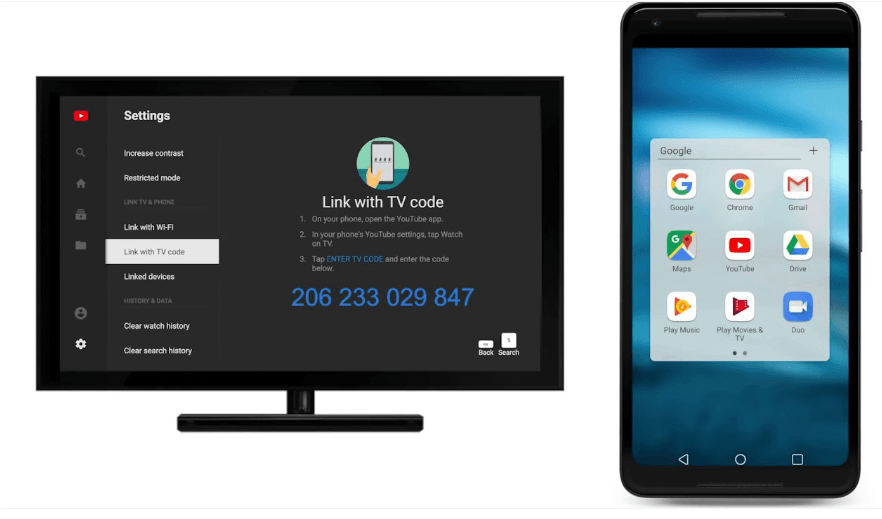
- The app will usually provide a code (e.g.,
youtube.com/activate) or a QR code. - On a separate device (phone or computer), go to the provided URL or scan the QR code.
- Enter the code and log into your Google account.
- Grant permission for the YouTube app on your TV to access your account. Your account will then reappear on the Smart TV.
The Broader Implications of Smart TV Digital Security
While focusing on YouTube account removal, it’s essential to recognize that this action is part of a larger digital security strategy for your entire Smart TV ecosystem. Your television is a connected device, and managing its access points is paramount.
Beyond YouTube: Managing Other App Logins
The principles applied to removing your YouTube account are transferable to virtually every other streaming service and application on your Smart TV. Whether it’s Netflix, Hulu, Disney+, Amazon Prime Video, Spotify, or any other subscription service, each will have its own internal account management section.
- Individual App Settings: Always start by checking the “Settings,” “Profile,” or “Account” sections within each specific app on your Smart TV. Look for “Sign out,” “Manage profiles,” or “Remove account” options.
- Service-Specific Web Portals: Just like Google, most major streaming services offer a web portal where you can manage your account and connected devices. For instance, Netflix allows you to “Manage access & devices” from its account page on a web browser, letting you sign out of individual TVs or all devices remotely. Make use of these robust web-based controls for comprehensive management.
The Importance of Regular Device Audits
A periodic audit of all devices connected to your various online accounts is a critical cybersecurity habit. Many data breaches or unauthorized accesses stem from forgotten logins on old phones, discarded tablets, or Smart TVs that have changed hands.
- Google Account Audit: As discussed,
myaccount.google.com/device-activityis your central hub for Google-linked devices. - Streaming Service Audits: Regularly visit the account management sections of Netflix, Amazon, Apple, Spotify, etc., through their respective websites. Look for options to review active devices, sign out of unknown devices, or revoke access tokens.
- Router & Network Audit: Beyond specific apps, occasionally check your home Wi-Fi router’s connected devices list. While this won’t show logged-in accounts, it provides an overview of all hardware connected to your network, helping you identify unfamiliar devices.
When to Consider a Factory Reset
A factory reset is the most extreme form of digital cleansing for your Smart TV. It should be considered under specific circumstances:
- Selling or Giving Away the TV: This is the most crucial time for a factory reset. It completely wipes all personal data, apps, settings, and accounts, returning the television to its out-of-the-box state. This is the only way to ensure no residual personal information remains on the device.
- Major Security Concerns: If you suspect unauthorized access to your TV’s system, or if you’re experiencing persistent privacy issues that cannot be resolved by individual app sign-outs, a factory reset provides a fresh start.
- Persistent Performance Issues: While less common for account-related problems, a factory reset can also resolve deep-seated software glitches that impact TV performance, slow down apps, or cause crashes.
To perform a factory reset, you’ll typically navigate to your TV’s main “Settings” menu, look for “System,” “General,” “Support,” or “Device Preferences,” and then find “Reset,” “Factory Reset,” or “Restore to Factory Defaults.” Be prepared to go through the initial setup process again after a reset.
By understanding these technical nuances and adopting a proactive stance on digital security, you can ensure your Smart TV remains a secure and personalized entertainment hub, free from unwanted account access or privacy compromises.
aViewFromTheCave is a participant in the Amazon Services LLC Associates Program, an affiliate advertising program designed to provide a means for sites to earn advertising fees by advertising and linking to Amazon.com. Amazon, the Amazon logo, AmazonSupply, and the AmazonSupply logo are trademarks of Amazon.com, Inc. or its affiliates. As an Amazon Associate we earn affiliate commissions from qualifying purchases.